第一章:介紹 / Chapter 1: Introduction
感謝您!/ THANK YOU!
感謝您選擇 Nord Stage 4!作為我們對終極舞台鍵盤的願景實現,我們的全新旗艦樂器搭載了多項獲獎技術——包括支援樣本播放的 Nord Wave 2 合成引擎、廣受好評的 Nord C2D 風琴引擎、強化的鋼琴區段,以及豐富的即時效果——全部整合於一台卓越的演出鍵盤中。
Thank you for choosing the Nord Stage 4! Representing our vision of the ultimate stage keyboard, our new flagship instrument features award-winning technologies such as the Nord Wave 2 Synth engine with Sample playback, the acclaimed Nord C2D Organ engine, an enhanced Piano section and extensive hands-on Effects – all in one exceptional performance keyboard.
主要功能 / FEATURES
Nord Stage 4 具備以下主要功能:
The Nord Stage 4 has the following main features:
-
風琴區:忠實重現三款經典風琴音色:B3(含專用 B3 Bass 模式)、Vox 和 Farfisa。另有兩款管風琴音色,各具獨特音色特性。
Organ section with faithful reproductions of three classic organ models: B3 with a dedicated B3 Bass mode, Vox and Farfisa. There are also two Pipe organ models, each with its own distinct character. -
實體風琴音桿,配備 LED 顯示。
Physical Organ drawbars with LED graphs. -
每個風琴、鋼琴及合成器音層均配備實體音量推桿,配備 LED 顯示。
Physical volume faders with LED graphs for each Organ, Piano and Synth Layer. -
鋼琴區段,含兩個獨立音層:原聲大鋼琴與直立式鋼琴、音叉式與簧片式電鋼琴、Clavinet 與大鍵琴音色、數位類別(包含豐富的鋼琴音層)。Misc 類別提供多種富表現力的槌擊樂器音色,如馬林巴琴和顫音琴。
Piano section with two independent Layers. Acoustic Grand and Upright pianos, tine and reed based Electric pianos, Clavinet and Harpsichord sounds and a Digital category including rich sounding piano layers. The Misc category provides a selection of expressive mallet sounds such as a Marimba and a Vibraphone. -
合成器區段,含三個基於 Nord Wave 2 合成器的獨立音層,配備專用 OLED 顯示器,支援樣本播放、類比波形、多種 FM 演算法、數位波形及超級波形。
Synth section with three independent Layers based on the Nord Wave 2 synthesizer with dedicated OLED display, Sample playback, Analog style waveforms, a variety of FM algorithms, digital Waves and massive Super Waves. -
完整且獨立的效果區段,適用於每個鋼琴和合成器音層,兩個風琴音層共用一個效果區段。
Comprehensive and independent Effects section for each Piano and Synth Layer and a shared Effects section for both Organ Layers. -
風琴、鋼琴及合成器預設音色庫,每個區段均有豐富的音色選擇(含效果)。
Organ, Piano and Synth Preset banks with a large selection of sounds – including effects – for each section. -
無縫切換:切換程式(Program)時延音音符持續發聲。
Seamless transitions: Sustaining notes are maintained when changing programs. -
合成器區段的外部模式,用於控制外部 MIDI 樂器。
Extern mode in the Synth section for controlling external MIDI instruments. -
強大的 Morph 功能,可透過實體控制器同時調整多個參數。
Powerful Morph features for changing multiple parameters using physical controls. -
四個鍵盤分區,可調整分割點交叉漸變,讓音色在分割點之間平滑過渡。
Four keyboard zones with user adjustable split cross-fade allowing sounds to smoothly transition over split points. -
兩個音層場景(Layer Scenes),允許在同一個程式中使用不同的音層配置。
Two Layer Scenes, allowing different Layer configurations within the same Program. -
豐富的踏板功能,支援全新 Nord Triple Pedal 2 和 Nord Sustain Pedal 2。
Extensive pedal functionality including support for the new Nord Triple Pedal 2 and Nord Sustain Pedal 2. -
Nord Stage 4 HA88 和 HA73 型號配備全配重三段感應琴鍵。Nord Stage 4 Compact 配備 73 鍵半配重三段感應「瀑布式」琴鍵(E-E)。
Nord Stage 4 HA88 and HA73 models with fully weighted triple sensor keybeds. Nord Stage 4 Compact with a 73-note semi weighted triple sensor "waterfall" keybed (E-E).
Nord 官方網站 / NORD ONLINE
在 nordkeyboards.com 網站上,您可以找到:
On the nordkeyboards.com website you will find:
- Nord Stage 4 及其他 Nord 樂器的相關資訊 / Information about the Nord Stage 4 and other Nord instruments
- 最新作業系統下載 / Latest Operating System for download
- 免費軟體:Nord Sound Manager、Nord Sample Editor 4 及驅動程式 / Free software: Nord Sound Manager, Nord Sample Editor 4 and drivers
- Nord Piano Library 免費音色下載 / Nord Piano Library sounds for free download
- Nord Sample Library 免費音色下載 / Nord Sample Library sounds for free download
- Nord World:Nord 相關新聞、演出和影片 / Nord World: Nord releated news stories, sessions and videos
- 使用手冊下載 / User Manuals for download
- 教學影片:nordkeyboards.com/tutorials / Tutorials can be found at nordkeyboards.com/tutorials
在 Facebook、Instagram、X(Twitter)和 YouTube 上關注 Nord Keyboards,歡迎使用我們的官方標籤 #iseenord 標記您的內容。
Follow Nord Keyboards on Facebook, Instagram, X (Twitter) and YouTube. Feel free to tag your content with our official hashtag #iseenord.
關於使用手冊 / ABOUT THE USER MANUAL
本手冊主要作為參考手冊使用。在許多情況下,您也會獲得如何在音樂情境中實際運用各種功能的技巧。
The manual is arranged mainly as a reference manual. In many cases you'll also get tips on how to practically use the different features in a musical context.
以 PDF 格式閱讀手冊 / READING THE MANUAL IN PDF FORMAT
本手冊提供數位 PDF 版本,可從我們網站的 Nord Stage 4 專區下載。
This manual is available as a digital PDF file which can be downloaded from the Nord Stage 4 section on our website.
免費音色 / FREE SOUNDS
由於 Nord Stage 4 採用開放系統設計,每一個鋼琴和樣本音色都可以替換為來自持續擴充的 Nord Piano Library 和 Nord Sample Library 的音色。這些免費音色庫可在 www.nordkeyboards.com 找到,同時也提供免費的 Nord Sound Manager 應用程式,用於下載和管理 Nord Stage 4 的內容。
Since the Nord Stage 4 is designed as an open system, each and every piano and sample in the Nord Stage 4 can be replaced with sounds from the continuously expanding Nord Piano Library and the Nord Sample Library. These free sound libraries are found at www.nordkeyboards.com where you will also find the free Nord Sound Manager application which is used for downloading and organizing content on the Nord Stage 4.
自訂樣本 / CUSTOM SAMPLES
使用 Nord Sample Editor 4 可以快速輕鬆地為 Nord Stage 4 建立自訂樣本樂器。無論是建立完整對應的樂器、簡單的音效,還是將取樣的歌曲前奏指定到單一琴鍵,Nord Sample Editor 4 與 Nord Stage 4 結合後開創了無限可能。
Use the Nord Sample Editor 4 for quick and easy creation of custom sample instruments for the Nord Stage 4. Whether creating a fully mapped instrument, a simple FX sound or assigning a sampled song intro to a single key, the Nord Sample Editor 4 opens up many possibilities together with the Nord Stage 4.
Nord Sample Editor 4 可從 www.nordkeyboards.com 的軟體區段下載。
The Nord Sample Editor 4 can be downloaded from the Software section at www.nordkeyboards.com.
恢復原廠預設值 / RESTORING THE FACTORY PRESETS
原廠程式、預設值、樣本和鋼琴音色可作為個別的 Nord Sound Manager 備份檔從我們的網站下載。另外也提供整台樂器及其原廠內容的完整備份,以便在需要時將其恢復至原始狀態。
The factory programs, presets, samples and pianos are available as individual Nord Sound Manager backup files for download from our website. There is also a complete backup of the entire instrument and its factory content, in case it needs to be restored to its original state.
作業系統更新 / OS UPDATES
Nord Stage 4 的最新作業系統(OS)版本始終可從我們的網站下載。網站上也有更新歷程頁面,說明每個新版本的更新內容。請不時查看我們的網站,確保您的設備安裝了最新版本。
The latest OS (Operating System) version for the Nord Stage 4 is always available for download from our website. There is also an Update History page on the website, which specifies what has been updated with each new version. Please check our website from time to time, to make sure you have the latest version in your unit.
免責聲明 / DISCLAIMER
本手冊中提及的任何商標和品牌名稱均為其各自所有者的財產,與 Clavia 無任何關聯。提及這些商標和品牌名稱僅為描述 Nord Stage 4 所重現的某些音色特性。
Any trademarks and brand names mentioned in this manual are the property of their respective owners and are not affiliated or associated with Clavia. These trademarks and brand names are only mentioned to describe certain sound qualities reproduced by the Nord Stage 4.
第一章:介紹 / Chapter 1: Introduction
感謝您!/ THANK YOU!
感謝您選擇 Nord Stage 4!作為我們對終極舞台鍵盤的願景實現,我們的全新旗艦樂器搭載了多項獲獎技術——包括支援樣本播放的 Nord Wave 2 合成引擎、廣受好評的 Nord C2D 風琴引擎、強化的鋼琴區段,以及豐富的即時效果——全部整合於一台卓越的演出鍵盤中。
Thank you for choosing the Nord Stage 4! Representing our vision of the ultimate stage keyboard, our new flagship instrument features award-winning technologies such as the Nord Wave 2 Synth engine with Sample playback, the acclaimed Nord C2D Organ engine, an enhanced Piano section and extensive hands-on Effects – all in one exceptional performance keyboard.
主要功能 / FEATURES
Nord Stage 4 具備以下主要功能:
The Nord Stage 4 has the following main features:
-
風琴區:忠實重現三款經典風琴音色:B3(含專用 B3 Bass 模式)、Vox 和 Farfisa。另有兩款管風琴音色,各具獨特音色特性。
Organ section with faithful reproductions of three classic organ models: B3 with a dedicated B3 Bass mode, Vox and Farfisa. There are also two Pipe organ models, each with its own distinct character. -
實體風琴音桿,配備 LED 顯示。
Physical Organ drawbars with LED graphs. -
每個風琴、鋼琴及合成器音層均配備實體音量推桿,配備 LED 顯示。
Physical volume faders with LED graphs for each Organ, Piano and Synth Layer. -
鋼琴區段,含兩個獨立音層:原聲大鋼琴與直立式鋼琴、音叉式與簧片式電鋼琴、Clavinet 與大鍵琴音色、數位類別(包含豐富的鋼琴音層)。Misc 類別提供多種富表現力的槌擊樂器音色,如馬林巴琴和顫音琴。
Piano section with two independent Layers. Acoustic Grand and Upright pianos, tine and reed based Electric pianos, Clavinet and Harpsichord sounds and a Digital category including rich sounding piano layers. The Misc category provides a selection of expressive mallet sounds such as a Marimba and a Vibraphone. -
合成器區段,含三個基於 Nord Wave 2 合成器的獨立音層,配備專用 OLED 顯示器,支援樣本播放、類比波形、多種 FM 演算法、數位波形及超級波形。
Synth section with three independent Layers based on the Nord Wave 2 synthesizer with dedicated OLED display, Sample playback, Analog style waveforms, a variety of FM algorithms, digital Waves and massive Super Waves. -
完整且獨立的效果區段,適用於每個鋼琴和合成器音層,兩個風琴音層共用一個效果區段。
Comprehensive and independent Effects section for each Piano and Synth Layer and a shared Effects section for both Organ Layers. -
風琴、鋼琴及合成器預設音色庫,每個區段均有豐富的音色選擇(含效果)。
Organ, Piano and Synth Preset banks with a large selection of sounds – including effects – for each section. -
無縫切換:切換程式(Program)時延音音符持續發聲。
Seamless transitions: Sustaining notes are maintained when changing programs. -
合成器區段的外部模式,用於控制外部 MIDI 樂器。
Extern mode in the Synth section for controlling external MIDI instruments. -
強大的 Morph 功能,可透過實體控制器同時調整多個參數。
Powerful Morph features for changing multiple parameters using physical controls. -
四個鍵盤分區,可調整分割點交叉漸變,讓音色在分割點之間平滑過渡。
Four keyboard zones with user adjustable split cross-fade allowing sounds to smoothly transition over split points. -
兩個音層場景(Layer Scenes),允許在同一個程式中使用不同的音層配置。
Two Layer Scenes, allowing different Layer configurations within the same Program. -
豐富的踏板功能,支援全新 Nord Triple Pedal 2 和 Nord Sustain Pedal 2。
Extensive pedal functionality including support for the new Nord Triple Pedal 2 and Nord Sustain Pedal 2. -
Nord Stage 4 HA88 和 HA73 型號配備全配重三段感應琴鍵。Nord Stage 4 Compact 配備 73 鍵半配重三段感應「瀑布式」琴鍵(E-E)。
Nord Stage 4 HA88 and HA73 models with fully weighted triple sensor keybeds. Nord Stage 4 Compact with a 73-note semi weighted triple sensor "waterfall" keybed (E-E).
Nord 官方網站 / NORD ONLINE
在 nordkeyboards.com 網站上,您可以找到:
On the nordkeyboards.com website you will find:
- Nord Stage 4 及其他 Nord 樂器的相關資訊 / Information about the Nord Stage 4 and other Nord instruments
- 最新作業系統下載 / Latest Operating System for download
- 免費軟體:Nord Sound Manager、Nord Sample Editor 4 及驅動程式 / Free software: Nord Sound Manager, Nord Sample Editor 4 and drivers
- Nord Piano Library 免費音色下載 / Nord Piano Library sounds for free download
- Nord Sample Library 免費音色下載 / Nord Sample Library sounds for free download
- Nord World:Nord 相關新聞、演出和影片 / Nord World: Nord releated news stories, sessions and videos
- 使用手冊下載 / User Manuals for download
- 教學影片:nordkeyboards.com/tutorials / Tutorials can be found at nordkeyboards.com/tutorials
在 Facebook、Instagram、X(Twitter)和 YouTube 上關注 Nord Keyboards,歡迎使用我們的官方標籤 #iseenord 標記您的內容。
Follow Nord Keyboards on Facebook, Instagram, X (Twitter) and YouTube. Feel free to tag your content with our official hashtag #iseenord.
關於使用手冊 / ABOUT THE USER MANUAL
本手冊主要作為參考手冊使用。在許多情況下,您也會獲得如何在音樂情境中實際運用各種功能的技巧。
The manual is arranged mainly as a reference manual. In many cases you'll also get tips on how to practically use the different features in a musical context.
以 PDF 格式閱讀手冊 / READING THE MANUAL IN PDF FORMAT
本手冊提供數位 PDF 版本,可從我們網站的 Nord Stage 4 專區下載。
This manual is available as a digital PDF file which can be downloaded from the Nord Stage 4 section on our website.
免費音色 / FREE SOUNDS
由於 Nord Stage 4 採用開放系統設計,每一個鋼琴和樣本音色都可以替換為來自持續擴充的 Nord Piano Library 和 Nord Sample Library 的音色。這些免費音色庫可在 www.nordkeyboards.com 找到,同時也提供免費的 Nord Sound Manager 應用程式,用於下載和管理 Nord Stage 4 的內容。
Since the Nord Stage 4 is designed as an open system, each and every piano and sample in the Nord Stage 4 can be replaced with sounds from the continuously expanding Nord Piano Library and the Nord Sample Library. These free sound libraries are found at www.nordkeyboards.com where you will also find the free Nord Sound Manager application which is used for downloading and organizing content on the Nord Stage 4.
自訂樣本 / CUSTOM SAMPLES
使用 Nord Sample Editor 4 可以快速輕鬆地為 Nord Stage 4 建立自訂樣本樂器。無論是建立完整對應的樂器、簡單的音效,還是將取樣的歌曲前奏指定到單一琴鍵,Nord Sample Editor 4 與 Nord Stage 4 結合後開創了無限可能。
Use the Nord Sample Editor 4 for quick and easy creation of custom sample instruments for the Nord Stage 4. Whether creating a fully mapped instrument, a simple FX sound or assigning a sampled song intro to a single key, the Nord Sample Editor 4 opens up many possibilities together with the Nord Stage 4.
Nord Sample Editor 4 可從 www.nordkeyboards.com 的軟體區段下載。
The Nord Sample Editor 4 can be downloaded from the Software section at www.nordkeyboards.com.
恢復原廠預設值 / RESTORING THE FACTORY PRESETS
原廠程式、預設值、樣本和鋼琴音色可作為個別的 Nord Sound Manager 備份檔從我們的網站下載。另外也提供整台樂器及其原廠內容的完整備份,以便在需要時將其恢復至原始狀態。
The factory programs, presets, samples and pianos are available as individual Nord Sound Manager backup files for download from our website. There is also a complete backup of the entire instrument and its factory content, in case it needs to be restored to its original state.
作業系統更新 / OS UPDATES
Nord Stage 4 的最新作業系統(OS)版本始終可從我們的網站下載。網站上也有更新歷程頁面,說明每個新版本的更新內容。請不時查看我們的網站,確保您的設備安裝了最新版本。
The latest OS (Operating System) version for the Nord Stage 4 is always available for download from our website. There is also an Update History page on the website, which specifies what has been updated with each new version. Please check our website from time to time, to make sure you have the latest version in your unit.
免責聲明 / DISCLAIMER
本手冊中提及的任何商標和品牌名稱均為其各自所有者的財產,與 Clavia 無任何關聯。提及這些商標和品牌名稱僅為描述 Nord Stage 4 所重現的某些音色特性。
Any trademarks and brand names mentioned in this manual are the property of their respective owners and are not affiliated or associated with Clavia. These trademarks and brand names are only mentioned to describe certain sound qualities reproduced by the Nord Stage 4.
第二章:概覽 / Chapter 2: Overview
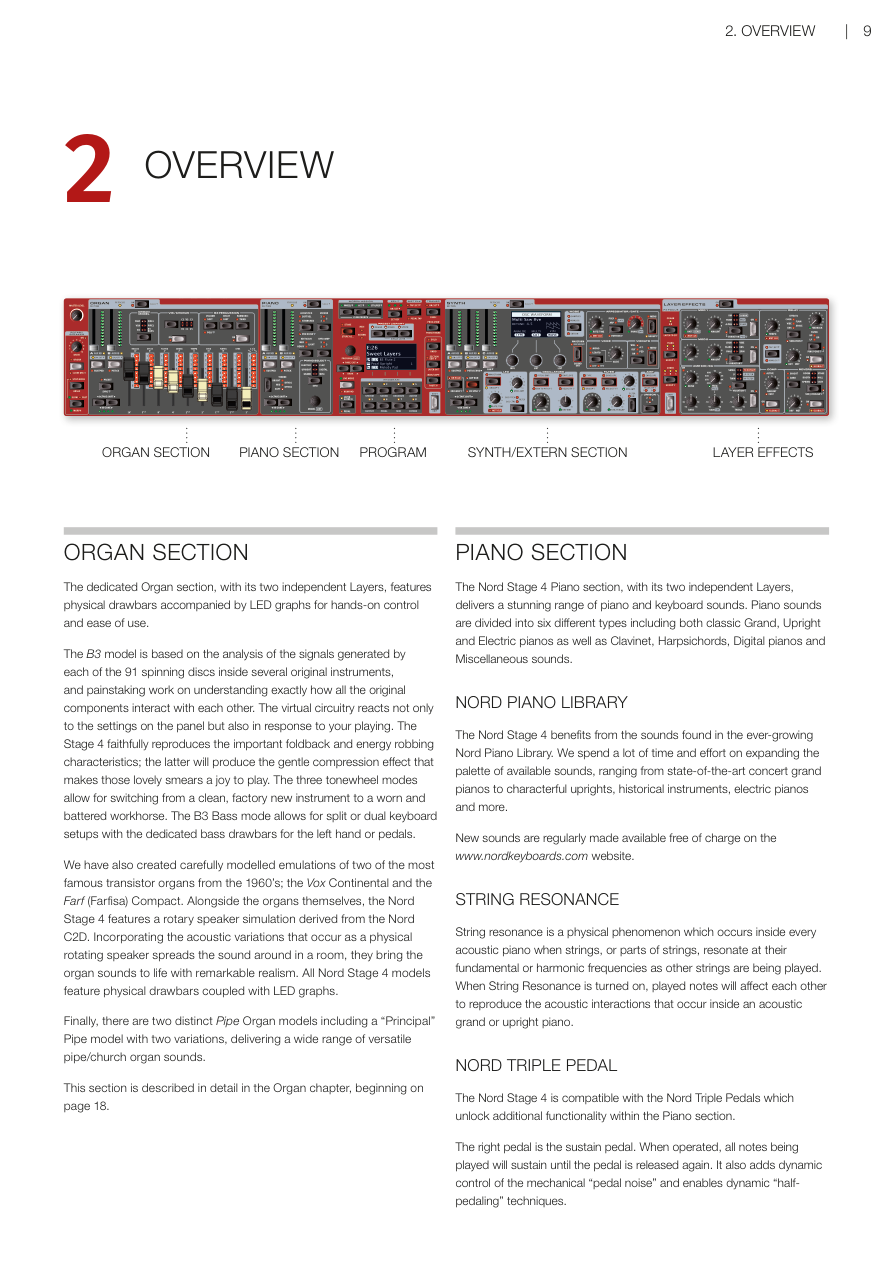

風琴區 / ORGAN SECTION
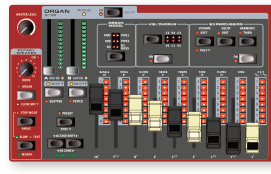 專屬的風琴區配備兩個獨立音層,擁有實體音桿與 LED 顯示,提供直覺的手動控制與便利的操作體驗。
The dedicated Organ section, with its two independent Layers, features physical drawbars accompanied by LED graphs for hands-on control and ease of use.
B3 電風琴模組基於對多台原版 Hammond B3 樂器內部 91 個旋轉碟片所產生訊號的分析,以及對所有原始元件相互作用方式的深入研究。虛擬電路不僅對面板設定有所反應,也會根據您的演奏方式做出回應。Stage 4 忠實重現了重要的折返(foldback)和能量消耗特性;後者將產生溫和的壓縮效果,使那些美妙的滑音演奏起來令人愉悅。三種音輪模式可讓您在全新的樂器音色與飽經風霜的老舊音色之間切換。B3 Bass 模式支援分割或雙鍵盤設置,配有專用低音音桿供左手或腳踏板使用。
The B3 model is based on the analysis of the signals generated by each of the 91 spinning discs inside several original instruments, and painstaking work on understanding exactly how all the original components interact with each other. The virtual circuitry reacts not only to the settings on the panel but also in response to your playing. The Stage 4 faithfully reproduces the important foldback and energy robbing characteristics; the latter will produce the gentle compression effect that makes those lovely smears a joy to play. The three tonewheel modes allow for switching from a clean, factory new instrument to a worn and battered workhorse. The B3 Bass mode allows for split or dual keyboard setups with the dedicated bass drawbars for the left hand or pedals.
我們也精心建模了兩款 1960 年代最著名的電晶體風琴:Vox Continental 和 Farf(Farfisa)Compact。除了風琴本身,Nord Stage 4 還配備了源自 Nord C2D 的旋轉喇叭模擬。結合物理旋轉揚聲器在房間中傳播聲音時產生的聲學變化,這些效果以卓越的真實感賦予風琴音色生命力。所有 Nord Stage 4 型號均配備實體音桿與 LED 顯示。
We have also created carefully modelled emulations of two of the most famous transistor organs from the 1960's; the Vox Continental and the Farf (Farfisa) Compact. Alongside the organs themselves, the Nord Stage 4 features a rotary speaker simulation derived from the Nord C2D. Incorporating the acoustic variations that occur as a physical rotating speaker spreads the sound around in a room, they bring the organ sounds to life with remarkable realism. All Nord Stage 4 models feature physical drawbars coupled with LED graphs.
最後,還有兩種獨特的管風琴型號,包括一款帶有兩種變體的「主要管」(Principal Pipe)型號,提供多種靈活的管風琴/教堂風琴音色。
Finally, there are two distinct Pipe Organ models including a "Principal" Pipe model with two variations, delivering a wide range of versatile pipe/church organ sounds.
本區段的詳細說明請見第 18 頁起的風琴章節。
This section is described in detail in the Organ chapter, beginning on page 18.
鋼琴區段 / PIANO SECTION
Nord Stage 4 的鋼琴區段配備兩個獨立音層,提供令人驚嘆的鋼琴與鍵盤音色。鋼琴音色分為六種類型,包括經典的原聲大鋼琴、直立式鋼琴、電鋼琴,以及 Clavinet、大鍵琴、數位鋼琴和其他雜項音色。
The Nord Stage 4 Piano section, with its two independent Layers, delivers a stunning range of piano and keyboard sounds. Piano sounds are divided into six different types including both classic Grand, Upright and Electric pianos as well as Clavinet, Harpsichords, Digital pianos and Miscellaneous sounds.
Nord 鋼琴音色庫 / NORD PIANO LIBRARY
Nord Stage 4 受益於持續擴充的 Nord Piano Library 中的豐富音色。我們投入大量時間和精力擴展可用音色的範疇,涵蓋頂尖的演奏廳大鋼琴、個性十足的直立式鋼琴、歷史樂器、電鋼琴等。
The Nord Stage 4 benefits from the sounds found in the ever-growing Nord Piano Library. We spend a lot of time and effort on expanding the palette of available sounds, ranging from state-of-the-art concert grand pianos to characterful uprights, historical instruments, electric pianos and more.
全新音色定期在 www.nordkeyboards.com 網站上免費提供。
New sounds are regularly made available free of charge on the www.nordkeyboards.com website.
琴弦共鳴 / STRING RESONANCE
琴弦共鳴是每台原聲鋼琴內部都會發生的物理現象——當其他琴弦被彈奏時,部分或全部琴弦會以其基頻或泛音頻率產生共鳴。開啟琴弦共鳴功能後,彈奏的音符會互相影響,重現原聲大鋼琴或直立式鋼琴內部的聲學互動效果。
String resonance is a physical phenomenon which occurs inside every acoustic piano when strings, or parts of strings, resonate at their fundamental or harmonic frequencies as other strings are being played. When String Resonance is turned on, played notes will affect each other to reproduce the acoustic interactions that occur inside an acoustic grand or upright piano.
Nord 三踏板 / NORD TRIPLE PEDAL
Nord Stage 4 相容於 Nord Triple Pedal,可在鋼琴區段中解鎖額外功能。
The Nord Stage 4 is compatible with the Nord Triple Pedals which unlock additional functionality within the Piano section.
右側踏板是延音踏板。踩下時,所有正在演奏的音符將持續發聲,直到踏板鬆開。它還提供對機械「踏板噪音」的動態控制,並支援動態「半踏」技術。
The right pedal is the sustain pedal. When operated, all notes being played will sustain until the pedal is released again. It also adds dynamic control of the mechanical "pedal noise" and enables dynamic "half-pedaling" techniques.
左側踏板是弱音踏板,又稱為 Una Corda。踩下時,所有音符的音量會略微降低,並帶有更柔和、更內斂的音色質感。
The left pedal is the soft pedal, also known as the Una Corda. When applied, all notes will be slightly lower in volume and have a softer, more subdued, tone quality.
中間是持續踏板(Sostenuto)。踩下踏板時所持有的音符將「抬起制音器」繼續延音,而之後彈奏的音符則不會被延音。
In the middle is the Sostenuto pedal. Notes that are held when the pedal is pressed down will "have their dampers raised" and keep sustaining, while subsequent notes will not be sustained.
踏板噪音 / PEDAL NOISE
在原聲大鋼琴或直立式鋼琴上踩下延音踏板時,樂器踏板機構的機械元件會產生各種聲音。Nord Stage 4 重現了許多這些自然聲音。踩下延音踏板將制音器從琴弦上抬起時,可以聽到美麗的嗡嗡聲。
When the sustain pedal is operated on an acoustic grand or upright piano, many different sounds are produced by the mechanical components of that instrument's pedal mechanism. Your Nord Stage 4 reproduces many of these natural sounds. When the sustain pedal is pressed down, lifting the dampers from the strings, a beautiful sizzle can be heard.
當踏板放開時,制音器回到琴弦上,產生一種不同的、柔和的聲音。
When the pedal is released, the dampers are returned to the strings, which creates a different, muted type of sound.
鋼琴與 Clav 音色 / PIANO AND CLAV TIMBRE
快速改變當前鋼琴音色特性的方法是使用鋼琴和 Clav 音色設定。Clav 設定旨在模擬原始樂器的音色,而鋼琴設定則專為鋼琴演奏者設計——可立即讓音色變得更柔和、更明亮或更突出中頻,視歌曲需求而定。
A quick method for altering the character of the current piano sound is to use the Piano and Clav Timbre settings. The Clav settings are designed to emulate those of the original instrument, while the Piano settings are designed specifically with piano players in mind - instantly making a sound softer, brighter or more mid-focused, depending on what the song calls for.
動態壓縮 / DYNAMIC COMPRESSION
動態壓縮功能可提高輕觸時的音量,確保在所有情況下——即使在演奏非常動態的樂句時——都能保持均勻且清晰的演奏效果。
The Dynamic Compression feature raises the sound level for softer strokes, enabling an even and audible performance at all times, even with very dynamic playing.
本區段的進一步說明請見第 23 頁起的鋼琴章節。
This section is further described in the Piano chapter, beginning on page 23.
程式區段 / PROGRAM SECTION
Nord Stage 4 上的一個程式(Program——用來儲存整台樂器所有設定的記憶單位)包含所有音層及其效果的音源引擎設定。樂器中央區域——程式區段——是導覽和儲存程式、以及存取各種演奏功能和設定選單的地方。此外,風琴、鋼琴和合成器預設音色庫也在這裡,可將包含效果的完整預設值載入程式的任何音層或區段。
A program on the Nord Stage 4 contains settings for the sound engines of all Layers and their effects. The center area of the instrument - the Program section - is where programs are navigated and stored, and various performance features and settings menus are accessed. Additionally, this is also where the Organ, Piano and Synth Preset banks are found, allowing for complete presets – including effects – to be loaded into any Layer or Section of your program.
本區段的詳細說明請見第 37 頁起的程式章節。
This section is described in detail in the Program chapter, beginning on page 37.
合成器區段 / SYNTH SECTION
合成器區段包含三個獨立音層,基於廣受好評的 Nord Wave 2。除了類比風格波形、數位波形和 FM 演算法外,Stage 4 合成器還可用於各種基於樣本的音色。它還配備了超級波形(Super Wave)類別,適合那些其他方式無法創造的龐大多振盪器音色。大量的振盪器類型支援多種單或雙振盪器配置、波形整形、頻率調製等功能。
The Synth section contains three independent Layers and is based on the acclaimed Nord Wave 2. In addition to Analog style waveforms and digital Waves and FM algorithms, the Stage 4 Synth can be used for all sorts of Sample based sounds. It also features a Super (Super Wave) category suitable for those massive, multi-oscillator, sounds that can not be created by other means. The large number of oscillator types allows for a multitude of single or dual oscillator setups, waveshaping, frequency modulation and more.
合成器區段專用的 OLED 顯示器協助管理濾波器、包絡線及其他合成器設定,並提供波形或樣本選擇的良好概覽。
The OLED display dedicated to the Synth Section assists with Filter, Envelope and other Synth settings, and provides excellent overview of Waveform or Sample selection.
Nord Sample Library 4 為 Stage 4 用戶提供大量免費的世界級音色庫,包括著名的復古 Mellotron 和 Chamberlin 樣本。自訂用戶樣本也可載入樂器,開啟全新的創意音效世界。
The Nord Sample Library 4 gives Stage 4 owners access to a huge free library of world-class sounds, including the famous vintage Mellotron and Chamberlin samples. Custom user samples can also be loaded into the instrument, opening up a whole new creative world of sound.
除了多功能的 12 和 24 dB 低通濾波器以及 12 dB 高通和帶通濾波器外,Stage 4 還提供模擬電晶體低通濾波器和強大的組合低通/高通濾波器。
In addition to the versatile 12 and 24 dB low-pass filters and the 12 dB high- and band-pass filters, the Stage 4 provides an emulated transistor low pass filter and a powerful combined low-pass/high-pass filter.
進階琶音器配備 Poly、Gate 和 Pattern 模式,可在多個音層上實現各種節奏編程。
The advanced Arpeggiator, with its Poly, Gate and Pattern modes makes possible all kinds of rhythmic programming across multiple Layers.
配備專用的 Amp、Filter 和 Oscillator 包絡線、LFO 和 Unison 控制,Stage 4 的合成器功能強大,在舞台音色方面提供幾乎無限的可能性。
With dedicated Amp, Filter and Oscillator envelopes, an LFO and Unison control, the Stage 4's synth capabilities are powerful, and provide virtually limitless possibilites in terms of stunning on-stage sounds.
本區段的深入說明請見第 27 頁起的合成器章節。
There is an in-depth description of this section in the Synth chapter, beginning on page 27.
外部 MIDI / EXTERNAL MIDI
Nord Stage 4 作為 MIDI 控制器具有強大的功能,尤其是在使用合成器區段的外部模式(Extern mode)功能時。外部模式可以像內部音源引擎一樣指定到鍵盤分區,專門用於通過 MIDI 控制外部設備——電腦、合成器模組等。
The Nord Stage 4 delivers powerful capabilities as a MIDI controller, especially when using the Extern mode feature of the Synth Section. Extern can be assigned to keyboard zones just like the internal sound engines, but specializes in controlling external gear – computers, synth modules etc. – over MIDI.
外部模式的詳細說明請見第 45 頁起的外部章節。
The Extern mode is described in detail in the Extern chapter, beginning on page 45.
音層效果區段 / LAYER EFFECTS SECTION
每個鋼琴和合成器音層以及風琴區都可以獨立使用各種經典效果:
A wide array of classic effects are independently available for each Piano and Synth Layer and for the Organ Section:
Mod 1 和 Mod 2 單元提供所有基本的調製效果,如顫音(Tremolo)、合唱(Chorus)和相位器(Phaser),這些效果以傳奇的效果踏板和效果單元為原型。每種效果都有變體設定,使可用音色數量比以往更多。
The Mod 1 and 2 units provide all essential modulation effects such as Tremolo, Chorus and Phaser, modeled after legendary stomp boxes and effects units. With a Variation setting for each effect the number of available sounds is now greater than ever.
延遲效果可以從極具復古感到現代感和氛圍感——具有類比模式以及專用的帶有變體和濾波器的反饋效果。
The Delay effect can go anywhere from distinctly vintage to modern and atmospheric sounding - with its Analog mode and dedicated feedback Effects with Variations and Filters.
Amp Sim/EQ 區段提供帶有變體的經典擴大機模擬、多功能均衡器和強力的共鳴濾波器。強勁的壓縮器配備額外的「快速模式」,有助於控制您的演奏動態。最後,豐富的殘響——也可每個音層獨立使用——提供多種空間模擬,從小型 Booth 型號到寬廣的 Cathedral,以及 Spring 彈簧殘響。殘響變體和大型空間類型特有的 Chorale 模式,提供豐富的實驗空間。
Classic amplifier simulations with Variations, a versatile EQ and powerful, resonant filters are available in the Amp Sim/EQ section. The punchy Compressor with an extra tight "fast mode" helps keep your performance in control. Finally, the lush Reverb – also independently available per Layer – provides an array of room simulations, from the small Booth model to an expansive Cathedral, as well as a Spring reverb. The Reverb Variations, and the characterful Chorale mode for larger room types, provide plenty of room for experimentation.
許多效果參數可以通過「Morph」控制,這意味著它們可以由調製輪、踏板或後觸鍵(aftertouch)來控制。這為音源引擎及其效果開啟了各種創意的即時互動可能性。
Many of the effect parameters can be "morph" controlled, which means they can be addressed by the modulation wheel, pedals or aftertouch. This opens up for all kinds of creative, real-time interaction with both the sound engines and their effects.
本區段——以及旋轉喇叭——的詳細說明請見第 47 頁起的音層效果章節。
This section – and the Rotary Speaker – is described in detail in the Layer Effects chapter, beginning on page 47.
第三章:快速入門 / Chapter 3: Getting Started
讓我們花幾分鐘熟悉 Nord Stage 4 最基本的功能。本章將以循序漸進的方式描述最常見的操作情境和任務,希望作為進一步編輯和音色創作的良好起點。
Let's spend a few minutes getting acquainted with the most fundamental features of the Nord Stage 4. In this chapter the most common scenarios and tasks will be described in a step-wise fashion, hopefully serving as a good starting point for further editing and sound creation.
連接設備 / HOOKING IT UP
-
將 Nord Stage 4 電源線連接至本機和電源插座,連接延音踏板以及耳機或音響系統。
Connect the Nord Stage 4 power cord to the unit and a mains power supply, connect a sustain pedal and a set of headphones or a sound system. -
請先開啟 Nord Stage 4,再開啟音響系統。請注意輸出音量。
Make sure to turn on the Nord Stage 4 first, before the sound system. Please be careful with the output volume.
有關 Stage 4 所有連接埠的詳細資訊,請參閱第 64 頁的連接埠說明。
For more information on all the connections on the Stage 4, have a look in the Connections section on page 64.
程式 / PROGRAMS
程式區位於面板中央,中間有一個 OLED 顯示器。Nord Stage 4 面板上每個參數的完整設定都儲存在程式記憶體中,共可容納 512 個程式。
The Program area is located at the center of the panel and has an OLED display in the middle. Complete settings of every parameter on the panel are stored in the program memory of the Nord Stage 4, with room for 512 programs.
程式分為 8 個資料庫,標記為 A-H。所有程式都可以自由編輯和替換。
Programs are organized into 8 banks, labeled A-H. All programs can be edited and replaced freely as desired.
提示:完整的原廠程式組可在 www.nordkeyboards.com 網站上取得,這意味著程式記憶體始終可以恢復到原始狀態。
A complete set of the factory programs is available on the www.nordkeyboards.com web site. This means that the program memory can always be restored to its original state.
選擇程式 / SELECT A PROGRAM
- 按下顯示器下方的任意八個程式按鈕即可選擇程式。PAGE ◄/► 按鈕用於導覽程式頁面——每頁為一組 8 個程式。Nord Stage 4 上的每個程式資料庫最多可包含 64 個程式,分為 8 個程式頁。
Programs are selected by pressing any of the eight PROGRAM buttons, located below the display. The PAGE ◄/► buttons are used to navigate program pages – a page being a group of 8 programs. A Program bank on the Nord Stage 4 can contain up to 64 programs divided into 8 program pages.
提示:部分原廠程式標有 Whl 或 AT,表示調製輪或後觸鍵在音色中有積極作用,邀請您使用這些演奏功能。
Some of the factory programs are labeled with Whl or AT. This indicates that the Mod Wheel or Aftertouch has an active part in the sound and invites you to use these performance features.
- 也可以通過轉動程式旋鈕來導覽程式。
Programs can also be navigated by turning the PROGRAM dial.
面板控制器 / PANEL CONTROLS
旋鈕與編碼器 / DIALS AND KNOBS
Nord Stage 4 上的旋鈕是沒有固定起點或終點的無限旋鈕,用於以步進方式導覽參數和設定。在本手冊中,旋鈕有時也稱為編碼器。
The dials on the Nord Stage 4 are knobs without fixed start or stop positions, used for navigating parameters and settings in a step-wise fashion. In this manual dials are sometimes also referred to as encoders.
提示:按住程式區中的 MONITOR 按鈕,同時轉動旋鈕,可在顯示器中查看參數的已儲存設定,而不會改變它。
Hold the MONITOR button – found in the Program section – and turn a knob to view the stored setting of a parameter in the display without changing it.
電位器式旋鈕用於 Nord Stage 4 上的大多數參數。載入程式時,這些旋鈕的物理位置在大多數情況下不會對應實際的參數值。但是,一旦轉動旋鈕,其關聯的參數值就會「跳到」旋鈕的位置。
Potentiometer-type knobs are used for most parameters on the Nord Stage 4. When a program is loaded the physical positions of these knobs will in most cases not correspond to the actual parameter values. As soon as a knob is turned however, its associated parameter value will "snap" to the knob's position.
可作為 Morph 目標的旋鈕配備綠色 Morph LED,位於旋鈕左下方,當 Morph 指向該參數時會亮起。更多關於 Morph 的說明請參閱第 37 頁。
Knobs that can serve as a Morph destination are equipped with green Morph LEDs. These are located at the bottom left of the knob, and will light up if a Morph is targeting that parameter. Read more about Morphs on page 37.
音量推桿 / FADERS
A/B/C 音層推桿由實體滑桿和 LED 顯示組成,提供該音層當前音量的視覺指示。
Layer A / B / C faders consist of a physical slider and an LED graph which provides a visual indication of the current volume level of a Layer.
按鈕 / BUTTONS
選擇按鈕用於在陣列中選擇設定,配有一組圓形或三角形 LED 指示當前設定。多次按下可循環切換所有可用選項。
Selector buttons are used for selecting a setting in an array. They have a set of round or triangular LEDs to indicate its current setting. Press the button several times to cycle through the possible options.
ON 按鈕用於啟動功能或一組功能(如效果),旁邊有 LED 指示開/關狀態。
ON buttons are used for activating a function or a group of functions such as effects and have a LED close to them to indicate the on/off status.
合成器功能按鈕——以紅色框標示——(如所有包絡線按鈕)利用合成器區段顯示器及其三個旋鈕進行設定。
Synth Function buttons – indicated with a red frame – such as those for all envelopes, utilize the Synth Section display and its three dials for making settings.
SHIFT 按鈕 / THE SHIFT BUTTON
Nord Stage 4 上的許多面板控制器都有輔助功能,印在控制器正下方。按住 SHIFT 並操作控制器即可存取這些附加功能。
Many panel controls on the Nord Stage 4 have a secondary function, which is printed immediately below it. These additional functions are accessed by pressing and holding SHIFT while operating the control.
SHIFT 按鈕也用於退出選單或取消正在進行的儲存操作。
The Shift button is also used to EXIT a menu or to cancel an ongoing Store operation.
按住以使用 SHIFT 功能 / HOLD TO SHIFT FUNCTION
面板上的大多數 Shift 功能也可以通過按住按鈕片刻來啟動。此功能以按鈕文字旁的空心箭頭(►)標示。
Most Shift functions on the panel can also be activated by pressing down the button for a short while. This functionality is indicated by a non-filled arrow next to the button text.
按住與雙擊功能 / BUTTON HOLD AND DOUBLE TAP FUNCTIONS
某些按鈕(如主時鐘按鈕)可以按住以存取功能或進行額外設定,以文字旁的向下箭頭(↓)標示。
Some buttons, such as that for the Master Clock, can be held down in order to access a function or make additional settings, indicated by the text being accompanied by a down arrow.
帶有雙箭頭(↕)的按鈕文字——如 Section Edit 和 Morph Assign——可以雙擊以保持功能在啟動狀態,無需持續按住按鈕。這有時稱為「鎖定」或「黏性」模式,可以再次按下按鈕或按 Shift/Exit 退出。
Button texts with double arrows, such as those for Section Edit and Morph Assign, can be double tapped in order to keep the function in its active state, without having to keep the button pressed down manually. This is sometimes referred to as "latch" or "sticky" mode, which can be exited by either pressing again on the button or on Shift/Exit.
清單視圖 / LIST VIEW
任何下方標有 LIST 文字的旋鈕——如程式旋鈕——都可用於存取實用的清單視圖。
Any dial that has LIST written below it - such as the Program dial - can be used to access a useful list view.
-
按 SHIFT 並轉動程式旋鈕,進入所有程式的清單視圖。
Press SHIFT and turn the PROGRAM dial to enter a list view of all the Programs. -
使用程式旋鈕在 8 個資料庫的任意程式中瀏覽。
Browse to a Program in any of the 8 banks, using the PROGRAM dial. -
再次按 SHIFT 退出清單視圖。
Press SHIFT again to EXIT the List view.
提示:鋼琴、預設音色庫和波形旋鈕的清單視圖功能方式完全相同。
List views for the Piano, Preset Library and Waveform dials function in just the same way.
程式顯示模式 / PROGRAM VIEW MODES
PROG VIEW(程式視圖)按鈕可讓您在三種不同的顯示模式之間切換,根據需求提供多或少的資訊。
The PROG VIEW (Program View) button lets you select between three distinct modes for what is shown in the Program display, providing more or less information as needed or desired.
按 Prog View 按鈕試用每種模式:
Press the Prog View button to try out each of the modes:
-
第一種視圖模式僅顯示資料庫字母和程式編號以及程式名稱。顯示器下半部保留用於顯示操作面板控制器時的參數提示。
The first view mode shows only the Bank letter and Program number, as well as the Program name. The lower half of the display is reserved for parameter hints, shown when operating a panel control. -
第二種視圖模式顯示與第一種模式相同的資訊,但另加了風琴、鋼琴和合成器區段的列,顯示當前聚焦音層中載入內容的資訊。
The second view mode shows the same info as the first mode, but adds rows for the Organ, Piano and Synth Sections where information about what is loaded in the currently focused Layers is shown. -
第三種視圖模式顯示所有音層的資訊,程式名稱和位置以較小的字型顯示在顯示器頂部。
The third view mode shows information about all Layers, with the Program name and location in smaller print at the top of the display.
編輯程式 / EDIT A PROGRAM
編輯程式就像轉動旋鈕或按下按鈕改變現有設定一樣簡單。讓我們快速試試:
Editing a program is as easy as turning a knob or pressing a button, to change an existing setting. Let's give it a quick try:
- 選擇程式 A:21(一個基於鋼琴的程式)進行練習。鋼琴區段的控制器位於面板上程式區的左側。根據程式視圖模式,程式區顯示器會顯示所選鋼琴音色的名稱,六向 PIANO SELECT 指示器設定為 Grand。
Select Program A:21 (a piano based program) for this exercise. The controls for the Piano Section are located immediately to the left of the Program area on the panel. Depending on Prog View mode the Program area display shows the name of the selected piano sound, and the six-way PIANO SELECT indicator is set to Grand.
選擇新的鋼琴音色 / SELECT A NEW PIANO SOUND
- 轉動 PIANO SELECT 旋鈕瀏覽鋼琴音色。要切換不同類型的音色(Grand、Upright、Electric Piano 等),請使用 TYPE 按鈕。
Turn the PIANO SELECT dial to browse the piano sounds. To switch between sounds of different type (Grand, Upright, Electric Piano etc.) use the TYPE button.
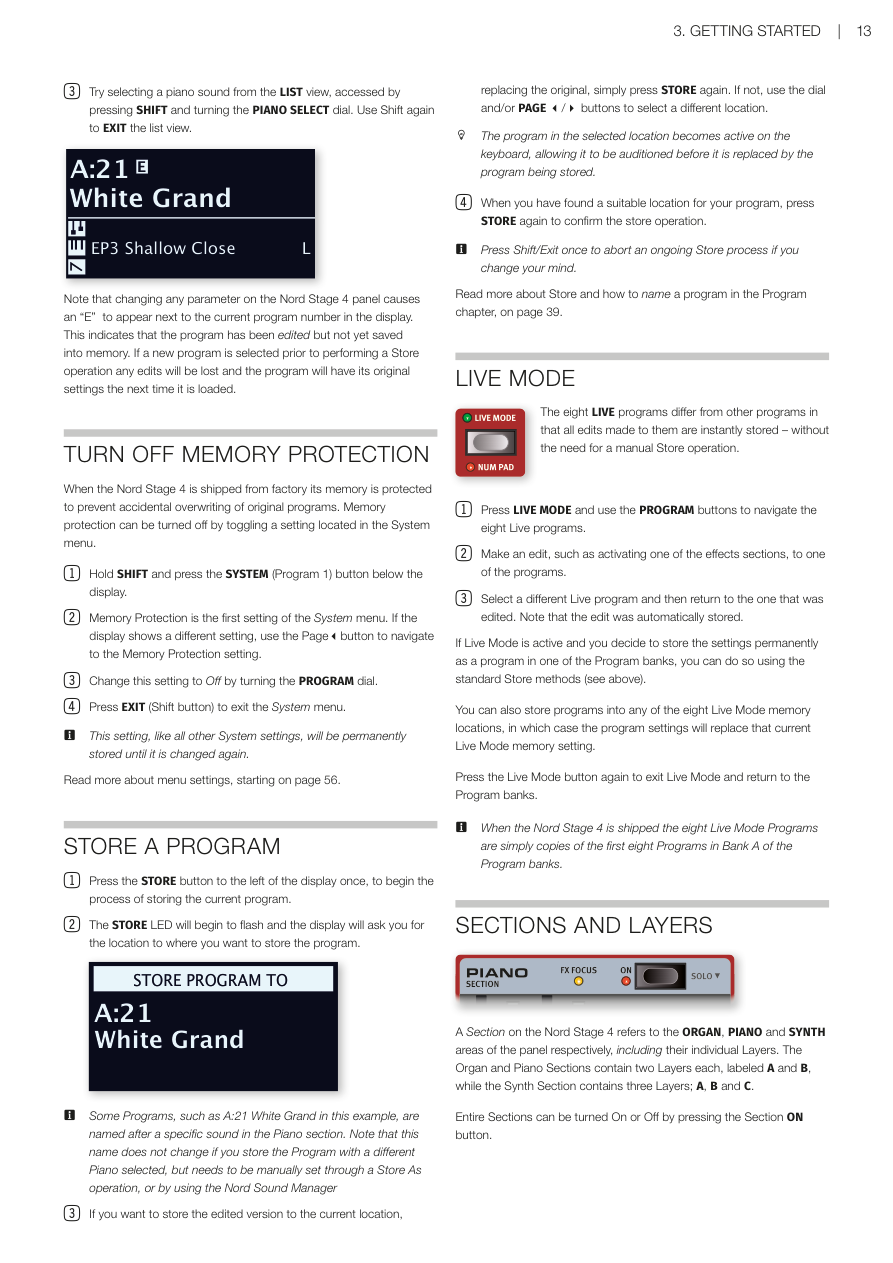
- 試著從清單視圖中選擇鋼琴音色,按 SHIFT 並轉動 PIANO SELECT 旋鈕即可進入清單視圖。再次按 Shift 退出清單視圖。
Try selecting a piano sound from the LIST view, accessed by pressing SHIFT and turning the PIANO SELECT dial. Use Shift again to EXIT the list view.
請注意,更改 Nord Stage 4 面板上的任何參數都會導致顯示器中當前程式編號旁出現「E」。這表示程式已被編輯但尚未儲存到記憶體中。如果在執行儲存操作之前選擇了新程式,所有編輯都將丟失,程式在下次載入時將恢復其原始設定。
Note that changing any parameter on the Nord Stage 4 panel causes an "E" to appear next to the current program number in the display. This indicates that the program has been edited but not yet saved into memory. If a new program is selected prior to performing a Store operation any edits will be lost and the program will have its original settings the next time it is loaded.
關閉記憶體保護 / TURN OFF MEMORY PROTECTION
Nord Stage 4 出廠時記憶體受到保護,以防止意外覆蓋原始程式。記憶體保護可通過切換系統選單中的設定來關閉。
When the Nord Stage 4 is shipped from factory its memory is protected to prevent accidental overwriting of original programs. Memory protection can be turned off by toggling a setting located in the System menu.
-
按住 SHIFT 並按下顯示器下方的 SYSTEM(Program 1)按鈕。
Hold SHIFT and press the SYSTEM (Program 1) button below the display. -
記憶體保護是系統選單的第一個設定。如果顯示器顯示不同的設定,請使用 Page◄ 按鈕導覽至記憶體保護設定。
Memory Protection is the first setting of the System menu. If the display shows a different setting, use the Page◄ button to navigate to the Memory Protection setting. -
通過轉動程式旋鈕將此設定更改為 Off。
Change this setting to Off by turning the PROGRAM dial. -
按 EXIT(Shift 按鈕)退出系統選單。
Press EXIT (Shift button) to exit the System menu.
注意:此設定與所有其他系統設定一樣,將永久儲存直到再次更改。從第 56 頁開始閱讀更多關於選單設定的資訊。
This setting, like all other System settings, will be permanently stored until it is changed again. Read more about menu settings, starting on page 56.
儲存程式 / STORE A PROGRAM
- 按一下顯示器左側的 STORE 按鈕,開始儲存當前程式的過程。
Press the STORE button to the left of the display once, to begin the process of storing the current program.
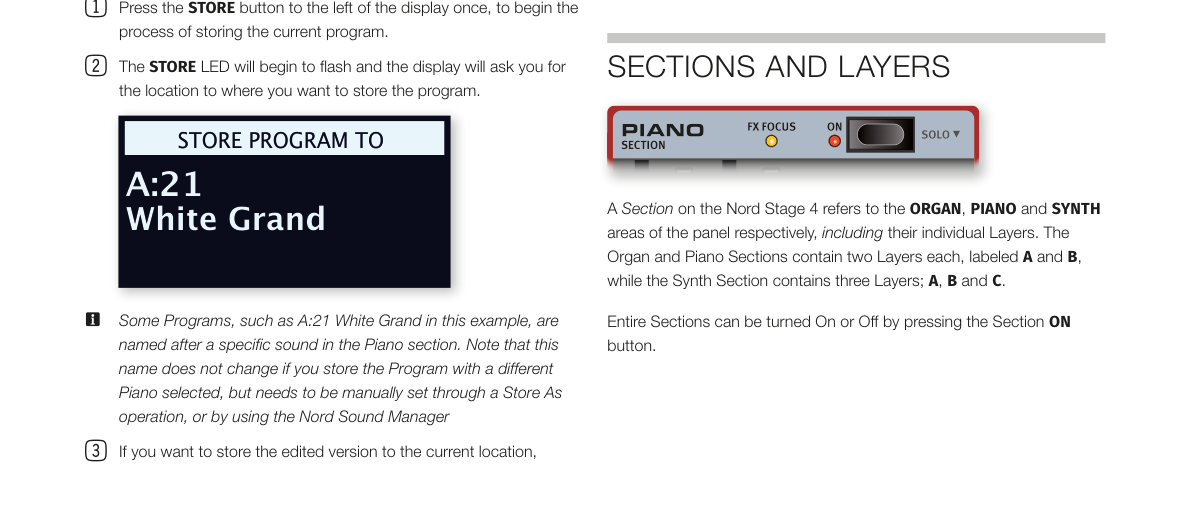
- STORE LED 將開始閃爍,顯示器將詢問您要儲存程式的位置。
The STORE LED will begin to flash and the display will ask you for the location to where you want to store the program.
注意:某些程式(如本例中的 A:21 White Grand)以鋼琴區段中的特定音色命名。請注意,如果您以不同的鋼琴儲存程式,此名稱不會更改,需要通過「另存為」操作或使用 Nord Sound Manager 手動設定。
Some Programs, such as A:21 White Grand in this example, are named after a specific sound in the Piano section. Note that this name does not change if you store the Program with a different Piano selected, but needs to be manually set through a Store As operation, or by using the Nord Sound Manager.
- 如果想將編輯版本儲存到當前位置(替換原始版本),只需再次按 STORE。否則,使用旋鈕和/或 PAGE ◄/► 按鈕選擇不同的位置。
If you want to store the edited version to the current location, replacing the original, simply press STORE again. If not, use the dial and/or PAGE ◄/► buttons to select a different location.
提示:所選位置的程式將在鍵盤上變為活躍狀態,允許在被儲存的程式替換之前試聽。
The program in the selected location becomes active on the keyboard, allowing it to be auditioned before it is replaced by the program being stored.
- 找到合適的位置後,再次按 STORE 確認儲存操作。
When you have found a suitable location for your program, press STORE again to confirm the store operation.
提示:如果改變主意,按一次 Shift/Exit 可以中止正在進行的儲存過程。
Press Shift/Exit once to abort an ongoing Store process if you change your mind.
在第 39 頁的程式章節中閱讀更多關於儲存和命名程式的資訊。
Read more about Store and how to name a program in the Program chapter, on page 39.
即時模式 / LIVE MODE
八個即時程式與其他程式不同,對其所做的所有編輯都會立即儲存——無需手動執行儲存操作。
The eight LIVE programs differ from other programs in that all edits made to them are instantly stored – without the need for a manual Store operation.
-
按 LIVE MODE 並使用程式按鈕導覽八個即時程式。
Press LIVE MODE and use the PROGRAM buttons to navigate the eight Live programs. -
對其中一個程式進行編輯,例如啟動效果區段之一。
Make an edit, such as activating one of the effects sections, to one of the programs. -
選擇另一個即時程式,然後返回剛才編輯的程式。注意編輯已自動儲存。
Select a different Live program and then return to the one that was edited. Note that the edit was automatically stored.
如果即時模式處於啟動狀態,您決定將設定永久儲存為程式資料庫中的程式,可以使用標準儲存方法(見上文)進行操作。
If Live Mode is active and you decide to store the settings permanently as a program in one of the Program banks, you can do so using the standard Store methods (see above).
您也可以將程式儲存到八個即時模式記憶體位置的任意一個,在這種情況下,程式設定將替換該當前即時模式記憶體設定。
You can also store programs into any of the eight Live Mode memory locations, in which case the program settings will replace that current Live Mode memory setting.
再次按即時模式按鈕退出即時模式並返回程式資料庫。
Press the Live Mode button again to exit Live Mode and return to the Program banks.
注意:Nord Stage 4 出廠時,八個即時模式程式只是程式資料庫中資料庫 A 前八個程式的副本。
When the Nord Stage 4 is shipped the eight Live Mode Programs are simply copies of the first eight Programs in Bank A of the Program banks.
區段與音層 / SECTIONS AND LAYERS
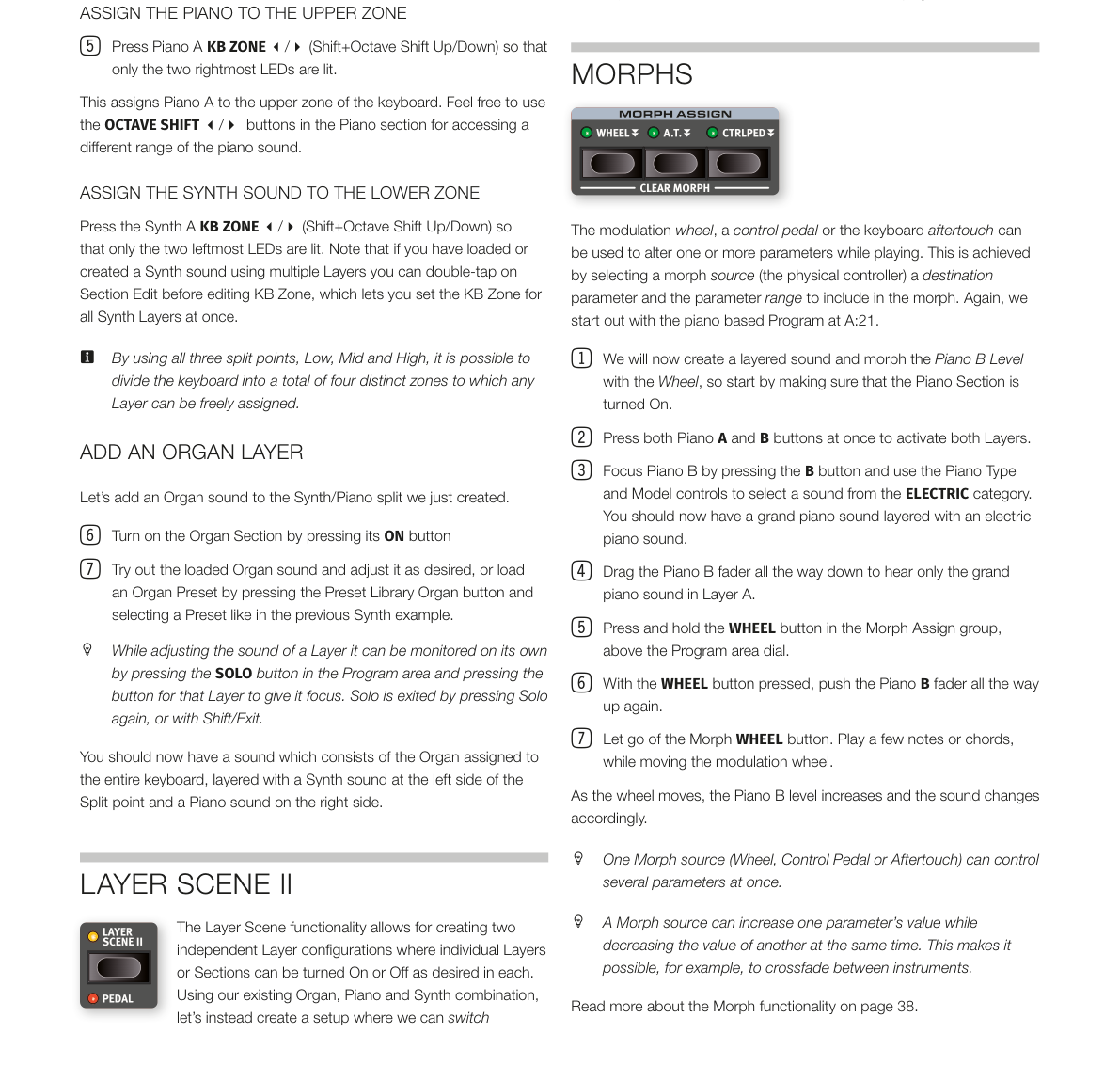
Nord Stage 4 上的「區段」分別指面板上的 ORGAN(風琴)、PIANO(鋼琴)和 SYNTH(合成器)區域,包括各自的獨立音層。風琴和鋼琴區段各包含兩個音層,標記為 A 和 B,而合成器區段包含三個音層:A、B 和 C。
A Section on the Nord Stage 4 refers to the ORGAN, PIANO and SYNTH areas of the panel respectively, including their individual Layers. The Organ and Piano Sections contain two Layers each, labeled A and B, while the Synth Section contains three Layers; A, B and C.
整個區段可以通過按下區段 ON 按鈕來開啟或關閉。
Entire Sections can be turned On or Off by pressing the Section ON button.
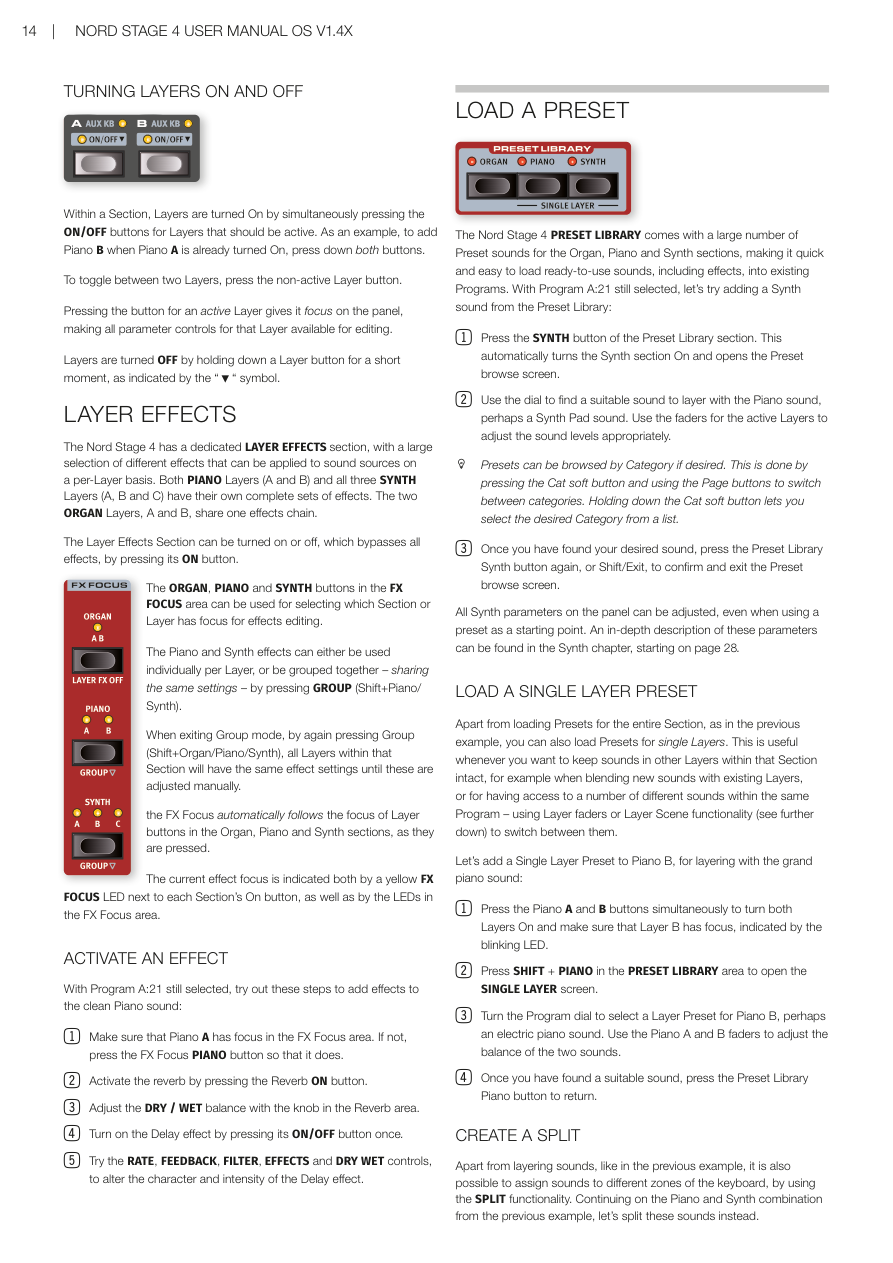
開啟和關閉音層 / TURNING LAYERS ON AND OFF
在一個區段內,同時按下應啟動的音層的 ON/OFF 按鈕即可開啟音層。例如,當鋼琴 A 已開啟時,要添加鋼琴 B,同時按下兩個按鈕即可。要在兩個音層之間切換,按下未啟動的音層按鈕。
Within a Section, Layers are turned On by simultaneously pressing the ON/OFF buttons for Layers that should be active. As an example, to add Piano B when Piano A is already turned On, press down both buttons. To toggle between two Layers, press the non-active Layer button.
按下已啟動音層的按鈕可將其設為面板的焦點,使該音層的所有參數控制器可供編輯。
Pressing the button for an active Layer gives it focus on the panel, making all parameter controls for that Layer available for editing.
通過短暫按住音層按鈕來關閉音層(如「↓」符號所示)。
Layers are turned OFF by holding down a Layer button for a short moment, as indicated by the "↓" symbol.
音層效果 / LAYER EFFECTS
Nord Stage 4 有專用的音層效果區段,提供大量不同效果,可按音層應用於音源。兩個鋼琴音層(A 和 B)和所有三個合成器音層(A、B 和 C)都有各自完整的效果組。兩個風琴音層 A 和 B 共用一個效果鏈。
The Nord Stage 4 has a dedicated LAYER EFFECTS section, with a large selection of different effects that can be applied to sound sources on a per-Layer basis. Both PIANO Layers (A and B) and all three SYNTH Layers (A, B and C) have their own complete sets of effects. The two ORGAN Layers, A and B, share one effects chain.
通過按下 ON 按鈕可以開啟或關閉音層效果區段(旁通所有效果)。
The Layer Effects Section can be turned on or off, which bypasses all effects, by pressing its ON button.
FX FOCUS 區域中的 ORGAN、PIANO 和 SYNTH 按鈕可用於選擇哪個區段或音層處於效果編輯的焦點。
The ORGAN, PIANO and SYNTH buttons in the FX FOCUS area can be used for selecting which Section or Layer has focus for effects editing.
鋼琴和合成器效果可以按音層單獨使用,也可以通過按 GROUP(Shift+Piano/Synth)將它們組合在一起——共用相同的設定。
The Piano and Synth effects can either be used individually per Layer, or be grouped together – sharing the same settings – by pressing GROUP (Shift+Piano/Synth).
當通過再次按 Group(Shift+Organ/Piano/Synth)退出組合模式時,該區段內的所有音層將具有相同的效果設定,直到手動調整。
When exiting Group mode, by again pressing Group (Shift+Organ/Piano/Synth), all Layers within that Section will have the same effect settings until these are adjusted manually.
FX 焦點會自動跟隨風琴、鋼琴和合成器區段中音層按鈕的焦點。
The FX Focus automatically follows the focus of Layer buttons in the Organ, Piano and Synth sections, as they are pressed.
當前效果焦點由每個區段 On 按鈕旁的黃色 FX FOCUS LED 以及 FX Focus 區域的 LED 指示。
The current effect focus is indicated both by a yellow FX FOCUS LED next to each Section's On button, as well as by the LEDs in the FX Focus area.
啟動效果 / ACTIVATE AN EFFECT
在仍選擇程式 A:21 的情況下,試試以下步驟為乾淨的鋼琴音色添加效果:
With Program A:21 still selected, try out these steps to add effects to the clean Piano sound:
-
確認鋼琴 A 在 FX Focus 區域中處於焦點。如果不是,按 FX Focus PIANO 按鈕使其聚焦。
Make sure that Piano A has focus in the FX Focus area. If not, press the FX Focus PIANO button so that it does. -
按 Reverb ON 按鈕啟動殘響。
Activate the reverb by pressing the Reverb ON button. -
用殘響區域中的旋鈕調整 DRY/WET 比例。
Adjust the DRY / WET balance with the knob in the Reverb area. -
按一次 ON/OFF 按鈕開啟延遲效果。
Turn on the Delay effect by pressing its ON/OFF button once. -
試試 RATE、FEEDBACK、FILTER、EFFECTS 和 DRY WET 控制器,改變延遲效果的特性和強度。
Try the RATE, FEEDBACK, FILTER, EFFECTS and DRY WET controls, to alter the character and intensity of the Delay effect.
載入預設值 / LOAD A PRESET
Nord Stage 4 預設音色庫包含大量風琴、鋼琴和合成器區段的預設音色,可快速輕鬆地將包含效果的即用音色載入現有程式。在仍選擇程式 A:21 的情況下,讓我們嘗試從預設音色庫添加一個合成器音色:
The Nord Stage 4 PRESET LIBRARY comes with a large number of Preset sounds for the Organ, Piano and Synth sections, making it quick and easy to load ready-to-use sounds, including effects, into existing Programs. With Program A:21 still selected, let's try adding a Synth sound from the Preset Library:
-
按預設音色庫區段的 SYNTH 按鈕,這將自動開啟合成器區段並打開預設瀏覽畫面。
Press the SYNTH button of the Preset Library section. This automatically turns the Synth section On and opens the Preset browse screen. -
使用旋鈕找到適合與鋼琴音色疊加的音色,也許是合成器鋪底(Synth Pad)音色。使用活躍音層的推桿調整音量。
Use the dial to find a suitable sound to layer with the Piano sound, perhaps a Synth Pad sound. Use the faders for the active Layers to adjust the sound levels appropriately.
提示:如果需要,可以按類別瀏覽預設值,方法是按 Cat 軟按鈕並使用 Page 按鈕在類別之間切換。按住 Cat 軟按鈕可從清單中選擇所需類別。
Presets can be browsed by Category if desired. This is done by pressing the Cat soft button and using the Page buttons to switch between categories. Holding down the Cat soft button lets you select the desired Category from a list.
- 找到所需音色後,再次按預設音色庫 Synth 按鈕,或按 Shift/Exit 確認並退出預設瀏覽畫面。
Once you have found your desired sound, press the Preset Library Synth button again, or Shift/Exit, to confirm and exit the Preset browse screen.
即使使用預設值作為起點,面板上的所有合成器參數也可以調整。這些參數的深入說明可在第 28 頁起的合成器章節中找到。
All Synth parameters on the panel can be adjusted, even when using a preset as a starting point. An in-depth description of these parameters can be found in the Synth chapter, starting on page 28.
載入單一音層預設值 / LOAD A SINGLE LAYER PRESET
除了為整個區段載入預設值(如上例),您還可以為單個音層載入預設值。這在想要保留該區段其他音層中的音色不變時非常有用,例如將新音色與現有音層混合,或在同一程式中存取多種不同音色——使用音層推桿或音層場景功能在它們之間切換。
Apart from loading Presets for the entire Section, as in the previous example, you can also load Presets for single Layers. This is useful whenever you want to keep sounds in other Layers within that Section intact, for example when blending new sounds with existing Layers, or for having access to a number of different sounds within the same Program – using Layer faders or Layer Scene functionality to switch between them.
讓我們為鋼琴 B 添加一個單音層預設值,與原聲大鋼琴音色疊加:
Let's add a Single Layer Preset to Piano B, for layering with the grand piano sound:
-
同時按下鋼琴 A 和 B 按鈕以開啟兩個音層,確認音層 B 處於焦點(以閃爍的 LED 指示)。
Press the Piano A and B buttons simultaneously to turn both Layers On and make sure that Layer B has focus, indicated by the blinking LED. -
按 SHIFT + PIANO(在預設音色庫區域)打開單音層畫面。
Press SHIFT + PIANO in the PRESET LIBRARY area to open the SINGLE LAYER screen. -
轉動程式旋鈕為鋼琴 B 選擇一個音層預設值,也許是一個電鋼琴音色。使用鋼琴 A 和 B 推桿調整兩個音色的平衡。
Turn the Program dial to select a Layer Preset for Piano B, perhaps an electric piano sound. Use the Piano A and B faders to adjust the balance of the two sounds. -
找到合適的音色後,按預設音色庫 Piano 按鈕返回。
Once you have found a suitable sound, press the Preset Library Piano button to return.
建立分割 / CREATE A SPLIT
除了像上例那樣疊加音色,還可以使用分割功能將音色指定到鍵盤的不同區域。繼續使用上例的鋼琴和合成器組合,讓我們改為分割這些音色。
Apart from layering sounds, like in the previous example, it is also possible to assign sounds to different zones of the keyboard, by using the SPLIT functionality. Continuing on the Piano and Synth combination from the previous example, let's split these sounds instead.
-
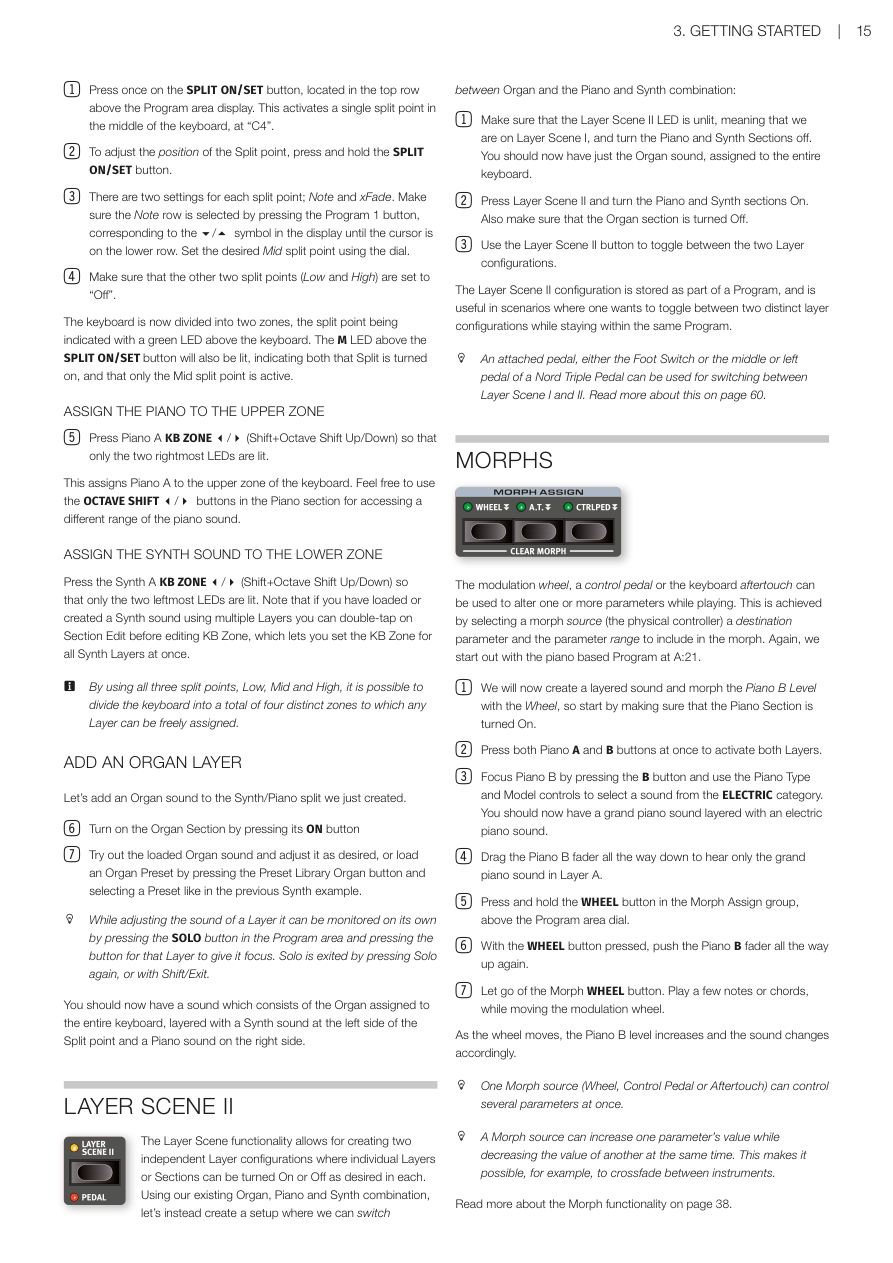
按一下位於程式區顯示器上方頂排的 SPLIT ON/SET 按鈕,這將在鍵盤中間「C4」處啟動一個分割點。
Press once on the SPLIT ON/SET button, located in the top row above the Program area display. This activates a single split point in the middle of the keyboard, at "C4". -
要調整分割點的位置,按住 SPLIT ON/SET 按鈕。
To adjust the position of the Split point, press and hold the SPLIT ON/SET button. -
每個分割點有兩個設定:Note 和 xFade。通過按 Program 1 按鈕(對應顯示器中的 ◄/► 符號)確保游標在下排選擇 Note 列。使用旋鈕設定所需的 Mid 分割點。
There are two settings for each split point; Note and xFade. Make sure the Note row is selected by pressing the Program 1 button until the cursor is on the lower row. Set the desired Mid split point using the dial. -
確保其他兩個分割點(Low 和 High)設為「Off」。
Make sure that the other two split points (Low and High) are set to "Off".
鍵盤現在分為兩個區域,分割點以鍵盤上方的綠色 LED 指示。SPLIT ON/SET 按鈕上方的 M LED 也將亮起,表示分割已開啟,且只有 Mid 分割點處於啟動狀態。
The keyboard is now divided into two zones, the split point being indicated with a green LED above the keyboard. The M LED above the SPLIT ON/SET button will also be lit, indicating both that Split is turned on, and that only the Mid split point is active.
將鋼琴指定到上方區域 / ASSIGN THE PIANO TO THE UPPER ZONE
- 按鋼琴 A KB ZONE ◄/►(Shift+Octave Shift Up/Down),使只有最右邊的兩個 LED 亮起。
Press Piano A KB ZONE ◄/► (Shift+Octave Shift Up/Down) so that only the two rightmost LEDs are lit.
這將鋼琴 A 指定到鍵盤的上方區域。可以自由使用鋼琴區段中的 OCTAVE SHIFT ◄/► 按鈕來存取鋼琴音色的不同音域。
This assigns Piano A to the upper zone of the keyboard. Feel free to use the OCTAVE SHIFT ◄/► buttons in the Piano section for accessing a different range of the piano sound.
將合成器音色指定到下方區域 / ASSIGN THE SYNTH SOUND TO THE LOWER ZONE
按合成器 A KB ZONE ◄/►(Shift+Octave Shift Up/Down),使只有最左邊的兩個 LED 亮起。請注意,如果您使用多個音層載入或創建了合成器音色,可以在編輯 KB Zone 之前雙擊 Section Edit,這樣可以同時設定所有合成器音層的 KB Zone。
Press the Synth A KB ZONE ◄/► (Shift+Octave Shift Up/Down) so that only the two leftmost LEDs are lit. Note that if you have loaded or created a Synth sound using multiple Layers you can double-tap on Section Edit before editing KB Zone, which lets you set the KB Zone for all Synth Layers at once.
注意:通過使用全部三個分割點(Low、Mid 和 High),可以將鍵盤分為最多四個不同區域,任何音層都可以自由指定到這些區域。
By using all three split points, Low, Mid and High, it is possible to divide the keyboard into a total of four distinct zones to which any Layer can be freely assigned.
添加風琴音層 / ADD AN ORGAN LAYER
讓我們為剛創建的合成器/鋼琴分割添加一個風琴音色。
Let's add an Organ sound to the Synth/Piano split we just created.
-
按下 ON 按鈕開啟風琴區。
Turn on the Organ Section by pressing its ON button. -
試試已載入的風琴音色並根據需要調整,或按預設音色庫 Organ 按鈕載入一個風琴預設值並選擇預設值(如上例)。
Try out the loaded Organ sound and adjust it as desired, or load an Organ Preset by pressing the Preset Library Organ button and selecting a Preset like in the previous Synth example.
提示:調整音層音色時,可以通過按程式區中的 SOLO 按鈕並按下該音層的按鈕使其聚焦,單獨監聽該音層。再次按 Solo 或按 Shift/Exit 退出 Solo 模式。
While adjusting the sound of a Layer it can be monitored on its own by pressing the SOLO button in the Program area and pressing the button for that Layer to give it focus. Solo is exited by pressing Solo again, or with Shift/Exit.
現在您應該有一個音色,包括指定到整個鍵盤的風琴,以及在分割點左側的合成器音色和右側的鋼琴音色疊加。
You should now have a sound which consists of the Organ assigned to the entire keyboard, layered with a Synth sound at the left side of the Split point and a Piano sound on the right side.
音層場景 II / LAYER SCENE II
音層場景功能允許創建兩個獨立的音層配置,每個配置中的個別音層或區段可以自由開啟或關閉。使用現有的風琴、鋼琴和合成器組合,讓我們改為創建一個設置,在風琴和鋼琴/合成器組合之間切換:
The Layer Scene functionality allows for creating two independent Layer configurations where individual Layers or Sections can be turned On or Off as desired in each. Using our existing Organ, Piano and Synth combination, let's instead create a setup where we can switch between Organ and the Piano and Synth combination:
-
確保音層場景 II 的 LED 未亮(表示我們在音層場景 I),關閉鋼琴和合成器區段。現在應該只有風琴音色指定到整個鍵盤。
Make sure that the Layer Scene II LED is unlit, meaning that we are on Layer Scene I, and turn the Piano and Synth Sections off. You should now have just the Organ sound, assigned to the entire keyboard. -
按音層場景 II 並開啟鋼琴和合成器區段。同時確保風琴區已關閉。
Press Layer Scene II and turn the Piano and Synth sections On. Also make sure that the Organ section is turned Off. -
使用音層場景 II 按鈕在兩種音層配置之間切換。
Use the Layer Scene II button to toggle between the two Layer configurations.
音層場景 II 配置作為程式的一部分儲存,在需要在同一程式中切換兩種不同音層配置時非常有用。
The Layer Scene II configuration is stored as part of a Program, and is useful in scenarios where one wants to toggle between two distinct layer configurations while staying within the same Program.
提示:連接的踏板——無論是腳踏開關還是 Nord Triple Pedal 的中間或左踏板——都可以用於在音層場景 I 和 II 之間切換。更多資訊請參閱第 60 頁。
An attached pedal, either the Foot Switch or the middle or left pedal of a Nord Triple Pedal can be used for switching between Layer Scene I and II. Read more about this on page 60.
Morph 功能 / MORPHS
調製輪、控制踏板或鍵盤後觸鍵可在演奏時改變一個或多個參數。這通過選擇 Morph 來源(物理控制器)、目標參數和要包含在 Morph 中的參數範圍來實現。我們再次從程式 A:21 的鋼琴程式開始。
The modulation wheel, a control pedal or the keyboard aftertouch can be used to alter one or more parameters while playing. This is achieved by selecting a morph source (the physical controller) a destination parameter and the parameter range to include in the morph. Again, we start out with the piano based Program at A:21.
-
我們現在將創建一個疊加音色,並用滾輪控制鋼琴 B 的音量,因此首先確保鋼琴區段已開啟。
We will now create a layered sound and morph the Piano B Level with the Wheel, so start by making sure that the Piano Section is turned On. -
同時按下鋼琴 A 和 B 按鈕以啟動兩個音層。
Press both Piano A and B buttons at once to activate both Layers. -
按 B 按鈕聚焦鋼琴 B,使用鋼琴 Type 和 Model 控制器從 ELECTRIC 類別中選擇一個音色。現在應該有一個原聲大鋼琴音色與電鋼琴音色疊加。
Focus Piano B by pressing the B button and use the Piano Type and Model controls to select a sound from the ELECTRIC category. You should now have a grand piano sound layered with an electric piano sound. -
將鋼琴 B 推桿拉到最下方,只聽到音層 A 的原聲大鋼琴音色。
Drag the Piano B fader all the way down to hear only the grand piano sound in Layer A. -
按住程式區旋鈕上方 Morph Assign 組中的 WHEEL 按鈕。
Press and hold the WHEEL button in the Morph Assign group, above the Program area dial. -
在按住 WHEEL 按鈕的同時,將鋼琴 B 推桿推到最上方。
With the WHEEL button pressed, push the Piano B fader all the way up again. -
鬆開 Morph WHEEL 按鈕。演奏幾個音符或和弦,同時移動調製輪。
Let go of the Morph WHEEL button. Play a few notes or chords, while moving the modulation wheel.
當滾輪移動時,鋼琴 B 的音量增加,音色也相應改變。
As the wheel moves, the Piano B level increases and the sound changes accordingly.
提示:一個 Morph 來源(滾輪、控制踏板或後觸鍵)可以同時控制多個參數。
One Morph source (Wheel, Control Pedal or Aftertouch) can control several parameters at once.
提示:Morph 來源可以同時增加一個參數的值並減少另一個參數的值,例如可以在樂器之間進行交叉漸變。
A Morph source can increase one parameter's value while decreasing the value of another at the same time. This makes it possible, for example, to crossfade between instruments.
在第 38 頁閱讀更多關於 Morph 功能的資訊。
Read more about the Morph functionality on page 38.
合成器 / THE SYNTHESIZER
Nord Stage 4 合成器區段配備三個完整且獨立的合成器——音層 A、B 和 C——可作為單一音源或用於構建更複雜的疊加音色。
The Nord Stage 4 SYNTH Section features three complete and independent synthesizers – Layers A, B and C – which can be used as single sound sources or as building blocks for more complex, layered, sounds.
提示:預設音色庫(見上頁)包含大量即用音色,可以直接使用,或通過合成器和音層效果控制器進一步調整。
The PRESET LIBRARY contains a large number of ready-to-play sounds that can be used as is, or be further tweaked using the Synth and Layer Effects controls.
讓我們了解 Stage 4 合成器的一些基本功能,從如何使用「類比」波形設置音色開始:
Let's have a look at some of the basic features of the Stage 4 synthesizer, beginning with how to set up a sound using "analog" waveforms.
-
確保合成器區段已啟動(按合成器區段 ON 按鈕),且只有音層 A 處於活躍狀態。通過短暫按住對應按鈕來關閉音層。
Make sure the Synth section is active, by pressing the Synth Section ON button, and that only Layer A is active. Layers are turned Off by pressing down on the corresponding button for a short moment. -
為了從「空白狀態」開始,按 SOUND INIT(Shift+Waveform)將合成器初始化為預設設定。
In order to start off from a "blank slate", let's initialize the synthesizer to its default settings by pressing SOUND INIT (Shift+Waveform). -
關閉合成器區段所有已啟動的效果。
Turn off any active effects for the Synth section. -
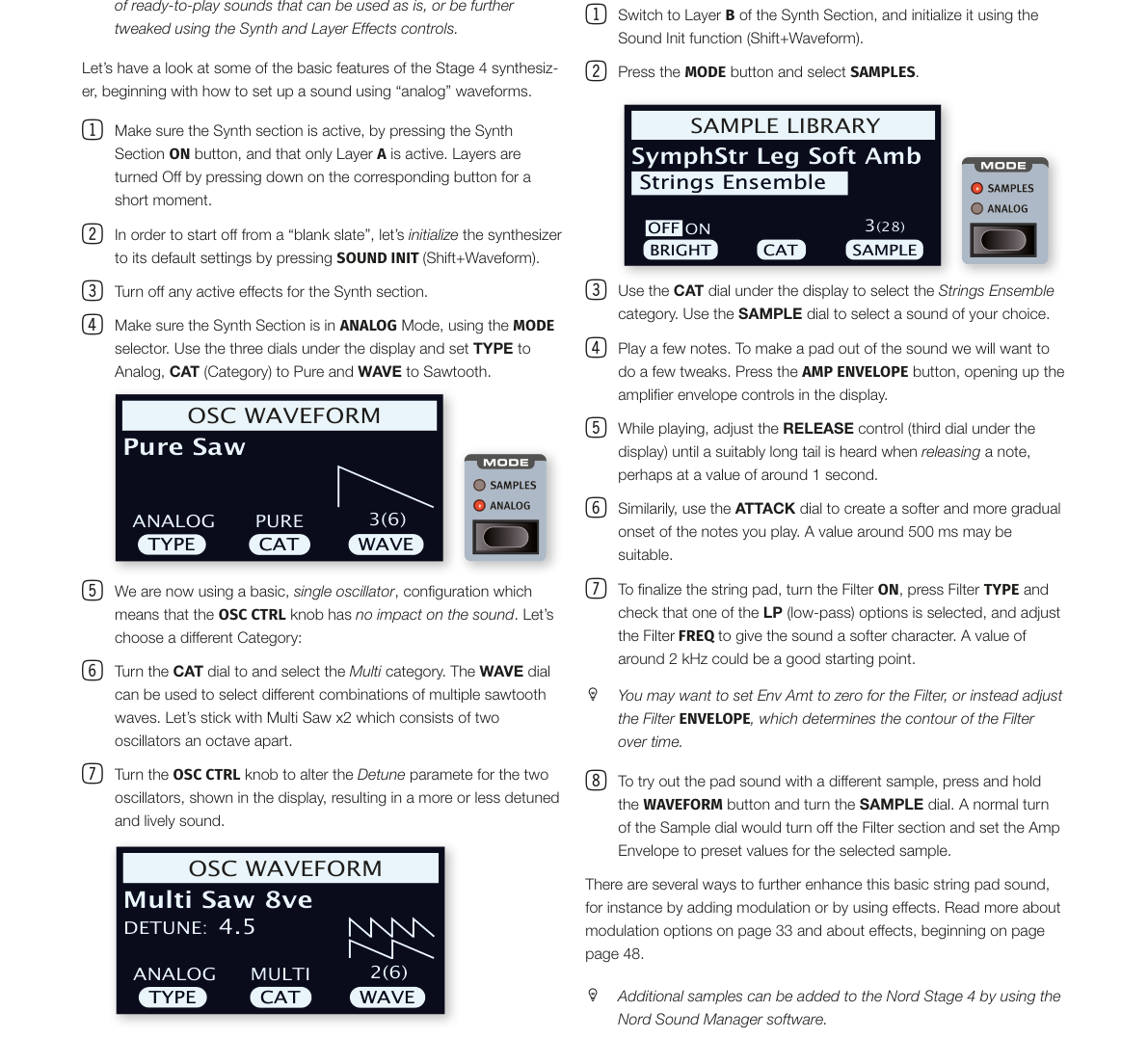
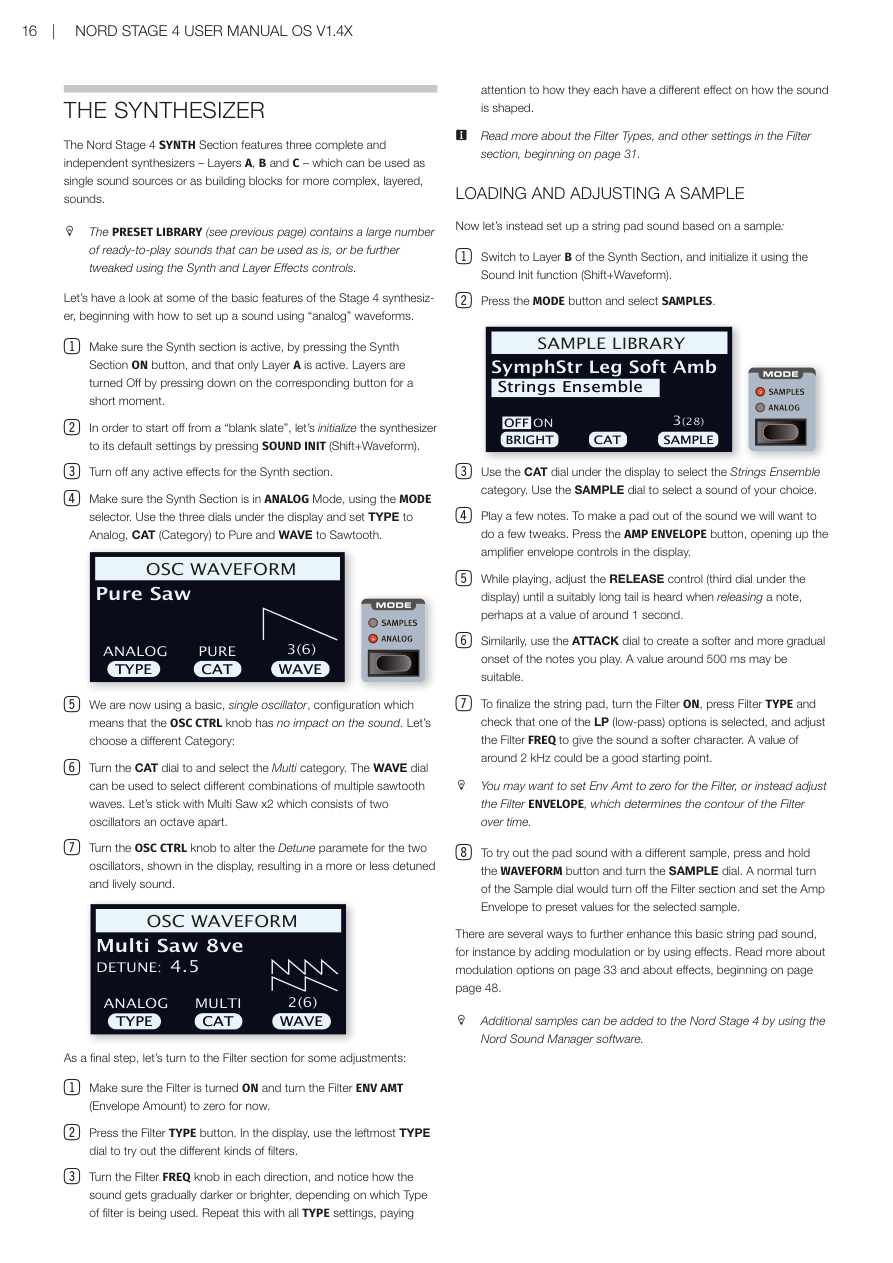
確保合成器區段處於 ANALOG 模式(使用 MODE 選擇器)。使用顯示器下方的三個旋鈕,將 TYPE 設為 Analog,CAT(類別)設為 Pure,WAVE 設為 Sawtooth(鋸齒波)。
Make sure the Synth Section is in ANALOG Mode, using the MODE selector. Use the three dials under the display and set TYPE to Analog, CAT (Category) to Pure and WAVE to Sawtooth. -
現在使用的是基本單振盪器配置,這意味著 OSC CTRL 旋鈕對音色沒有影響。讓我們選擇不同的類別:
We are now using a basic, single oscillator, configuration which means that the OSC CTRL knob has no impact on the sound. Let's choose a different Category: -
轉動 CAT 旋鈕選擇 Multi 類別。WAVE 旋鈕可用於選擇多個鋸齒波的不同組合。選擇 Multi Saw x2,它由兩個相差一個八度的振盪器組成。
Turn the CAT dial to and select the Multi category. The WAVE dial can be used to select different combinations of multiple sawtooth waves. Let's stick with Multi Saw x2 which consists of two oscillators an octave apart. -
轉動 OSC CTRL 旋鈕,改變顯示器中顯示的兩個振盪器的 Detune 參數,產生或多或少失調和活躍的音色。
Turn the OSC CTRL knob to alter the Detune parameter for the two oscillators, shown in the display, resulting in a more or less detuned and lively sound.
最後,讓我們轉向濾波器區段進行一些調整:
As a final step, let's turn to the Filter section for some adjustments:
-
確保濾波器已開啟,暫時將 Filter ENV AMT(包絡量)設為零。
Make sure the Filter is turned ON and turn the Filter ENV AMT (Envelope Amount) to zero for now. -
按 Filter TYPE 按鈕。在顯示器中,使用最左邊的 TYPE 旋鈕試用不同類型的濾波器。
Press the Filter TYPE button. In the display, use the leftmost TYPE dial to try out the different kinds of filters. -
向各個方向轉動 Filter FREQ 旋鈕,注意音色如何逐漸變暗或變亮,取決於使用的濾波器類型。對所有 TYPE 設定重複此操作,注意每種設定對音色塑造的不同效果。
Turn the Filter FREQ knob in each direction, and notice how the sound gets gradually darker or brighter, depending on which Type of filter is being used. Repeat this with all TYPE settings, paying attention to how they each have a different effect on how the sound is shaped.
注意:從第 31 頁開始閱讀更多關於濾波器類型和其他設定的資訊。
Read more about the Filter Types, and other settings in the Filter section, beginning on page 31.
載入和調整樣本 / LOADING AND ADJUSTING A SAMPLE
現在讓我們改為基於樣本設置一個弦樂鋪底音色:
Now let's instead set up a string pad sound based on a sample:
-
切換到合成器區段的音層 B,使用聲音初始化功能(Shift+Waveform)初始化它。
Switch to Layer B of the Synth Section, and initialize it using the Sound Init function (Shift+Waveform). -
按 MODE 按鈕並選擇 SAMPLES。
Press the MODE button and select SAMPLES. -
使用顯示器下方的 CAT 旋鈕選擇 Strings Ensemble 類別。使用 SAMPLE 旋鈕選擇您喜歡的音色。
Use the CAT dial under the display to select the Strings Ensemble category. Use the SAMPLE dial to select a sound of your choice. -
演奏幾個音符。要將音色製作成鋪底效果,需要進行一些調整。按 AMP ENVELOPE 按鈕,打開顯示器中的放大器包絡線控制。
Play a few notes. To make a pad out of the sound we will want to do a few tweaks. Press the AMP ENVELOPE button, opening up the amplifier envelope controls in the display. -
在演奏的同時,調整 RELEASE 控制(顯示器下方的第三個旋鈕),直到放開音符時聽到適當長的尾音,也許約 1 秒的值。
While playing, adjust the RELEASE control (third dial under the display) until a suitably long tail is heard when releasing a note, perhaps at a value of around 1 second. -
類似地,使用 ATTACK 旋鈕創造更柔和、更漸進的音符起音。約 500 ms 的值可能合適。
Similarly, use the ATTACK dial to create a softer and more gradual onset of the notes you play. A value around 500 ms may be suitable. -
要完成弦樂鋪底,開啟濾波器,按 Filter TYPE 確認選擇了 LP(低通)選項之一,調整 Filter FREQ 給予音色更柔和的特性。約 2 kHz 的值可能是一個好的起點。
To finalize the string pad, turn the Filter ON, press Filter TYPE and check that one of the LP (low-pass) options is selected, and adjust the Filter FREQ to give the sound a softer character. A value of around 2 kHz could be a good starting point.
提示:您可能需要將濾波器的 Env Amt 設為零,或者調整濾波器包絡線,它決定了濾波器隨時間的輪廓。
You may want to set Env Amt to zero for the Filter, or instead adjust the Filter ENVELOPE, which determines the contour of the Filter over time.
- 要用不同的樣本試用鋪底音色,按住 WAVEFORM 按鈕並轉動 SAMPLE 旋鈕。正常轉動 Sample 旋鈕會關閉濾波器區段並為所選樣本設置預設的 Amp 包絡線值。
To try out the pad sound with a different sample, press and hold the WAVEFORM button and turn the SAMPLE dial. A normal turn of the Sample dial would turn off the Filter section and set the Amp Envelope to preset values for the selected sample.
進一步增強這個基本弦樂鋪底音色的方法有很多,例如添加調製或使用效果。在第 33 頁閱讀更多關於調製選項的資訊,從第 48 頁開始了解效果。
There are several ways to further enhance this basic string pad sound, for instance by adding modulation or by using effects. Read more about modulation options on page 33 and about effects, beginning on page 48.
提示:可以使用 Nord Sound Manager 軟體為 Nord Stage 4 添加額外的樣本。
Additional samples can be added to the Nord Stage 4 by using the Nord Sound Manager software.
琶音器/閘門 / THE ARPEGGIATOR/GATE
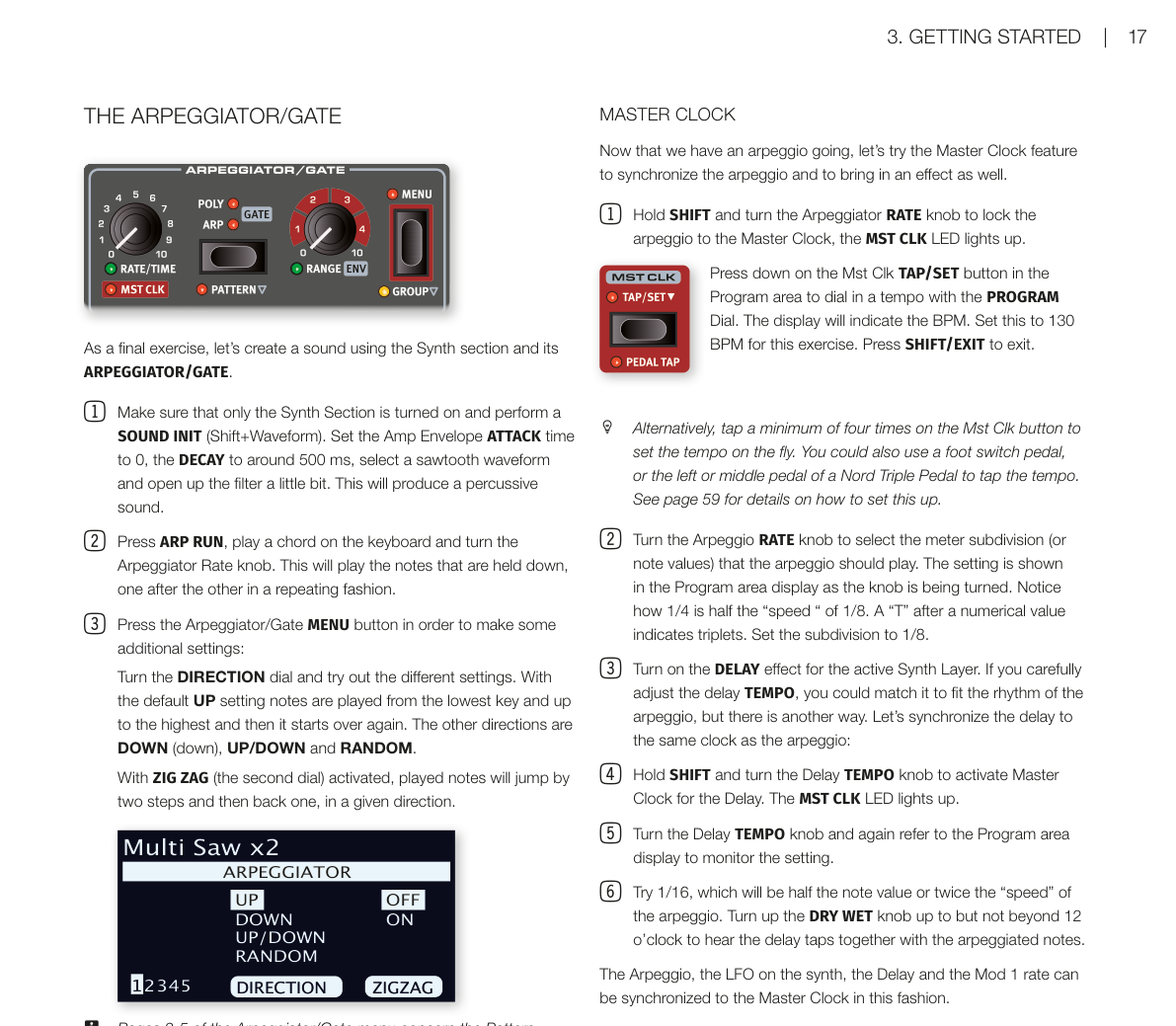
作為最後一個練習,讓我們使用合成器區段及其琶音器/閘門(ARPEGGIATOR/GATE)創建一個音色。
As a final exercise, let's create a sound using the Synth section and its ARPEGGIATOR/GATE.
-
確保只有合成器區段已開啟,執行聲音初始化(Shift+Waveform)。將 Amp Envelope ATTACK 時間設為 0,DECAY 設為約 500 ms,選擇鋸齒波並稍微打開濾波器,這將產生打擊性的音色。
Make sure that only the Synth Section is turned on and perform a SOUND INIT (Shift+Waveform). Set the Amp Envelope ATTACK time to 0, the DECAY to around 500 ms, select a sawtooth waveform and open up the filter a little bit. This will produce a percussive sound. -
按 ARP RUN,在鍵盤上演奏一個和弦並轉動琶音器 Rate 旋鈕。這將按照重複的方式依次演奏按住的音符。
Press ARP RUN, play a chord on the keyboard and turn the Arpeggiator Rate knob. This will play the notes that are held down, one after the other in a repeating fashion. -
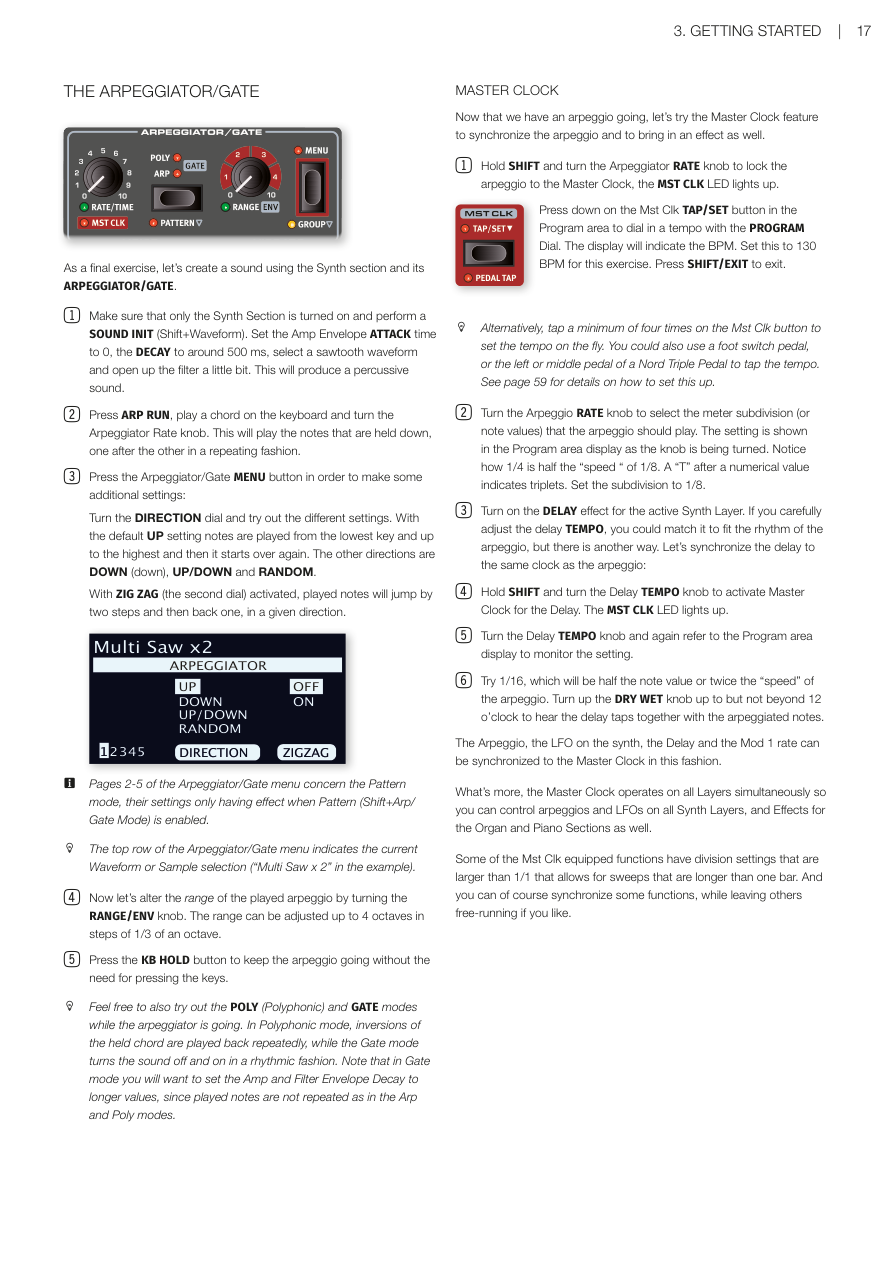
按琶音器/閘門 MENU 按鈕進行一些額外設定:轉動 DIRECTION 旋鈕試用不同設定。預設的 UP 設定從最低鍵向上演奏音符到最高鍵然後重新開始。其他方向有 DOWN(向下)、UP/DOWN 和 RANDOM(隨機)。
Press the Arpeggiator/Gate MENU button in order to make some additional settings: Turn the DIRECTION dial and try out the different settings. With the default UP setting notes are played from the lowest key and up to the highest and then it starts over again. The other directions are DOWN (down), UP/DOWN and RANDOM.啟動 ZIG ZAG(第二個旋鈕)後,演奏的音符將以給定方向跳兩步再退一步。
With ZIG ZAG (the second dial) activated, played notes will jump by two steps and then back one, in a given direction.
注意:琶音器/閘門選單的第 2-5 頁涉及 Pattern 模式,其設定只有在啟用 Pattern(Shift+Arp/Gate Mode)時才有效。
Pages 2-5 of the Arpeggiator/Gate menu concern the Pattern mode, their settings only having effect when Pattern (Shift+Arp/Gate Mode) is enabled.
提示:琶音器/閘門選單的頂行顯示當前波形或樣本選擇(例子中為「Multi Saw x 2」)。
The top row of the Arpeggiator/Gate menu indicates the current Waveform or Sample selection ("Multi Saw x 2" in the example).
-
現在通過轉動 RANGE/ENV 旋鈕改變演奏琶音的音域範圍。範圍可以以 1/3 八度為步進調整,最多 4 個八度。
Now let's alter the range of the played arpeggio by turning the RANGE/ENV knob. The range can be adjusted up to 4 octaves in steps of 1/3 of an octave. -
按 KB HOLD 按鈕保持琶音進行,無需按住琴鍵。
Press the KB HOLD button to keep the arpeggio going without the need for pressing the keys.
提示:在琶音器進行時,可以試試 POLY(複音)和 GATE 模式。在複音模式下,重複演奏按住和弦的轉位,而閘門模式以節奏方式開關音符。請注意,在閘門模式下,需要將 Amp 和 Filter Envelope Decay 設為較長的值,因為音符不像 Arp 和 Poly 模式那樣重複演奏。
Feel free to also try out the POLY (Polyphonic) and GATE modes while the arpeggiator is going. In Polyphonic mode, inversions of the held chord are played back repeatedly, while the Gate mode turns the sound off and on in a rhythmic fashion. Note that in Gate mode you will want to set the Amp and Filter Envelope Decay to longer values, since played notes are not repeated as in the Arp and Poly modes.
主時鐘 / MASTER CLOCK
現在已有琶音進行中,讓我們試試主時鐘功能來同步琶音並帶入一個效果。
Now that we have an arpeggio going, let's try the Master Clock feature to synchronize the arpeggio and to bring in an effect as well.
- 按住 SHIFT 並轉動琶音器 RATE 旋鈕,將琶音鎖定到主時鐘,MST CLK LED 亮起。按住程式區的 Mst Clk TAP/SET 按鈕,使用程式旋鈕輸入速度,顯示器將顯示 BPM。將此練習的速度設為 130 BPM,然後按 SHIFT/EXIT 退出。
Hold SHIFT and turn the Arpeggiator RATE knob to lock the arpeggio to the Master Clock, the MST CLK LED lights up. Press down on the Mst Clk TAP/SET button in the Program area to dial in a tempo with the PROGRAM Dial. The display will indicate the BPM. Set this to 130 BPM for this exercise. Press SHIFT/EXIT to exit.
提示:或者,至少點擊 Mst Clk 按鈕四次即可即時設定速度。也可以使用腳踏開關踏板,或 Nord Triple Pedal 的左或中踏板來點擊速度。設置詳情請參閱第 59 頁。
Alternatively, tap a minimum of four times on the Mst Clk button to set the tempo on the fly. You could also use a foot switch pedal, or the left or middle pedal of a Nord Triple Pedal to tap the tempo. See page 59 for details on how to set this up.
-
轉動琶音 RATE 旋鈕選擇琶音應演奏的拍值(或音符值),設定將在旋鈕被轉動時顯示在程式區顯示器中。注意 1/4 是 1/8 「速度」的一半。數字值後的「T」表示三連音。將細分設為 1/8。
Turn the Arpeggio RATE knob to select the meter subdivision (or note values) that the arpeggio should play. The setting is shown in the Program area display as the knob is being turned. Notice how 1/4 is half the "speed" of 1/8. A "T" after a numerical value indicates triplets. Set the subdivision to 1/8. -
開啟活躍合成器音層的延遲效果。如果您仔細調整延遲 TEMPO,可以使其與琶音的節奏相匹配,但還有另一種方法。讓我們將延遲同步到與琶音相同的時鐘:
Turn on the DELAY effect for the active Synth Layer. If you carefully adjust the delay TEMPO, you could match it to fit the rhythm of the arpeggio, but there is another way. Let's synchronize the delay to the same clock as the arpeggio: -
按住 SHIFT 並轉動延遲 TEMPO 旋鈕,為延遲啟動主時鐘,MST CLK LED 亮起。
Hold SHIFT and turn the Delay TEMPO knob to activate Master Clock for the Delay. The MST CLK LED lights up. -
轉動延遲 TEMPO 旋鈕,再次參考程式區顯示器監控設定。
Turn the Delay TEMPO knob and again refer to the Program area display to monitor the setting. -
試試 1/16,這將是琶音音符值的一半或兩倍「速度」。將 DRY WET 旋鈕調高但不超過 12 點鐘位置,以聽到延遲拍與琶音音符一起的效果。
Try 1/16, which will be half the note value or twice the "speed" of the arpeggio. Turn up the DRY WET knob up to but not beyond 12 o'clock to hear the delay taps together with the arpeggiated notes.
琶音器、合成器上的 LFO、延遲和 Mod 1 速率都可以以這種方式同步到主時鐘。
The Arpeggio, the LFO on the synth, the Delay and the Mod 1 rate can be synchronized to the Master Clock in this fashion.
更重要的是,主時鐘同時在所有音層上運作,因此您可以控制所有合成器音層上的琶音和 LFO,以及風琴和鋼琴區段的效果。
What's more, the Master Clock operates on all Layers simultaneously so you can control arpeggios and LFOs on all Synth Layers, and Effects for the Organ and Piano Sections as well.
部分配備主時鐘的功能有大於 1/1 的除法設定,允許比一小節更長的掃描。當然,您也可以同步某些功能,同時讓其他功能自由運行。
Some of the Mst Clk equipped functions have division settings that are larger than 1/1 that allows for sweeps that are longer than one bar. And you can of course synchronize some functions, while leaving others free-running if you like.
第四章:風琴區 / Chapter 4: Organ Section
關於風琴區 / ABOUT THE ORGAN SECTION
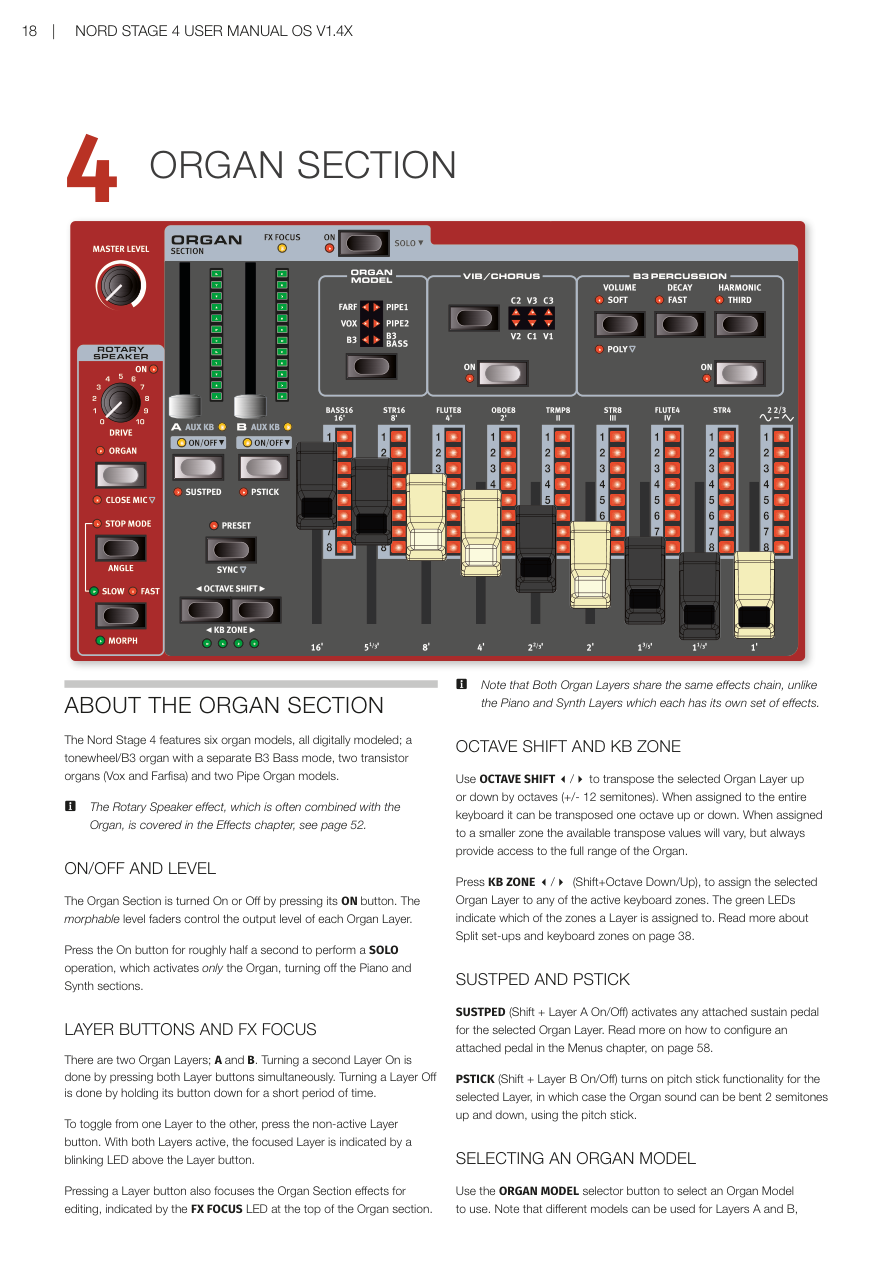
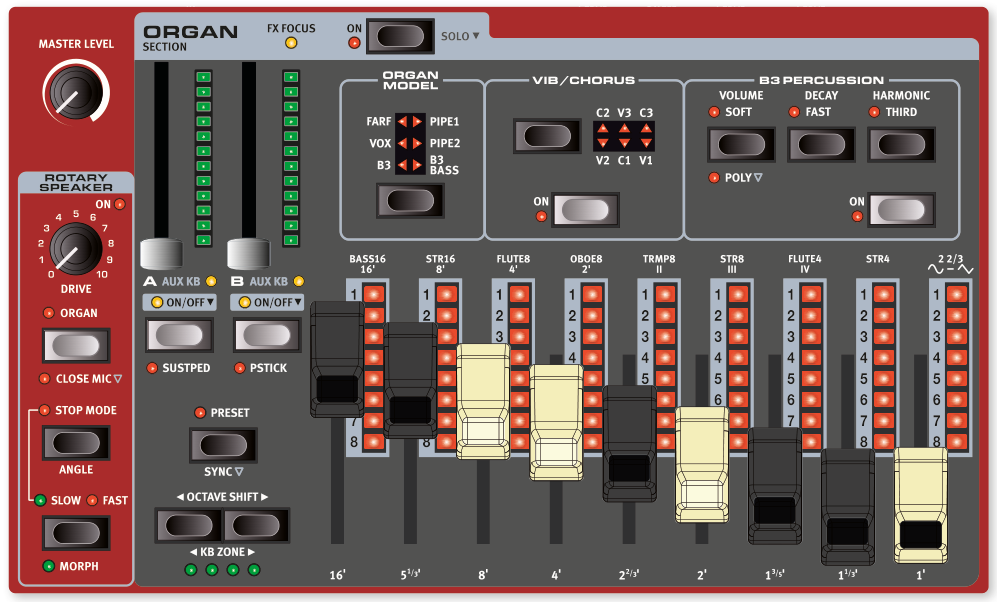
Nord Stage 4 內建六種風琴音色模型,全部以數位方式模擬:一種音輪式 B3 風琴(另附獨立的 B3 Bass 模式)、兩種電晶體風琴(Vox 和 Farfisa),以及兩種管風琴(Pipe Organ)模型。
💡 什麼是「數位模擬」?就是用電腦程式精確重現老式機械樂器的聲音特性,讓你不需要真的擁有那些昂貴的老樂器,也能奏出一模一樣的音色。
The Nord Stage 4 features six organ models, all digitally modeled; a tonewheel/B3 organ with a separate B3 Bass mode, two transistor organs (Vox and Farfisa) and two Pipe Organ models.
🔖 旋轉喇叭效果(Rotary Speaker)經常搭配風琴一起使用,相關設定請參閱效果章節第 52 頁。
The Rotary Speaker effect, which is often combined with the Organ, is covered in the Effects chapter, see page 52.
開關與音量 / ON/OFF AND LEVEL
按下風琴區的 ON 按鈕可以開啟或關閉整個風琴區。每個風琴音層(Layer)各有一支可以推動的音量推桿,推桿本身也支援變形控制(Morph)。
The Organ Section is turned On or Off by pressing its ON button. The morphable level faders control the output level of each Organ Layer.
長按 ON 按鈕約半秒,可以執行「獨奏(Solo)」操作——只保留風琴發聲,同時關閉鋼琴和合成器區段。這在你只想單獨試聽風琴音色時很方便。
Press the On button for roughly half a second to perform a SOLO operation, which activates only the Organ, turning off the Piano and Synth sections.
音層按鈕與效果焦點 / LAYER BUTTONS AND FX FOCUS
風琴區有兩個音層(Layer——可以想像成兩台各自獨立的風琴),分別標示為 A 和 B。
💡 「音層」就像在同一台琴上疊加多個不同的聲音來源,你可以讓兩種風琴同時發聲,產生更豐富的音色。
There are two Organ Layers; A and B.
- 要同時開啟兩個音層,請同時按下 A 和 B 兩個按鈕。 Turning a second Layer On is done by pressing both Layer buttons simultaneously.
- 要關閉某個音層,長按該音層的按鈕約半秒即可。 Turning a Layer Off is done by holding its button down for a short period of time.
在兩個音層都開啟的狀態下,目前正在操作的「焦點音層」會以閃爍的 LED 標示。
To toggle from one Layer to the other, press the non-active Layer button. With both Layers active, the focused Layer is indicated by a blinking LED above the Layer button.
按下音層按鈕時,風琴區頂部的 FX FOCUS 指示燈也會亮起,表示目前正在編輯該音層的效果。
Pressing a Layer button also focuses the Organ Section effects for editing, indicated by the FX FOCUS LED at the top of the Organ section.
⚠️ 注意:風琴的兩個音層共用同一套效果鏈,這和鋼琴、合成器不同(後兩者的每個音層各有獨立效果)。
Note that Both Organ Layers share the same effects chain, unlike the Piano and Synth Layers which each has its own set of effects.
八度移調與鍵盤分區 / OCTAVE SHIFT AND KB ZONE
使用 OCTAVE SHIFT 按鈕可以將選定的風琴音層往上或往下移調,每次移動一個八度(±12 個半音)。指定到整個鍵盤時,可移調一個八度;指定到較小的分區時,可調範圍會有所不同,但始終能涵蓋風琴的完整音域。
Use OCTAVE SHIFT to transpose the selected Organ Layer up or down by octaves (+/- 12 semitones). When assigned to the entire keyboard it can be transposed one octave up or down. When assigned to a smaller zone the available transpose values will vary, but always provide access to the full range of the Organ.
按下 KB ZONE(Shift + 八度升/降鍵),可以將選定的風琴音層指定到任何已啟用的鍵盤分區。綠色 LED 指示燈會顯示目前音層被指定到哪個分區。關於分區設定,請參閱第 38 頁。
Press KB ZONE (Shift+Octave Down/Up), to assign the selected Organ Layer to any of the active keyboard zones. The green LEDs indicate which of the zones a Layer is assigned to. Read more about Split set-ups and keyboard zones on page 38.
延音踏板與音高桿 / SUSTPED AND PSTICK
SUSTPED(Shift + 音層 A 開關)可為選定的風琴音層啟用外接延音踏板。如何設定外接踏板,請參閱選單章節第 58 頁。
SUSTPED (Shift + Layer A On/Off) activates any attached sustain pedal for the selected Organ Layer. Read more on how to configure an attached pedal in the Menus chapter, on page 58.
PSTICK(Shift + 音層 B 開關)可為選定的音層開啟音高桿功能,讓你用音高桿(Pitch Stick)將風琴音色上下彎音 2 個半音。
PSTICK (Shift + Layer B On/Off) turns on pitch stick functionality for the selected Layer, in which case the Organ sound can be bent 2 semitones up and down, using the pitch stick.
選擇風琴模型 / SELECTING AN ORGAN MODEL
按下 ORGAN MODEL 選擇按鈕,可以挑選要使用的風琴模型。兩個音層 A 和 B 可以各自使用不同的模型——例如用 B3 疊加管風琴,或把 B3 主鍵盤和 B3 Bass 音桿分左右手演奏。
Use the ORGAN MODEL selector button to select an Organ Model to use. Note that different models can be used for Layers A and B, enabling various layered Organ sounds or a B3 manual combined with the B3 Bass drawbars as a split or with one Layer played over MIDI.
風琴預設音色 / ORGAN PRESETS
Nord Stage 4 內建大量完整的風琴預設音色(Preset——已經設定好、可以直接使用的音色組合,通常包含效果),可在程式區段中央的 PRESET LIBRARY 區域按下 ORGAN 按鈕來瀏覽和載入。你自己調整好的音色也可以儲存到預設音色庫,方便在任何程式(Program)中快速呼叫。
The Nord Stage 4 comes with a large selection of complete and ready-to-use Organ Presets, including effects. These are browsed and loaded using the ORGAN button in the PRESET LIBRARY area, of the central Program section. User-created sounds can be stored to the Preset Library as well, for quick and easy recall from within any Program.
詳細說明請參閱第 40 頁的預設音色庫章節。
Read more about the Preset Library on page 40.
音桿與 LED 顯示 / DRAWBARS AND LED GRAPHS
每支實體音桿(Drawbar——類似滑桿的控制器,拉出越多、該泛音聲音越大)旁邊都有一排 LED 指示燈顯示目前的設定值。載入程式時,LED 會顯示程式中儲存的音桿預設值。
💡 「泛音」是聲音的組成成分。每支音桿代表不同的頻率成分,透過組合各音桿的位置,你就能調出各種不同特色的風琴音色——這正是風琴最有趣的地方!
The mechanical drawbars are accompanied by LED graphs. When a program is loaded the LED graphs show the stored settings for the drawbars, referred to as the Preset.
如果關閉預設音色(Preset Off),風琴就會進入「音桿即時模式(Drawbar Live)」,直接使用實體音桿的實際位置,此時 LED 指示燈全部熄滅。詳細說明請見後續章節。
If the Preset is turned Off, the Organ is in Drawbar Live mode for that Layer, meaning that the physical positions of the drawbars are used, in which case the LEDs are unlit. Read more about Preset and Drawbar Live further down.
💡 在預設音色模式下,音桿可以設定變形控制(Morph)——例如透過調制輪或踏板大幅度地即時改變音桿位置,製造戲劇性的音色變化。
The drawbars can be Morph controlled, in Preset mode, if you want to make dramatic changes with for example the Wheel or a control pedal.
B3 電風琴模組 / THE B3 MODEL
B3 電風琴模組以經典機電式音輪風琴(Tonewheel Organ)為基礎,透過創新且精密的數位建模方式,重現原始樂器的每一個細節。以下是幾個建模的具體面向:
💡 Hammond B3 是 1950–60 年代最具代表性的電風琴(Electric Organ),常見於爵士樂、福音音樂和搖滾樂中,通常搭配 Leslie 旋轉喇叭使用。Nord 花費大量心力精確模擬了它機械結構的每個特性。
The B3 model is based on a digital model of the classic electro-mechanical tonewheel organ. This simulation utilizes innovative and advanced methods to capture every nuance of the original sound. Here are some examples:
- 極度精確的原始合聲與顫音掃描器數位模型。 An extremely accurate digital model of the original chorus and vibrato scanner.
- 模擬每個泛音的接點彈跳特性。 Modeling of the individual contact bounces for each harmonic.
- 模擬內建前置放大器獨特的頻率特性,這構成了聲音的「主體」。 Modeling of the unique frequency characteristics of the built-in pre-amplifier, which forms the "body" of the sound.
- 模擬音輪之間的「能量搶奪」效應,產生典型的壓縮感。 Simulation of the energy robbing on the tone wheels that results in the typical "compressed" sound.
- 依原始設計精確調音。 Authentic tuning of the tonewheels according to the original design.
- 極快速的琴鍵響應。 Extremely fast keyboard response.
- 完整複音(Full Polyphony)。 Full polyphony.
B3 音桿 / B3 DRAWBARS
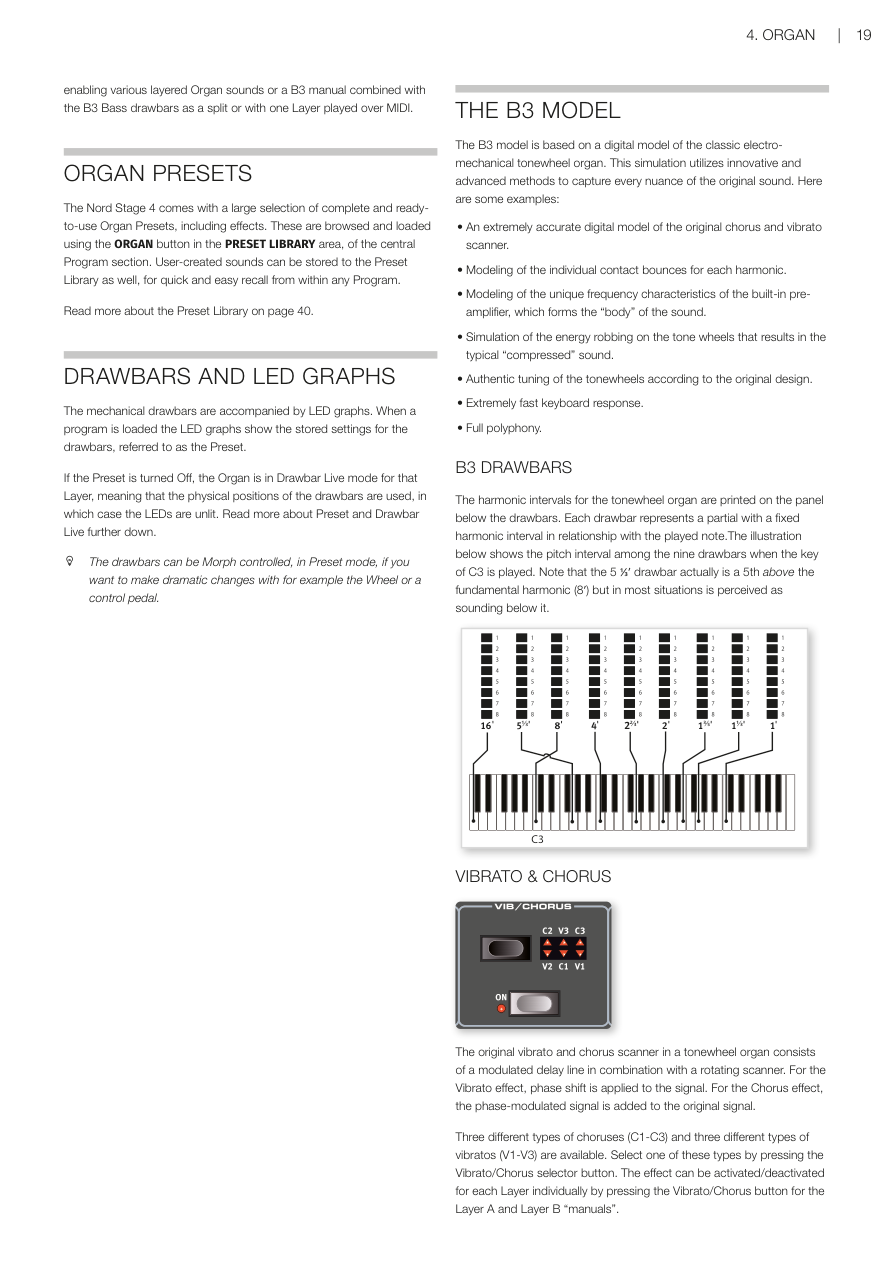
音輪風琴的泛音音程標示印在面板音桿下方。每支音桿代表一個固定泛音音程,與所彈奏的音符之間維持固定的音高關係。面板上的圖示顯示彈奏 C3 時,九支音桿各自的音高關係。請注意,5⅓′ 音桿實際上是基頻(8′)高五度的泛音,但在多數情況下聽起來反而像在它下方。
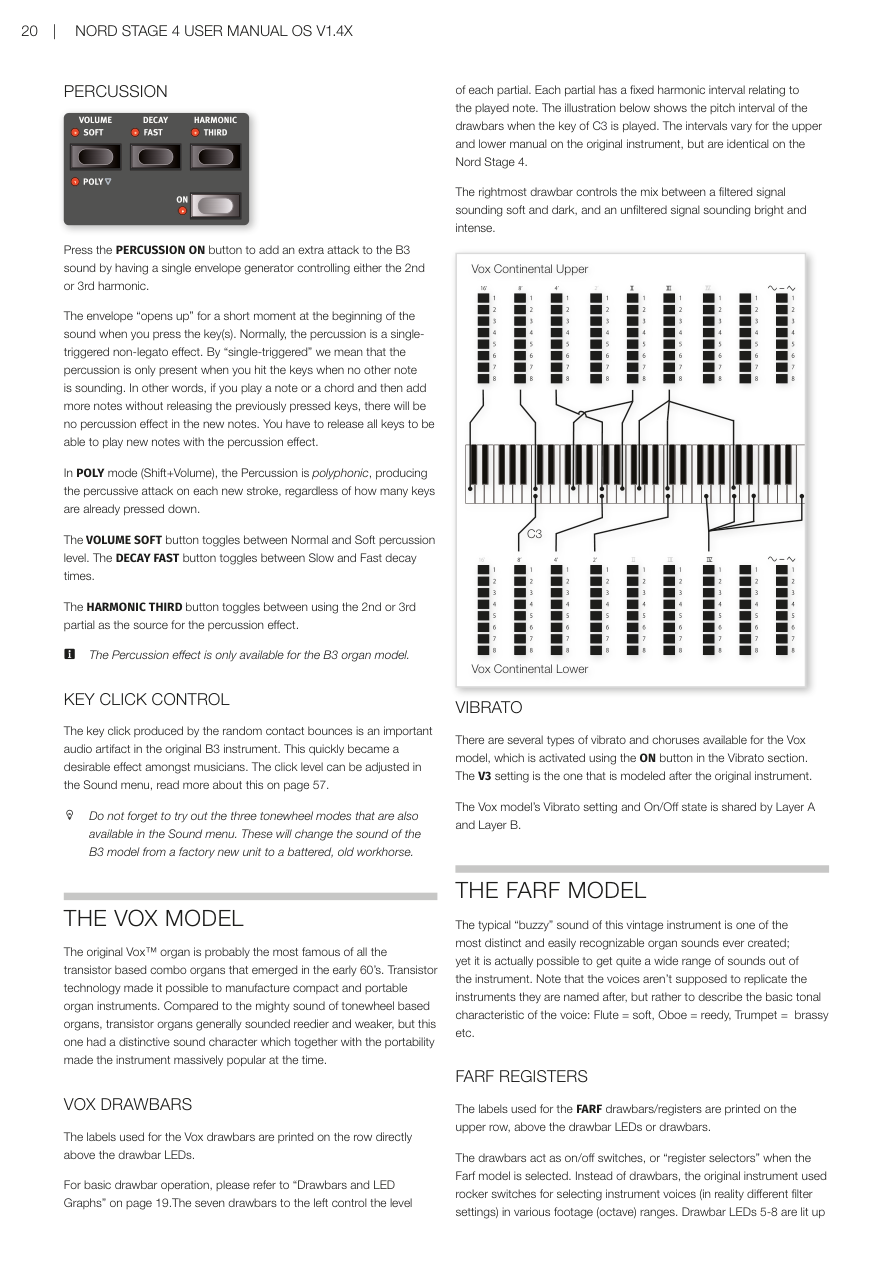
The harmonic intervals for the tonewheel organ are printed on the panel below the drawbars. Each drawbar represents a partial with a fixed harmonic interval in relationship with the played note. The illustration below shows the pitch interval among the nine drawbars when the key of C3 is played. Note that the 5⅓′ drawbar actually is a 5th above the fundamental harmonic (8′) but in most situations is perceived as sounding below it.
顫音與合聲 / VIBRATO & CHORUS
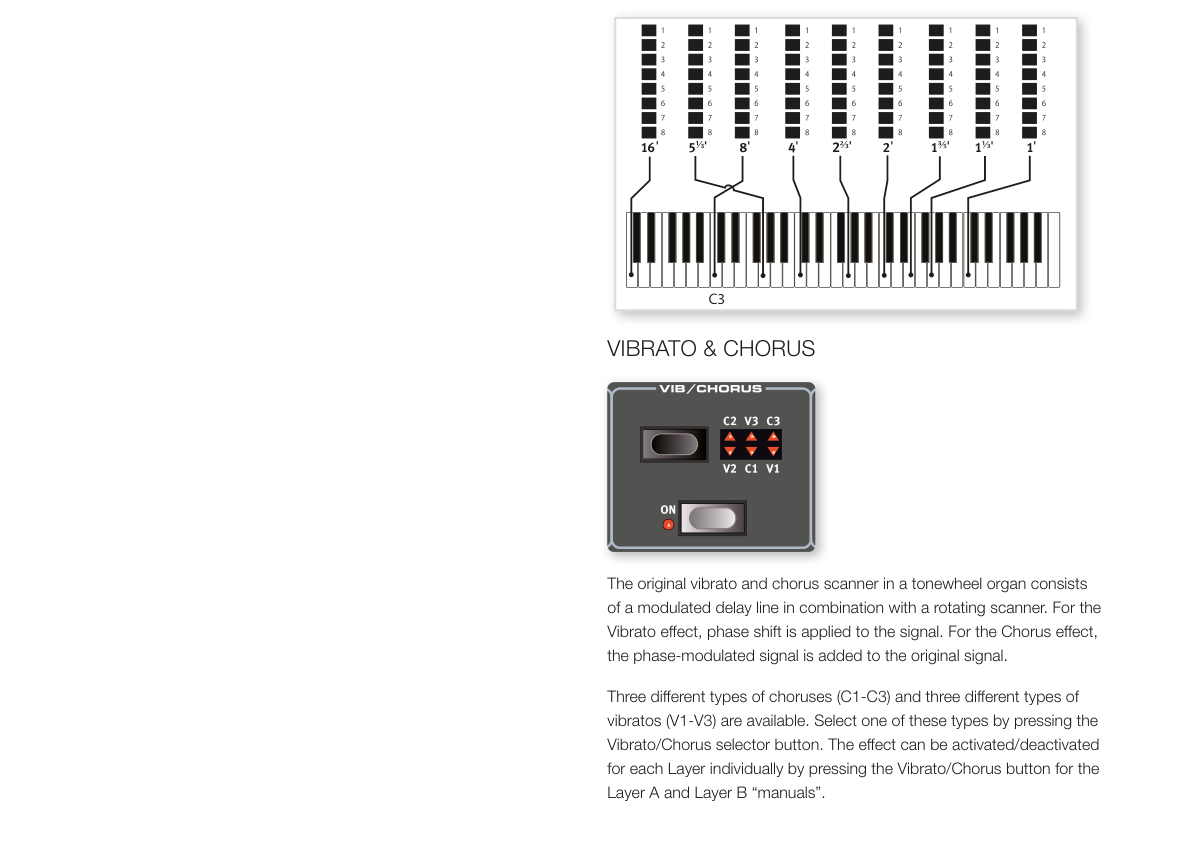
音輪風琴原本的顫音與合聲掃描器,是由一條調製延遲線與旋轉掃描器組合而成。顫音效果是對訊號施加相位偏移;合聲效果則是將相位調製後的訊號疊加到原始訊號上。
The original vibrato and chorus scanner in a tonewheel organ consists of a modulated delay line in combination with a rotating scanner. For the Vibrato effect, phase shift is applied to the signal. For the Chorus effect, the phase-modulated signal is added to the original signal.
共有三種合聲(C1–C3)和三種顫音(V1–V3)可供選擇。按下 Vibrato/Chorus 選擇按鈕來切換類型;每個音層的效果可以獨立開關。
Three different types of choruses (C1-C3) and three different types of vibratos (V1-V3) are available. Select one of these types by pressing the Vibrato/Chorus selector button. The effect can be activated/deactivated for each Layer individually by pressing the Vibrato/Chorus button for the Layer A and Layer B "manuals".
擊弦音效 / PERCUSSION
按下 PERCUSSION ON 按鈕,可以為 B3 音色加上一個短暫的起始衝擊感(Attack)——這是用一個包絡產生器(Envelope Generator)控制第 2 或第 3 泛音所產生的效果。
💡 「擊弦音效」就像在每個音符開頭加上一個輕微的「叩」聲,讓音色聽起來更有活力和節奏感。這是 B3 風琴的招牌特色之一。
Press the PERCUSSION ON button to add an extra attack to the B3 sound by having a single envelope generator controlling either the 2nd or 3rd harmonic.
按鍵時,包絡會在音符開頭短暫「打開」一下。正常情況下,擊弦音效是「單觸發非連奏(Single-triggered Non-legato)」模式:只有在沒有其他音符正在發聲時按鍵,才會觸發擊弦效果。也就是說,如果你按住一個和弦再繼續疊加新的音符,新音符不會有擊弦效果——需要放開所有琴鍵後重新按鍵才行。
The envelope "opens up" for a short moment at the beginning of the sound when you press the key(s). Normally, the percussion is a single-triggered non-legato effect. By "single-triggered" we mean that the percussion is only present when you hit the keys when no other note is sounding. In other words, if you play a note or a chord and then add more notes without releasing the previously pressed keys, there will be no percussion effect in the new notes. You have to release all keys to be able to play new notes with the percussion effect.
在 POLY 模式(Shift+Volume)下,擊弦音效變為「複音(Polyphonic)」——每個新按下的音符都會觸發擊弦效果,不管之前有沒有音符正在發聲。
In POLY mode (Shift+Volume), the Percussion is polyphonic, producing the percussive attack on each new stroke, regardless of how many keys are already pressed down.
- VOLUME SOFT 按鈕:在正常(Normal)和柔和(Soft)擊弦音量之間切換。 The VOLUME SOFT button toggles between Normal and Soft percussion level.
- DECAY FAST 按鈕:在慢(Slow)和快(Fast)衰減時間之間切換。 The DECAY FAST button toggles between Slow and Fast decay times.
- HARMONIC THIRD 按鈕:在第 2 泛音和第 3 泛音之間切換,作為擊弦音效的來源。 The HARMONIC THIRD button toggles between using the 2nd or 3rd partial as the source for the percussion effect.
⚠️ 擊弦音效僅適用於 B3 風琴模型。
The Percussion effect is only available for the B3 organ model.
按鍵雜音控制 / KEY CLICK CONTROL
按鍵雜音(Key Click)是原始 B3 樂器中由接點隨機彈跳產生的聲音特性,很快就成為音樂人喜愛的效果之一。點擊音量可以在音效選單中調整,詳見第 57 頁。
The key click produced by the random contact bounces is an important audio artifact in the original B3 instrument. This quickly became a desirable effect amongst musicians. The click level can be adjusted in the Sound menu, read more about this on page 57.
💡 別忘了試試音效選單中的三種音輪模式(Tonewheel Modes)——可以讓 B3 音色從「全新出廠」的清晰音質,一路調整到「老舊磨損」的復古音色。
Do not forget to try out the three tonewheel modes that are also available in the Sound menu. These will change the sound of the B3 model from a factory new unit to a battered, old workhorse.
Vox 模型 / THE VOX MODEL
原版 Vox 風琴大概是 1960 年代初期所有電晶體組合風琴中最著名的一款。電晶體技術讓製造小巧便攜的風琴成為可能。和音輪風琴強勁的音色相比,電晶體風琴整體偏細薄,但 Vox 獨特的音色個性加上輕巧的攜帶性,使它在當時大受歡迎。
The original Vox organ is probably the most famous of all the transistor based combo organs that emerged in the early 60's. Transistor technology made it possible to manufacture compact and portable organ instruments. Compared to the mighty sound of tonewheel based organs, transistor organs generally sounded reedier and weaker, but this one had a distinctive sound character which together with the portability made the instrument massively popular at the time.
Vox 音桿 / VOX DRAWBARS
Vox 音桿的標籤印在音桿 LED 正上方的那一排。
The labels used for the Vox drawbars are printed on the row directly above the drawbar LEDs.
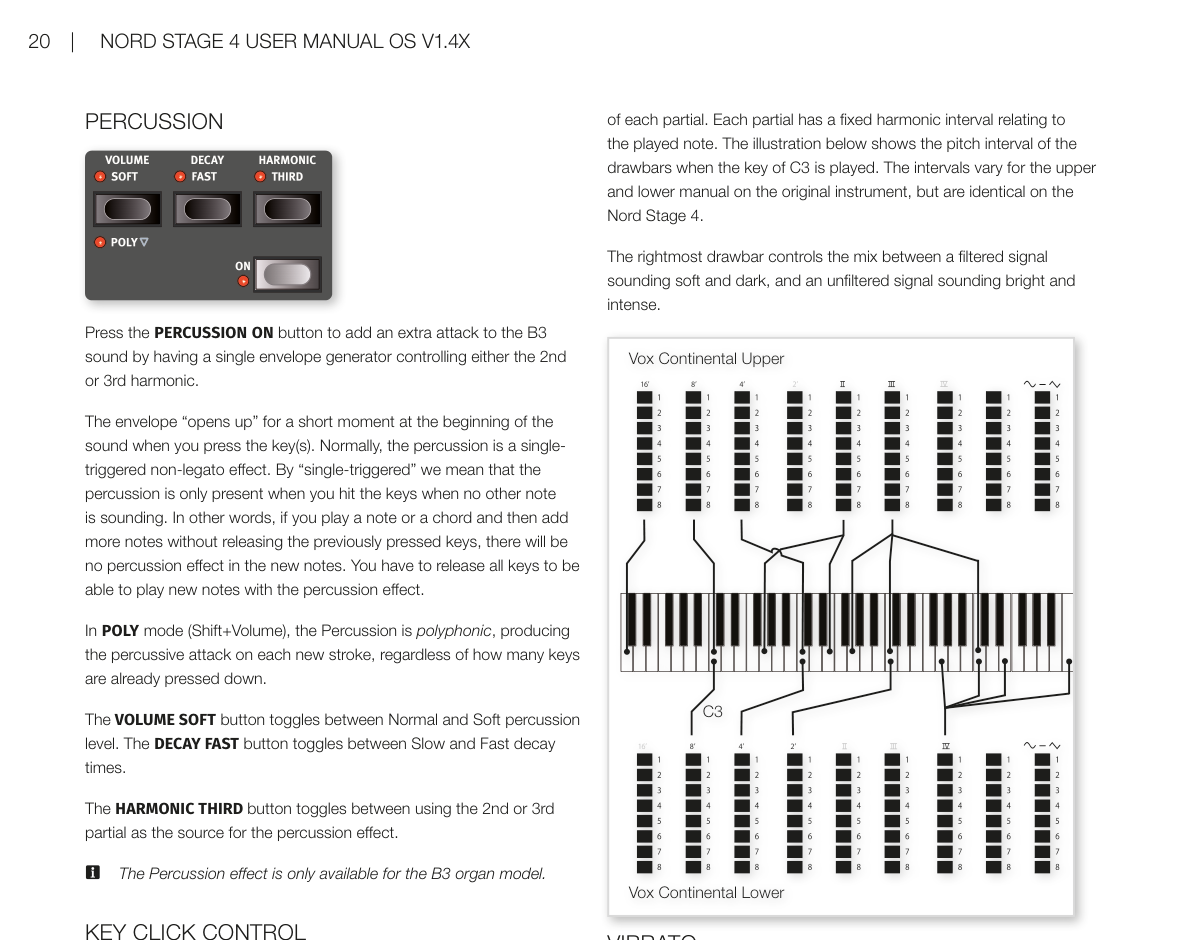
基本音桿操作請參閱第 19 頁「音桿與 LED 顯示」。左側七支音桿各自控制一個泛音的音量,每個泛音與彈奏音符之間維持固定的音高關係。最右側的音桿控制「柔和暗沉的濾波訊號」與「明亮強烈的未濾波訊號」之間的混音比例。
For basic drawbar operation, please refer to "Drawbars and LED Graphs" on page 19. The seven drawbars to the left control the level of each partial. Each partial has a fixed harmonic interval relating to the played note. The rightmost drawbar controls the mix between a filtered signal sounding soft and dark, and an unfiltered signal sounding bright and intense.
顫音 / VIBRATO
Vox 模型提供多種顫音和合聲類型,透過顫音區段的 ON 按鈕啟用。V3 是最接近原版樂器的設定。Vox 模型的顫音設定和開關狀態由音層 A 和 B 共用。
There are several types of vibrato and choruses available for the Vox model, which is activated using the ON button in the Vibrato section. The V3 setting is the one that is modeled after the original instrument. The Vox model's Vibrato setting and On/Off state is shared by Layer A and Layer B.
Farf 模型 / THE FARF MODEL
這款復古樂器典型的「嗡嗡(Buzzy)」音色,是有史以來最獨特、最易辨認的風琴音色之一——但你其實也可以從中調出相當多樣的聲音。請注意,各音色的名稱(如長笛、雙簧管、小號等)並不代表真正模仿那些樂器的聲音,而是用來描述音色的基本特質:長笛(Flute)= 柔和、雙簧管(Oboe)= 蘆葦感、小號(Trumpet)= 銅管感,以此類推。
The typical "buzzy" sound of this vintage instrument is one of the most distinct and easily recognizable organ sounds ever created; yet it is actually possible to get quite a wide range of sounds out of the instrument. Note that the voices aren't supposed to replicate the instruments they are named after, but rather to describe the basic tonal characteristic of the voice: Flute = soft, Oboe = reedy, Trumpet = brassy etc.
Farf 音栓 / FARF REGISTERS
Farf 音桿/音栓的標籤印在音桿 LED 上方的一排。
The labels used for the FARF drawbars/registers are printed on the upper row, above the drawbar LEDs or drawbars.
在 Farf 模型下,音桿的作用是開關切換器(或稱「音栓選擇器」),而非連續調整音量。原版樂器使用搖桿開關來選擇不同的音色(實際上是不同的濾波設定),分佈在各個音程(八度)範圍內。
The drawbars act as on/off switches, or "register selectors" when the Farf model is selected. Instead of drawbars, the original instrument used rocker switches for selecting instrument voices (in reality different filter settings) in various footage (octave) ranges.
💡 音桿 LED 5–8 亮起表示該音色已啟用;LED 1–4 亮起則表示未啟用。將音桿拉出超過一半,就可以啟用該音栓。
Drawbar LEDs 5-8 are lit up for an activated voice, and drawbar LEDs 1-4 are lit up for a deactivated voice. Pulling a drawbar more than half way out will activate that register.
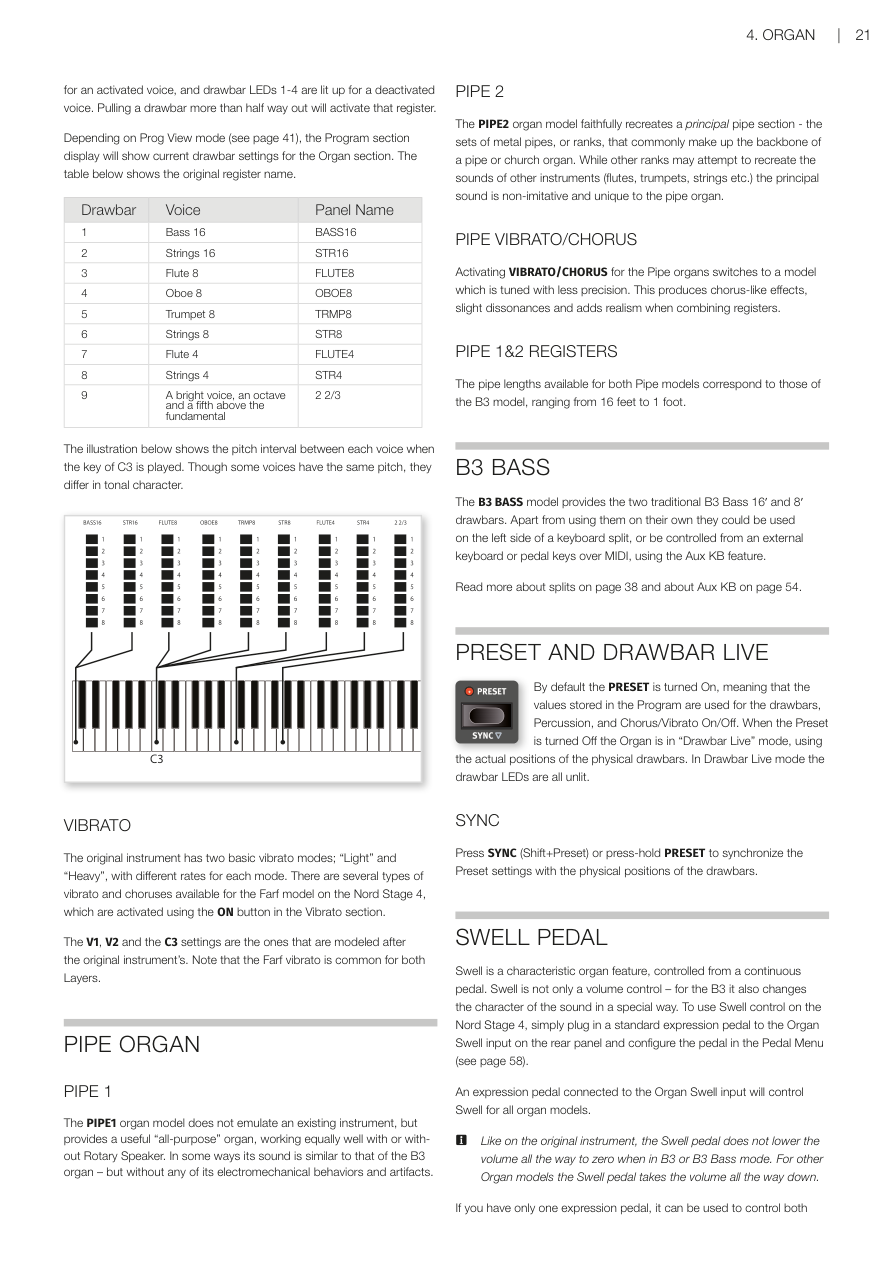
依據程式顯示模式(Prog View,見第 41 頁),程式區段的顯示器會顯示目前風琴區的音桿設定。下表列出各音桿對應的原版音栓名稱:
Depending on Prog View mode (see page 41), the Program section display will show current drawbar settings for the Organ section. The table below shows the original register name.
| 音桿 | 音色 | 面板名稱 |
|---|---|---|
| 1 | Bass 16(低音 16 呎) | BASS16 |
| 2 | Strings 16(弦樂 16 呎) | STR16 |
| 3 | Flute 8(長笛 8 呎) | FLUTE8 |
| 4 | Oboe 8(雙簧管 8 呎) | OBOE8 |
| 5 | Trumpet 8(小號 8 呎) | TRMP8 |
| 6 | Strings 8(弦樂 8 呎) | STR8 |
| 7 | Flute 4(長笛 4 呎) | FLUTE4 |
| 8 | Strings 4(弦樂 4 呎) | STR4 |
| 9 | 比基頻高一個八度又五度的明亮音色 | 2 2/3 |
💡 「呎數」是管風琴傳統術語,代表音管的長度。管越長,聲音越低沉;16 呎是低音,1 呎是超高音。
| Drawbar | Voice | Panel Name |
|---|---|---|
| 1 | Bass 16 | BASS16 |
| 2 | Strings 16 | STR16 |
| 3 | Flute 8 | FLUTE8 |
| 4 | Oboe 8 | OBOE8 |
| 5 | Trumpet 8 | TRMP8 |
| 6 | Strings 8 | STR8 |
| 7 | Flute 4 | FLUTE4 |
| 8 | Strings 4 | STR4 |
| 9 | A bright voice, an octave and a fifth above the fundamental | 2 2/3 |
雖然部分音色的音高相同,但各自的音色特質不同。
Though some voices have the same pitch, they differ in tonal character.
顫音 / VIBRATO
Farf 原版樂器有「輕(Light)」和「重(Heavy)」兩種基本顫音模式,各有不同的速率。Nord Stage 4 的 Farf 模型提供更多顫音和合聲類型,透過顫音區段的 ON 按鈕啟用。V1、V2 和 C3 是最接近原版樂器的設定。Farf 的顫音由兩個音層共用。
The original instrument has two basic vibrato modes; "Light" and "Heavy", with different rates for each mode. There are several types of vibrato and choruses available for the Farf model on the Nord Stage 4, which are activated using the ON button in the Vibrato section. The V1, V2 and the C3 settings are the ones that are modeled after the original instrument's. Note that the Farf vibrato is common for both Layers.
管風琴 / PIPE ORGAN
管風琴 1(Pipe 1)/ PIPE 1
管風琴 1 模型並非模仿某台特定的真實樂器,而是提供一種實用的「萬用型」管風琴音色,不管搭不搭配旋轉喇叭效果都好用。某種程度上它的聲音類似 B3——但沒有那些電機械特性和音色雜質。
The PIPE1 organ model does not emulate an existing instrument, but provides a useful "all-purpose" organ, working equally well with or without Rotary Speaker. In some ways its sound is similar to that of the B3 organ – but without any of its electromechanical behaviors and artifacts.
管風琴 2(Pipe 2)/ PIPE 2
管風琴 2 模型忠實重現「主音管(Principal Pipe)」音管組——這是由金屬音管構成的音管組,通常是教堂管風琴的核心音色。與其他試圖模仿別種樂器(長笛、小號、弦樂等)的音管組不同,主音管音色是管風琴所獨有的、不模仿任何其他樂器的原創音色。
The PIPE2 organ model faithfully recreates a principal pipe section - the sets of metal pipes, or ranks, that commonly make up the backbone of a pipe or church organ. While other ranks may attempt to recreate the sounds of other instruments (flutes, trumpets, strings etc.) the principal sound is non-imitative and unique to the pipe organ.
管風琴顫音/合聲 / PIPE VIBRATO/CHORUS
為管風琴啟用 VIBRATO/CHORUS 後,模型會切換到音準精確度較低的版本,產生合聲般的效果和輕微的不和諧感,組合多個音栓時增添真實感。
Activating VIBRATO/CHORUS for the Pipe organs switches to a model which is tuned with less precision. This produces chorus-like effects, slight dissonances and adds realism when combining registers.
管風琴 1 和 2 的音栓 / PIPE 1&2 REGISTERS
兩種管風琴模型可用的音管長度與 B3 模型相同,從 16 呎到 1 呎都有。
The pipe lengths available for both Pipe models correspond to those of the B3 model, ranging from 16 feet to 1 foot.
B3 Bass 電風琴模組 / B3 BASS
B3 Bass 電風琴模組提供傳統 B3 低音的 16′ 和 8′ 兩支音桿。除了單獨使用外,也可以搭配鍵盤左側分區,或透過 MIDI 的 Aux KB 功能由外接鍵盤或踏鍵演奏。
💡 這個模式適合雙鍵盤演奏設定——右手操作主要的 B3 音色,左手或腳踩踏板控制專屬的低音音桿,重現傳統雙層鍵盤 B3 的演奏方式。
The B3 BASS model provides the two traditional B3 Bass 16′ and 8′ drawbars. Apart from using them on their own they could be used on the left side of a keyboard split, or be controlled from an external keyboard or pedal keys over MIDI, using the Aux KB feature.
分區(Split)相關說明請參閱第 38 頁,Aux KB 相關說明請參閱第 54 頁。
Read more about splits on page 38 and about Aux KB on page 54.
預設音色與音桿即時模式 / PRESET AND DRAWBAR LIVE
預設音色(Preset)預設為開啟,表示程式中儲存的音桿值、擊弦音效和合聲/顫音開關狀態都會被使用。關閉預設音色後,風琴進入「音桿即時(Drawbar Live)」模式,直接使用實體音桿的物理位置;此時所有音桿 LED 指示燈都會熄滅。
💡 簡單說:Preset 開啟 = 程式記憶的設定;Drawbar Live = 音桿實際位置。如果你推動了音桿但 LED 燈沒變,請確認 Preset 是否已關閉。
By default the PRESET is turned On, meaning that the values stored in the Program are used for the drawbars, Percussion, and Chorus/Vibrato On/Off. When the Preset is turned Off the Organ is in "Drawbar Live" mode, using the actual positions of the physical drawbars. In Drawbar Live mode the drawbar LEDs are all unlit.
同步 / SYNC
按下 SYNC(Shift+Preset)或長按 PRESET 按鈕,可以將儲存的預設值與實體音桿的現有位置同步。
💡 當你在 Preset 模式下移動了音桿,但想把當前的物理位置「存入」預設時,就用這個功能。
Press SYNC (Shift+Preset) or press-hold PRESET to synchronize the Preset settings with the physical positions of the drawbars.
音量漸變踏板 / SWELL PEDAL
Swell(音量漸變)是風琴的經典功能,用連續型踏板來控制。它不只是單純的音量控制——對 B3 來說,Swell 還會改變音色的特質。要在 Nord Stage 4 上使用 Swell,只需將標準表情踏板(Expression Pedal)插入後面板的 Organ Swell 插孔,並在踏板選單(Pedal Menu)中設定即可(見第 58 頁)。
💡 「表情踏板」就是那種連續可調的踏板,就像鋼琴踩踏板一樣,踩越深效果越強。和延音踏板(只有開/關兩種狀態)不同。
Swell is a characteristic organ feature, controlled from a continuous pedal. Swell is not only a volume control – for the B3 it also changes the character of the sound in a special way. To use Swell control on the Nord Stage 4, simply plug in a standard expression pedal to the Organ Swell input on the rear panel and configure the pedal in the Pedal Menu (see page 58).
接在 Organ Swell 插孔的表情踏板,對所有風琴模型都有效。
An expression pedal connected to the Organ Swell input will control Swell for all organ models.
⚠️ 和原版樂器相同,在 B3 或 B3 Bass 模式下,Swell 踏板不會把音量降到零;其他風琴模型的 Swell 踏板則可以完全靜音。
Like on the original instrument, the Swell pedal does not lower the volume all the way to zero when in B3 or B3 Bass mode. For other Organ models the Swell pedal takes the volume all the way down.
如果你只有一支表情踏板,可以將它接到 Control Pedal 插孔,同時控制變形控制(Morph)和 Swell——這也是在踏板選單中設定的。
If you have only one expression pedal, it can be used to control both Morphs and Swell, when attached to the Control Pedal jack. This is also set up in the Pedal Menu.
旋轉喇叭 / ROTARY SPEAKER
旋轉喇叭效果的詳細設定,請參閱效果章節第 52 頁。
The Rotary Speaker settings are described in detail in the Effects chapter on page 52.
第五章:鋼琴區段 / Chapter 5: Piano Section
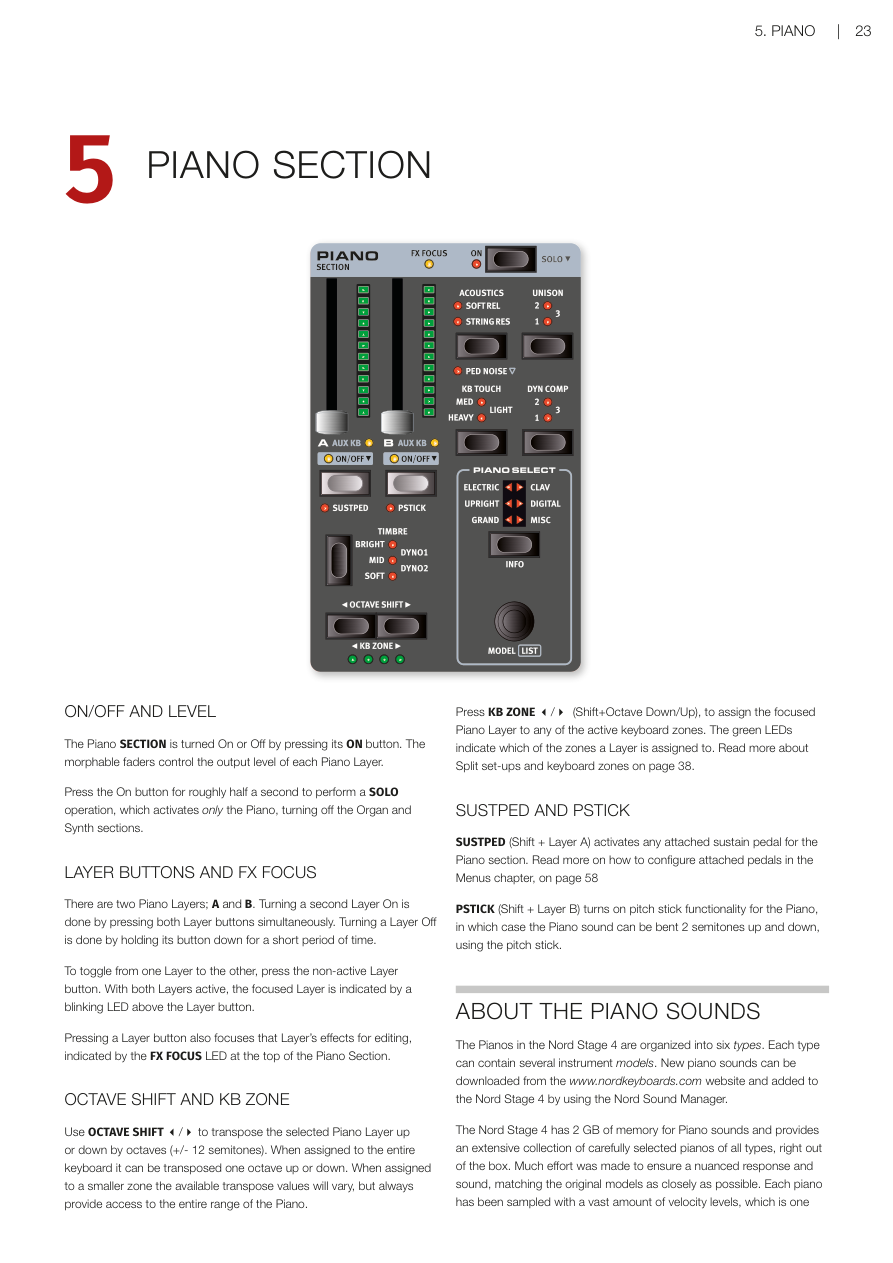
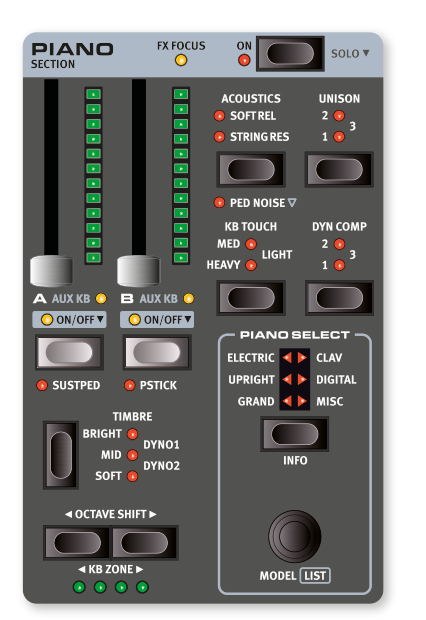
開關與音量 / ON/OFF AND LEVEL
按下 ON 按鈕,可以開啟或關閉整個鋼琴區段。每個音層(Layer——可以想像成同時疊加播放的不同樂器聲音)都有一個可推動的音量推桿,可以控制該音層的輸出音量。這些推桿也支援變形控制(Morph),意思是可以用滑輪或踏板來即時改變音量大小。
The Piano SECTION is turned On or Off by pressing its ON button. The morphable faders control the output level of each Piano Layer.
長按 ON 按鈕約半秒,就會執行 SOLO 功能——只保留鋼琴發聲,同時關閉風琴和合成器區段。這在你只想單獨試聽鋼琴音色時非常方便。
Press the On button for roughly half a second to perform a SOLO operation, which activates only the Piano, turning off the Organ and Synth sections.
音層按鈕與效果焦點 / LAYER BUTTONS AND FX FOCUS
鋼琴區段有兩個音層:A 和 B。要同時開啟兩個音層,只要同時按下 A 和 B 兩個按鈕即可。若要關閉某個音層,長按該音層按鈕片刻就行了。
There are two Piano Layers; A and B. Turning a second Layer On is done by pressing both Layer buttons simultaneously. Turning a Layer Off is done by holding its button down for a short period of time.
兩個音層都開啟時,「正在編輯」的那個音層按鈕上方的 LED 會閃爍,代表目前的焦點在哪個音層。
To toggle from one Layer to the other, press the non-active Layer button. With both Layers active, the focused Layer is indicated by a blinking LED above the Layer button.
按下音層按鈕,也會同時把效果的焦點切換到那個音層,鋼琴區段頂部的 FX FOCUS LED 會亮起,告訴你目前在編輯哪個音層的效果。
Pressing a Layer button also focuses that Layer's effects for editing, indicated by the FX FOCUS LED at the top of the Piano Section.
八度移調與鍵盤分區 / OCTAVE SHIFT AND KB ZONE
**OCTAVE SHIFT(八度移調)**按鈕可以讓選定的音層往上或往下移動一個八度(即 ±12 個半音)。整個鍵盤範圍可移調一個八度;如果音層只分配在某個小分區,可移調的幅度會有所不同,但始終能涵蓋鋼琴的完整音域。
Use OCTAVE SHIFT to transpose the selected Piano Layer up or down by octaves (+/- 12 semitones). When assigned to the entire keyboard it can be transposed one octave up or down. When assigned to a smaller zone the available transpose values will vary, but always provide access to the entire range of the Piano.
按下 KB ZONE(Shift + 八度移調上/下),可以把目前的鋼琴音層分配到特定的鍵盤分區(KB Zone)。綠色 LED 會顯示該音層目前分配在哪些分區。關於分區設定的詳細說明,請參考第 38 頁。
Press KB ZONE (Shift+Octave Down/Up), to assign the focused Piano Layer to any of the active keyboard zones. The green LEDs indicate which of the zones a Layer is assigned to. Read more about Split set-ups and keyboard zones on page 38.
延音踏板與音高桿 / SUSTPED AND PSTICK
SUSTPED(Shift + 音層 A)可以為鋼琴區段啟用外接的延音踏板(Sustain Pedal——踩下後,鬆開琴鍵後音符仍持續發聲)。踏板的詳細設定請參考第 58 頁的選單章節。
SUSTPED (Shift + Layer A) activates any attached sustain pedal for the Piano section. Read more on how to configure attached pedals in the Menus chapter, on page 58.
PSTICK(Shift + 音層 B)開啟音高桿功能,讓你可以用音高桿(Pitch Stick)把鋼琴音色上下彎音 2 個半音,做出滑音效果。
PSTICK (Shift + Layer B) turns on pitch stick functionality for the Piano, in which case the Piano sound can be bent 2 semitones up and down, using the pitch stick.
關於鋼琴音色 / ABOUT THE PIANO SOUNDS
Nord Stage 4 的鋼琴音色分成六大類型,每種類型底下可以有多個不同的樂器模型。你可以到 www.nordkeyboards.com 下載更多鋼琴音色,再用 Nord Sound Manager 軟體載入琴中。
The Pianos in the Nord Stage 4 are organized into six types. Each type can contain several instrument models. New piano sounds can be downloaded from the www.nordkeyboards.com website and added to the Nord Stage 4 by using the Nord Sound Manager.
Nord Stage 4 為鋼琴音色提供了 2 GB 的記憶體空間,出廠就包含了豐富且精心挑選的各類鋼琴。為了讓每台鋼琴的觸感和音色都盡可能貼近原始樂器,每個鋼琴都錄製了大量不同的力度層次——彈輕了輕柔,彈重了雄渾,聽起來格外真實。
The Nord Stage 4 has 2 GB of memory for Piano sounds and provides an extensive collection of carefully selected pianos of all types, right out of the box. Much effort was made to ensure a nuanced response and sound, matching the original models as closely as possible. Each piano has been sampled with a vast amount of velocity levels, which is one
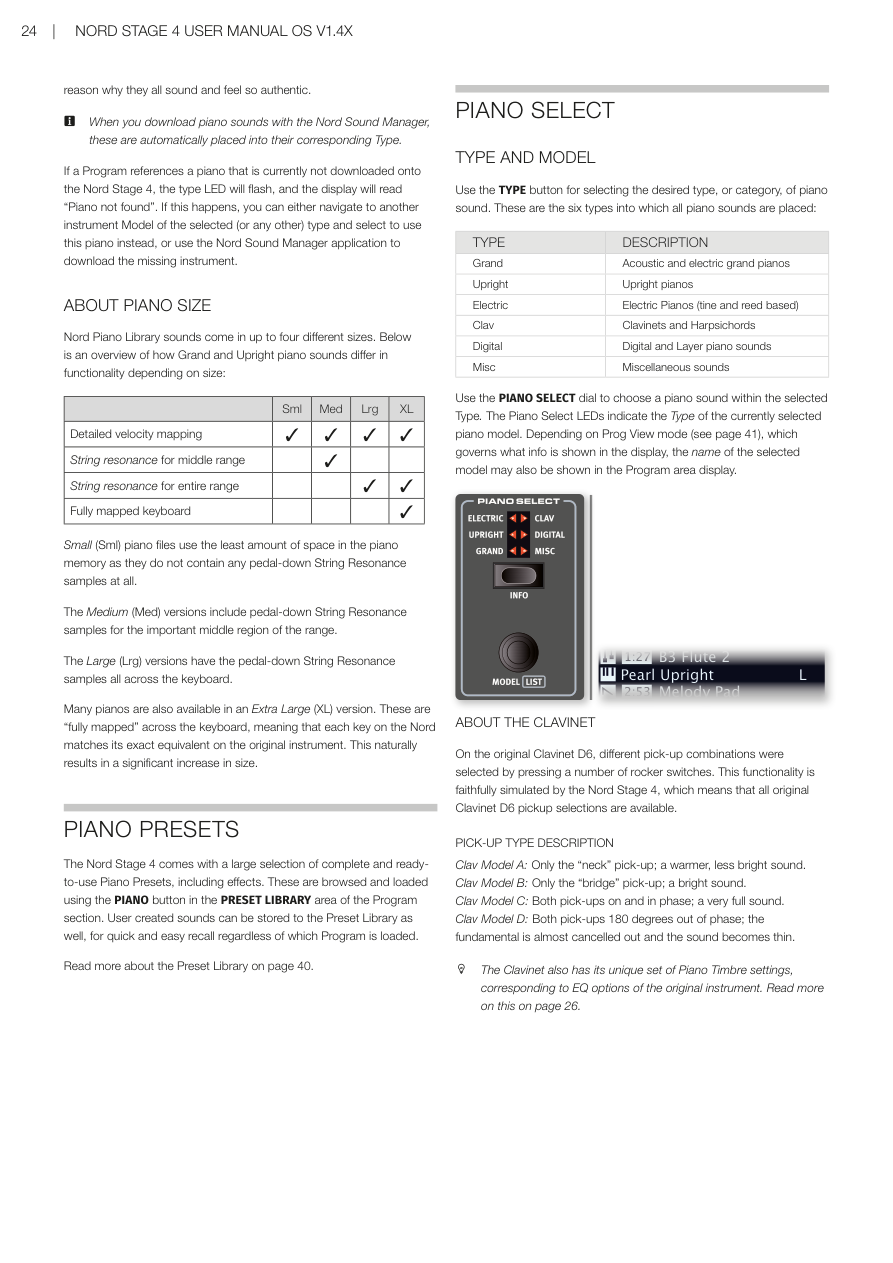
reason why they all sound and feel so authentic.
用 Nord Sound Manager 下載鋼琴音色後,系統會自動把它放進對應的類型分類中,不需要手動整理。
When you download piano sounds with the Nord Sound Manager, these are automatically placed into their corresponding Type.
如果某個程式(Program)所使用的鋼琴音色目前沒有安裝在琴中,對應的類型 LED 會閃爍,螢幕也會顯示「Piano not found」。這時你可以選擇其他已安裝的鋼琴音色來代替,或是用 Nord Sound Manager 下載缺少的音色。
If a Program references a piano that is currently not downloaded onto the Nord Stage 4, the type LED will flash, and the display will read "Piano not found". If this happens, you can either navigate to another instrument Model of the selected (or any other) type and select to use this piano instead, or use the Nord Sound Manager application to download the missing instrument.
關於鋼琴音色的大小 / ABOUT PIANO SIZE
Nord Piano Library 的音色有最多四種不同的檔案大小,大小不同功能也不同。下表是大鋼琴和直立式鋼琴各尺寸的功能比較:
Nord Piano Library sounds come in up to four different sizes. Below is an overview of how Grand and Upright piano sounds differ in functionality depending on size:
| 尺寸 | 詳細力度分層 | 中音域弦共鳴 | 全音域弦共鳴 | 完整鍵位對應 |
|---|---|---|---|---|
| Size | Detailed velocity mapping | String resonance for middle range | String resonance for entire range | Fully mapped keyboard |
| Sml | ✓ | |||
| Med | ✓ | ✓ | ||
| Lrg | ✓ | ✓ | ✓ | |
| XL | ✓ | ✓ | ✓ | ✓ |
小(Sml):檔案最小,不包含任何踩下延音踏板時的弦共鳴取樣。
Small (Sml) piano files use the least amount of space in the piano memory as they do not contain any pedal-down String Resonance samples at all.
中(Med):加入了中音域的踏板弦共鳴取樣,聽起來更自然。
The Medium (Med) versions include pedal-down String Resonance samples for the important middle region of the range.
大(Lrg):涵蓋全鍵盤範圍的踏板弦共鳴取樣。
The Large (Lrg) versions have the pedal-down String Resonance samples all across the keyboard.
超大(XL):「完整鍵位對應」版本,每一個琴鍵都對應原始樂器的真實錄音,音色最細緻,但檔案也最大。
Many pianos are also available in an Extra Large (XL) version. These are "fully mapped" across the keyboard, meaning that each key on the Nord matches its exact equivalent on the original instrument. This naturally results in a significant increase in size.
💡 如果記憶體空間有限,可以先從 Med 或 Lrg 版本開始,大部分演出場合都已非常夠用。
鋼琴預設音色 / PIANO PRESETS
Nord Stage 4 內建大量完整的預設音色(Preset——包含音色設定和效果,一鍵載入即可使用),可在程式區段的 PRESET LIBRARY 區域按下 PIANO 按鈕來瀏覽和載入。你自己調好的音色也可以儲存到預設音色庫,方便日後在任何程式中快速叫出。
The Nord Stage 4 comes with a large selection of complete and ready-to-use Piano Presets, including effects. These are browsed and loaded using the PIANO button in the PRESET LIBRARY area of the Program section. User created sounds can be stored to the Preset Library as well, for quick and easy recall regardless of which Program is loaded.
詳細說明請參考第 40 頁的預設音色庫章節。
Read more about the Preset Library on page 40.
選擇鋼琴音色 / PIANO SELECT
類型與型號 / TYPE AND MODEL
按下 TYPE 按鈕可以選擇鋼琴的類型(大分類),共有六種類型:
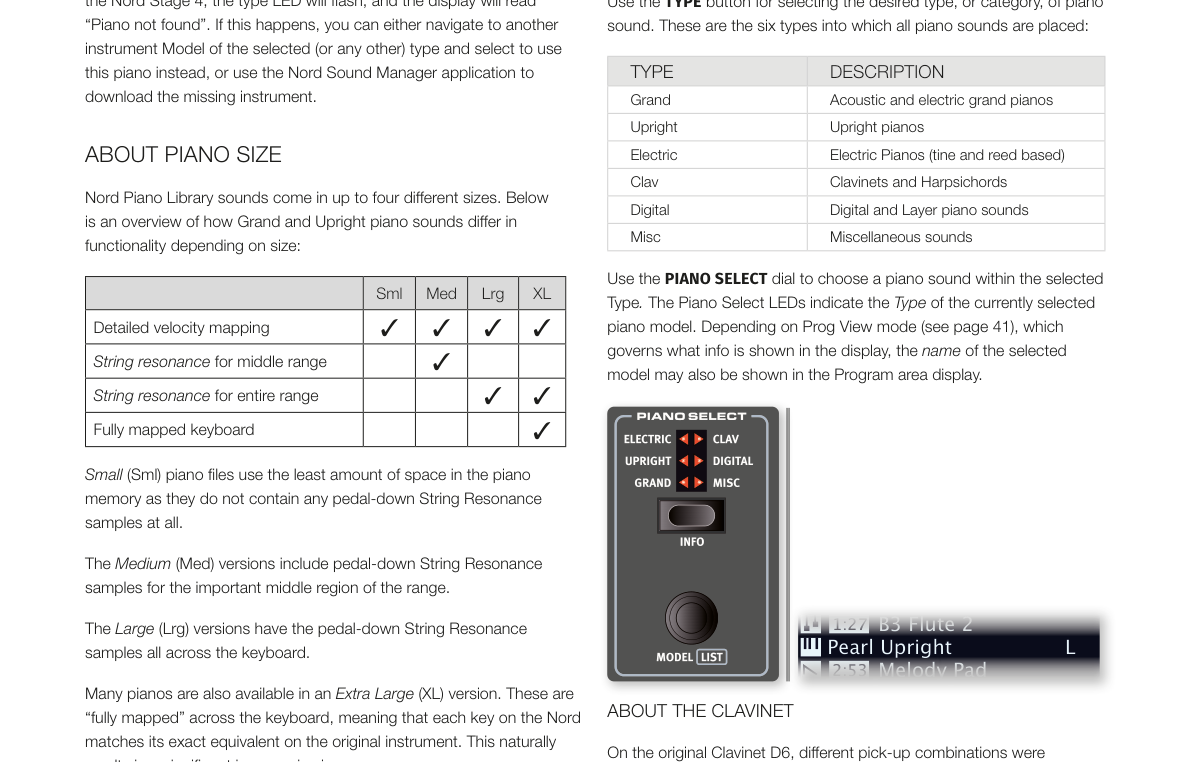
Use the TYPE button for selecting the desired type, or category, of piano sound. These are the six types into which all piano sounds are placed:
| 類型 / TYPE | 說明 / DESCRIPTION |
|---|---|
| Grand(平台鋼琴) | 原聲及電子平台鋼琴 / Acoustic and electric grand pianos |
| Upright(直立式鋼琴) | 直立式鋼琴 / Upright pianos |
| Electric(電鋼琴) | 電鋼琴(音叉式與簧片式)/ Electric Pianos (tine and reed based) |
| Clav(Clavinet/大鍵琴) | Clavinet 和大鍵琴 / Clavinets and Harpsichords |
| Digital(數位鋼琴) | 數位鋼琴及音層鋼琴 / Digital and Layer piano sounds |
| Misc(其他) | 其他樂器音色 / Miscellaneous sounds |
選好類型後,轉動 PIANO SELECT 旋鈕就可以在該類型中挑選音色。鋼琴區段的 LED 指示燈會顯示目前選定的類型。
Use the PIANO SELECT dial to choose a piano sound within the selected Type. The Piano Select LEDs indicate the Type of the currently selected piano model. Depending on Prog View mode (see page 41), which governs what info is shown in the display, the name of the selected model may also be shown in the Program area display.
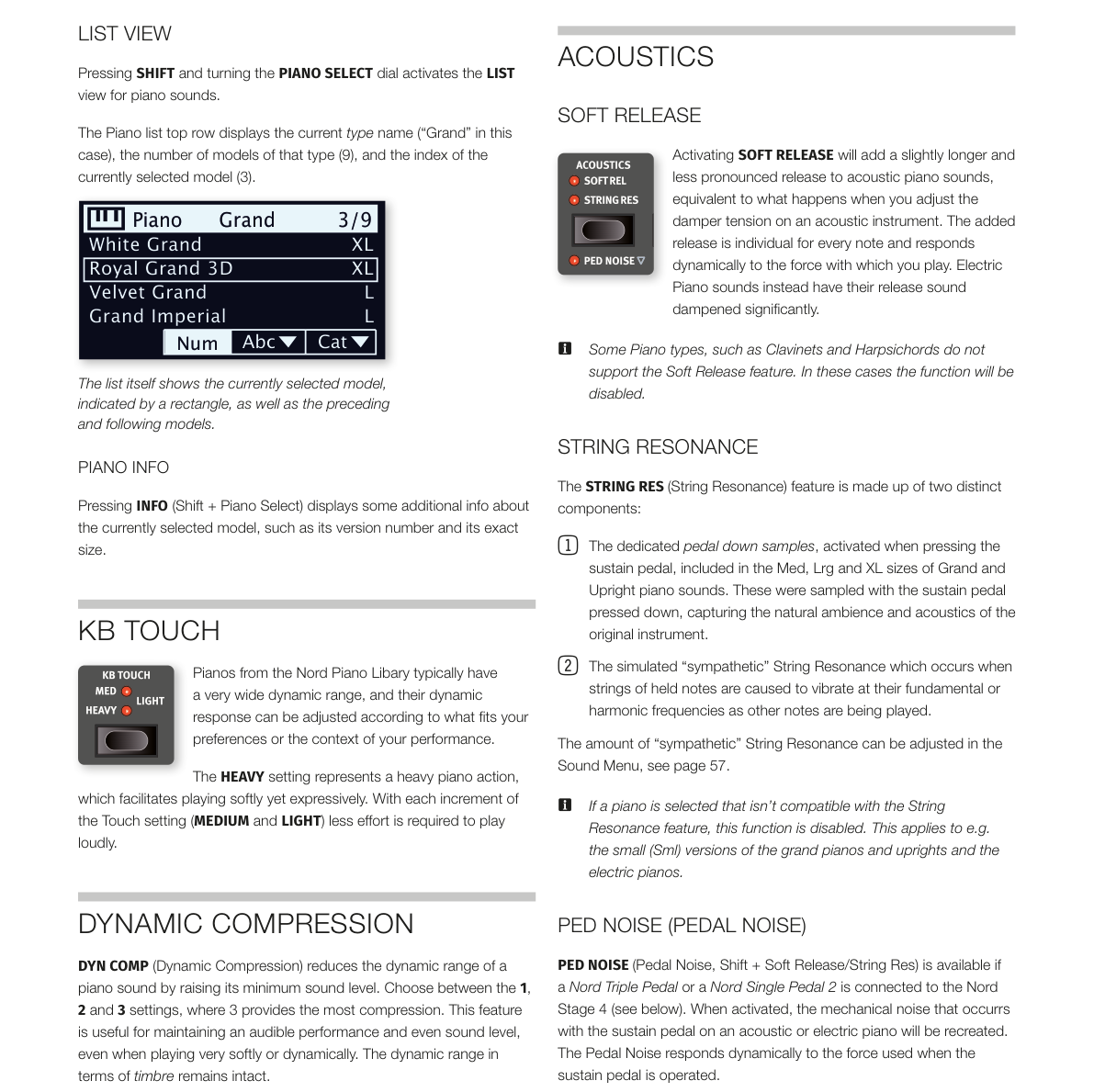
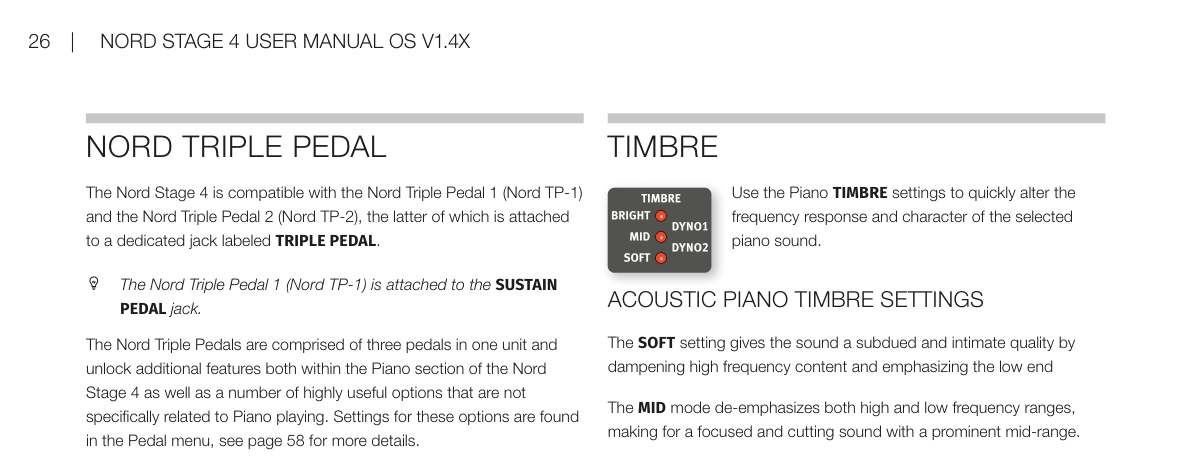
關於 Clavinet / ABOUT THE CLAVINET
原版 Clavinet D6 用幾個搖桿開關來切換不同的拾音器組合,Nord Stage 4 完整模擬了這個設計,所有原版的拾音器選擇都可以使用:
On the original Clavinet D6, different pick-up combinations were selected by pressing a number of rocker switches. This functionality is faithfully simulated by the Nord Stage 4, which means that all original Clavinet D6 pickup selections are available.
| 型號 / PICK-UP TYPE | 說明 / DESCRIPTION |
|---|---|
| Clav Model A | 只用「琴頸」拾音器,音色溫暖、較不明亮 / Only the "neck" pick-up; a warmer, less bright sound. |
| Clav Model B | 只用「琴橋」拾音器,音色明亮 / Only the "bridge" pick-up; a bright sound. |
| Clav Model C | 兩個拾音器同相位同時開啟,音色非常飽滿 / Both pick-ups on and in phase; a very full sound. |
| Clav Model D | 兩個拾音器相位相差 180 度,基頻幾乎被抵消,音色變得纖細 / Both pick-ups 180 degrees out of phase; the fundamental is almost cancelled out and the sound becomes thin. |
Clavinet 也有專屬的音色設定(Timbre),對應原始樂器的 EQ 選項,詳情見後文。
The Clavinet also has its unique set of Piano Timbre settings, corresponding to EQ options of the original instrument.
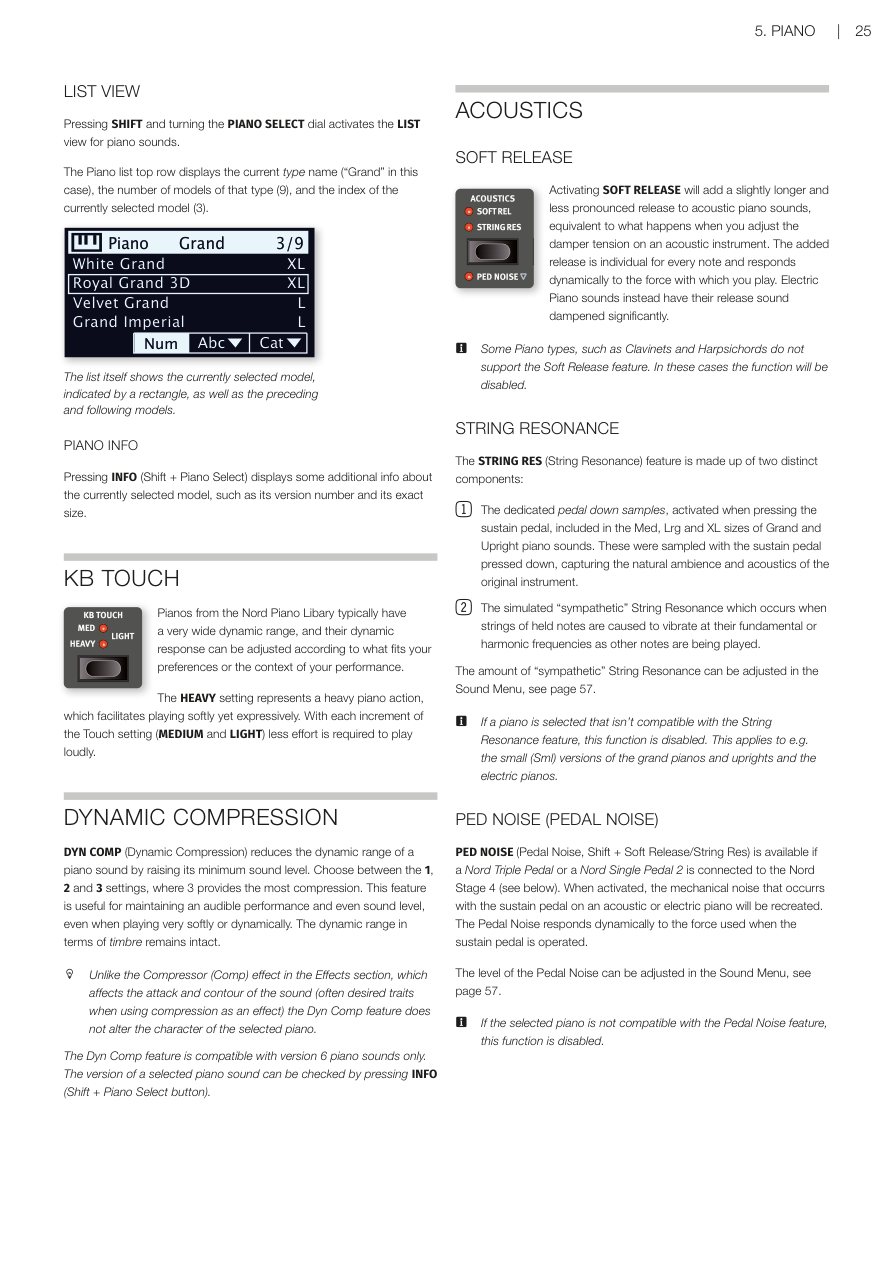
列表視圖 / LIST VIEW
按住 SHIFT 並轉動 PIANO SELECT 旋鈕,會進入鋼琴音色的列表視圖,方便你瀏覽所有音色。列表頂部會顯示目前的類型名稱、該類型的音色數量,以及目前選到第幾個音色。
Pressing SHIFT and turning the PIANO SELECT dial activates the LIST view for piano sounds. The Piano list top row displays the current type name ("Grand" in this case), the number of models of that type (9), and the index of the currently selected model (3).
鋼琴資訊 / PIANO INFO
按下 INFO(Shift + Piano Select)可以查看目前選定音色的詳細資訊,例如版本號碼和確切的檔案大小。
Pressing INFO (Shift + Piano Select) displays some additional info about the currently selected model, such as its version number and its exact size.
鍵盤觸感 / KB TOUCH
Nord Piano Library 的鋼琴音色動態範圍非常寬廣,你可以用 KB TOUCH 來調整鍵盤的觸感靈敏度,讓它更符合你的演奏習慣。
Pianos from the Nord Piano Library typically have a very wide dynamic range, and their dynamic response can be adjusted according to what fits your preferences or the context of your performance.
- HEAVY(重):模擬較重的鋼琴鍵盤,彈輕音時更有控制感 HEAVY setting represents a heavy piano action, which facilitates playing softly yet expressively.
- MEDIUM / LIGHT:依次讓發出大聲所需的力道越來越小 With each increment of the Touch setting (MEDIUM and LIGHT) less effort is required to play loudly.
💡 如果你發現彈再輕都很大聲,可以試著調高觸感設定(往 HEAVY 方向)。
動態壓縮 / DYNAMIC COMPRESSION
**DYN COMP(動態壓縮)**可以提高鋼琴音色的最低音量,縮小輕重觸之間的動態差距。有 1、2、3 三個等級,3 是最強的壓縮。這個功能適合在現場演出時,確保每個音符都清晰可聽,尤其是彈奏非常輕柔或動態起伏很大的段落時特別有用。音色的音質特性不會被改變。
DYN COMP (Dynamic Compression) reduces the dynamic range of a piano sound by raising its minimum sound level. Choose between the 1, 2 and 3 settings, where 3 provides the most compression. This feature is useful for maintaining an audible performance and even sound level, even when playing very softly or dynamically. The dynamic range in terms of timbre remains intact.
💡 DYN COMP 和效果區段中的 Compressor(壓縮器效果)不同:Compressor 會改變音符的起音輪廓,而 DYN COMP 只是提高最低音量,不影響音色特質。
Unlike the Compressor (Comp) effect in the Effects section, which affects the attack and contour of the sound (often desired traits when using compression as an effect) the Dyn Comp feature does not alter the character of the selected piano.
注意:DYN COMP 只適用於第 6 版的鋼琴音色。可以按 INFO(Shift + Piano Select)確認目前音色的版本。
The Dyn Comp feature is compatible with version 6 piano sounds only. The version of a selected piano sound can be checked by pressing INFO (Shift + Piano Select button).
音響效果 / ACOUSTICS
柔和釋音 / SOFT RELEASE
開啟 SOFT RELEASE 後,原聲鋼琴音色鬆開琴鍵後的尾音會稍微延長,聽起來更自然柔和,就像調整了原始鋼琴的制音器張力一樣。每個音符的釋音長度會根據你彈奏的力道而有所不同。電鋼琴音色則相反,開啟後釋音會明顯縮短。
Activating SOFT RELEASE will add a slightly longer and less pronounced release to acoustic piano sounds, equivalent to what happens when you adjust the damper tension on an acoustic instrument. The added release is individual for every note and responds dynamically to the force with which you play. Electric Piano sounds instead have their release sound dampened significantly.
注意:Clavinet 和大鍵琴等類型不支援 Soft Release,遇到這類音色時功能會自動停用。
Some Piano types, such as Clavinets and Harpsichords do not support the Soft Release feature. In these cases the function will be disabled.
弦共鳴 / STRING RESONANCE
**STRING RES(弦共鳴——按下一個琴鍵時,其他弦也會因物理共振而跟著振動,模擬真實鋼琴的聲學現象)**由兩個部分組成:
The STRING RES (String Resonance) feature is made up of two distinct components:
-
踏板取樣:Med、Lrg 和 XL 大小的大鋼琴/直立鋼琴包含「踩下延音踏板時錄製」的取樣,重現了踩踏板時鋼琴箱體自然共鳴的氛圍。 The dedicated pedal down samples, activated when pressing the sustain pedal, included in the Med, Lrg and XL sizes of Grand and Upright piano sounds. These were sampled with the sustain pedal pressed down, capturing the natural ambience and acoustics of the original instrument.
-
模擬同感共鳴:當你按住某些音符時,彈奏其他音符會讓這些被按住弦產生共鳴,就像在真實鋼琴上一樣。 The simulated "sympathetic" String Resonance which occurs when strings of held notes are caused to vibrate at their fundamental or harmonic frequencies as other notes are being played.
模擬弦共鳴的強度可以在音效選單中調整,詳見第 57 頁。
The amount of "sympathetic" String Resonance can be adjusted in the Sound Menu, see page 57.
注意:小(Sml)版本的鋼琴以及電鋼琴不支援弦共鳴功能,選到這類音色時功能會自動停用。
If a piano is selected that isn't compatible with the String Resonance feature, this function is disabled. This applies to e.g. the small (Sml) versions of the grand pianos and uprights and the electric pianos.
踏板噪音 / PED NOISE (PEDAL NOISE)
PED NOISE(踏板噪音——真實鋼琴踩踏板時會發出的機械聲音)(Shift + Soft Release/String Res)需要連接 Nord Triple Pedal 或 Nord Single Pedal 2 才能使用。開啟後,踩下延音踏板時的機械聲音會被重現,踩踏的力道越大,聲音也越明顯。
PED NOISE (Pedal Noise, Shift + Soft Release/String Res) is available if a Nord Triple Pedal or a Nord Single Pedal 2 is connected to the Nord Stage 4 (see below). When activated, the mechanical noise that occurs with the sustain pedal on an acoustic or electric piano will be recreated. The Pedal Noise responds dynamically to the force used when the sustain pedal is operated.
踏板噪音的音量可在音效選單中調整,詳見第 57 頁。若目前的鋼琴音色不支援此功能,它會自動停用。
The level of the Pedal Noise can be adjusted in the Sound Menu, see page 57. If the selected piano is not compatible with the Pedal Noise feature, this function is disabled.
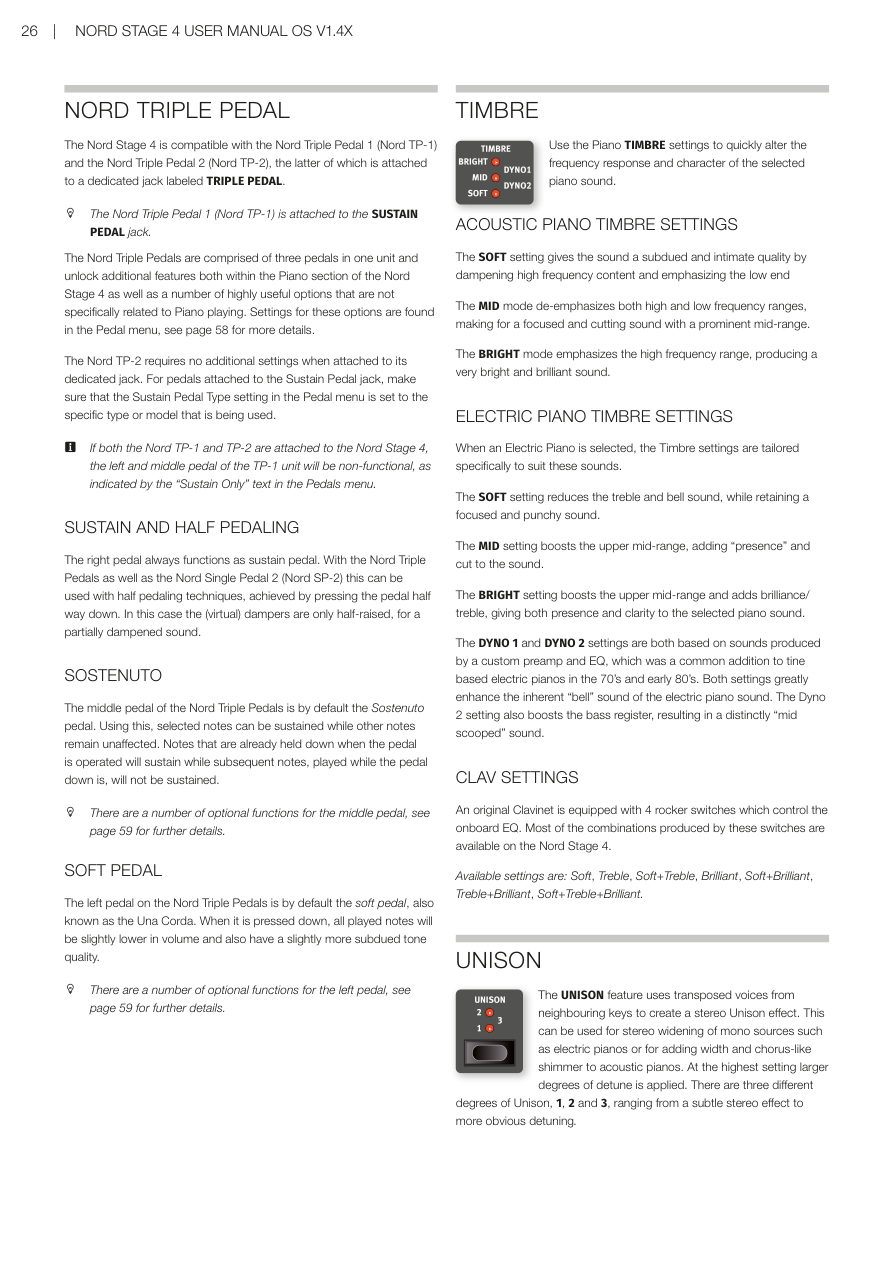
Nord 三踏板 / NORD TRIPLE PEDAL
Nord Stage 4 相容 **Nord Triple Pedal 1(Nord TP-1)**和 Nord Triple Pedal 2(Nord TP-2)。TP-2 要插在背面專用的 TRIPLE PEDAL 插孔;TP-1 則插在 SUSTAIN PEDAL 插孔。
The Nord Stage 4 is compatible with the Nord Triple Pedal 1 (Nord TP-1) and the Nord Triple Pedal 2 (Nord TP-2), the latter of which is attached to a dedicated jack labeled TRIPLE PEDAL. The Nord Triple Pedal 1 (Nord TP-1) is attached to the SUSTAIN PEDAL jack.
三踏板組合(三個踏板合為一組)不只解鎖鋼琴區段的額外功能,也提供許多與鋼琴無關的實用選項。相關設定在踏板選單中,詳見第 58 頁。
The Nord Triple Pedals are comprised of three pedals in one unit and unlock additional features both within the Piano section of the Nord Stage 4 as well as a number of highly useful options that are not specifically related to Piano playing. Settings for these options are found in the Pedal menu, see page 58 for more details.
TP-2 插上後不需要額外設定即可使用。若使用的是插在 SUSTAIN PEDAL 插孔的踏板,請確認踏板選單中的「Sustain Pedal Type」設定符合你的踏板型號。
The Nord TP-2 requires no additional settings when attached to its dedicated jack. For pedals attached to the Sustain Pedal jack, make sure that the Sustain Pedal Type setting in the Pedal menu is set to the specific type or model that is being used.
💡 如果 TP-1 和 TP-2 同時接上,TP-1 的左踏板和中間踏板會失效,踏板選單會顯示「Sustain Only」。
If both the Nord TP-1 and TP-2 are attached to the Nord Stage 4, the left and middle pedal of the TP-1 unit will be non-functional, as indicated by the "Sustain Only" text in the Pedals menu.
延音踏板與半踩技巧 / SUSTAIN AND HALF PEDALING
右踏板永遠是延音踏板(Sustain Pedal)。使用 Nord Triple Pedal 或 Nord Single Pedal 2 時,支援**半踩(Half Pedaling)**技巧——踏板只踩一半時,制音器只提升一半,聲音是半延音狀態,非常接近真實鋼琴的感覺。
The right pedal always functions as sustain pedal. With the Nord Triple Pedals as well as the Nord Single Pedal 2 (Nord SP-2) this can be used with half pedaling techniques, achieved by pressing the pedal half way down. In this case the (virtual) dampers are only half-raised, for a partially dampened sound.
選擇延音踏板 / SOSTENUTO
中間踏板預設是選擇延音踏板(Sostenuto——只讓踩下踏板當下已按住的音符延音,之後彈的音不受影響)。先按住幾個音符,再踩下 Sostenuto 踏板,這些音符會持續延音;之後彈的其他音符則正常發聲和停止。
The middle pedal of the Nord Triple Pedals is by default the Sostenuto pedal. Using this, selected notes can be sustained while other notes remain unaffected. Notes that are already held down when the pedal is operated will sustain while subsequent notes, played while the pedal down is, will not be sustained.
中間踏板還有其他可選功能,詳見第 59 頁。
There are a number of optional functions for the middle pedal, see page 59 for further details.
弱音踏板 / SOFT PEDAL
左踏板預設是弱音踏板(Soft Pedal,又稱 Una Corda)。踩下後,所有發聲的音符音量會稍微降低,音色也會變得較為柔和內斂。
The left pedal on the Nord Triple Pedals is by default the soft pedal, also known as the Una Corda. When it is pressed down, all played notes will be slightly lower in volume and also have a slightly more subdued tone quality.
左踏板也有其他可選功能,詳見第 59 頁。
There are a number of optional functions for the left pedal, see page 59 for further details.
音色特性 / TIMBRE
用 TIMBRE 設定可以快速調整目前鋼琴音色的頻率特性和整體音色風格。
Use the Piano TIMBRE settings to quickly alter the frequency response and character of the selected piano sound.
原聲鋼琴音色設定 / ACOUSTIC PIANO TIMBRE SETTINGS
- SOFT(柔和):壓低高頻、強調低頻,音色變得沉穩、溫暖。 The SOFT setting gives the sound a subdued and intimate quality by dampening high frequency content and emphasizing the low end.
- MID(中頻):同時壓低高低兩端,突出中頻,音色集中有穿透力。 The MID mode de-emphasizes both high and low frequency ranges, making for a focused and cutting sound with a prominent mid-range.
- BRIGHT(明亮):強調高頻,音色明亮清脆。 The BRIGHT mode emphasizes the high frequency range, producing a very bright and brilliant sound.
電鋼琴音色設定 / ELECTRIC PIANO TIMBRE SETTINGS
當選擇電鋼琴音色時,音色設定會換成專門針對電鋼琴調整的選項:
When an Electric Piano is selected, the Timbre settings are tailored specifically to suit these sounds.
- SOFT:減少高頻和鈴鐺感,保留集中有力的音色。 The SOFT setting reduces the treble and bell sound, while retaining a focused and punchy sound.
- MID:提升中高頻,增加「存在感」和穿透力。 The MID setting boosts the upper mid-range, adding "presence" and cut to the sound.
- BRIGHT:提升中高頻並增加高頻亮度,兼具存在感和清晰度。 The BRIGHT setting boosts the upper mid-range and adds brilliance/treble, giving both presence and clarity to the selected piano sound.
- DYNO 1 / DYNO 2:模擬 70-80 年代常見的電鋼琴專用前置放大器和 EQ,大幅強化電鋼琴特有的「鈴鐺感」。DYNO 2 還額外提升低頻,產生明顯的中頻下凹音色。 The DYNO 1 and DYNO 2 settings are both based on sounds produced by a custom preamp and EQ, which was a common addition to tine based electric pianos in the 70's and early 80's. Both settings greatly enhance the inherent "bell" sound of the electric piano sound. The Dyno 2 setting also boosts the bass register, resulting in a distinctly "mid scooped" sound.
Clavinet 設定 / CLAV SETTINGS
原版 Clavinet 內建 4 個搖桿開關控制 EQ,Nord Stage 4 提供了這些開關大部分的組合選項。
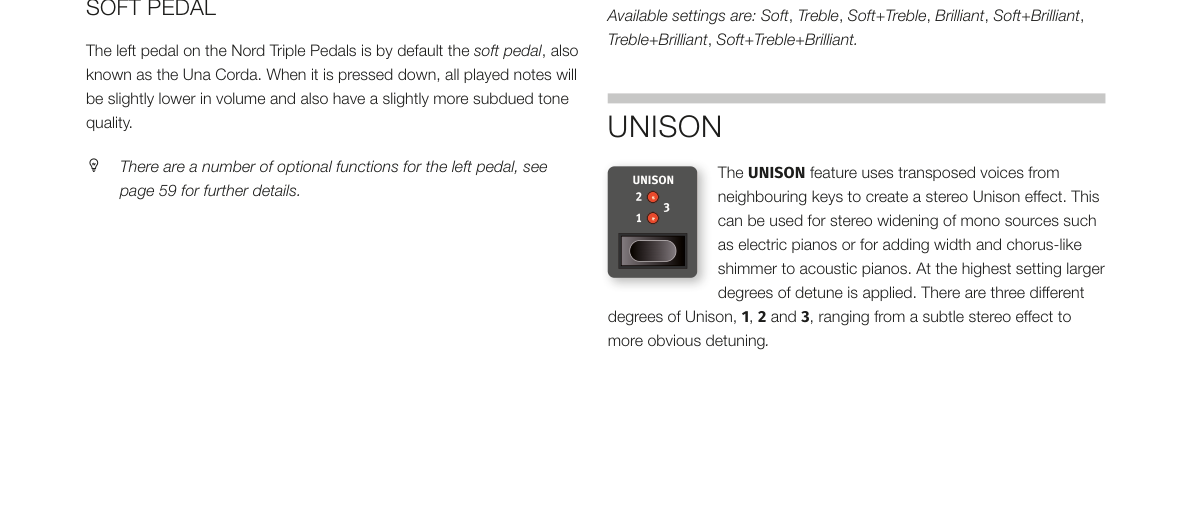
An original Clavinet is equipped with 4 rocker switches which control the onboard EQ. Most of the combinations produced by these switches are available on the Nord Stage 4.
可用設定:Soft、Treble、Soft+Treble、Brilliant、Soft+Brilliant、Treble+Brilliant、Soft+Treble+Brilliant。
Available settings are: Soft, Treble, Soft+Treble, Brilliant, Soft+Brilliant, Treble+Brilliant, Soft+Treble+Brilliant.
齊奏效果 / UNISON
**UNISON(齊奏——利用相鄰琴鍵的聲音稍微移調後疊加,產生立體寬廣感)**功能可以讓鋼琴或電鋼琴音色聽起來更有空間感和厚度。最高設定下音高偏移量較大,效果更明顯。共有 1、2、3 三個強度,從細緻的立體感到明顯的去諧音效都有。
The UNISON feature uses transposed voices from neighbouring keys to create a stereo Unison effect. This can be used for stereo widening of mono sources such as electric pianos or for adding width and chorus-like shimmer to acoustic pianos. At the highest setting larger degrees of detune is applied. There are three different degrees of Unison, 1, 2 and 3, ranging from a subtle stereo effect to more obvious detuning.
💡 在電鋼琴上開啟 UNISON 1 或 2,可以讓原本較為單薄的音色立刻變得豐厚有層次,非常適合流行樂或 R&B 曲風。
第六章:合成器區段 / Chapter 6: Synth Section
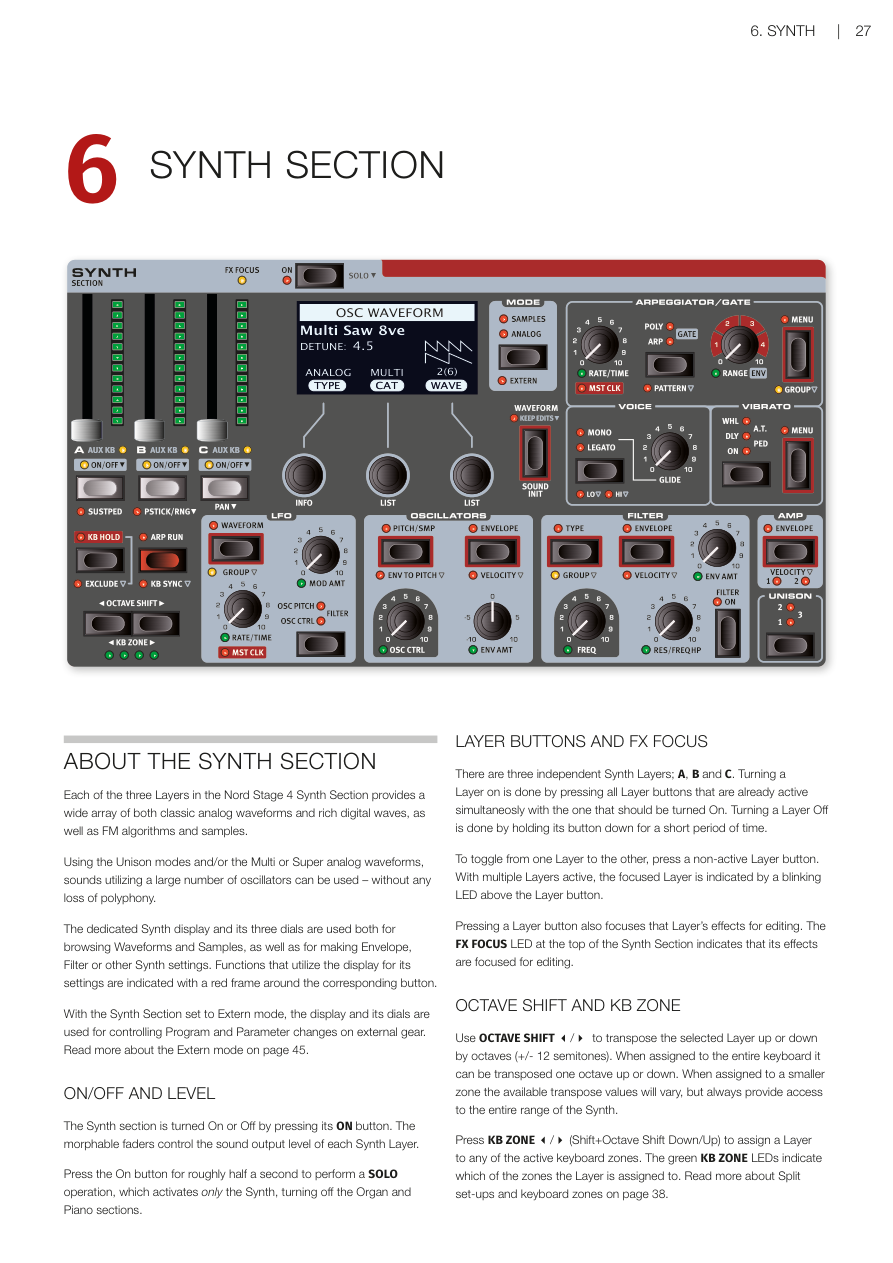
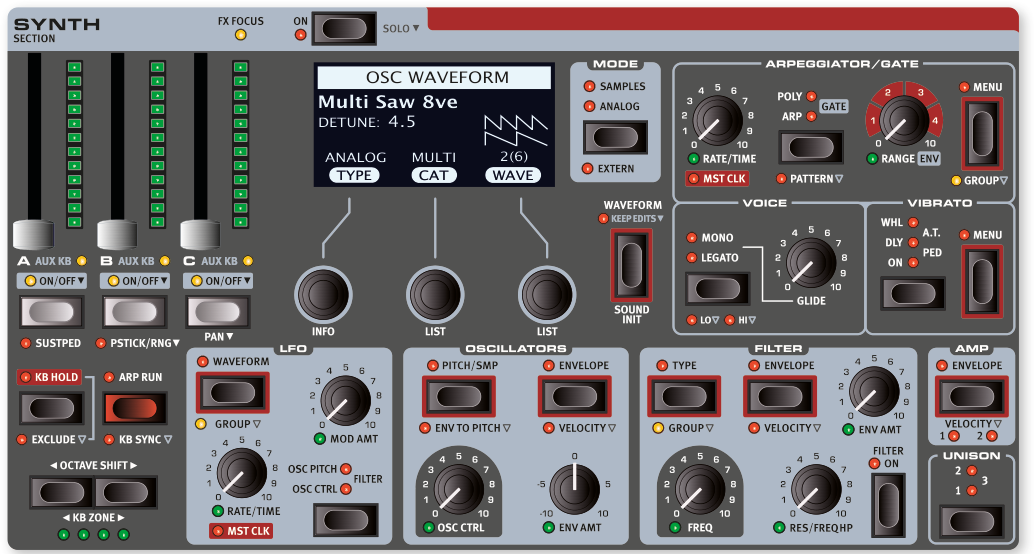
關於合成器區段 / ABOUT THE SYNTH SECTION
Nord Stage 4 合成器區段共有三個音層(Layer——可以想像成同時疊加播放的不同合成器聲音),每個音層都能產生各種經典類比波形(Analog Waveform)、豐富的數位波形,以及 FM 演算法和樣本音色。
Each of the three Layers in the Nord Stage 4 Synth Section provides a wide array of both classic analog waveforms and rich digital waves, as well as FM algorithms and samples.
透過齊奏(Unison)模式和/或多重(Multi)、超級(Super)類比波形,可以同時使用大量振盪器(Oscillator——合成器中產生聲音波形的核心元件)——而且完全不會減少複音數。
Using the Unison modes and/or the Multi or Super analog waveforms, sounds utilizing a large number of oscillators can be used – without any loss of polyphony.
合成器區段專用的顯示螢幕及下方三個旋鈕,同時用於瀏覽波形與樣本,以及設定包絡線(Envelope)、濾波器(Filter)等合成器參數。面板上附有紅色外框的按鈕,表示其設定會透過顯示螢幕來操作。
The dedicated Synth display and its three dials are used both for browsing Waveforms and Samples, as well as for making Envelope, Filter or other Synth settings. Functions that utilize the display for its settings are indicated with a red frame around the corresponding button.
將合成器區段切換至外部模式(Extern mode)時,顯示螢幕和旋鈕會改為控制外部設備的程式與參數變更。詳見第 45 頁的外部模式章節。
With the Synth Section set to Extern mode, the display and its dials are used for controlling Program and Parameter changes on external gear. Read more about the Extern mode on page 45.
開關與音量 / ON/OFF AND LEVEL
按下 ON 按鈕可開啟或關閉合成器區段。每個合成器音層的輸出音量,由可進行變形控制(Morph)的音量推桿來調整。
The Synth section is turned On or Off by pressing its ON button. The morphable faders control the sound output level of each Synth Layer.
長按 ON 按鈕約半秒,可執行獨奏(SOLO)操作,僅保留合成器發聲,同時關閉風琴和鋼琴區段。
Press the On button for roughly half a second to perform a SOLO operation, which activates only the Synth, turning off the Organ and Piano sections.
音層按鈕與效果聚焦 / LAYER BUTTONS AND FX FOCUS
合成器區段共有三個獨立音層:A、B、C。要開啟某個音層,需同時按下已啟用的音層按鈕與要開啟的按鈕。要關閉某個音層,則長按其按鈕片刻即可。
There are three independent Synth Layers; A, B and C. Turning a Layer on is done by pressing all Layer buttons that are already active simultaneously with the one that should be turned On. Turning a Layer Off is done by holding its button down for a short period of time.
要切換到另一個音層,按下未啟用的音層按鈕即可。有多個音層啟用時,目前聚焦的音層按鈕上方的 LED 會閃爍。
To toggle from one Layer to the other, press a non-active Layer button. With multiple Layers active, the focused Layer is indicated by a blinking LED above the Layer button.
按下音層按鈕也會將該音層的效果聚焦以便編輯,合成器區段頂部的 FX FOCUS LED 會亮起以示確認。
Pressing a Layer button also focuses that Layer's effects for editing. The FX FOCUS LED at the top of the Synth Section indicates that its effects are focused for editing.
八度移調與鍵盤分區 / OCTAVE SHIFT AND KB ZONE
使用 OCTAVE SHIFT 可將選定的音層上下移調八度(+/- 12 半音)。當音層指派到整個鍵盤時,可移調一個八度。指派到較小分區時,可用的移調範圍會有所不同,但始終能存取合成器的完整音域。
Use OCTAVE SHIFT to transpose the selected Layer up or down by octaves (+/- 12 semitones). When assigned to the entire keyboard it can be transposed one octave up or down. When assigned to a smaller zone the available transpose values will vary, but always provide access to the entire range of the Synth.
按下 KB ZONE(Shift+八度移調上下鍵),可將音層指派到任何啟用的鍵盤分區。綠色 KB ZONE LED 會顯示該音層目前指派的分區。關於分區設定,請見第 38 頁。
Press KB ZONE (Shift+Octave Shift Down/Up) to assign a Layer to any of the active keyboard zones. The green KB ZONE LEDs indicate which of the zones the Layer is assigned to. Read more about Split set-ups and keyboard zones on page 38.
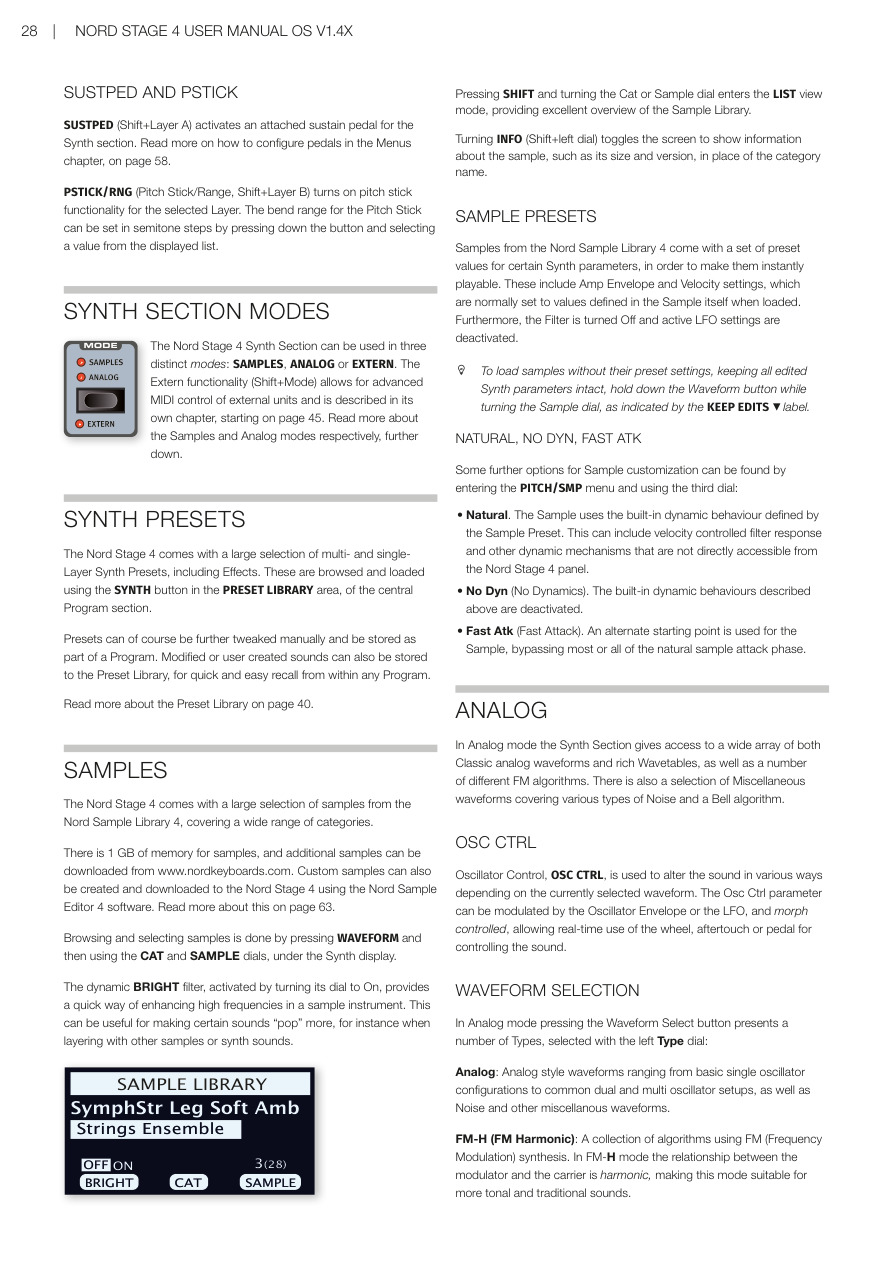
延音踏板與音高桿 / SUSTPED AND PSTICK
SUSTPED(Shift+音層 A)可為合成器區段啟用外接延音踏板。踏板的設定方式請見第 58 頁的選單章節。
SUSTPED (Shift+Layer A) activates an attached sustain pedal for the Synth section. Read more on how to configure pedals in the Menus chapter, on page 58.
PSTICK/RNG(音高桿/範圍,Shift+音層 B)可為選定音層開啟音高桿功能。音高桿的彎音範圍可以半音為單位設定,按住按鈕並從顯示列表中選擇數值即可。
PSTICK/RNG (Pitch Stick/Range, Shift+Layer B) turns on pitch stick functionality for the selected Layer. The bend range for the Pitch Stick can be set in semitone steps by pressing down the button and selecting a value from the displayed list.
合成器區段模式 / SYNTH SECTION MODES
Nord Stage 4 合成器區段有三種操作模式:SAMPLES(樣本)、**ANALOG(類比)**和 EXTERN(外部)。外部模式(Shift+Mode)可對外部設備進行進階 MIDI 控制,詳見第 45 頁的專屬章節。
The Nord Stage 4 Synth Section can be used in three distinct modes: SAMPLES, ANALOG or EXTERN. The Extern functionality (Shift+Mode) allows for advanced MIDI control of external units and is described in its own chapter, starting on page 45.
合成器預設音色 / SYNTH PRESETS
Nord Stage 4 內建大量多音層和單音層的合成器預設音色(包含效果)。透過程式區段中央 PRESET LIBRARY 區域的 SYNTH 按鈕,即可瀏覽和載入這些音色。
The Nord Stage 4 comes with a large selection of multi- and single-Layer Synth Presets, including Effects. These are browsed and loaded using the SYNTH button in the PRESET LIBRARY area, of the central Program section.
預設音色當然可以手動微調,並儲存為程式的一部分。修改後或自製的音色也可以儲存到預設音色庫,方便在任何程式中快速調用。詳見第 40 頁的預設音色庫說明。
Presets can of course be further tweaked manually and be stored as part of a Program. Modified or user created sounds can also be stored to the Preset Library, for quick and easy recall from within any Program. Read more about the Preset Library on page 40.
樣本模式 / SAMPLES
Nord Stage 4 內建了大量來自 Nord Sample Library 4 的樣本,涵蓋多種類別。
The Nord Stage 4 comes with a large selection of samples from the Nord Sample Library 4, covering a wide range of categories.
樣本記憶體容量為 1 GB,可從 www.nordkeyboards.com 下載更多樣本。也可使用 Nord Sample Editor 4 軟體建立自訂樣本並下載到 Nord Stage 4。詳見第 63 頁。
There is 1 GB of memory for samples, and additional samples can be downloaded from www.nordkeyboards.com. Custom samples can also be created and downloaded to the Nord Stage 4 using the Nord Sample Editor 4 software. Read more about this on page 63.
按下 WAVEFORM 按鈕,再使用合成器顯示螢幕下方的 CAT 和 SAMPLE 旋鈕,即可瀏覽和選擇樣本。
Browsing and selecting samples is done by pressing WAVEFORM and then using the CAT and SAMPLE dials, under the Synth display.
動態亮度濾波器(BRIGHT filter)——將旋鈕轉到 On 即可啟用——可快速增強樣本樂器的高頻成分,讓某些聲音更突出,特別是在與其他樣本或合成器音色疊加時。
The dynamic BRIGHT filter, activated by turning its dial to On, provides a quick way of enhancing high frequencies in a sample instrument. This can be useful for making certain sounds "pop" more, for instance when layering with other samples or synth sounds.
按下 SHIFT 並轉動 Cat 或 Sample 旋鈕,可進入清單檢視模式,方便全覽樣本庫的內容。
Pressing SHIFT and turning the Cat or Sample dial enters the LIST view mode, providing excellent overview of the Sample Library.
按下 INFO(Shift+左側旋鈕),可切換畫面顯示樣本的詳細資訊,例如大小和版本號。
Turning INFO (Shift+left dial) toggles the screen to show information about the sample, such as its size and version, in place of the category name.
樣本預設值 / SAMPLE PRESETS
Nord Sample Library 4 的樣本附帶特定合成器參數的預設值,讓樣本載入後即可立即演奏。這包括 Amp 包絡線和力度感應(Velocity)設定,通常在載入時會套用樣本本身定義的數值;同時,濾波器會關閉,LFO 設定也會停用。
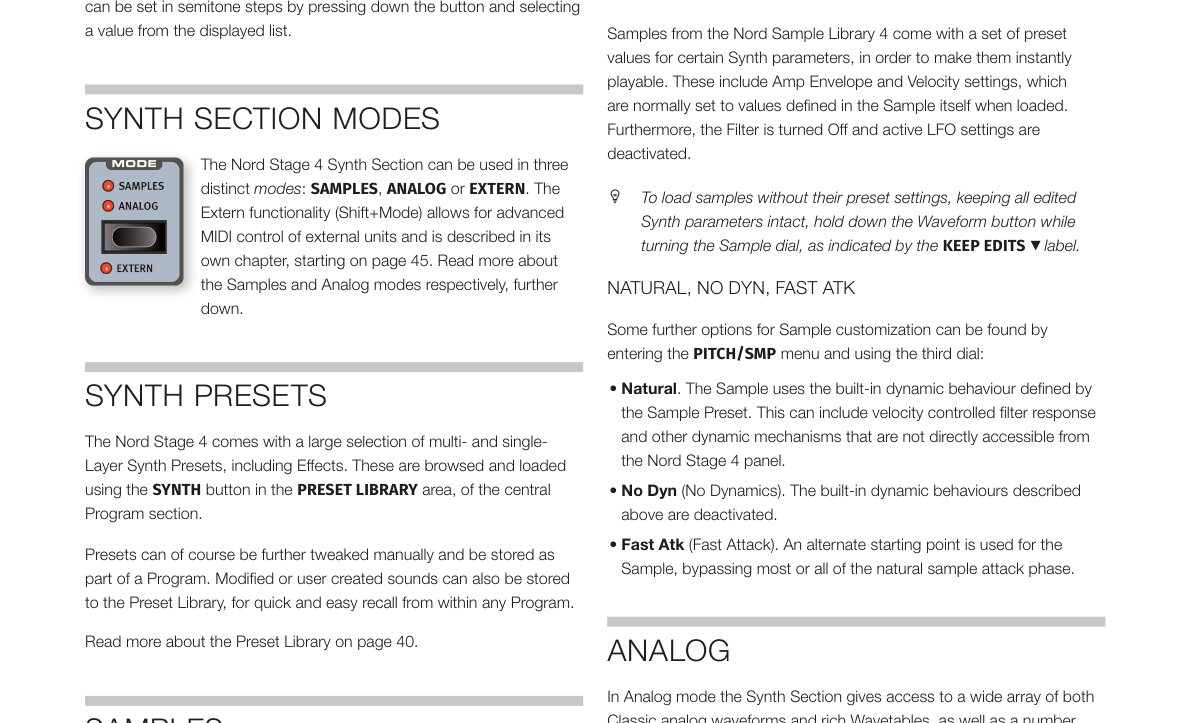
Samples from the Nord Sample Library 4 come with a set of preset values for certain Synth parameters, in order to make them instantly playable. These include Amp Envelope and Velocity settings, which are normally set to values defined in the Sample itself when loaded. Furthermore, the Filter is turned Off and active LFO settings are deactivated.
💡 如果你想在不套用預設值的情況下載入樣本(保留所有已編輯的合成器參數),按住 WAVEFORM 按鈕的同時轉動 SAMPLE 旋鈕即可,面板標示為「KEEP EDITS」。
To load samples without their preset settings, keeping all edited Synth parameters intact, hold down the Waveform button while turning the Sample dial, as indicated by the KEEP EDITS label.
NATURAL、NO DYN、FAST ATK
在 PITCH/SMP 選單中,第三個旋鈕提供更多樣本自訂選項:
Some further options for Sample customization can be found by entering the PITCH/SMP menu and using the third dial:
-
Natural(自然):樣本使用樣本預設值所定義的內建動態行為,可能包含力度控制的濾波器響應等機制。 Natural. The Sample uses the built-in dynamic behaviour defined by the Sample Preset.
-
No Dyn(無動態):停用上述內建動態行為。 No Dyn (No Dynamics). The built-in dynamic behaviours described above are deactivated.
-
Fast Atk(快速起音):使用樣本的替代起點,跳過大部分或全部的自然起音階段。 Fast Atk (Fast Attack). An alternate starting point is used for the Sample, bypassing most or all of the natural sample attack phase.
類比模式 / ANALOG
在類比模式下,合成器區段可存取各種經典類比波形、豐富的波表(Wavetable),以及多種不同的 FM 演算法。另外還有涵蓋各類噪音和鈴聲演算法的雜項波形。
In Analog mode the Synth Section gives access to a wide array of both Classic analog waveforms and rich Wavetables, as well as a number of different FM algorithms. There is also a selection of Miscellaneous waveforms covering various types of Noise and a Bell algorithm.
振盪器控制(OSC CTRL) / OSC CTRL
振盪器控制(OSC CTRL)可根據目前選擇的波形以不同方式改變聲音。OSC CTRL 參數可由振盪器包絡線或 LFO(低頻振盪器——產生緩慢週期性波動,用來讓音色隨時間搖擺變化)調製,也可進行變形控制,讓你即時用調製輪、後觸鍵或踏板來控制音色。
Oscillator Control, OSC CTRL, is used to alter the sound in various ways depending on the currently selected waveform. The Osc Ctrl parameter can be modulated by the Oscillator Envelope or the LFO, and morph controlled, allowing real-time use of the wheel, aftertouch or pedal for controlling the sound.
波形選擇 / WAVEFORM SELECTION
在類比模式下,按下 Waveform Select 按鈕,使用左側 Type 旋鈕可選擇以下類型:
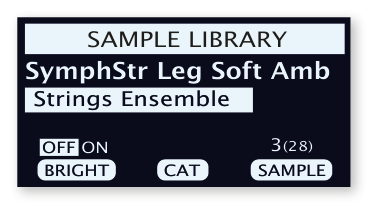
In Analog mode pressing the Waveform Select button presents a number of Types, selected with the left Type dial:
-
Analog(類比):涵蓋基本單振盪器到雙重/多重振盪器配置,以及噪音等雜項波形的類比風格波形。 Analog: Analog style waveforms ranging from basic single oscillator configurations to common dual and multi oscillator setups, as well as Noise and other miscellaneous waveforms.
-
FM-H(頻率調製-諧波):使用 FM(頻率調製)合成的演算法集合。FM-H 模式中,調製器與載波的關係為諧波,適合音調性較強的傳統聲音。 FM-H (FM Harmonic): A collection of algorithms using FM (Frequency Modulation) synthesis. In FM-H mode the relationship between the modulator and the carrier is harmonic, making this mode suitable for more tonal and traditional sounds.
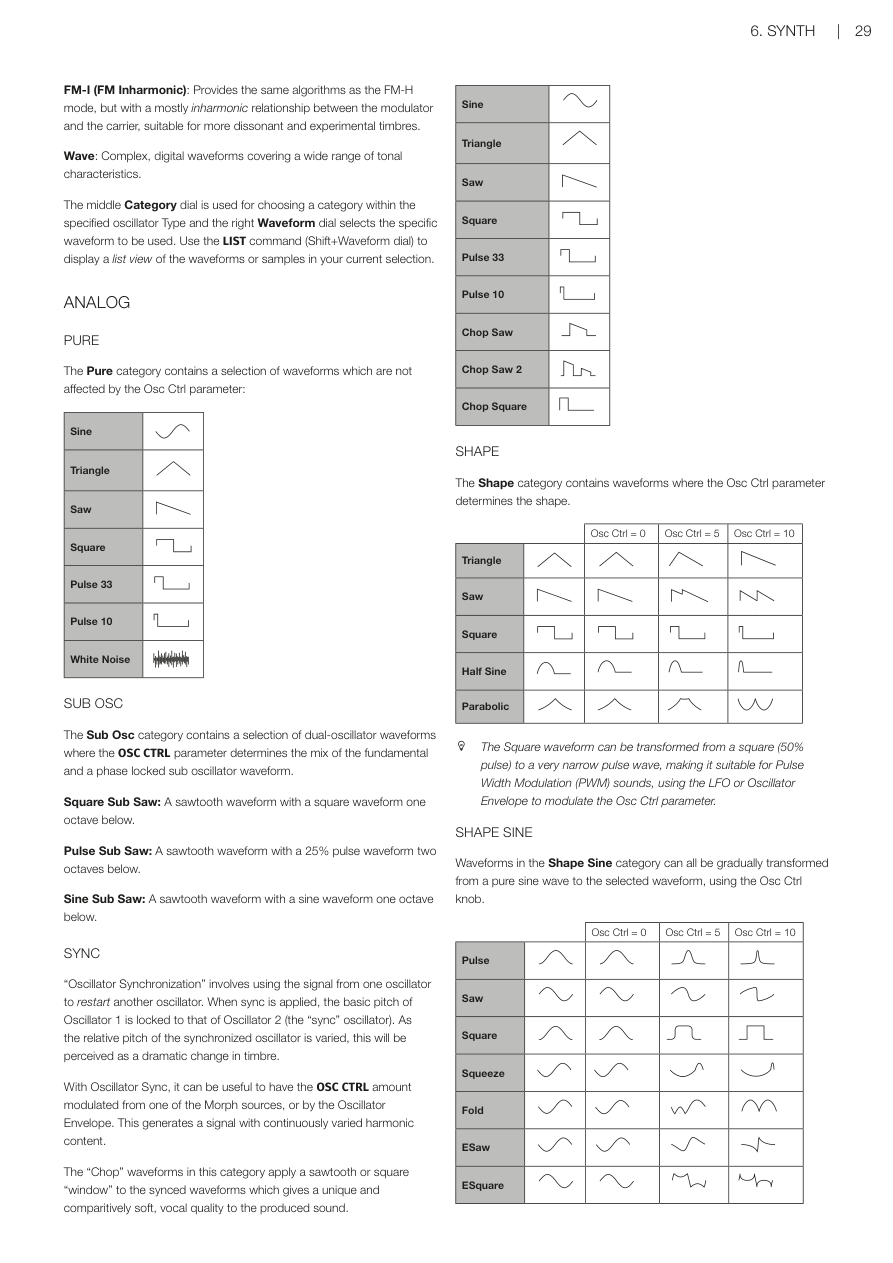
-
FM-I(頻率調製-非諧波):與 FM-H 提供相同的演算法,但調製器與載波的關係大多為非諧波,適合更不協調、更具實驗性的音色。 FM-I (FM Inharmonic): Provides the same algorithms as the FM-H mode, but with a mostly inharmonic relationship between the modulator and the carrier, suitable for more dissonant and experimental timbres.
-
Wave(數位波形):複雜的數位波形,涵蓋廣泛的音色特性。 Wave: Complex, digital waveforms covering a wide range of tonal characteristics.
中間的 Category(類別)旋鈕用於在指定振盪器類型內選擇類別,右側的 Waveform 旋鈕則用於選擇具體波形。按下 Shift 並轉動 Waveform 旋鈕可進入清單檢視模式。
The middle Category dial is used for choosing a category within the specified oscillator Type and the right Waveform dial selects the specific waveform to be used. Use the LIST command (Shift+Waveform dial) to display a list view of the waveforms or samples in your current selection.
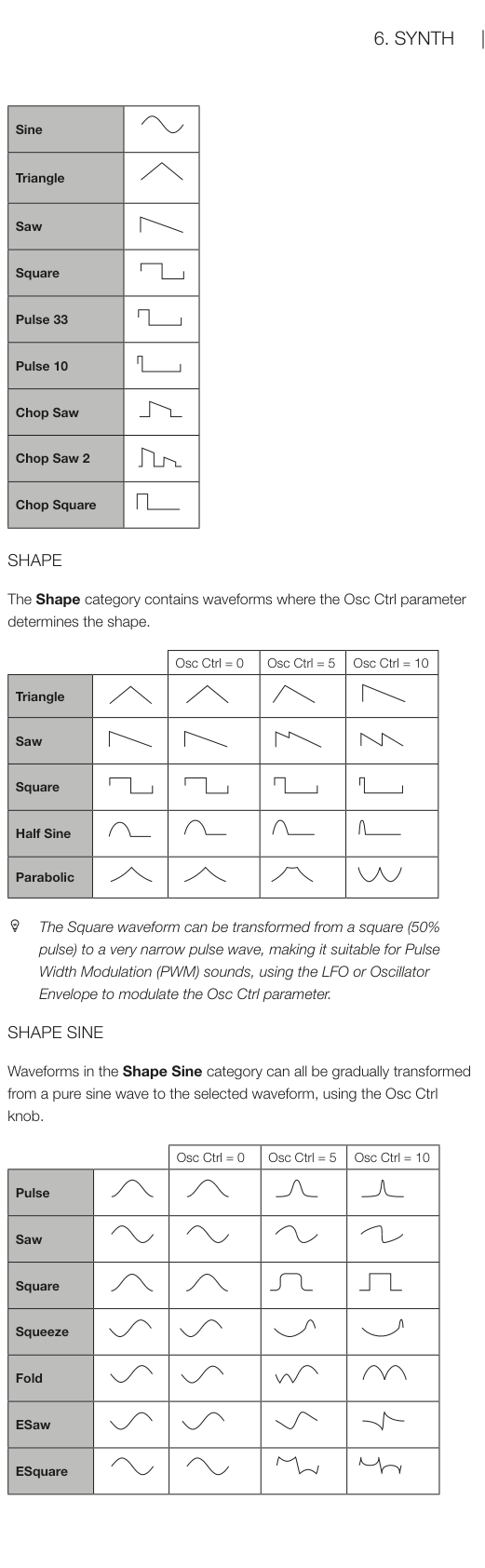
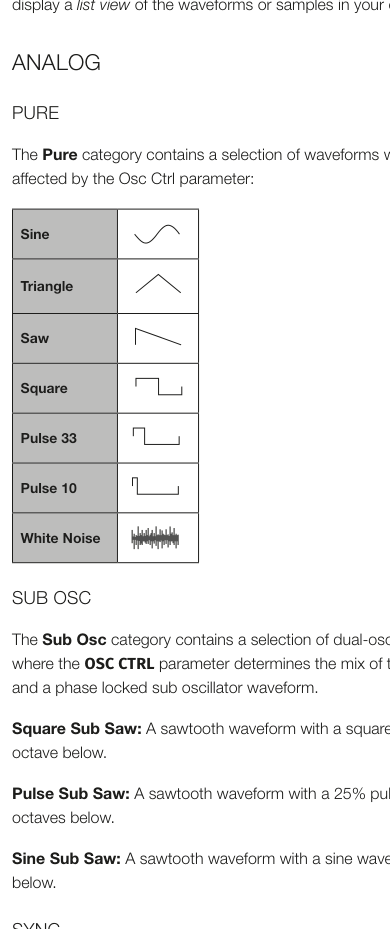
類比-純音波(PURE) / ANALOG - PURE
Pure 類別包含一系列不受 OSC CTRL 參數影響的波形:
The Pure category contains a selection of waveforms which are not affected by the Osc Ctrl parameter:
Sine(正弦波)、Triangle(三角波)、Saw(鋸齒波)、Square(方波)、Pulse 33(脈衝波 33%)、Pulse 10(脈衝波 10%)、White Noise(白噪音)
💡 這些是最基礎的合成器波形。正弦波最圓潤,鋸齒波最豐富飽滿,方波帶點空洞感,白噪音則是全頻雜訊。
次振盪器(SUB OSC) / SUB OSC
Sub Osc 類別包含一系列雙振盪器波形,OSC CTRL 參數決定基音與鎖相次振盪器波形的混合比例。
The Sub Osc category contains a selection of dual-oscillator waveforms where the OSC CTRL parameter determines the mix of the fundamental and a phase locked sub oscillator waveform.
- Square Sub Saw:鋸齒波,搭配低一個八度的方波。A sawtooth waveform with a square waveform one octave below.
- Pulse Sub Saw:鋸齒波,搭配低兩個八度的 25% 脈衝波。A sawtooth waveform with a 25% pulse waveform two octaves below.
- Sine Sub Saw:鋸齒波,搭配低一個八度的正弦波。A sawtooth waveform with a sine waveform one octave below.
同步(SYNC) / SYNC
「振盪器同步」是指用一個振盪器的信號來重新啟動另一個振盪器。啟用同步後,振盪器 1 的基本音高會鎖定在振盪器 2(「同步」振盪器)的音高上。當同步振盪器的相對音高改變時,音色會產生顯著變化。
"Oscillator Synchronization" involves using the signal from one oscillator to restart another oscillator. When sync is applied, the basic pitch of Oscillator 1 is locked to that of Oscillator 2 (the "sync" oscillator). As the relative pitch of the synchronized oscillator is varied, this will be perceived as a dramatic change in timbre.
使用振盪器同步時,建議讓 OSC CTRL 由變形控制源或振盪器包絡線調製,可產生持續變化諧波的信號。
With Oscillator Sync, it can be useful to have the OSC CTRL amount modulated from one of the Morph sources, or by the Oscillator Envelope. This generates a signal with continuously varied harmonic content.
此類別中的「Chop」波形會對同步波形套用鋸齒波或方波「窗口」,產生獨特且相對柔和、帶有人聲質感的聲音。
The "Chop" waveforms in this category apply a sawtooth or square "window" to the synced waveforms which gives a unique and comparitively soft, vocal quality to the produced sound.
波形:Sine、Triangle、Saw、Square、Pulse 33、Pulse 10、Chop Saw、Chop Saw 2、Chop Square
形狀(SHAPE) / SHAPE
Shape 類別中,OSC CTRL 參數決定波形的形狀。
The Shape category contains waveforms where the Osc Ctrl parameter determines the shape.
波形:Triangle、Saw、Square、Half Sine、Parabolic
💡 Square 波形可以從方波(50% 脈衝)漸變成非常窄的脈衝波,非常適合使用 LFO 或振盪器包絡線調製 OSC CTRL 來做脈衝寬度調製(PWM)效果。
The Square waveform can be transformed from a square (50% pulse) to a very narrow pulse wave, making it suitable for Pulse Width Modulation (PWM) sounds, using the LFO or Oscillator Envelope to modulate the Osc Ctrl parameter.
形狀正弦(SHAPE SINE) / SHAPE SINE
Shape Sine 類別中的波形,可用 OSC CTRL 旋鈕從純正弦波逐漸變形成所選波形。
Waveforms in the Shape Sine category can all be gradually transformed from a pure sine wave to the selected waveform, using the Osc Ctrl knob.
波形:Pulse、Saw、Square、Squeeze、Fold、ESaw、ESquare
多重(MULTI) / MULTI
Multi 類別包含一系列多振盪器波形,OSC CTRL 參數決定振盪器之間的失諧(Detune)程度。
The Multi category contains a selection of multi-oscillator waveforms. In all instances, the OSC CTRL parameter determines the amount of Detune between the oscillators.
- Multi Saw:兩個相同音高的鋸齒波。Two sawtooth waveforms at the same pitch.
- Multi Saw 8ve:兩個相差一個八度的鋸齒波。Two sawtooth waveforms tuned an octave apart.
- Multi Saw 5th:兩個相差五度的鋸齒波。Two sawtooth waveforms where one is tuned a fifth above the other.
- Multi Saw 5th+:兩個相差一個八度加五度的鋸齒波。Two sawtooth waveforms where one is tuned an octave and a fifth above the other.
- Multi Saw 8ve 8ve+:三個各相差一個八度的鋸齒波。Three sawtooth waveforms, each separated by an octave.
- Multi Saw 8ve 5th+:兩個相差一個八度加五度的鋸齒波,加上低一個八度的次振盪器鋸齒波。Two sawtooth waveforms where one is tuned an octave and a fifth above the other, with an added sub octave sawtooth waveform below the fundamental.
超級(SUPER) / SUPER
Super Saw、Super Square、Super Bright、Super Organ:同時發聲的振盪器數量非常多,產生極其豐富飽滿的聲音。在齊奏模式下,振盪器數量和立體聲寬度都會增加。
Super Saw, Super Square, Super Bright, Super Organ: A large number of simultaneously sounding oscillators, producing a very rich and full sound. The number of oscillators and the stereo width is increased in Unison mode.
💡 Super 波形是製作大型墊音(Pad)和層次豐富合成音的利器,只需轉動 OSC CTRL 即可調整失諧寬度。
雜項(MISC) / MISC
雜項類別包含兩種額外的噪音產生器,以及一個鈴聲波形振盪器:
The Miscellaneous category contains two additional types of noise generators, as well as a Bell waveform oscillator:
- Pink Noise(粉紅噪音):頻譜密度隨頻率升高而降低,聽起來比白噪音更柔和。A noise signal where the spectral density decreases with higher frequency, making it "softer" than the White Noise option.
- Red Noise(紅色噪音):低頻能量更多,高頻比粉紅噪音更弱。A noise signal with more energy in the low frequencies, and more dampened high frequencies than the Pink Noise option.
- Bell(鈴聲):使用振幅調製產生複雜的鈴聲波形。OSC CTRL 控制調製器的音高,進而影響諧波內容和音色特性。Amplitude modulation is used to create a complex bell-like waveform.
數位波形(WAVE) / WAVE
這些波形經過精心設計和挑選,提供豐富多樣的音色,適合用其他振盪器類型無法達到的聲音。北歐使用先進合成技術在整個鍵盤範圍內完美重現這些波形。
These waveforms have been carefully designed and selected to provide rich and interesting timbres with great variety, for those sounds that cannot be reached with the other oscillator types.
注意:OSC CTRL 參數對 Wave 波形無效。
The OSC CTRL parameter has no effect on the Wave waveforms.
可用類別涵蓋各種音色特性的數位波形——有些來自聲學樂器,有些是多重頻譜的組合,還有些極度明亮、基音比眾多泛音還要柔和。
The available categories contain digital waveforms covering a wide range of tonal characteristics. Some of the waveforms are distilled from acoustic instruments while some are combinations of several overlapping spectra.
頻率調製(FM) / FM
FM 合成的基本原理是:一個正弦振盪器(調製器)調製另一個振盪器(載波)的頻率。載波也可以反過來調製另一個振盪器,以此類推。產生的波形比原始正弦波富含更多諧波,改變調製量可產生音色的巨大變化。
The basic principle behind frequency modulation (FM) synthesis is that one sine oscillator (the modulator) modulates the frequency of another (the carrier). The resulting waveform is far more rich in harmonics than the original Sine waveform, and drastic changes in tonal character are provided by altering the amount of modulation.
💡 FM 合成聽起來可能複雜,但只要轉動 OSC CTRL 旋鈕,就能聽到音色從簡單到複雜的變化——非常直觀!
傳統上,FM 振盪器稱為「運算子(Operators)」。Nord Stage 4 的 FM 類別提供 2、3、4 個運算子的演算法(使用齊奏設定時實際上最多 8 個)。
Traditionally, FM oscillators are referred to as operators, and the FM categories of the Nord Stage 4 provide algorithms with 2, 3 and 4 operators (in reality 8 operators when using the Unison settings).
OSC CTRL 參數控制所有 FM 類別的頻率調製量。
The OSC CTRL parameter controls the amount of frequency modulation for all FM categories.
FM-H 諧波演算法 — Partial 參數決定調製器與載波的關係(以根頻的倍數表示)。可用 Partial 範圍:0.5 至 24。
- FM Harmonic A:2 個運算子,比例 P:1。2-OP algorithm at ratio P:1.
- FM Harmonic B:3 個運算子,比例 P:1:1,第一調製階段調製量較大。3-OP algorithm at ratios P:1:1.
- FM Harmonic C:3 個運算子,比例 P:3:1。3-OP algorithm at ratios P:3:1.
- FM Harmonic D:3 個運算子,比例 P:1:1,第二調製階段調製量較大。3-OP algorithm at ratios P:1:1.
- FM Harmonic E:4 個運算子,兩對分別為 P:1 和 1:1,特別適合鈴聲和電鋼琴音色。4-OP algorithm especially suited for bell and electric piano type sounds.
FM-I 非諧波演算法 — Pitch 參數決定調製器與載波的關係(以半音為單位)。可用音高範圍:-12 至 48。
- FM Inharmonic A:2 個運算子,比例 P:1。
- FM Inharmonic B:3 個運算子,比例 P:1:1,第一調製階段調製量較大。
- FM Inharmonic C:3 個運算子,比例 P:3:1。
- FM Inharmonic D:3 個運算子,比例 P:1:1,第二調製階段調製量較大。
- FM Inharmonic E:4 個運算子,兩對分別為 P:1 和 1:1。
濾波器區段 / FILTER SECTION
濾波器(Filter——控制哪些頻率可以通過,讓聲音變暗或變亮的裝置)是塑造音色的關鍵元件,也可由濾波器包絡線及 LFO 調製。
The FILTER is a crucial component in shaping the timbre of the sound and can also be modulated by the Filter Envelope as well as the LFO.
大多數濾波器共享相同的參數:FREQ(頻率) 控制截止頻率,RES(共鳴) 控制濾波器共鳴。例外是組合 LP+HP 濾波器——其 Res 旋鈕控制的是 HP 濾波器的截止頻率。
Most filters share the same parameters: FREQ (Frequency) controls the cut-off frequency and RES (Resonance) controls the filter resonance. The one exception to this is the combined LP+HP filter, for which the Res knob controls the HP filter cut-off frequency.
濾波器類型 / FILTER TYPE
濾波器類型、鍵盤追蹤和濾波器驅動,均透過合成器顯示螢幕設定。按下 Filter TYPE 按鈕,使用下方三個旋鈕進行設定。
Filter Type, along with Filter Keyboard Tracking and Filter Drive is selected using the Synth display. Press the Filter TYPE button and use the three dials under the display to set these parameters as desired.
LP 24 & LP 12(低通濾波器)
高於截止頻率的頻率會被衰減,低於截止頻率的頻率不受影響。
Frequencies above the Filter Frequency setting will be attenuated, frequencies below are not affected.
- LP12:12 dB/八度的低通濾波器(2 極),保留較多諧波。12 dB/octave low-pass filter (2-pole), which retains more harmonics.
- LP24:24 dB/八度,是更經典的「合成器濾波器」,截止效果更明顯。A 4-pole, 24 dB/octave classic "synth filter".
💡 LP12 聲音更自然開放,LP24 截止更乾淨銳利,是大多數 EDM 和合成音樂常用的類型。
LP M(Moog 式濾波器)
LP M 濾波器模擬了知名 Mini 合成器的原始電晶體濾波器,由 Robert A. Moog 博士於 1960 年代設計並申請專利。這是一款 4 極、24 dB/八度的共鳴低通濾波器,其特點是保留更多低頻信號,使聲音更溫暖。
The LPM filter setting provides an emulation of the original transistor filter from the famous Mini. The M filter is a 4-pole, 24 dB/octave, resonating low-pass filter that leaves more of the low end of the signal.
LP+HP(低通+高通組合濾波器)
低通+高通組合濾波器由 12 dB 低通和 12 dB 高通濾波器並聯組成。FREQ 旋鈕控制低通截止頻率,RES 旋鈕控制高通截止頻率。
The combined low-pass/high-pass filter (LP+HP) consists of a 12 dB low-pass and a 12 dB high-pass filter in parallel. The Filter Freq knob controls the cut-off frequency of the LP filter and the Resonance knob controls the cut-off frequency for the HP filter.
HP(高通濾波器)
高通濾波器讓高頻通過、衰減低頻。頻率設定越高,聲音會越細薄。
If HP (high-pass) is used, frequencies below the Filter Frequency setting will be attenuated, frequencies above the cutoff are not affected.
BP(帶通濾波器)
帶通濾波器只讓接近截止頻率的頻率通過,可用於製作窄帶、鼻音感或「受控制」的聲音。
The BP (band-pass) filter allows frequencies close to the Filter Frequency setting to pass, while frequencies above and below the cutoff are attenuated.
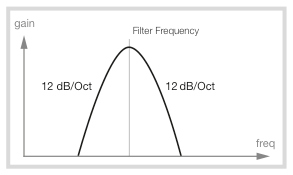
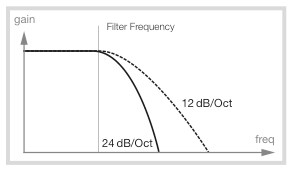
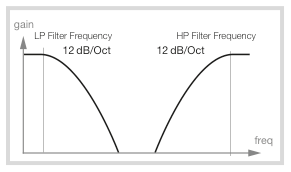
鍵盤追蹤 / KEYBOARD TRACKING
鍵盤追蹤(KBD Track)也從濾波器類型顯示畫面設定,使用中間旋鈕調整。
The Keyboard Track (KBD Track) parameter is also set from the Filter Type display, using the middle dial.
這個參數的原理是:當音高升高時,諧波頻率也會自然升高。如果截止頻率固定不變,彈奏越高的音會越顯得「混濁」。使用 KBD TRACK 可避免這種情況。
If the pitch of a waveform is raised, the harmonics naturally raise in frequency as well. If the cutoff frequency is constant, the sound will be perceived as getting "muddier" the higher up the keyboard you play. To avoid this effect, use KBD TRACK.
| 設定 / Setting | 說明 / Description |
|---|---|
| Off | 截止頻率不隨音符改變 / Not altered by the note played |
| 1/3 | 截止頻率以 1:3 比例跟蹤鍵盤 / Tracks keyboard in a 1:3 relationship |
| 2/3 | 截止頻率以 2:3 比例跟蹤鍵盤 / Tracks keyboard in a 2:3 relationship |
| 1 | 截止頻率以 1:1 比例跟蹤鍵盤 / Tracks keyboard at a 1:1 ratio |
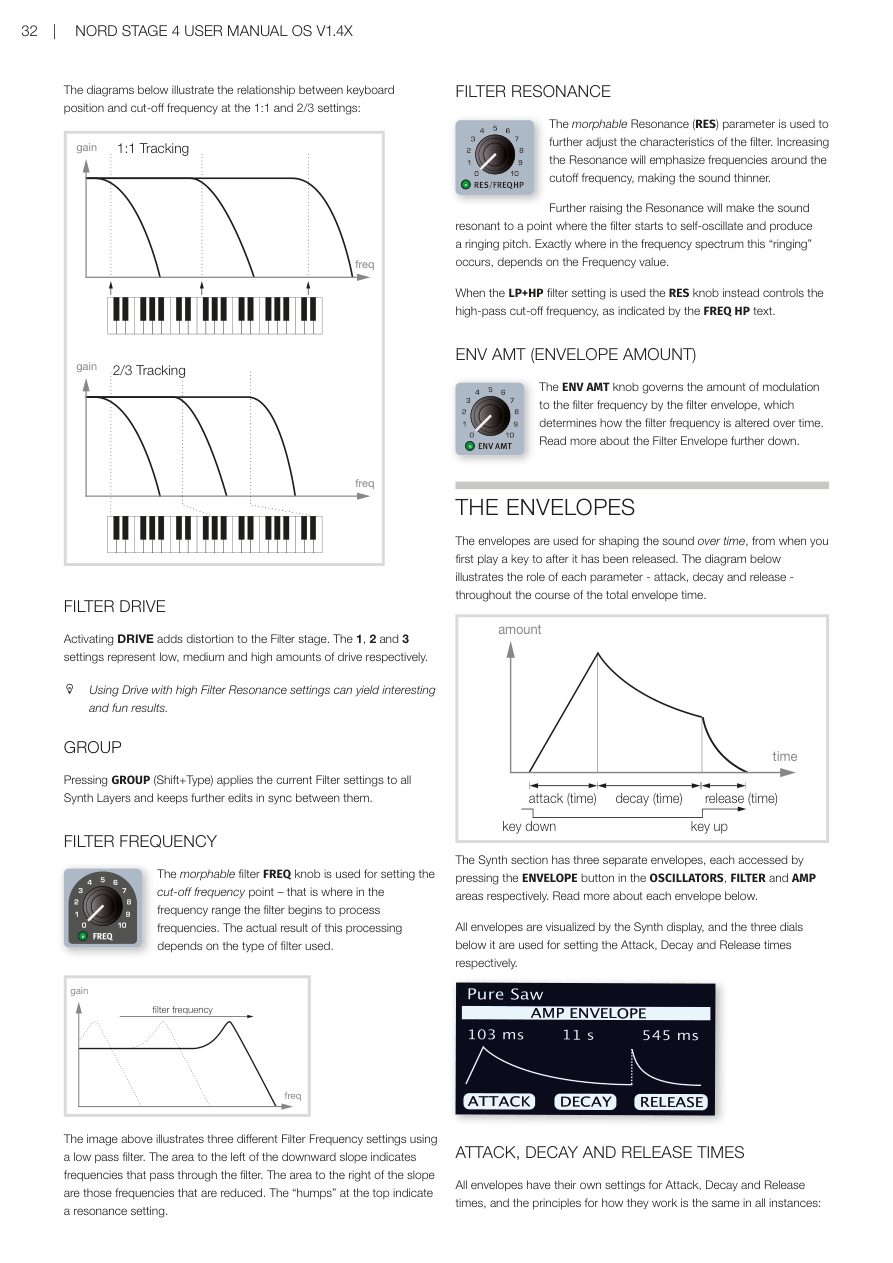
濾波器驅動 / FILTER DRIVE
啟用 DRIVE 會為濾波器階段增加失真效果。設定 1、2、3 分別代表低、中、高驅動量。
Activating DRIVE adds distortion to the Filter stage. The 1, 2 and 3 settings represent low, medium and high amounts of drive respectively.
💡 在高共鳴設定下使用驅動可以產生有趣而充滿特色的效果——值得嘗試!
Using Drive with high Filter Resonance settings can yield interesting and fun results.
群組 / GROUP
按下 GROUP(Shift+Type),可將目前的濾波器設定套用到所有合成器音層,並使後續編輯保持同步。
Pressing GROUP (Shift+Type) applies the current Filter settings to all Synth Layers and keeps further edits in sync between them.
濾波器頻率 / FILTER FREQUENCY
可進行變形控制的 FREQ 旋鈕用於設定截止頻率點——即濾波器開始處理頻率的位置。實際效果取決於所選的濾波器類型。
The morphable filter FREQ knob is used for setting the cut-off frequency point. The actual result of this processing depends on the type of filter used.
濾波器共鳴 / FILTER RESONANCE
可進行變形控制的 RES(共鳴)參數用於進一步調整濾波器特性。增加共鳴會強調截止頻率附近的頻率,使聲音變細薄。
The morphable Resonance (RES) parameter is used to further adjust the characteristics of the filter. Increasing the Resonance will emphasize frequencies around the cutoff frequency, making the sound thinner.
共鳴繼續提高,會使聲音進入自振狀態並產生鳴響音高。當使用 LP+HP 濾波器設定時,RES 旋鈕改為控制高通截止頻率(如 FREQ HP 文字所示)。
Further raising the Resonance will make the sound resonant to a point where the filter starts to self-oscillate and produce a ringing pitch.
包絡量(ENV AMT) / ENV AMT (ENVELOPE AMOUNT)
ENV AMT 旋鈕控制濾波器包絡線對濾波器頻率的調製量,決定濾波器頻率如何隨時間變化。
The ENV AMT knob governs the amount of modulation to the filter frequency by the filter envelope, which determines how the filter frequency is altered over time.
包絡線 / THE ENVELOPES
包絡線(Envelope——控制聲音「從無到有再消失」的時間曲線)用於塑造聲音隨時間的變化——從按下琴鍵到放開琴鍵後的整個過程。
The envelopes are used for shaping the sound over time, from when you first play a key to after it has been released.
合成器區段有三個獨立的包絡線,分別透過振盪器、濾波器和 AMP 區域的 ENVELOPE 按鈕來存取。
The Synth section has three separate envelopes, each accessed by pressing the ENVELOPE button in the OSCILLATORS, FILTER and AMP areas respectively.
所有包絡線都在合成器顯示螢幕上視覺化呈現,下方三個旋鈕分別用於設定起音(Attack)、衰減(Decay)和釋音(Release)時間。
All envelopes are visualized by the Synth display, and the three dials below it are used for setting the Attack, Decay and Release times respectively.
💡 可以這樣理解包絡線:Attack 是聲音「淡入」的時間,Decay 是聲音從峰值下降的時間,Release 是放開琴鍵後聲音「淡出」的時間。
起音、衰減與釋音 / ATTACK, DECAY AND RELEASE TIMES
起音(ATTACK)
起音設定從按下琴鍵後,包絡線達到最大值所需的時間。順時針轉動 ATTACK 旋鈕可增加起音時間。
Attack sets the time it takes for the envelope to reach maximum level after a key has been pressed. Turning the ATTACK dial clockwise increases the Attack time.
衰減(DECAY)
起音階段結束後,只要琴鍵仍然按住,包絡量會開始下降至零。使用 DECAY 旋鈕設定所需時間。若衰減時間設為最大值,包絡線會進入延音(Sustain)模式,維持固定值直到放開琴鍵。
When the attack phase is over, and the key is still held down, the envelope amount begins dropping down to zero again. If the Decay time is set to maximum, the envelope will be in Sustain mode.
釋音(RELEASE)
放開琴鍵後,包絡線進入釋音階段。釋音時間決定包絡線降至最小值所需的時間,以 RELEASE 旋鈕設定。
When the key is released, the envelope enters the release stage. The release time determines how long it takes for the envelope to reach its minimum value.
振盪器包絡線 / OSCILLATOR ENVELOPE
振盪器包絡線預設套用在 OSC CTRL 參數上,也可透過啟用 ENV TO PITCH(Shift+Pitch/Smp)來改為調製振盪器音高。
The Oscillator ENVELOPE is by default applied to the Osc Ctrl parameter, but can also be set to alter the pitch of the oscillator, by activating ENV TO PITCH (Shift+Pitch/Smp).
力度感應(VELOCITY):開啟 VELOCITY(Shift+Envelope)後,振盪器包絡線的振幅會受演奏力度控制。彈得越用力,包絡線對目標參數的調製量越大。
With VELOCITY (Shift+Envelope) turned on, the amplitude of the Oscillator Envelope is controlled by the velocity with which the keys are played.
ENV AMT(包絡量):這個可進行變形控制的參數決定振盪器包絡線對 OSC CTRL(或音高,當 Env To Pitch 啟用時)的調製量。此旋鈕是雙極性的(12 點鐘位置為零),順時針增加調製,逆時針則反轉調製方向。
The morphable ENV AMT parameter determines the amount of modulation applied to the OSC CTRL parameter by the Oscillator envelope. The Env Amt knob is bi-polar, with zero position at 12 o'clock.
濾波器包絡線 / FILTER ENVELOPE
濾波器包絡線用於隨時間調製濾波器截止頻率(FREQ)。調製量由 Env Amt 控制器決定。
The Filter ENVELOPE is used for modulating the Filter cut-off Frequency (FREQ) over time. The amount of modulation is determined by the Env Amt control.
力度感應(VELOCITY):開啟後,濾波器包絡線的振幅會隨演奏力度變化。
Turn VELOCITY (Shift + Envelope) on to have the amplitude of the Filter Envelope respond to the velocity with which the keys are played.
擴大機包絡線(AMP Envelope) / AMP ENVELOPE
合成器信號鏈的最後階段是擴大機(AMP),用於控制音量。透過包絡線調製這個擴大機,聲音就有了基本的「時間形狀」。音量形狀是我們識別聲音的最重要因素之一——設定好包絡線可以讓聲音變「柔和」、「硬朗」、「彈撥感」或「靜態」等。
The final stage of the Synth signal chain consists of an amplifier (AMP) for controlling the volume. By modulating this amplifier with an envelope, the sound is given its basic "shape" over time.
力度感應(VELOCITY):啟用後,合成器的輸出音量由演奏力度控制。共有四個設定,提供逐漸增加的力度靈敏度。
With VELOCITY (Shift+Envelope) active, the output level of the Synth will be controlled by the velocity with which the keyboard is played. There are four settings giving an increasing amount of velocity sensitivity.
LFO(低頻振盪器) / LFO
LFO(低頻振盪器——產生緩慢週期性波動,用來讓音色隨時間搖擺變化)可產生循環波形,速率通常非常低,不會產生可聽見的音高。LFO 的輸出用於調製其他功能,例如 OSC CTRL 參數或濾波器頻率。LFO 的速率由可進行變形控制的 RATE/TIME 旋鈕設定。
The LFO or Low Frequency Oscillator produces cyclic waveforms at very low frequencies. Instead the output from the LFO is used for modulating other functions, such as the Osc Ctrl parameter or the Filter frequency. The rate of the LFO is set with the morphable RATE/TIME knob.
可進行變形控制的 MOD AMT 旋鈕控制 LFO 調製的振幅,可指派到以下目標:
The morphable MOD AMT knob controls the amplitude of the LFO modulation, which can be assigned to one of these destinations:
- OSC CTRL:根據選擇的波形類型,效果各有不同。Depending on which Waveform Type is selected, this will have different effects.
- PITCH(音高):用 LFO 調製音高,可產生從細微的顫音到誇張的音高效果。Can create anything from subtle Vibrato effects to more extreme Pitch effects.
- FILTER(濾波器):調製所選濾波器的截止頻率。Modulates the cut-off frequency of the selected Filter.
將目標設定為無 LED 亮起,可在保留其他設定的情況下關閉 LFO。
The LFO can be turned Off, while keeping its other settings intact, by setting the destination such that none of its LEDs are lit.
同步主時鐘(MST CLK):按住 Shift 並順時針轉動 RATE/TIME 旋鈕,可將 LFO 速率同步到主時鐘。同步後,Rate 旋鈕用於選擇主時鐘拍速的細分值(1/2 = 二分音符,1/4 = 四分音符,1/8 = 八分音符)。
Press Shift and turn the RATE/TIME dial clockwise to sync the rate of the LFO to the master clock.
LFO 波形 / LFO WAVEFORM
按下 LFO WAVEFORM 按鈕選擇 LFO 產生的波形:
Press LFO WAVEFORM to select which waveform should be generated by the LFO:
- Triangle(三角波) — 適合自然的顫音效果,也常用於脈衝寬度調製。Suitable for natural vibrato effects and also used for classic pulse width modulation.
- Sawtooth 1(鋸齒波 1) — 用於向下坡形調製。Use for ramp down modulations.
- Sawtooth 2(鋸齒波 2) — 用於向上坡形調製。Use for ramp up modulations.
- Square(方波) — 用於突然的調製變化,適合顫音、明顯的抖音等。Use for abrupt modulation changes, suitable for trills, distinct tremolos, etc.
- Sample & Hold(取樣保持) — 產生平滑的隨機調製。Creates a smooth random modulation.
按下 GROUP(Shift+Waveform),可將目前的 LFO 設定套用到所有合成器音層,並同步所有 LFO 的相位和控制。
Press GROUP (Shift+Waveform) to apply the current LFO settings to all Synth Layers and synchronize the phase and control of all LFOs.
聲部模式 / VOICE
Nord Stage 4 合成器提供多種聲部模式,可選擇單音或複音演奏。
The Nord Stage 4 synthesizer has a number of different voice modes for monophonic or polyphonic playing.
單音與連奏模式 / MONO AND LEGATO
MONO 和 LEGATO 模式每次只能演奏一個音符,就像傳統的單音合成器一樣。兩者的主要差異在於連奏(legato,重疊按鍵)時,包絡線的反應方式不同:
In both MONO and LEGATO mode only one note is played at a time. The main difference is in how the envelopes act when one is playing legato:
- Mono 模式:包絡線從與前一個音符電平相同的起音點重新開始。Both envelopes restart from the point in the attack phase where the level is equal to the previous note.
- Legato 模式:只要連奏,衰減後包絡線不會重新進入起音階段。The envelopes do not move to the attack phase once the decay point has been reached, as long as one is playing legato.
另一個差異是:Legato 模式中,只有連奏時才會啟動滑音(Glide)效果。
Another difference is that in Legato mode, glide is active only when you play legato.
當 Mono 和 Legato LED 均未亮起時,合成器處於預設的複音模式。
When none of the Mono and Legato LEDs are lit, the Synth section is in its default polyphonic mode.
低音優先與高音優先模式 / LO AND HI PRIORITY MODES
LO(低音優先):啟用後,高於最低按住或延音音符的所有音符都不會發聲。可用於演奏和弦的同時保持單音貝斯音。
With the LO note priority setting active, notes above the lowest key being held or sustained will not be played at all.
HI(高音優先):與 LO 相反——低於最高按住音符的所有音符都不會發聲,可用於從和弦中取出最高音演奏旋律。
Inversely, with note priority set to HI, active notes below the highest key currently being held or sustained will not produce sound.
注意:Lo 和 Hi 設定只適用於 Mono 和 Legato 聲部模式。
The Lo and Hi settings are only applicable to the Mono and Legato Voice modes.
滑音(GLIDE) / GLIDE
GLIDE 功能讓音高在演奏時從一個音「滑」到另一個音(傳統上稱為 Portamento),僅在 Legato 和 Mono 模式下有效。順時針轉動 Glide 旋鈕可增加滑音速率(速率越大,滑動越快)。
The GLIDE function makes the pitch "glide" from one note to the next when playing (traditionally often referred to as portamento) and is available in Legato and Mono modes only.
齊奏(UNISON) / UNISON
Nord Stage 4 振盪器可增加額外的振盪器,疊加在基本聲音上,製造那種厚實飽滿的經典合成器聲音。使用齊奏不會減少複音數。
- UNISON 1:經典的雙振盪器輕微失諧效果,立體聲寬度較窄。A classic dual oscillator de-tuning effect with only subtle stereo width.
- UNISON 2 & 3:增加更多振盪器,立體聲音場更寬廣。Add even more oscillators and further widens the stereo image.
齊奏與樣本:在樣本模式下,齊奏功能專門設計來提供逼真的合奏感效果,透過組合多個輕微失諧、並進行立體聲定位的鄰近樣本來實現。
In Samples mode, the Unison function is specifically tailored to provide a realistic and ensemble-like sound.
琶音器 / 閘門 / ARPEGGIATOR/GATE
按下 ARP RUN 按鈕開啟琶音器(Arpeggiator——自動依序演奏你按住的音符的功能)/閘門。按下 GROUP(Shift+Menu)可讓所有音層共用相同設定。
The ARPEGGIATOR/GATE is turned on by pressing the ARP RUN button. Activating GROUP (Shift + Menu) allows all Layers to share the same settings.
Nord Stage 4 琶音器/閘門區段有三種模式:
There are three available modes for the Arpeggiator/Gate section:
- ARP(琶音器):依序演奏按住的音符,呈現和弦的輪廓。In Arp mode, held notes are played back consecutively, outlining the played chord.
- POLY(複音琶音器):反覆同時演奏所有音符。在較大的 Range 設定下,會依據 Direction 設定依序演奏按住和弦的轉位。In Poly mode, notes are played back repeatedly, together.
- GATE(節奏閘門):根據速率設定,對延音音符的音量進行節奏性的開關。When set to Gate, the sound level of sustained notes is gated rhythmically.
節拍型式(PATTERN) / PATTERN
三種模式都可以使用 PATTERN 設定(Shift+琶音器模式)。開啟後,琶音或閘門的步驟會按照所選型式的節奏進行。
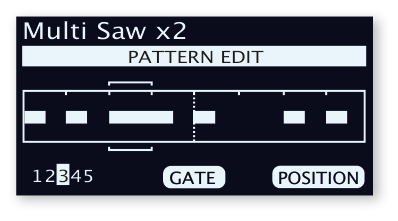
All three modes can use the PATTERN setting. With Pattern On, the notes or steps conform to the rhythm defined by the selected pattern.
除了現有的預設型式外,還可以建立自訂長度的型式。型式的選擇和定義在琶音器選單中進行。
Apart from the available set of preset patterns, custom patterns of varying length can be created.
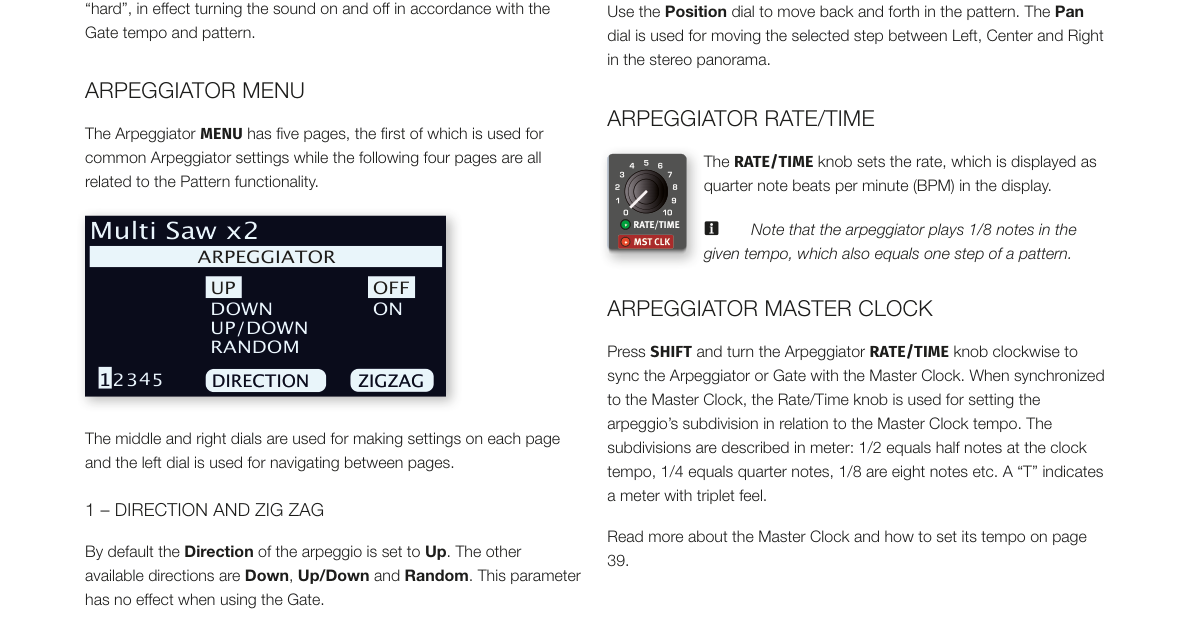
音域 / 包絡(RANGE / ENV) / RANGE / ENV
RANGE 旋鈕決定琶音跨越的音域範圍(0 至 4 個八度)。
The range which an arpeggio spans is determined by the RANGE knob.
在 GATE 模式下,此旋鈕控制閘門的包絡(ENV)——零位置時閘門非常柔和,最大位置時閘門非常「硬」(聲音完全開關)。
When the GATE is active this knob controls the envelope (ENV) of the Gate.
琶音器選單 / ARPEGGIATOR MENU
琶音器選單共有五頁,使用左側旋鈕在頁面間切換:
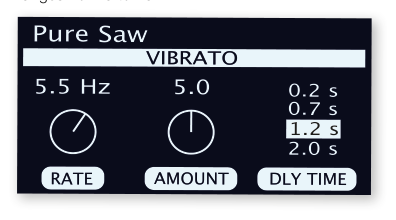
The Arpeggiator MENU has five pages:
- 方向與鋸齒形(Direction & Zig Zag):方向預設為向上。其他選項:向下、上下、隨機。啟用鋸齒形後,音符會跳兩步再退一步。Default Direction is Up; other options: Down, Up/Down, Random.
- 型式預設與長度(Pattern Presets & Length):選擇預設型式,設定 2 至 16 步的型式長度。Select preset patterns and set pattern length from 2 to 16 steps.
- 型式編輯(Pattern Edit):使用位置和閘門旋鈕編輯型式步驟。Use Position and Gate dials to edit pattern steps.
- 型式重音(Pattern Accent):為選定步驟添加重音(需要力度感應啟用才有效果)。Add accents to selected steps.
- 型式聲像(Pattern Pan):在左、中、右之間移動選定步驟的立體聲位置。Move selected steps between Left, Center and Right.
琶音器速率 / 時間 / ARPEGGIATOR RATE/TIME
RATE/TIME 旋鈕以四分音符每分鐘(BPM)設定速率。注意:琶音器以給定拍速演奏八分音符。
The RATE/TIME knob sets the rate in quarter note BPM. Note that the arpeggiator plays 1/8 notes in the given tempo.
同步主時鐘:按住 SHIFT 並順時針轉動 RATE/TIME 旋鈕,可將琶音器或閘門同步到主時鐘。
Press SHIFT and turn the Arpeggiator RATE/TIME knob clockwise to sync the Arpeggiator or Gate with the Master Clock.
鍵盤保持(KB HOLD) / KB HOLD
在 KB HOLD(鍵盤保持)模式下,即使手指離開琴鍵,音符也會持續發聲。這對於讓琶音持續運行而不需按住琴鍵,或在雙手演奏其他內容時維持和弦或持續音,非常實用。
In KB HOLD (Keyboard Hold) mode, notes keep sounding even if all fingers are lifted from the keys. This is useful both for keeping an arpeggio running without keeping keys pressed down, or for having chords or drones sustained while playing something else using both hands.
預設情況下,KB Hold 影響合成器區段的所有音層。若某個音層不應包含在 KB Hold 功能中,對該音層按下 EXCLUDE(Shift+KB Hold)即可排除。
By default KB Hold affects all Layers of the Synth Section. If a Layer should not be included in the KB Hold functionality, press EXCLUDE (Shift+KB Hold) for that Layer.
KB Hold 開啟時,即使合成器區段已關閉,其 LED 仍會保持亮起。這在音層場景切換時(合成器在其中一個場景中為關閉狀態)非常有用。
When KB Hold is turned On, its LED remains lit even if the Synth Section has been turned Off.
顫音(VIBRATO) / VIBRATO
顫音(VIBRATO)調製振盪器的音高,以產生自然的顫音效果。
VIBRATO modulates the pitch of the oscillator to produce natural sounding vibrato effects.
有五種控制合成器顫音的方式:
There are five methods for controlling the Synth Vibrato:
- ON:一按下琴鍵就立即套用顫音。Vibrato will be applied as soon as a note is played.
- DLY(延遲):演奏音符後短暫延遲才引入顫音。The vibrato is introduced a short amount of time after a note is played.
- WHL(調製輪):顫音量由調製輪控制。The vibrato amount is controlled with the Modulation Wheel.
- A.T.(後觸鍵):按壓已按住的琴鍵來控制顫音。Vibrato is controlled by pressing down held notes on the keyboard.
- PED(踏板):由腳踏開關或 Nord Triple Pedal 的左側或中間踏板控制顫音。The Vibrato is controlled by a foot switch or the left or middle pedal of a Nord Triple Pedal.
顫音選單 / VIBRATO MENU
顫音選單提供速率(Rate,2.0–8.0 Hz)、量(Amount,0–10)和延遲時間(Dly Time,0.2、0.7、1.2 或 2.0 秒)的設定。
The Vibrato MENU provides settings for Rate (2.0–8.0 Hz), Amount (0–10), and Dly Time (0.2, 0.7, 1.2 or 2.0 seconds).
顫音與樣本 / VIBRATO AND SAMPLES
Nord Sample Library 4 的樣本附帶預定義的顫音設定。一般而言,樣本的顫音設計為盡可能自然和逼真。
Samples from the Nord Sample Library 4 come with predefined settings which determine the exact nature of the Vibrato.
鍵盤同步(KB SYNC) / KB SYNC
在 KB SYNC 模式(Shift+Arp Run)下,每次所有琴鍵放開後再按下新音符時,琶音器或閘門都會重置。
In KB SYNC mode (Shift+Arp Run), the arpeggiator or gate will be reset any time a new note is played after all keys have been lifted.
當主時鐘(MST CLK)啟用時,KB Sync 參數決定是否重置主時鐘。這會影響整個程式中所有同步到主時鐘的參數。
When MST CLK is active, this KB Sync parameter determines whether the Master Clock is reset. This affects all parameters synced to the Master Clock in the entire program.
💡 你可以為每個音層分別設定 KB Sync,例如讓鍵盤左側分區的琶音音層在演奏時重置時鐘,而右側的旋律音層不重置。
音色初始化(SOUND INIT) / SOUND INIT
按下 SOUND INIT(Shift+Waveform),可重置所有合成器參數(除了合成器模式和已選波形/樣本之外)——非常適合從空白狀態開始設計音色。
Pressing SOUND INIT (Shift+Waveform) allows for initializing all synthesizer parameters except for the Synth Mode and selected waveform/sample.
此操作可透過按下 UNDO 撤銷。
The Sound Init operation can be undone by pressing UNDO.
第七章:程式區段 / Chapter 7: Program
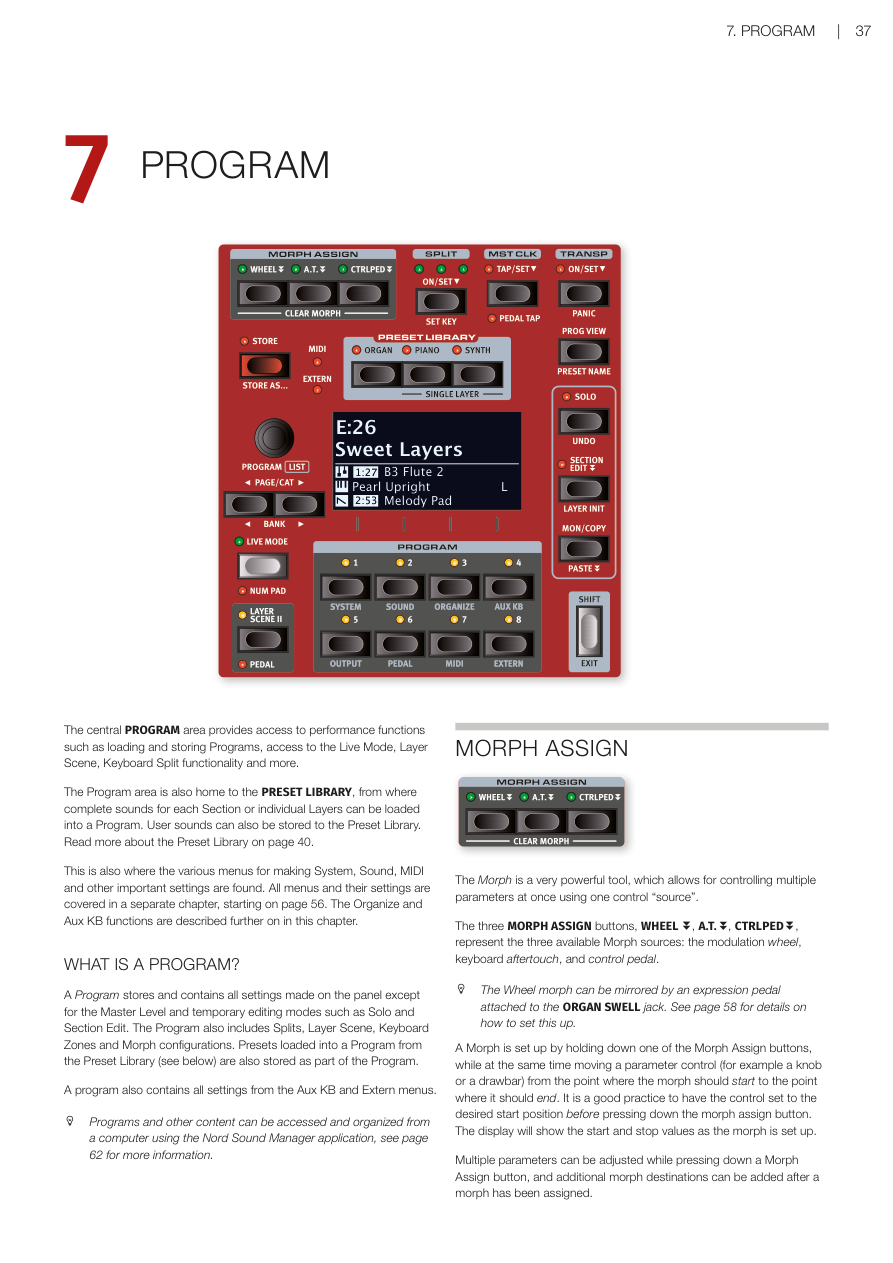
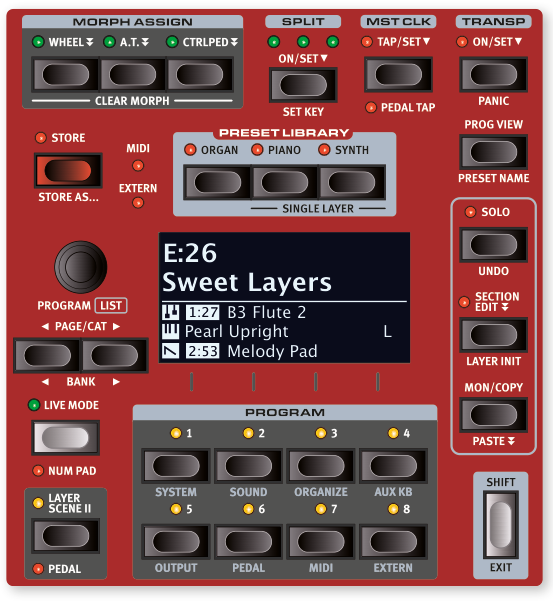
程式區段概覽 / PROGRAM OVERVIEW
中央的**程式區段(Program Area)**是整台琴的操作核心,讓你載入和儲存程式(Program——Nord Stage 4 用來保存所有設定的記憶單位)、使用即時模式(Live Mode)、音層場景(Layer Scene)、鍵盤分區(Split)等功能。
The central PROGRAM area provides access to performance functions such as loading and storing Programs, access to the Live Mode, Layer Scene, Keyboard Split functionality and more.
程式區段也包含預設音色庫(Preset Library),讓你可以將各區段或個別音層的完整音色載入到程式中。用戶自訂的音色也可以儲存到預設音色庫。詳情請見第 40 頁。
The Program area is also home to the PRESET LIBRARY, from where complete sounds for each Section or individual Layers can be loaded into a Program. User sounds can also be stored to the Preset Library. Read more about the Preset Library on page 40.
此外,系統、音色、MIDI 等重要設定選單也在這裡存取。選單設定的詳細說明從第 56 頁開始。整理(Organize)和輔助鍵盤(Aux KB)功能也在本章後面介紹。
This is also where the various menus for making System, Sound, MIDI and other important settings are found. All menus and their settings are covered in a separate chapter, starting on page 56. The Organize and Aux KB functions are described further on in this chapter.
什麼是程式?/ WHAT IS A PROGRAM?
程式儲存了面板上幾乎所有的設定,唯一例外是主音量(Master Level)以及獨奏監聽(Solo)和區段編輯(Section Edit)等臨時模式。程式也包含分區、音層場景、鍵盤分區和變形控制的設定。從預設音色庫載入的預設音色也會存在程式裡。
A Program stores and contains all settings made on the panel except for the Master Level and temporary editing modes such as Solo and Section Edit. The Program also includes Splits, Layer Scene, Keyboard Zones and Morph configurations. Presets loaded into a Program from the Preset Library (see below) are also stored as part of the Program.
程式也儲存了輔助鍵盤(Aux KB)和外部 MIDI(Extern)選單中的所有設定。
A program also contains all settings from the Aux KB and Extern menus.
💡 可以透過電腦上的 Nord Sound Manager 軟體來存取和整理程式及其他內容,詳見第 62 頁。
Programs and other content can be accessed and organized from a computer using the Nord Sound Manager application, see page 62 for more information.
變形控制指定 / MORPH ASSIGN
**變形控制(Morph——讓你用一個動作同時控制多個參數的強大功能)**是非常實用的演奏工具,讓你用單一控制來源同時調整多個參數。
The Morph is a very powerful tool, which allows for controlling multiple parameters at once using one control "source".
三個 MORPH ASSIGN 按鈕——WHEEL(調製輪)、A.T.(後觸鍵 Aftertouch)、CTRLPED(控制踏板)——代表三種可用的變形控制來源。
The three MORPH ASSIGN buttons, WHEEL, A.T., CTRLPED, represent the three available Morph sources: the modulation wheel, keyboard aftertouch, and control pedal.
💡 調製輪的變形控制也可以用連接到 ORGAN SWELL 插孔的表情踏板來鏡像控制。設定方式請見第 58 頁。
The Wheel morph can be mirrored by an expression pedal attached to the ORGAN SWELL jack. See page 58 for details on how to set this up.
設定變形控制的方法:按住 Morph Assign 按鈕,同時將參數控制器(例如旋鈕或音桿)從起始位置移到結束位置。建議先把控制器調到想要的起始位置,再按下 Morph Assign 按鈕。設定過程中顯示幕會顯示起始和結束數值。
A Morph is set up by holding down one of the Morph Assign buttons, while at the same time moving a parameter control (for example a knob or a drawbar) from the point where the morph should start to the point where it should end. It is a good practice to have the control set to the desired start position before pressing down the morph assign button. The display will show the start and stop values as the morph is set up.
按住 Morph Assign 按鈕時可以同時調整多個參數,也可以在已設定變形後繼續新增更多目標參數。
Multiple parameters can be adjusted while pressing down a Morph Assign button, and additional morph destinations can be added after a morph has been assigned.
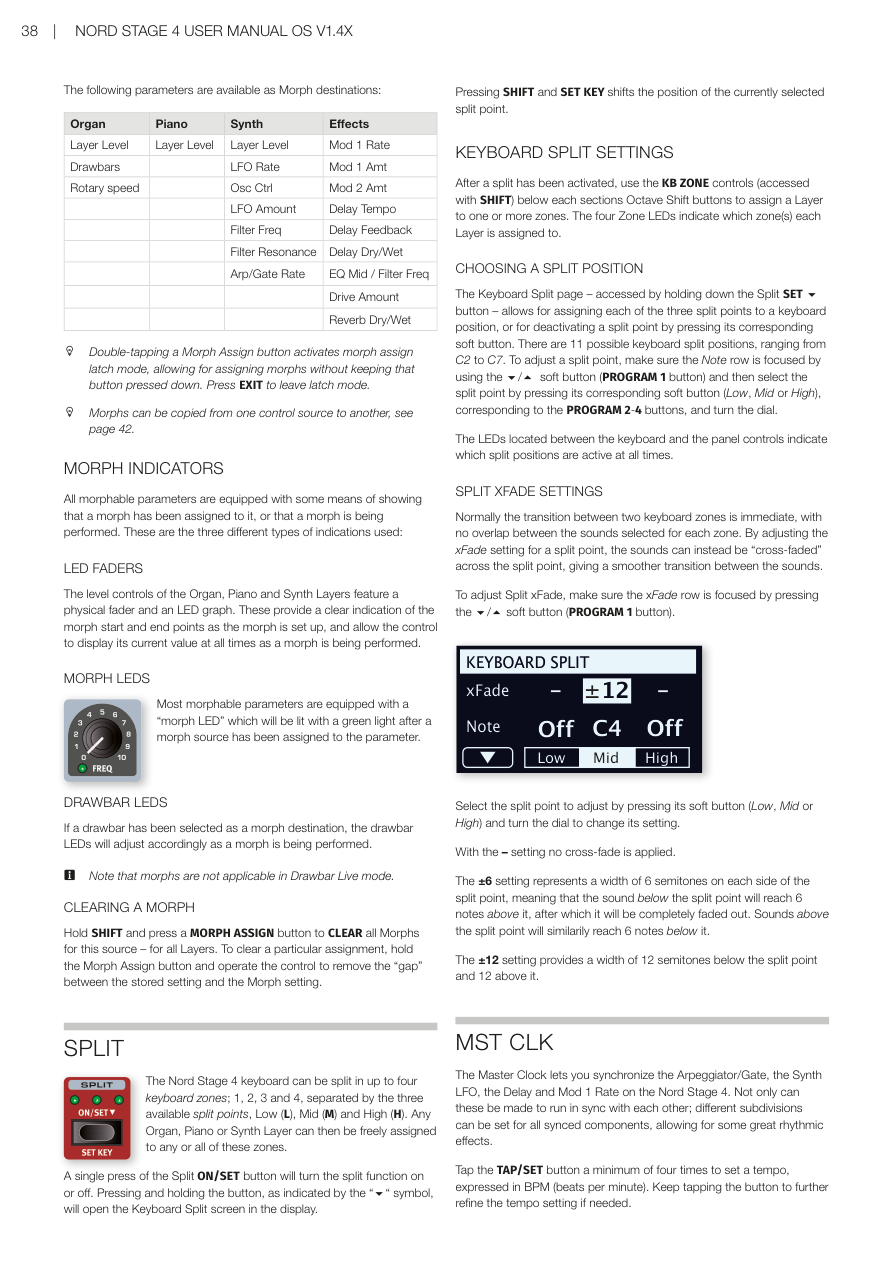
可用的變形控制目標參數 / MORPH DESTINATIONS
| 區段 / Section | 可控制的參數 / Parameters |
|---|---|
| 風琴 / Organ | 音層音量 Layer Level、音桿 Drawbars、旋轉喇叭速度 Rotary speed |
| 鋼琴 / Piano | 音層音量 Layer Level |
| 合成器 / Synth | 音層音量 Layer Level、LFO 速率 LFO Rate、LFO 量 LFO Amount、振盪器控制 Osc Ctrl、濾波頻率 Filter Freq、濾波共鳴 Filter Resonance、琶音/閘速率 Arp/Gate Rate、驅動量 Drive Amount |
| 效果 / Effects | Mod 1 速率 Mod 1 Rate、Mod 1 量 Mod 1 Amt、Mod 2 量 Mod 2 Amt、延遲速度 Delay Tempo、延遲回饋 Delay Feedback、延遲乾濕比 Delay Dry/Wet、EQ 中頻/濾波頻率 EQ Mid / Filter Freq、殘響乾濕比 Reverb Dry/Wet |
快速雙擊 Morph Assign 按鈕可以進入鎖定模式(latch mode),讓你不用一直按著按鈕就能設定變形控制。按 EXIT 離開鎖定模式。
Double-tapping a Morph Assign button activates morph assign latch mode, allowing for assigning morphs without keeping that button pressed down. Press EXIT to leave latch mode.
變形控制可以從一個來源複製到另一個來源,詳見第 42 頁。
Morphs can be copied from one control source to another, see page 42.
變形控制指示燈 / MORPH INDICATORS
所有可設定變形控制的參數都有某種方式來顯示是否已指定了變形,或者目前正在執行變形。
All morphable parameters are equipped with some means of showing that a morph has been assigned to it, or that a morph is being performed.
LED 推桿——風琴、鋼琴和合成器音層的音量控制具有實體推桿和 LED 圖表,可清楚顯示變形的起始和結束點。
LED FADERS — The level controls of the Organ, Piano and Synth Layers feature a physical fader and an LED graph. These provide a clear indication of the morph start and end points as the morph is set up.
變形 LED——大多數可設定變形的參數都有一個「變形 LED」,指定了變形來源後會亮起綠燈。
MORPH LEDS — Most morphable parameters are equipped with a "morph LED" which will be lit with a green light after a morph source has been assigned to the parameter.
音桿 LED——如果音桿被選為變形目標,音桿 LED 會隨著變形執行而相應調整。
DRAWBAR LEDS — If a drawbar has been selected as a morph destination, the drawbar LEDs will adjust accordingly as a morph is being performed.
💡 注意:在音桿即時模式(Drawbar Live mode)下,變形控制無法作用於音桿。
Note that morphs are not applicable in Drawbar Live mode.
清除變形控制 / CLEARING A MORPH
按住 SHIFT 再按 MORPH ASSIGN 按鈕,可以清除該來源的所有變形設定(所有音層)。若要清除特定的變形指定,按住 Morph Assign 按鈕,再操作對應控制器,消除儲存值與變形設定值之間的差距即可。
Hold SHIFT and press a MORPH ASSIGN button to CLEAR all Morphs for this source – for all Layers. To clear a particular assignment, hold the Morph Assign button and operate the control to remove the "gap" between the stored setting and the Morph setting.
鍵盤分區 / SPLIT
Nord Stage 4 的鍵盤可以分割成最多四個鍵盤分區(Split——把琴鍵盤分成幾個區域,讓不同區域發不同的聲音)(1、2、3、4),由三個分割點分隔:Low(低音)、Mid(中間)和 High(高音)。任何風琴、鋼琴或合成器音層都可以自由指定到任一或多個分區。
The Nord Stage 4 keyboard can be split in up to four keyboard zones; 1, 2, 3 and 4, separated by the three available split points, Low (L), Mid (M) and High (H). Any Organ, Piano or Synth Layer can then be freely assigned to any or all of these zones.
單按 SPLIT ON/SET 按鈕可開啟或關閉分區功能。長按此按鈕可在顯示幕上開啟鍵盤分區設定畫面。
A single press of the Split ON/SET button will turn the split function on or off. Pressing and holding the button will open the Keyboard Split screen in the display.
按 SHIFT+SET KEY 可移動目前選取的分割點位置。
Pressing SHIFT and SET KEY shifts the position of the currently selected split point.
鍵盤分區設定 / KEYBOARD SPLIT SETTINGS
啟用分區後,使用各區段八度移調按鈕下方的 KB ZONE 控制(需按住 SHIFT)來將音層指定到一個或多個分區。四個分區 LED 指示每個音層被指定到哪些分區。
After a split has been activated, use the KB ZONE controls (accessed with SHIFT) below each section's Octave Shift buttons to assign a Layer to one or more zones. The four Zone LEDs indicate which zone(s) each Layer is assigned to.
選擇分割點位置 / CHOOSING A SPLIT POSITION
在鍵盤分區頁面,可以將三個分割點各自指定到一個鍵盤位置,或停用某個分割點。共有 11 個可用的鍵盤分割位置,從 C2 到 C7。
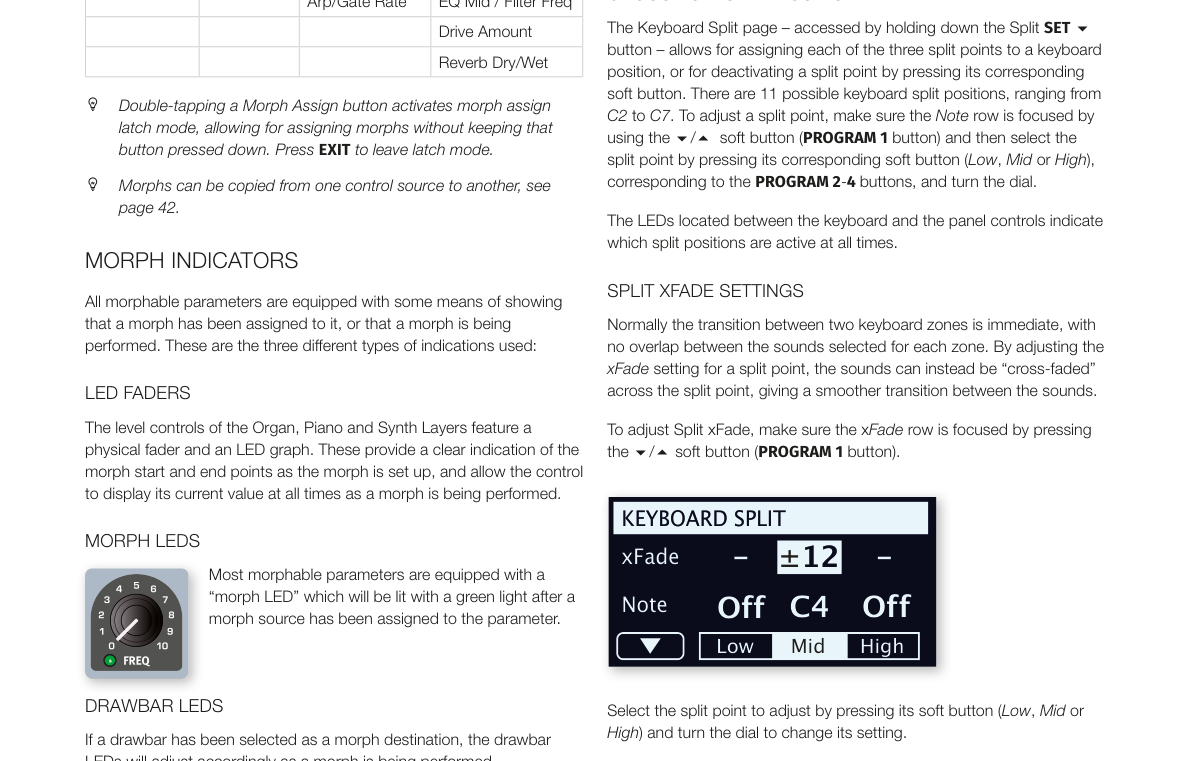
The Keyboard Split page allows for assigning each of the three split points to a keyboard position, or for deactivating a split point. There are 11 possible keyboard split positions, ranging from C2 to C7.
分割點交叉漸變設定 / SPLIT XFADE SETTINGS
通常兩個鍵盤分區之間的切換是即時的,沒有重疊。透過調整分割點的 xFade(交叉漸變)設定,可以讓兩個區域的聲音在分割點周圍平滑過渡,而非突然切換。
Normally the transition between two keyboard zones is immediate, with no overlap. By adjusting the xFade setting for a split point, the sounds can instead be "cross-faded" across the split point, giving a smoother transition.
- 「–」設定:不套用交叉漸變。/ With the – setting no cross-fade is applied.
- 「±6」設定:分割點兩側各 6 個半音的漸變寬度。/ The ±6 setting represents a width of 6 semitones on each side of the split point.
- 「±12」設定:分割點兩側各 12 個半音的漸變寬度。/ The ±12 setting provides a width of 12 semitones below the split point and 12 above it.
主時鐘 / MST CLK
**主時鐘(Master Clock)**可以讓你同步琶音器/閘、合成器 LFO、延遲效果和 Mod 1 速率。
The Master Clock lets you synchronize the Arpeggiator/Gate, the Synth LFO, the Delay and Mod 1 Rate on the Nord Stage 4.
至少連續點擊 TAP/SET 按鈕四次來設定速度(以 BPM,即每分鐘拍數為單位)。
Tap the TAP/SET button a minimum of four times to set a tempo, expressed in BPM (beats per minute).
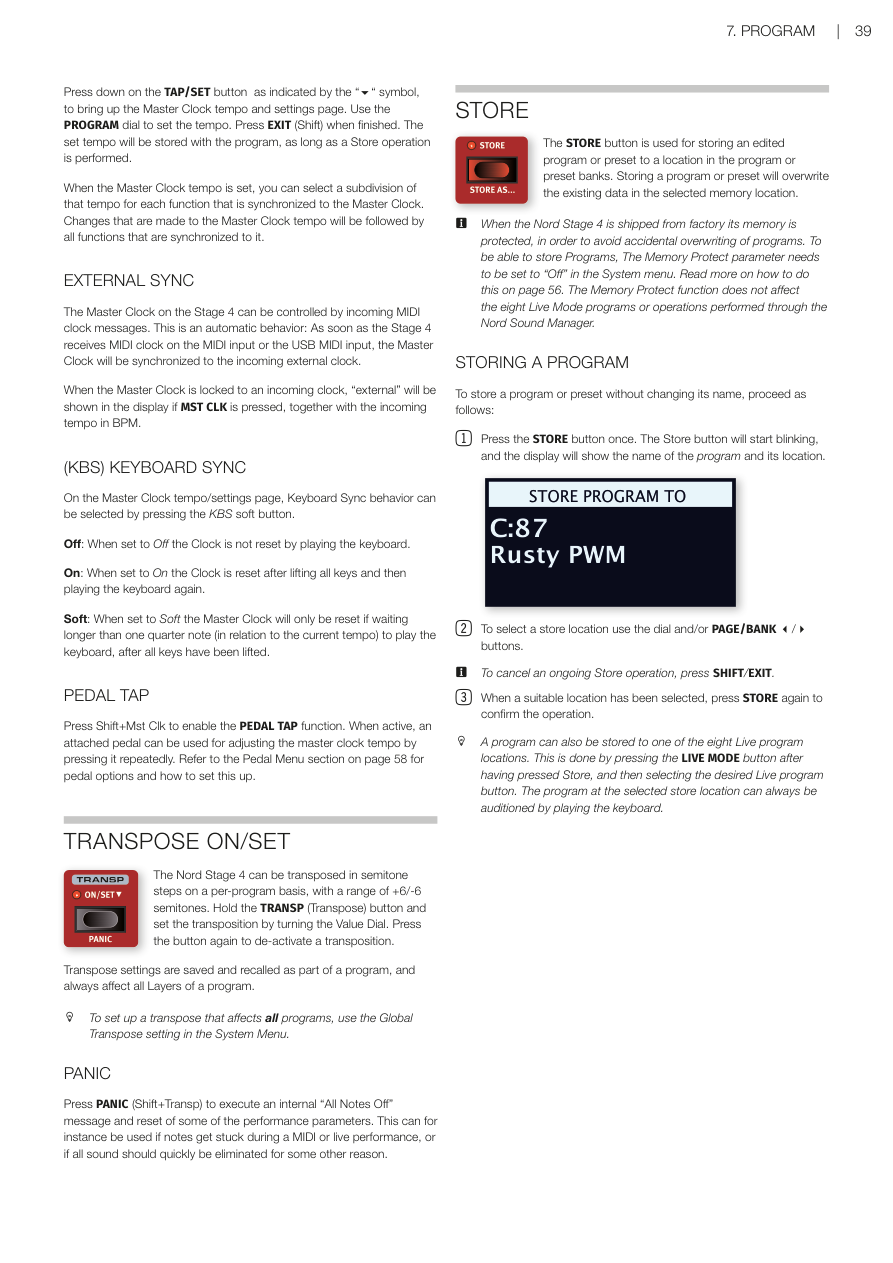
長按 TAP/SET 按鈕可開啟主時鐘速度和設定頁面。用程式旋鈕調整速度。按 EXIT(Shift)完成設定。設定的速度會隨程式一起儲存,前提是有執行儲存操作。
Press down on the TAP/SET button to bring up the Master Clock tempo and settings page. Use the PROGRAM dial to set the tempo. Press EXIT (Shift) when finished. The set tempo will be stored with the program, as long as a Store operation is performed.
外部同步 / EXTERNAL SYNC
Stage 4 的主時鐘可以接收外部 MIDI 時鐘訊號來控制。這是自動行為:只要 Stage 4 在 MIDI 或 USB MIDI 輸入端接收到 MIDI 時鐘訊號,主時鐘就會自動同步到外部時鐘。
The Master Clock on the Stage 4 can be controlled by incoming MIDI clock messages. This is automatic: As soon as the Stage 4 receives MIDI clock on the MIDI input or the USB MIDI input, the Master Clock will be synchronized to the incoming external clock.
鍵盤同步 (KBS) / (KBS) KEYBOARD SYNC
在主時鐘速度設定頁面,可以選擇鍵盤同步(Keyboard Sync)的行為:
On the Master Clock tempo/settings page, Keyboard Sync behavior can be selected:
- Off:彈奏琴鍵不會重置時鐘。/ The Clock is not reset by playing the keyboard.
- On:放開所有琴鍵後再彈奏時,時鐘會重置。/ The Clock is reset after lifting all keys and then playing the keyboard again.
- Soft:只有在放開所有琴鍵後等待超過一個四分音符的時間再彈奏,才會重置時鐘。/ The Master Clock will only be reset if waiting longer than one quarter note to play the keyboard, after all keys have been lifted.
踏板節拍輸入 / PEDAL TAP
按 Shift+Mst Clk 啟用 PEDAL TAP 功能。啟用後,可以用連接的踏板反覆踩踏來調整主時鐘速度。
Press Shift+Mst Clk to enable PEDAL TAP. When active, an attached pedal can be used for adjusting the master clock tempo by pressing it repeatedly.
移調 / TRANSPOSE ON/SET
Nord Stage 4 可以對每個程式進行移調(Transpose——將所有音層的音高同步上移或下移),範圍為 +6/-6 個半音。按住 TRANSP 按鈕,同時轉動 Value Dial 來設定移調量。再次按下按鈕可取消移調。
The Nord Stage 4 can be transposed in semitone steps on a per-program basis, with a range of +6/-6 semitones. Hold the TRANSP button and set the transposition by turning the Value Dial. Press the button again to de-activate a transposition.
移調設定會隨程式一起儲存和調用,且永遠影響程式的所有音層。
Transpose settings are saved and recalled as part of a program, and always affect all Layers.
💡 若要設定影響所有程式的移調,請使用系統選單中的 Global Transpose 設定。
To set up a transpose that affects all programs, use the Global Transpose setting in the System Menu.
緊急停音 / PANIC
按 PANIC(Shift+Transp)發送「All Notes Off」訊號並重置部分演奏參數。當 MIDI 演奏或現場演出中出現卡音(音符持續發聲不停)時,這個功能非常有用。
Press PANIC (Shift+Transp) to execute an internal "All Notes Off" message. This can be used if notes get stuck during a MIDI or live performance.
儲存程式 / STORE
STORE 按鈕用於將已編輯的程式或預設音色儲存到程式庫或預設音色庫的某個位置。儲存時會覆蓋該記憶位置中原有的資料。
The STORE button is used for storing an edited program or preset to a location in the program or preset banks. Storing a program or preset will overwrite the existing data in the selected memory location.
💡 Nord Stage 4 出廠時記憶體是受保護的,以防意外覆蓋原廠程式。若要儲存程式,需要先到系統選單(System Menu)將 Memory Protect 設定為「Off」。
When the Nord Stage 4 is shipped from factory its memory is protected, to avoid accidental overwriting. Memory Protect needs to be set to "Off" in the System menu to be able to store Programs.
儲存程式的步驟 / STORING A PROGRAM
-
按一次 STORE 按鈕。STORE 燈開始閃爍,顯示幕會顯示程式名稱和位置。
Press the STORE button once. The Store button will start blinking, and the display will show the name of the program and its location.
-
用旋鈕和/或 PAGE/BANK 按鈕選擇儲存位置。若要取消,按 SHIFT/EXIT。
To select a store location use the dial and/or PAGE/BANK buttons. To cancel, press SHIFT/EXIT.
-
選好位置後,再按一次 STORE 確認。
When a suitable location has been selected, press STORE again to confirm.
按下 STORE 後,也可以按 LIVE MODE 按鈕將程式儲存到八個即時模式(Live Mode)位置之一。
A program can also be stored to one of the eight Live program locations by pressing LIVE MODE after having pressed Store.
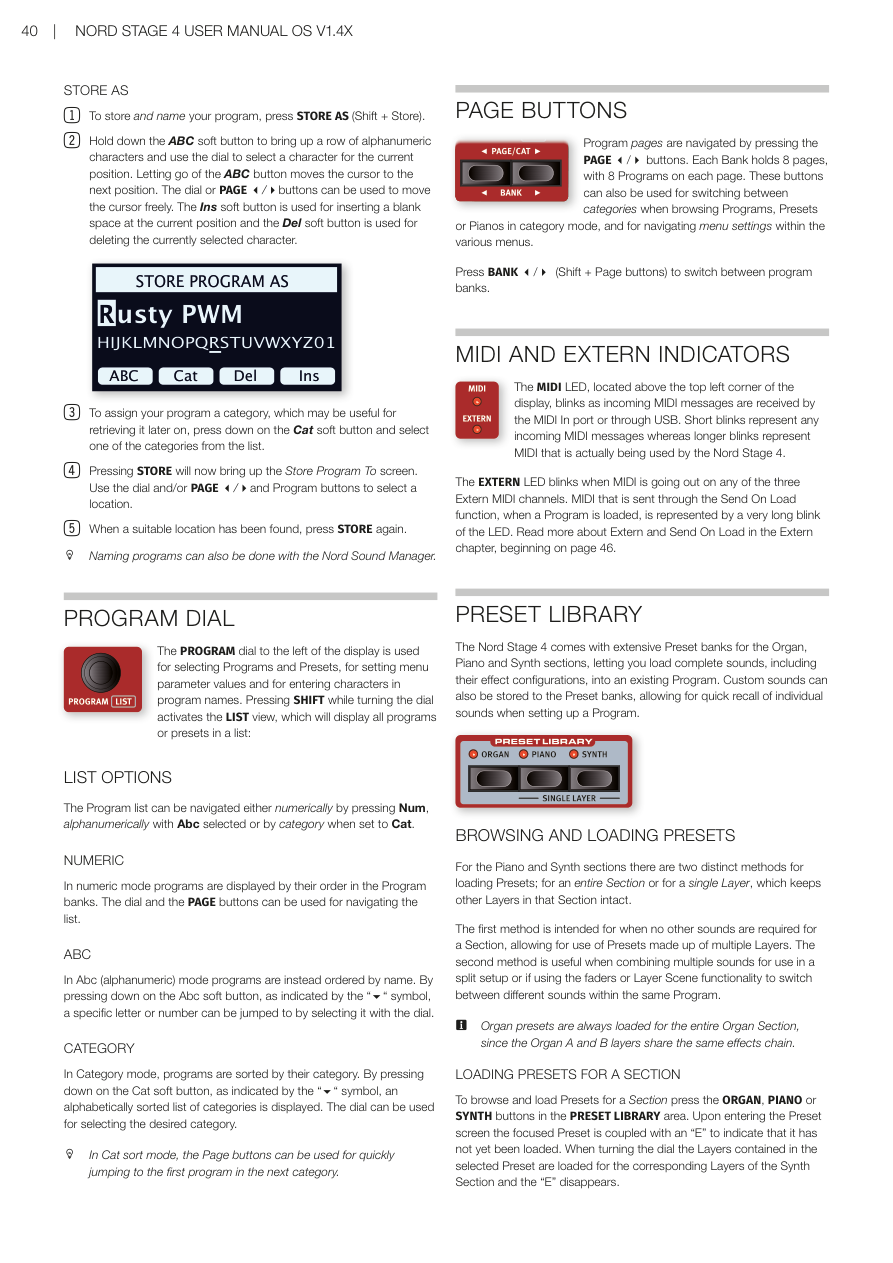
另存新程式並命名 / STORE AS
-
按 STORE AS(Shift + Store)以儲存並命名程式。
Press STORE AS (Shift + Store) to store and name your program.
-
長按 ABC 軟按鍵調出字母數字字元,用旋鈕選擇字元。放開 ABC 鍵後游標自動移到下一個位置。
Hold down the ABC soft button to bring up alphanumeric characters and use the dial to select a character. Letting go of the ABC button moves the cursor to the next position.
-
按 Cat 軟按鍵並從清單中選擇類別,可以為程式設定分類,方便日後尋找。
To assign a category, press the Cat soft button and select a category from the list.
-
按 STORE 顯示「Store Program To」畫面,用旋鈕和/或 PAGE/BANK、Program 按鈕選擇位置。
Press STORE to bring up the Store Program To screen. Use the dial and/or PAGE/BANK and Program buttons to select a location.
-
找到合適位置後,再按一次 STORE。
When a suitable location has been found, press STORE again.
程式旋鈕 / PROGRAM DIAL
程式旋鈕用於選取程式和預設音色、設定選單參數值,以及在命名程式時輸入字元。按住 SHIFT 轉動旋鈕可進入清單(LIST)檢視模式。
The PROGRAM dial is used for selecting Programs and Presets, for setting menu parameter values and for entering characters in program names. Pressing SHIFT while turning the dial activates the LIST view.
清單排序選項:數字排序(Num)、字母排序(Abc)、類別排序(Cat)。
LIST OPTIONS: Numeric (Num), Alphabetical (Abc), and Category (Cat) sort modes.
分頁按鈕 / PAGE BUTTONS
用 PAGE 按鈕來切換程式分頁。每個程式庫(Bank)包含 8 個分頁,每頁 8 個程式。按 BANK(Shift + Page 按鈕)在程式庫之間切換。
Program pages are navigated by pressing the PAGE buttons. Each Bank holds 8 pages, with 8 Programs on each page. Press BANK (Shift + Page buttons) to switch between program banks.
MIDI 和外部 MIDI 指示燈 / MIDI AND EXTERN INDICATORS
MIDI LED 在接收到 MIDI 訊號時閃爍。EXTERN LED 在三個外部 MIDI 頻道中有任一頻道傳送 MIDI 時閃爍。
The MIDI LED blinks as incoming MIDI messages are received. The EXTERN LED blinks when MIDI is going out on any of the three Extern MIDI channels.
預設音色庫 / PRESET LIBRARY
Nord Stage 4 附有豐富的預設音色庫,涵蓋風琴、鋼琴和合成器區段,讓你可以將包含效果設定的完整音色載入現有程式。用戶自訂音色也可以儲存到預設音色庫中。
The Nord Stage 4 comes with extensive Preset banks for the Organ, Piano and Synth sections, letting you load complete sounds, including their effect configurations, into an existing Program. Custom sounds can also be stored to the Preset banks.
瀏覽和載入預設音色 / BROWSING AND LOADING PRESETS
鋼琴和合成器區段有兩種不同的載入方式:為整個區段載入,或為單一音層載入(保持其他音層不變)。
For the Piano and Synth sections there are two distinct methods: loading for an entire Section, or for a single Layer (which keeps other Layers intact).
為整個區段載入:在 PRESET LIBRARY 區域按 ORGAN、PIANO 或 SYNTH 按鈕。轉動旋鈕時,所選預設音色中的音層就會被載入。
LOADING PRESETS FOR A SECTION: To browse and load Presets for a Section press the ORGAN, PIANO or SYNTH buttons in the PRESET LIBRARY area. When turning the dial the Layers contained in the selected Preset are loaded.
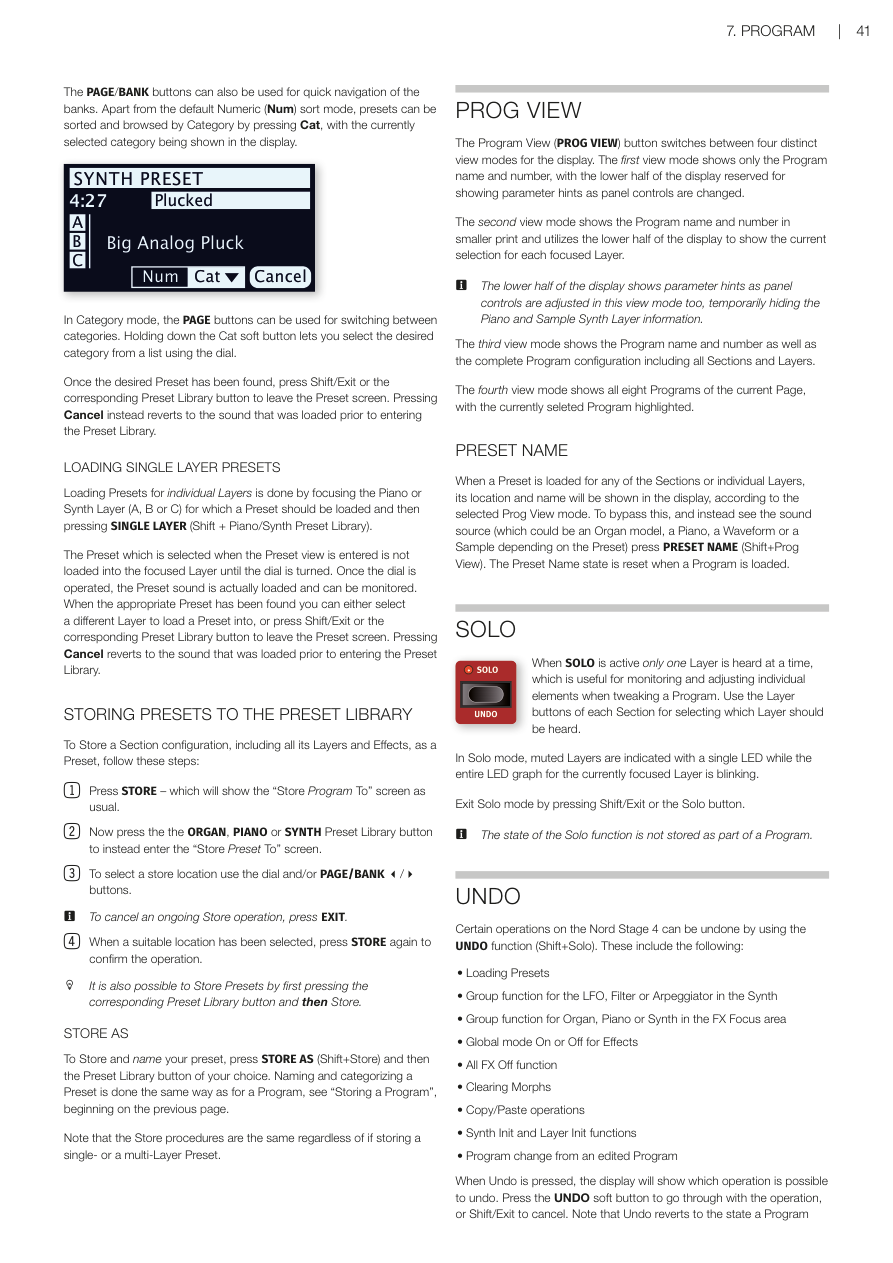
預設音色可以按類別排序(按 Cat 鍵)。找到目標預設音色後,按 Shift/Exit 或對應的預設音色庫按鈕離開。按 Cancel 則會恢復到進入預設音色庫前的音色。
Presets can be sorted by Category by pressing Cat. Once the desired Preset has been found, press Shift/Exit or the corresponding Preset Library button to leave the Preset screen. Pressing Cancel instead reverts to the sound that was loaded prior to entering the Preset Library.
為單一音層載入:先聚焦要載入預設的鋼琴或合成器音層,再按 SINGLE LAYER(Shift + Piano/Synth 預設音色庫)。
LOADING SINGLE LAYER PRESETS: Loading Presets for individual Layers is done by focusing the Piano or Synth Layer for which a Preset should be loaded and then pressing SINGLE LAYER (Shift + Piano/Synth Preset Library).
儲存預設音色到預設音色庫 / STORING PRESETS TO THE PRESET LIBRARY
-
按 STORE,顯示「Store Program To」畫面。
Press STORE – which will show the "Store Program To" screen.
-
按 ORGAN、PIANO 或 SYNTH 預設音色庫按鈕,改為進入「Store Preset To」畫面。
Press the ORGAN, PIANO or SYNTH Preset Library button to instead enter the "Store Preset To" screen.
-
用旋鈕和/或 PAGE/BANK 按鈕選擇儲存位置。若要取消,按 EXIT。
Select a store location using the dial and/or PAGE/BANK buttons. To cancel, press EXIT.
-
選好位置後,再按一次 STORE 確認。
When a suitable location has been selected, press STORE again.
程式顯示模式 / PROG VIEW
**程式顯示(PROG VIEW)**按鈕可在四種顯示模式之間切換:
The Program View (PROG VIEW) button switches between four distinct view modes:
- 模式一:只顯示程式名稱和編號,下半部顯示參數提示。/ First mode: Shows only the Program name and number, with parameter hints in lower half.
- 模式二:顯示程式名稱和目前聚焦音層的音色資訊。/ Second mode: Shows Program name and current Layer selection info.
- 模式三:顯示完整程式設定,包含所有區段和音層。/ Third mode: Shows complete Program configuration including all Sections and Layers.
- 模式四:同時顯示目前分頁的所有八個程式。/ Fourth mode: Shows all eight Programs of the current Page.
預設音色名稱 / PRESET NAME
載入預設音色後,顯示幕會顯示其位置和名稱。若要改為顯示音源(風琴型號、鋼琴、波形或樣本),按 PRESET NAME(Shift+Prog View)。
When a Preset is loaded, its location and name will be shown in the display. To bypass this and see the sound source instead, press PRESET NAME (Shift+Prog View).
獨奏監聽 / SOLO
啟用**獨奏監聽(Solo)**後,每次只能聽到一個音層,非常適合在調整音色時單獨監聽各個元素。用各區段的音層按鈕選擇要聆聽的音層。按 Shift/Exit 或 Solo 按鈕離開獨奏模式。
When SOLO is active only one Layer is heard at a time, useful for monitoring individual elements. Use the Layer buttons of each Section for selecting which Layer should be heard. Exit Solo mode by pressing Shift/Exit or the Solo button.
💡 獨奏模式的狀態不會儲存在程式裡。
復原 / UNDO
可以使用復原(Undo)(Shift+Solo)復原的操作包括:載入預設音色、LFO/濾波器/琶音器/效果的群組功能、全域效果開關、關閉所有效果、清除變形控制、複製/貼上、合成器初始化、音層初始化、從已編輯程式切換程式。
Undoable operations include: Loading Presets, Group function (LFO/Filter/Arp/Effects), Global mode, All FX Off, Clearing Morphs, Copy/Paste, Synth Init, Layer Init, Program change from an edited Program.
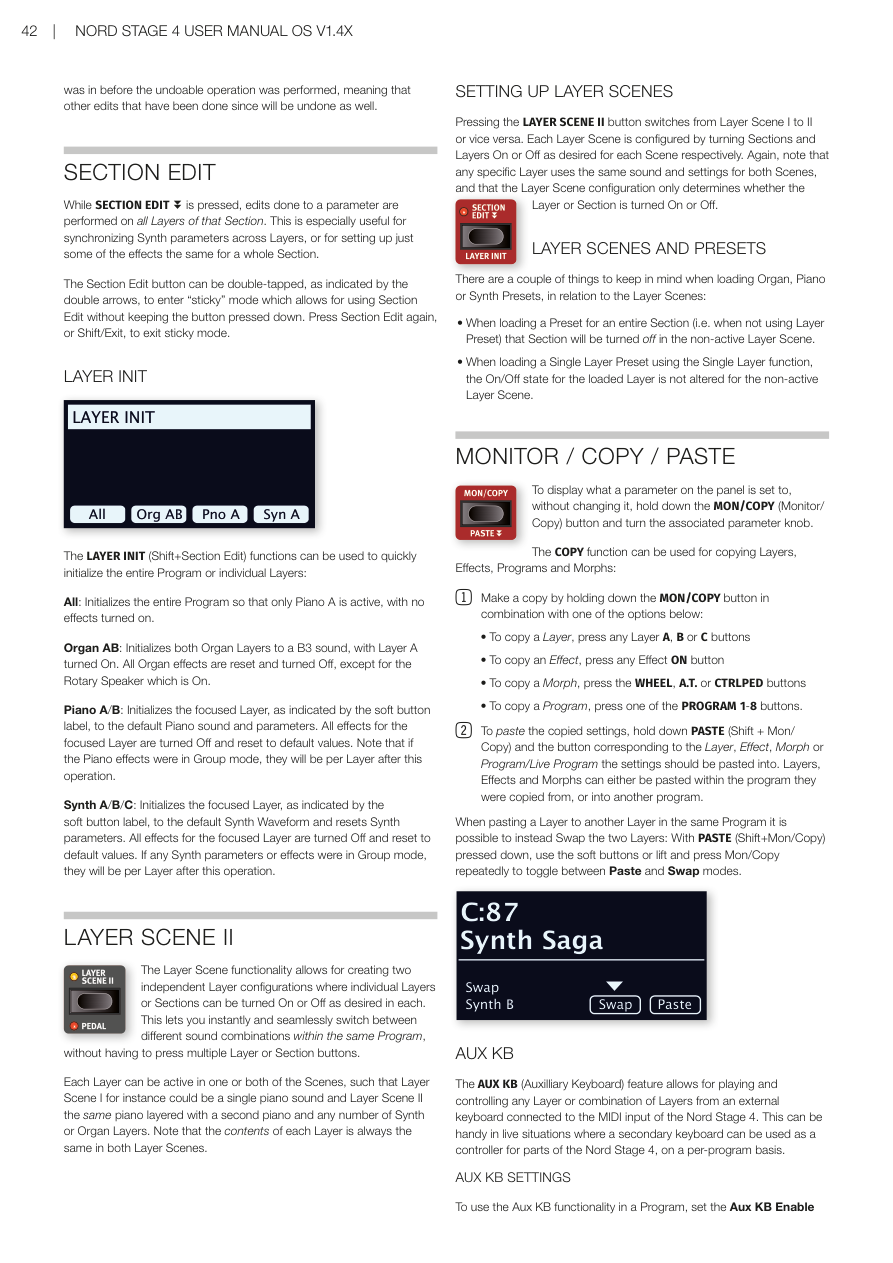
按 Undo 後,顯示幕會顯示可以復原的操作。按 UNDO 軟按鍵確認復原,或按 Shift/Exit 取消。注意:復原會回到執行該操作之前的程式狀態,這意味著該操作之後的其他編輯也會一併復原。
When Undo is pressed, the display will show which operation is possible to undo. Press the UNDO soft button to go through with the operation, or Shift/Exit to cancel.
區段編輯 / SECTION EDIT
按住 SECTION EDIT(區段編輯)時,對某個參數所做的編輯會同時套用到該區段的所有音層。這對於同步多個合成器音層的參數,或為整個區段設定相同的效果非常有用。
While SECTION EDIT is pressed, edits done to a parameter are performed on all Layers of that Section. The Section Edit button can be double-tapped to enter "sticky" mode.
💡 快速雙擊 Section Edit 按鈕可以進入「鎖定」模式,不需要一直按著按鈕就能持續編輯。再按一次 Section Edit 或 Shift/Exit 可以退出。
音層初始化 / LAYER INIT
LAYER INIT(Shift+Section Edit)可以快速初始化整個程式或個別音層:
The LAYER INIT (Shift+Section Edit) functions initialize the entire Program or individual Layers:
- All:初始化整個程式,只留 Piano A 為啟用狀態,所有效果關閉。/ Initializes the entire Program so that only Piano A is active, with no effects.
- Organ AB:初始化兩個風琴音層為 B3 音色,音層 A 開啟,所有風琴效果重置並關閉(旋轉喇叭除外,保持開啟)。/ Initializes both Organ Layers to a B3 sound with Layer A On. All Organ effects reset, except Rotary Speaker which is On.
- Piano A/B:初始化聚焦的鋼琴音層為預設鋼琴音色,所有效果關閉並重置。/ Initializes the focused Layer to the default Piano sound and parameters.
- Synth A/B/C:初始化聚焦的合成器音層為預設波形,所有效果關閉並重置。/ Initializes the focused Layer to the default Synth Waveform and resets parameters.
音層場景 II / LAYER SCENE II
**音層場景(Layer Scene)**功能讓你在同一個程式中建立兩套獨立的音層設定(每個音層或區段可以分別開啟或關閉),並能即時無縫切換。這樣就不需要切換程式,也能在演奏中快速改變音色組合。
The Layer Scene functionality allows for creating two independent Layer configurations where individual Layers or Sections can be turned On or Off as desired in each. This lets you instantly and seamlessly switch between different sound combinations within the same Program.
💡 每個音層可以同時存在於兩個場景中,也可以只在其中一個場景開啟。
Each Layer can be active in one or both of the Scenes.
設定音層場景 / SETTING UP LAYER SCENES
按 LAYER SCENE II 按鈕可在音層場景 I 和 II 之間切換。在各個場景中分別開啟或關閉所需的區段和音層來設定每個場景。
Pressing the LAYER SCENE II button switches from Layer Scene I to II or vice versa. Each Layer Scene is configured by turning Sections and Layers On or Off as desired.
音層場景與預設音色 / LAYER SCENES AND PRESETS
- 為整個區段載入預設音色時,該區段在非活動場景中會被關閉。/ When loading a Preset for an entire Section, that Section will be turned off in the non-active Layer Scene.
- 使用單一音層載入預設音色時,非活動場景中該音層的開/關狀態不會改變。/ When loading a Single Layer Preset, the On/Off state for the loaded Layer is not altered for the non-active Layer Scene.
監聽 / 複製 / 貼上 / MONITOR / COPY / PASTE
按住 MON/COPY(監聽/複製)按鈕,同時轉動參數旋鈕,可以在不改變數值的情況下查看當前設定值。
Hold the MON/COPY (Monitor/Copy) button and turn a parameter knob to display its value without changing it.
複製選項:
COPY options:
- 複製音層:按住 MON/COPY + 按任意音層 A、B 或 C 按鈕 / Copy a Layer: hold MON/COPY + press any Layer A, B or C button
- 複製效果:按住 MON/COPY + 按任意效果 ON 按鈕 / Copy an Effect: hold MON/COPY + press any Effect ON button
- 複製變形控制:按住 MON/COPY + 按 WHEEL、A.T. 或 CTRLPED 按鈕 / Copy a Morph: hold MON/COPY + press WHEEL, A.T. or CTRLPED button
- 複製程式:按住 MON/COPY + 按任意 PROGRAM 1-8 按鈕 / Copy a Program: hold MON/COPY + press one of the PROGRAM 1-8 buttons
貼上:按住 PASTE(Shift + Mon/Copy),再按目標按鈕。在同一程式中將音層貼到另一個音層時,可以選擇「Swap」(互換)來替代「Paste」(貼上)。
PASTE: Hold PASTE (Shift + Mon/Copy) and press the target button. When pasting a Layer to another Layer in the same Program, you can Swap instead of Paste.
輔助鍵盤 / AUX KB
**輔助鍵盤(AUX KB——Auxiliary Keyboard,讓外部鍵盤連接後能控制 Nord Stage 4 的特定音層)**功能允許透過連接到 MIDI 輸入的外部鍵盤來演奏和控制任意音層或音層組合。在現場演出中,這讓第二台鍵盤可以作為控制器來演奏部分 Nord Stage 4 的音色。
The AUX KB (Auxiliary Keyboard) feature allows for playing and controlling any Layer or combination of Layers from an external keyboard connected to the MIDI input. This can be handy in live situations where a secondary keyboard is used as a controller.
輔助鍵盤設定 / AUX KB SETTINGS
在 AUX KB 選單(Shift+Program 4)的第一頁,將 Aux KB Enable 設定為 On。第 2 頁讓你設定哪些音層應歸屬 Aux KB 設定。
To use Aux KB, set the Aux KB Enable setting to On, on the first page of the AUX KB menu (Shift+Program 4). Page 2 lets you assign which Layers should be part of the Aux KB configuration.
當一個音層處於 Aux KB 模式時,音層推桿下方的 Aux KB LED 會亮起,表示該音層由外部鍵盤控制,不受內部鍵盤影響。
When a Layer is in Aux KB mode its Aux KB LED, below the Layer fader, is lit.
💡 Aux KB 的 MIDI 頻道設定在 MIDI 選單中進行。
The MIDI Channel for Aux KB is set in the MIDI Menu.
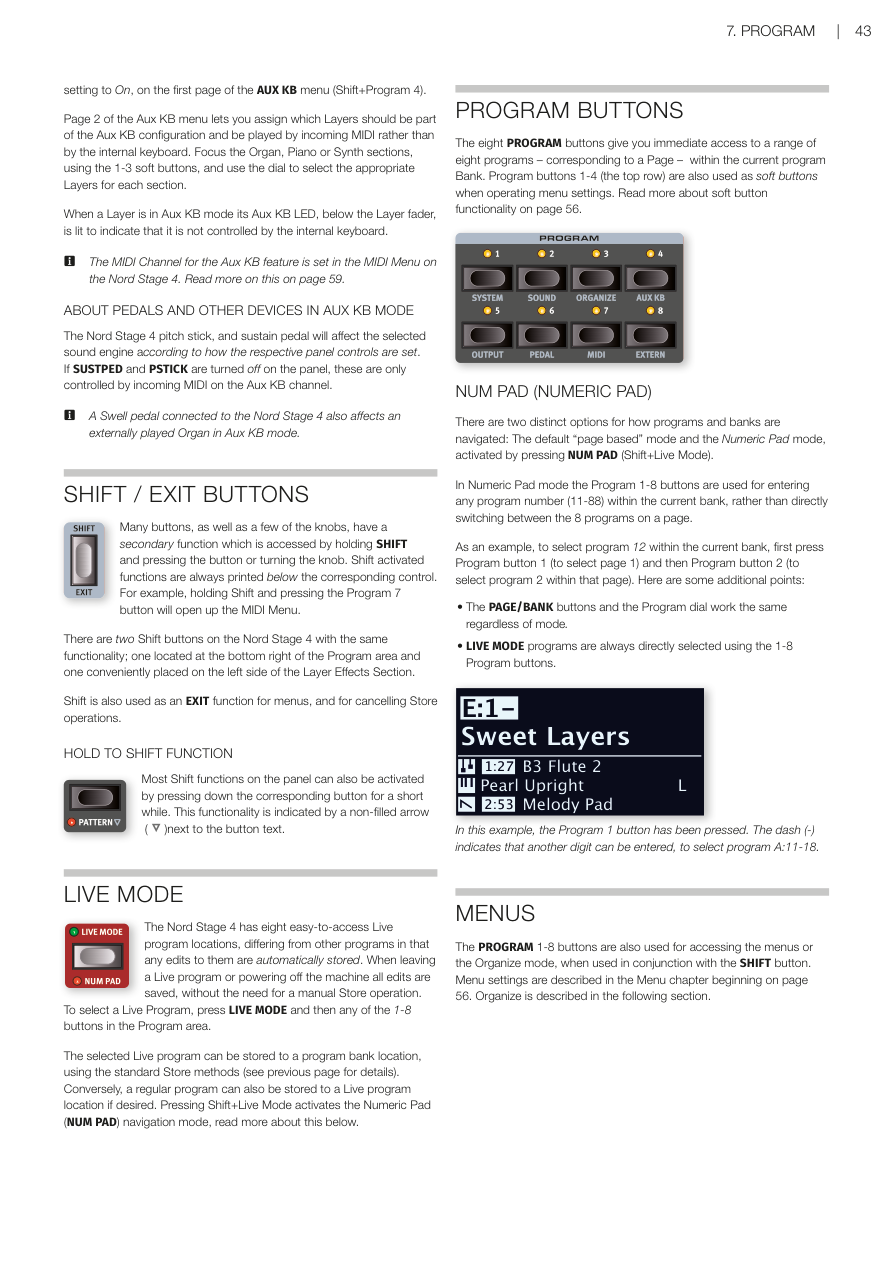
Shift / Exit 按鈕 / SHIFT / EXIT BUTTONS
許多按鈕和旋鈕都有按住 SHIFT 才能存取的次要功能。Shift 也作為選單的 EXIT(退出)功能,以及取消儲存操作使用。
Many buttons and knobs have a secondary function accessed by holding SHIFT. Shift is also used as an EXIT function for menus and for cancelling Store operations.
Nord Stage 4 上有兩個功能相同的 Shift 按鈕。
There are two Shift buttons on the Nord Stage 4 with the same functionality.
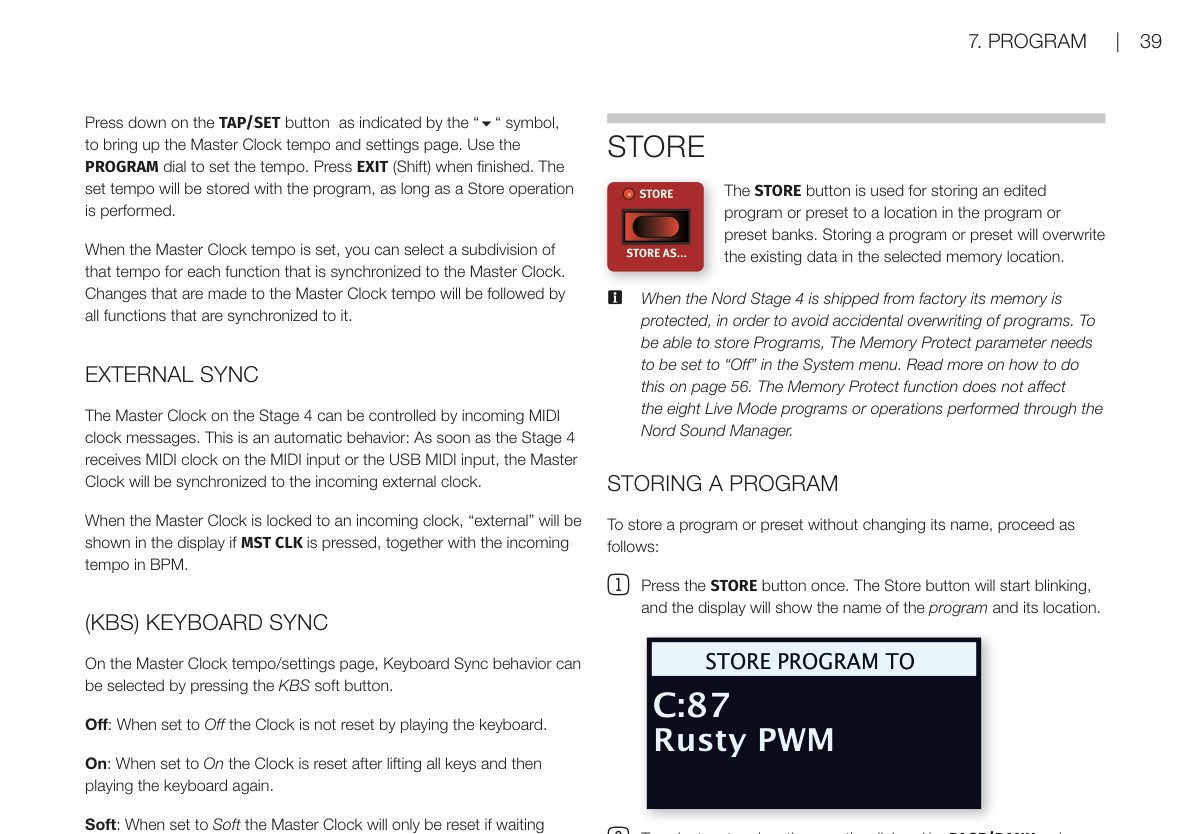
長按啟動 Shift 功能 / HOLD TO SHIFT FUNCTION
大多數 Shift 功能也可以透過長按對應按鈕來啟動,面板上以空心箭頭(↓)符號標示。
Most Shift functions can also be activated by pressing down the corresponding button for a short while.
即時模式 / LIVE MODE
Nord Stage 4 有八個方便存取的**即時模式(Live Mode)程式(Live Program——一種自動儲存的程式,調整後不需要手動存檔)**位置。對即時模式程式的任何編輯,在離開或關機時都會自動儲存,省去手動存檔的步驟。
The Nord Stage 4 has eight easy-to-access Live program locations. Any edits to Live programs are automatically stored when leaving or powering off.
按 LIVE MODE,再按 1-8 任一按鈕即可選取即時程式。
To select a Live Program, press LIVE MODE and then any of the 1-8 buttons.
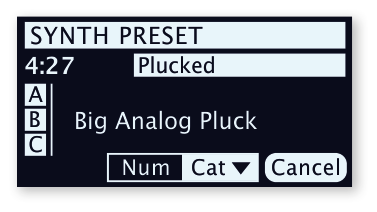
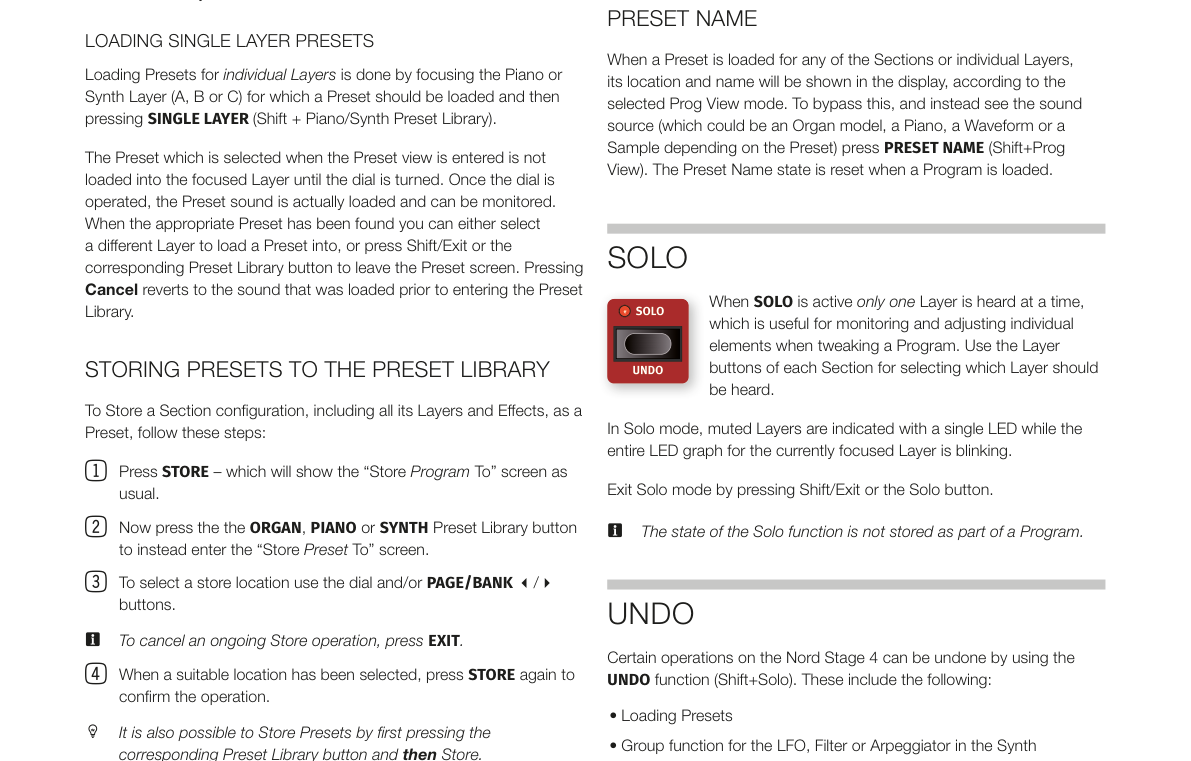
數字鍵盤模式 / NUM PAD (NUMERIC PAD)
按 NUM PAD(Shift+Live Mode)啟用數字鍵盤模式。在此模式下,Program 1-8 按鈕用於輸入當前程式庫中的程式編號(11-88),而非直接切換分頁中的程式。
Activated by pressing NUM PAD (Shift+Live Mode). In Numeric Pad mode the Program 1-8 buttons are used for entering any program number (11-88) within the current bank.
💡 範例:要選取程式 12,先按 Program 1,再按 Program 2。
Example: to select program 12, press Program button 1 then Program button 2.
選單 / MENUS
PROGRAM 1-8 按鈕配合 SHIFT 按鈕使用,可以存取各種選單設定。
The PROGRAM 1-8 buttons are used for accessing the menus when used in conjunction with SHIFT.
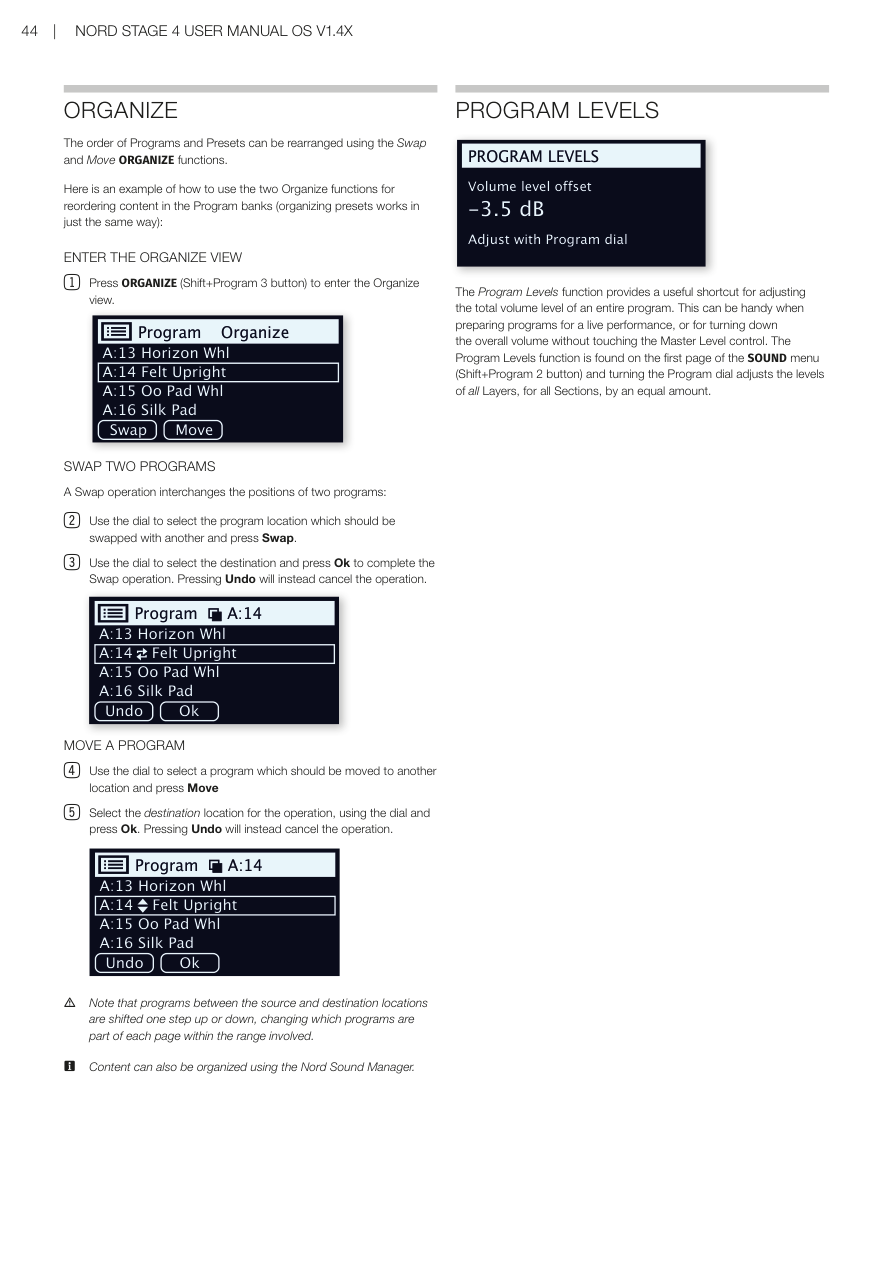
整理程式順序 / ORGANIZE
程式和預設音色的排列順序可以使用整理(Organize)(Shift+Program 3)的 Swap(互換)和 Move(移動)功能來重新排列。
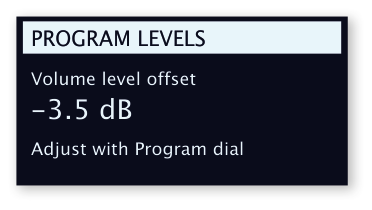
The order of Programs and Presets can be rearranged using the Swap and Move ORGANIZE functions (Shift+Program 3).
- SWAP(互換):交換兩個程式的位置。/ Interchanges the positions of two programs.
- MOVE(移動):將程式移到另一個位置;來源和目的地之間的程式會上移或下移一格。/ Moves a program to another location; programs between source and destination are shifted one step.
💡 也可以透過 Nord Sound Manager 軟體在電腦上整理程式。
Content can also be organized using the Nord Sound Manager.
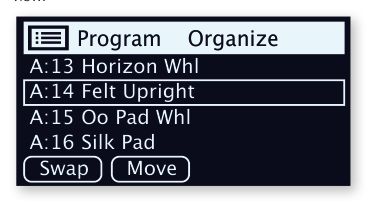
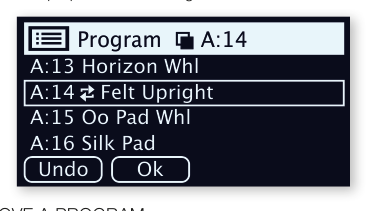
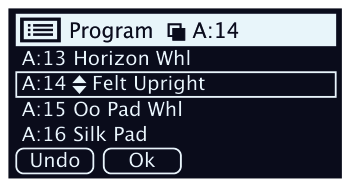
程式音量 / PROGRAM LEVELS
**程式音量(Program Levels)**功能提供一個快速調整整個程式總音量的方法,讓你在不調整主音量的情況下調高或調低某個程式的整體音量——在準備現場演出的程式時特別實用。此功能在 SOUND 選單(Shift+Program 2)的第一頁。轉動程式旋鈕可以等量調整所有區段所有音層的音量。
The Program Levels function provides a shortcut for adjusting the total volume level of an entire program. Found on the first page of the SOUND menu (Shift+Program 2 button). Turning the Program dial adjusts the levels of all Layers, for all Sections, by an equal amount.
第八章:外部 MIDI 控制 / Chapter 8: Extern
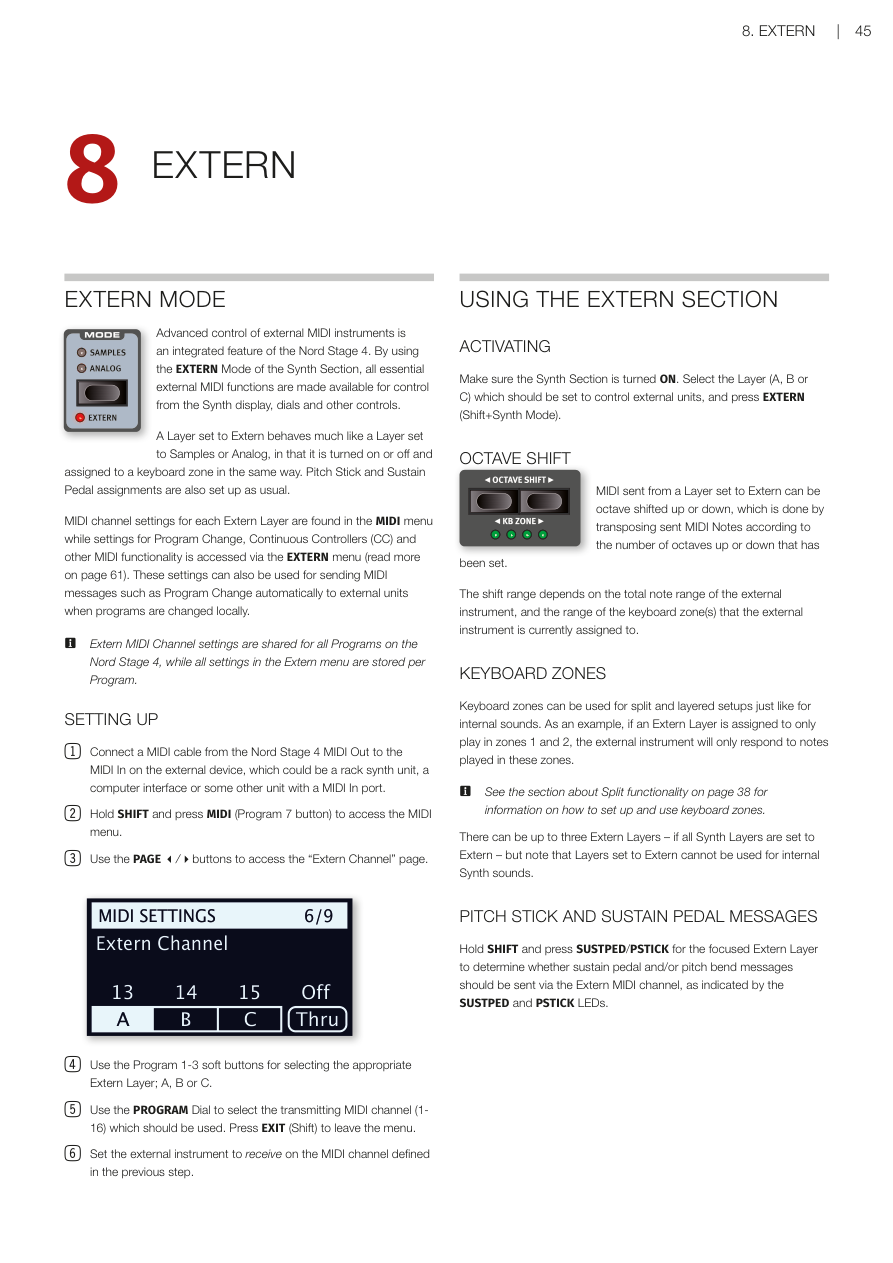
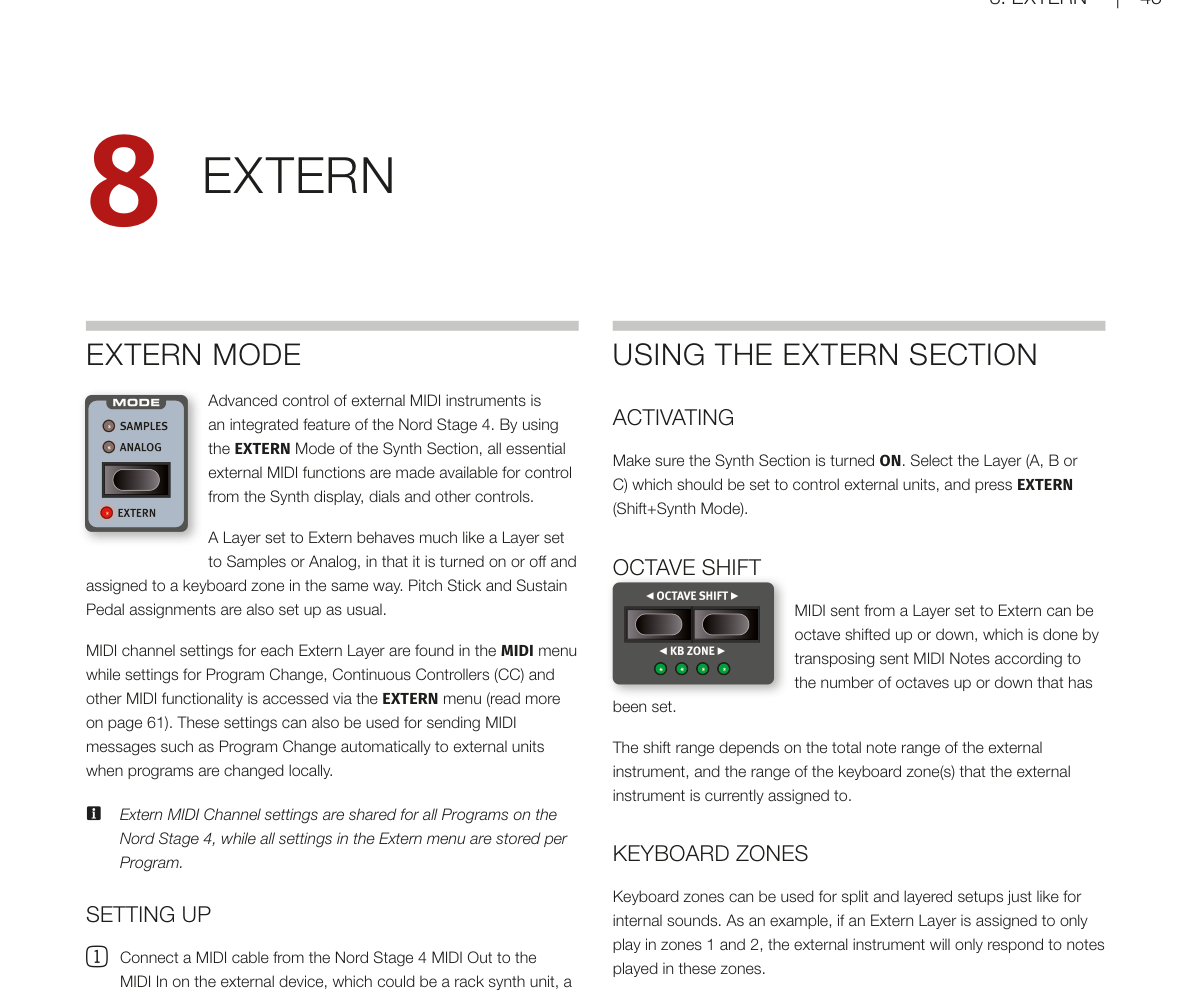
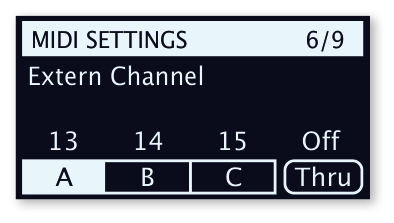
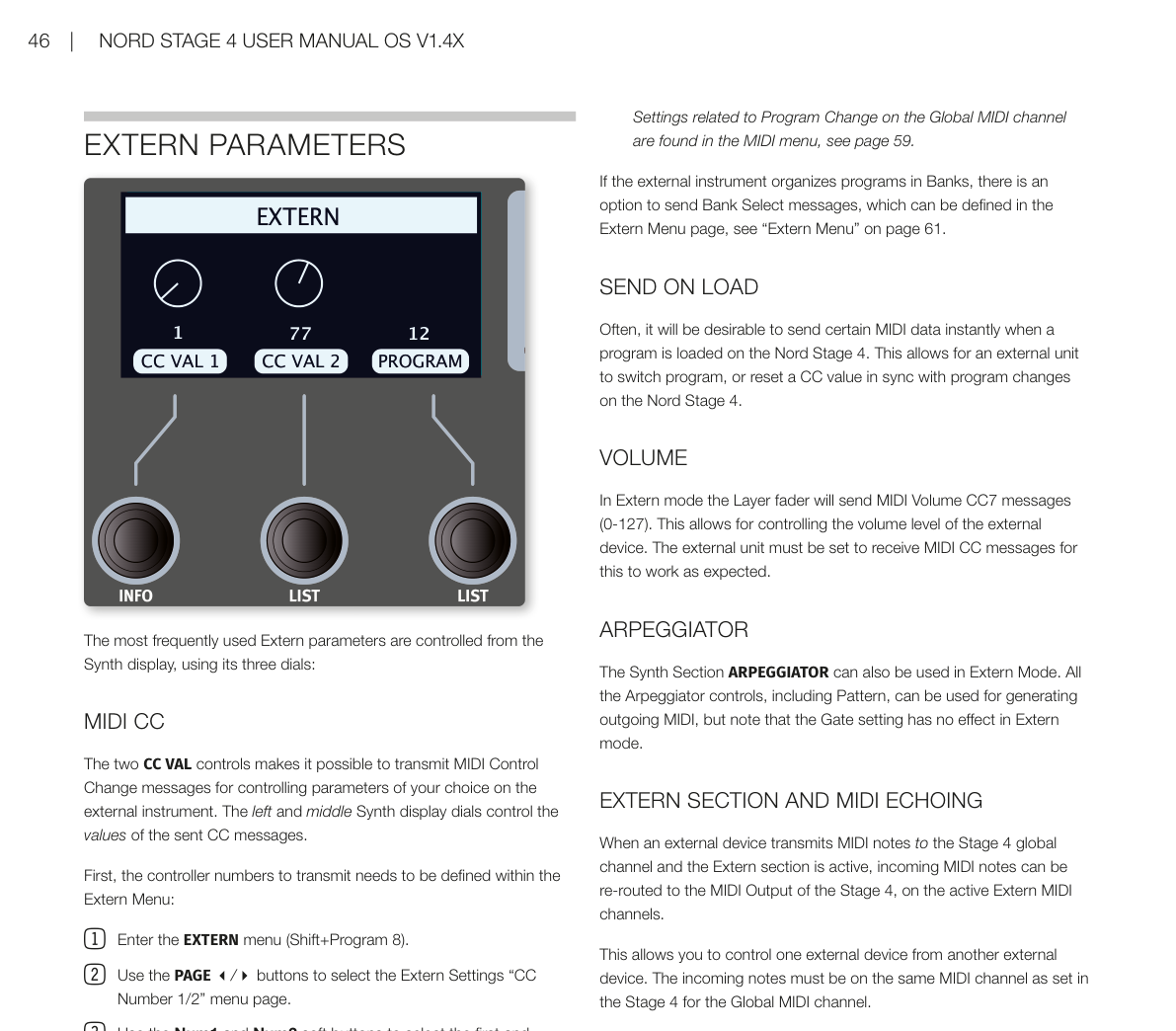
外部 MIDI 控制模式 / EXTERN MODE
**外部 MIDI 控制(Extern Mode——讓 Nord Stage 4 透過 MIDI 訊號來控制外部合成器或其他 MIDI 裝置)**是 Nord Stage 4 的內建功能。透過將合成器區段中的某個音層設定為 Extern 模式,就可以用合成器的顯示幕、旋鈕和其他控制器來使用所有常用的外部 MIDI 功能。
Advanced control of external MIDI instruments is an integrated feature of the Nord Stage 4. By using the EXTERN Mode of the Synth Section, all essential external MIDI functions are made available for control from the Synth display, dials and other controls.
設定為 Extern 的音層,其開啟/關閉和鍵盤分區的操作方式,與設定為樣本或類比合成器的音層完全相同。音調桿和延音踏板也以相同方式設定。
A Layer set to Extern behaves much like a Layer set to Samples or Analog, in that it is turned on or off and assigned to a keyboard zone in the same way. Pitch Stick and Sustain Pedal assignments are also set up as usual.
每個 Extern 音層的 MIDI 頻道設定在 MIDI 選單中,而程式切換(Program Change)、連續控制器(CC)和其他 MIDI 功能的設定則在 EXTERN 選單中存取(詳見第 61 頁)。這些設定也可用於在本機切換程式時,自動向外部裝置發送 MIDI 程式切換訊息。
MIDI channel settings for each Extern Layer are found in the MIDI menu while settings for Program Change, Continuous Controllers (CC) and other MIDI functionality is accessed via the EXTERN menu (read more on page 61). These settings can also be used for sending MIDI messages such as Program Change automatically to external units when programs are changed locally.
💡 Extern 的 MIDI 頻道設定在所有程式中共用,而 Extern 選單中的所有設定則是每個程式獨立儲存的。
Extern MIDI Channel settings are shared for all Programs on the Nord Stage 4, while all settings in the Extern menu are stored per Program.
設定步驟 / SETTING UP
-
用 MIDI 連接線將 Nord Stage 4 的 MIDI Out 接到外部裝置的 MIDI In(外部裝置可以是機架式合成器模組、電腦介面或其他有 MIDI In 插孔的裝置)。
Connect a MIDI cable from the Nord Stage 4 MIDI Out to the MIDI In on the external device, which could be a rack synth unit, a computer interface or some other unit with a MIDI In port.
-
按住 SHIFT 再按 MIDI(Program 7 按鈕)進入 MIDI 選單。
Hold SHIFT and press MIDI (Program 7 button) to access the MIDI menu.
-
用 PAGE 3/4 按鈕切換到「Extern Channel」頁面。
Use the PAGE 3/4 buttons to access the "Extern Channel" page.
-
用 Program 1-3 軟按鍵選擇對應的 Extern 音層:A、B 或 C。
Use the Program 1-3 soft buttons for selecting the appropriate Extern Layer; A, B or C.
-
用程式旋鈕選擇要使用的發送 MIDI 頻道(1-16)。按 EXIT(Shift)離開選單。
Use the PROGRAM Dial to select the transmitting MIDI channel (1-16) which should be used. Press EXIT (Shift) to leave the menu.
-
將外部裝置設定為接收上一步指定的 MIDI 頻道。
Set the external instrument to receive on the MIDI channel defined in the previous step.
使用外部 MIDI 控制區段 / USING THE EXTERN SECTION
啟用 / ACTIVATING
確認合成器區段已開啟。選擇要用來控制外部裝置的音層(A、B 或 C),然後按 EXTERN(Shift + Synth Mode)。
Make sure the Synth Section is turned ON. Select the Layer (A, B or C) which should be set to control external units, and press EXTERN (Shift+Synth Mode).
八度移調 / OCTAVE SHIFT
從設定為 Extern 的音層發出的 MIDI 訊號可以上移或下移八度,方法是根據設定的八度數量來移調發送的 MIDI 音符。
MIDI sent from a Layer set to Extern can be octave shifted up or down, which is done by transposing sent MIDI Notes according to the number of octaves up or down that has been set.
移調範圍取決於外部裝置的總音域範圍,以及外部裝置目前指定的鍵盤分區範圍。
The shift range depends on the total note range of the external instrument, and the range of the keyboard zone(s) that the external instrument is currently assigned to.
鍵盤分區 / KEYBOARD ZONES
鍵盤分區可以像內部音色一樣用於分區和疊加設定。例如,如果 Extern 音層只指定在分區 1 和 2 中演奏,外部裝置只會回應這些分區中彈奏的音符。
Keyboard zones can be used for split and layered setups just like for internal sounds. As an example, if an Extern Layer is assigned to only play in zones 1 and 2, the external instrument will only respond to notes played in these zones.
💡 關於如何設定和使用鍵盤分區,請參閱第 38 頁的分區功能說明。
See the section about Split functionality on page 38 for information on how to set up and use keyboard zones.
最多可以有三個 Extern 音層(當所有合成器音層都設定為 Extern 時),但請注意,設定為 Extern 的音層無法用於內部合成器音色。
There can be up to three Extern Layers – if all Synth Layers are set to Extern – but note that Layers set to Extern cannot be used for internal Synth sounds.
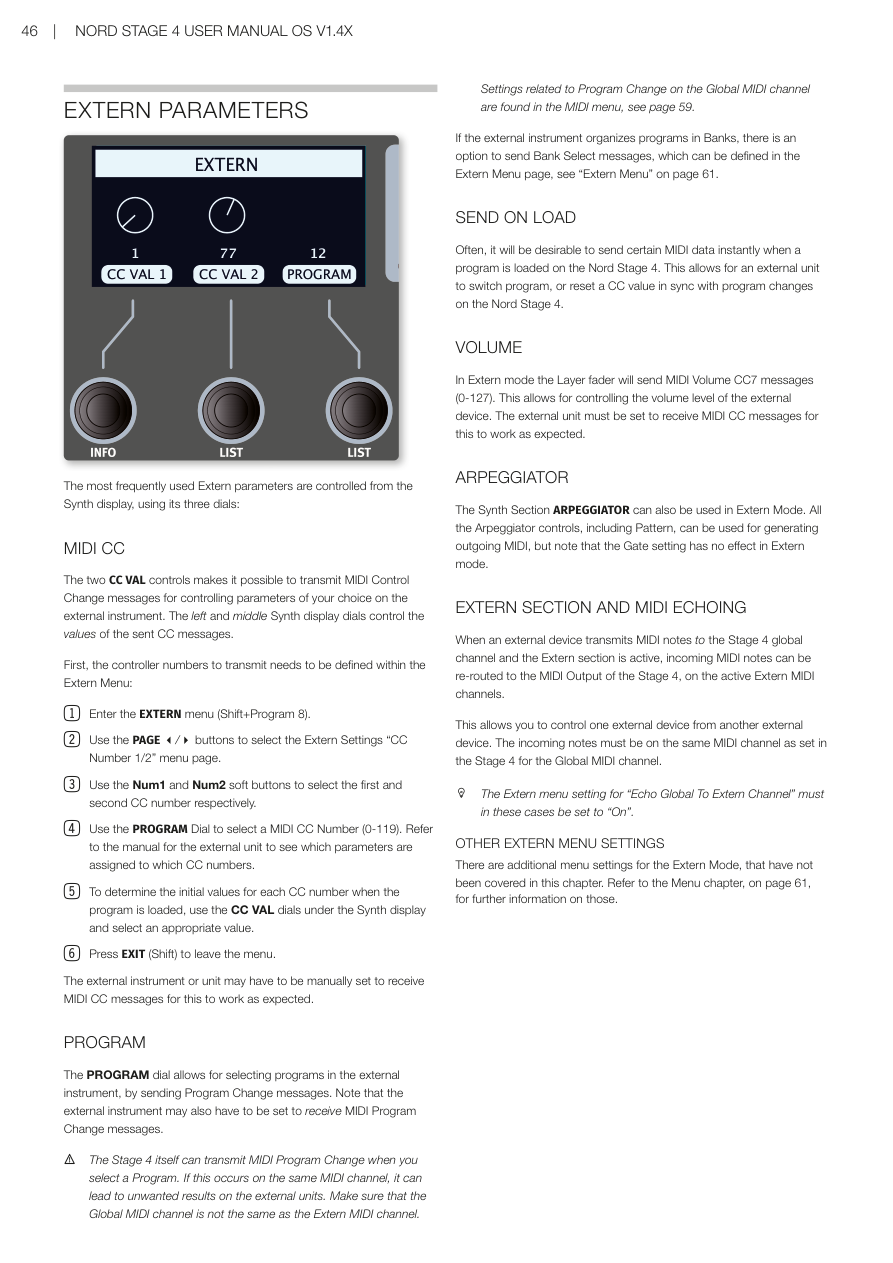
音調桿和延音踏板訊息 / PITCH STICK AND SUSTAIN PEDAL MESSAGES
按住 SHIFT 再按 SUSTPED/PSTICK,可以決定當前聚焦的 Extern 音層是否要透過 Extern MIDI 頻道發送延音踏板和/或音調彎曲訊號,狀態由 SUSTPED 和 PSTICK 指示燈顯示。
Hold SHIFT and press SUSTPED/PSTICK for the focused Extern Layer to determine whether sustain pedal and/or pitch bend messages should be sent via the Extern MIDI channel, as indicated by the SUSTPED and PSTICK LEDs.
外部控制參數 / EXTERN PARAMETERS
最常用的 Extern 參數可以透過合成器顯示幕的三個旋鈕來控制:
The most frequently used Extern parameters are controlled from the Synth display, using its three dials:
MIDI CC 控制器 / MIDI CC
兩個 CC VAL 控制可以發送 MIDI 控制器變更(Control Change)訊息,用來控制外部裝置上你選擇的參數。左邊和中間的合成器顯示幕旋鈕分別控制發送的 CC 訊息數值。
The two CC VAL controls makes it possible to transmit MIDI Control Change messages for controlling parameters of your choice on the external instrument. The left and middle Synth display dials control the values of the sent CC messages.
首先需要在 Extern 選單中定義要發送的控制器編號:
First, the controller numbers to transmit needs to be defined within the Extern Menu:
-
進入 EXTERN 選單(Shift + Program 8)。
Enter the EXTERN menu (Shift+Program 8).
-
用 PAGE 3/4 按鈕選擇 Extern Settings 中的「CC Number 1/2」選單頁面。
Use the PAGE 3/4 buttons to select the Extern Settings "CC Number 1/2" menu page.
-
用 Num1 和 Num2 軟按鍵分別選擇第一和第二個 CC 編號。
Use the Num1 and Num2 soft buttons to select the first and second CC number respectively.
-
用程式旋鈕選擇 MIDI CC 編號(0-119)。請參閱外部裝置的說明書,了解哪些參數對應哪些 CC 編號。
Use the PROGRAM Dial to select a MIDI CC Number (0-119). Refer to the manual for the external unit to see which parameters are assigned to which CC numbers.
-
要設定程式載入時每個 CC 編號的初始數值,使用合成器顯示幕下方的 CC VAL 旋鈕選擇合適的數值。
To determine the initial values for each CC number when the program is loaded, use the CC VAL dials under the Synth display and select an appropriate value.
-
按 EXIT(Shift)離開選單。
Press EXIT (Shift) to leave the menu.
外部裝置可能需要手動設定才能接收 MIDI CC 訊息,這樣才能正常運作。
The external instrument or unit may have to be manually set to receive MIDI CC messages for this to work as expected.
程式切換 / PROGRAM
程式旋鈕可以透過發送「程式切換(Program Change)」訊息來選擇外部裝置中的程式。請注意,外部裝置可能也需要設定為接收 MIDI 程式切換訊息。
The PROGRAM dial allows for selecting programs in the external instrument, by sending Program Change messages. Note that the external instrument may also have to be set to receive MIDI Program Change messages.
⚠️ Stage 4 本身在切換程式時也會發送 MIDI 程式切換訊息。如果這發生在同一個 MIDI 頻道上,可能會對外部裝置造成非預期的結果。請確保全域 MIDI 頻道與 Extern MIDI 頻道不同。有關全域 MIDI 頻道程式切換的相關設定,請見第 59 頁的 MIDI 選單說明。
The Stage 4 itself can transmit MIDI Program Change when you select a Program. If this occurs on the same MIDI channel, it can lead to unwanted results on the external units. Make sure that the Global MIDI channel is not the same as the Extern MIDI channel. Settings related to Program Change on the Global MIDI channel are found in the MIDI menu, see page 59.
如果外部裝置以音色庫(Bank)組織程式,可以選擇發送音色庫選擇(Bank Select)訊息,這可以在 Extern 選單頁面中設定(詳見第 61 頁「Extern 選單」)。
If the external instrument organizes programs in Banks, there is an option to send Bank Select messages, which can be defined in the Extern Menu page, see "Extern Menu" on page 61.
載入時自動發送 / SEND ON LOAD
通常希望在 Nord Stage 4 載入程式時,立即發送某些 MIDI 資料。這讓外部裝置可以與 Nord Stage 4 的程式切換同步切換程式或重置 CC 數值。
Often, it will be desirable to send certain MIDI data instantly when a program is loaded on the Nord Stage 4. This allows for an external unit to switch program, or reset a CC value in sync with program changes on the Nord Stage 4.
音量 / VOLUME
在 Extern 模式下,音層推桿會發送 MIDI Volume CC7 訊息(0-127),用於控制外部裝置的音量。外部裝置必須設定為接收 MIDI CC 訊息才能正常運作。
In Extern mode the Layer fader will send MIDI Volume CC7 messages (0-127). This allows for controlling the volume level of the external device. The external unit must be set to receive MIDI CC messages for this to work as expected.
琶音器 / ARPEGGIATOR
合成器區段的琶音器(Arpeggiator——自動彈奏分解和弦的功能)也可以在 Extern 模式下使用。所有琶音器控制(包括音型 Pattern)都可以用來產生輸出 MIDI,但請注意,閘控(Gate)設定在 Extern 模式下無效。
The Synth Section ARPEGGIATOR can also be used in Extern Mode. All the Arpeggiator controls, including Pattern, can be used for generating outgoing MIDI, but note that the Gate setting has no effect in Extern mode.
外部 MIDI 控制區段與 MIDI 回聲 / EXTERN SECTION AND MIDI ECHOING
當外部裝置在 Stage 4 全域頻道上發送 MIDI 音符,且 Extern 區段為啟用狀態時,傳入的 MIDI 音符可以被重新導向到 Stage 4 的 MIDI 輸出,並發送到啟用的 Extern MIDI 頻道。
When an external device transmits MIDI notes to the Stage 4 global channel and the Extern section is active, incoming MIDI notes can be re-routed to the MIDI Output of the Stage 4, on the active Extern MIDI channels.
這讓你可以用一台外部裝置控制另一台外部裝置。傳入的音符必須與 Stage 4 中設定的全域 MIDI 頻道相同。
This allows you to control one external device from another external device. The incoming notes must be on the same MIDI channel as set in the Stage 4 for the Global MIDI channel.
💡 在這種情況下,Extern 選單中的「Echo Global To Extern Channel」設定必須設為「On」。
The Extern menu setting for "Echo Global To Extern Channel" must in these cases be set to "On".
其他 Extern 選單設定 / OTHER EXTERN MENU SETTINGS
Extern 模式還有一些額外的選單設定,本章未涵蓋。請參閱第 61 頁的選單章節,以獲取更多資訊。
There are additional menu settings for the Extern Mode, that have not been covered in this chapter. Refer to the Menu chapter, on page 61, for further information on those.
第九章:音層效果 / Chapter 9: Layer Effects
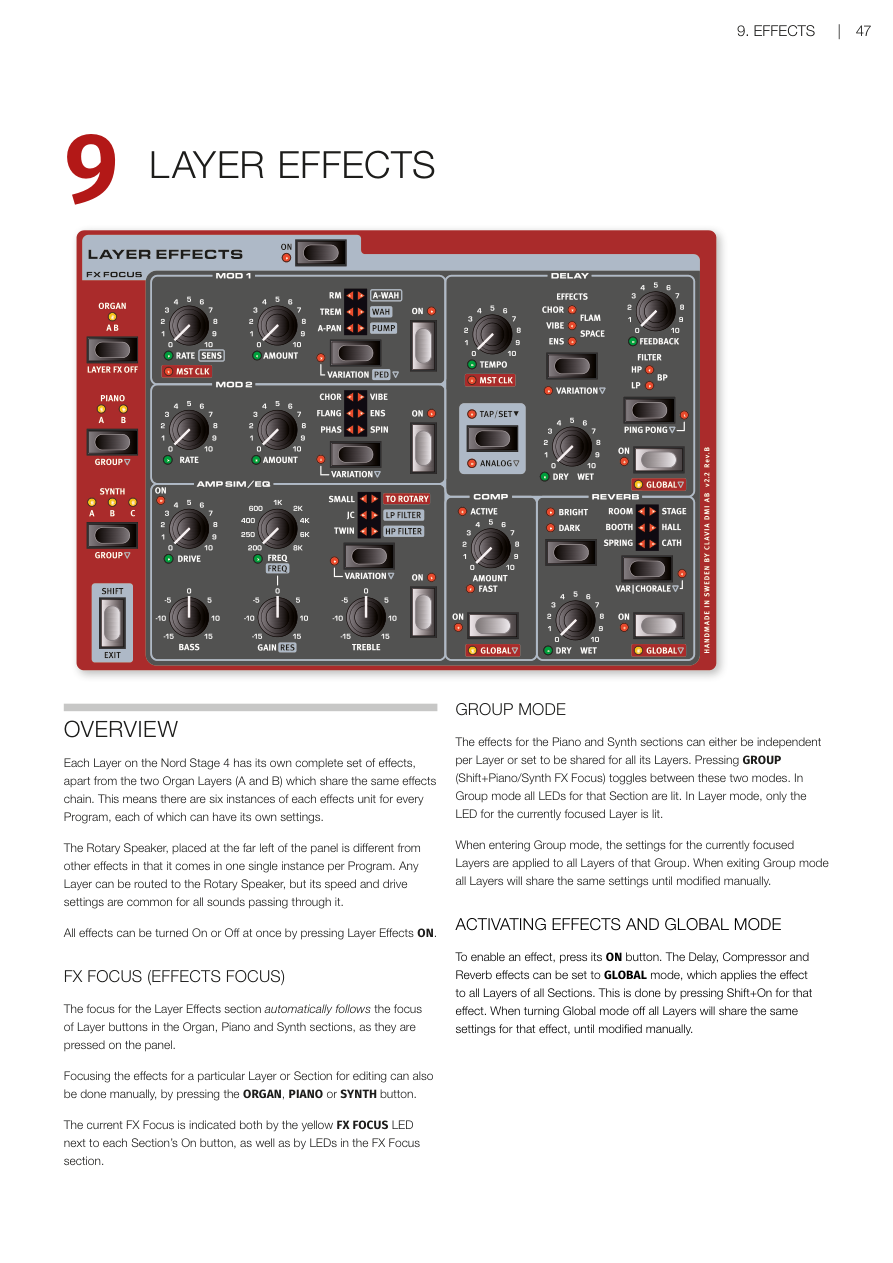
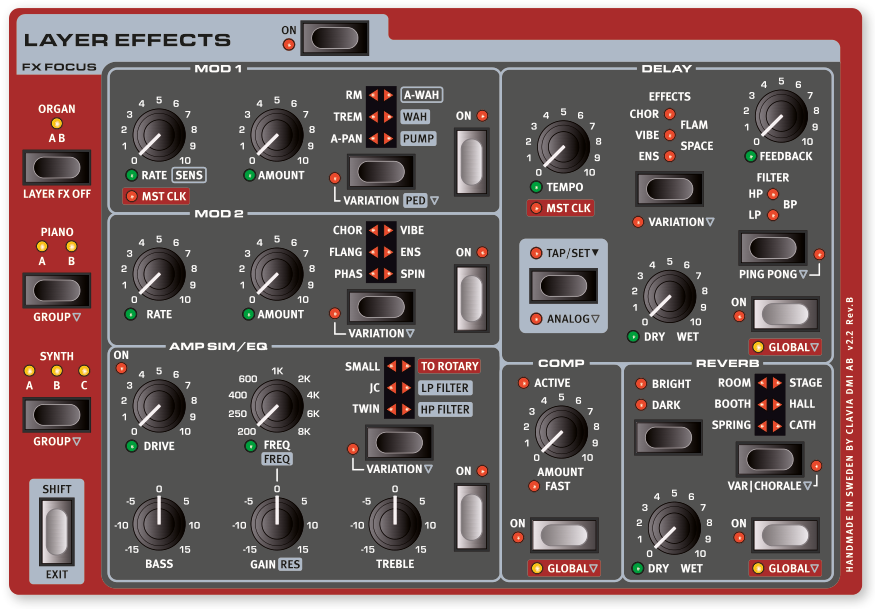
概覽 / OVERVIEW
Nord Stage 4 的每個音層(Layer)都有一套獨立的效果器(Effects)。唯一的例外是風琴區的 A 和 B 兩個音層,它們共用同一組效果鏈。也就是說,每個程式(Program)裡最多有六套獨立的效果設定,每套都可以有不同的參數。
Each Layer on the Nord Stage 4 has its own complete set of effects, apart from the two Organ Layers (A and B) which share the same effects chain. This means there are six instances of each effects unit for every Program, each of which can have its own settings.
旋轉喇叭(Rotary Speaker)效果器位在面板最左側,比較特別——每個程式只有一個旋轉喇叭,但任何音層都可以路由進去。不過旋轉速度和驅動量的設定是共用的,所有通過它的聲音都會套用相同的設定。
The Rotary Speaker, placed at the far left of the panel is different from other effects in that it comes in one single instance per Program. Any Layer can be routed to the Rotary Speaker, but its speed and drive settings are common for all sounds passing through it.
按下 Layer Effects ON 按鈕可以一次開關所有效果器。
All effects can be turned On or Off at once by pressing Layer Effects ON.
效果焦點 / FX FOCUS (EFFECTS FOCUS)
效果焦點(FX Focus)會自動跟著你在面板上按的音層按鈕走。比方說你按了鋼琴區段的 Layer A,效果區段的焦點就會自動切換到那個音層的效果。
The focus for the Layer Effects section automatically follows the focus of Layer buttons in the Organ, Piano and Synth sections, as they are pressed on the panel.
你也可以手動切換焦點:直接按 ORGAN、PIANO 或 SYNTH 按鈕,就能把效果焦點指定到那個區段。
Focusing the effects for a particular Layer or Section for editing can also be done manually, by pressing the ORGAN, PIANO or SYNTH button.
目前的效果焦點會用黃色 FX FOCUS LED 顯示,在各區段 On 按鈕旁邊,以及效果焦點區塊的 LED 上都可以看到。
The current FX Focus is indicated both by the yellow FX FOCUS LED next to each Section's On button, as well as by LEDs in the FX Focus section.
群組模式 / GROUP MODE
鋼琴和合成器區段的效果,可以設成每個音層各自獨立,也可以設成整個區段所有音層共用同一套效果。按 GROUP(Shift + Piano/Synth FX Focus)可以在這兩種模式之間切換。群組模式下,該區段所有 LED 都會亮起;音層模式下,只有目前焦點音層的 LED 亮著。
The effects for the Piano and Synth sections can either be independent per Layer or set to be shared for all its Layers. Pressing GROUP (Shift+Piano/Synth FX Focus) toggles between these two modes. In Group mode all LEDs for that Section are lit. In Layer mode, only the LED for the currently focused Layer is lit.
💡 切換到群組模式時,系統會把目前焦點音層的效果設定套用到該區段所有音層。離開群組模式後,所有音層會繼續共用同一套設定,直到你手動修改為止。
When entering Group mode, the settings for the currently focused Layers are applied to all Layers of that Group. When exiting Group mode all Layers will share the same settings for that effect, until modified manually.
開啟效果與全域模式 / ACTIVATING EFFECTS AND GLOBAL MODE
按效果器的 ON 按鈕就能啟用它。延遲(Delay)、壓縮器(Compressor)和混響(Reverb)還有一個特殊的 GLOBAL 全域模式,開啟後這個效果會同時套用到所有區段的所有音層。開啟方式:按住 Shift 再按該效果的 On 按鈕。
To enable an effect, press its ON button. The Delay, Compressor and Reverb effects can be set to GLOBAL mode, which applies the effect to all Layers of all Sections. This is done by pressing Shift+On for that effect. When turning Global mode off all Layers will share the same settings for that effect, until modified manually.
💡 全域模式很適合用在混響上——讓整台樂器所有聲音都通過同一個混響空間,聽起來更有整體感。
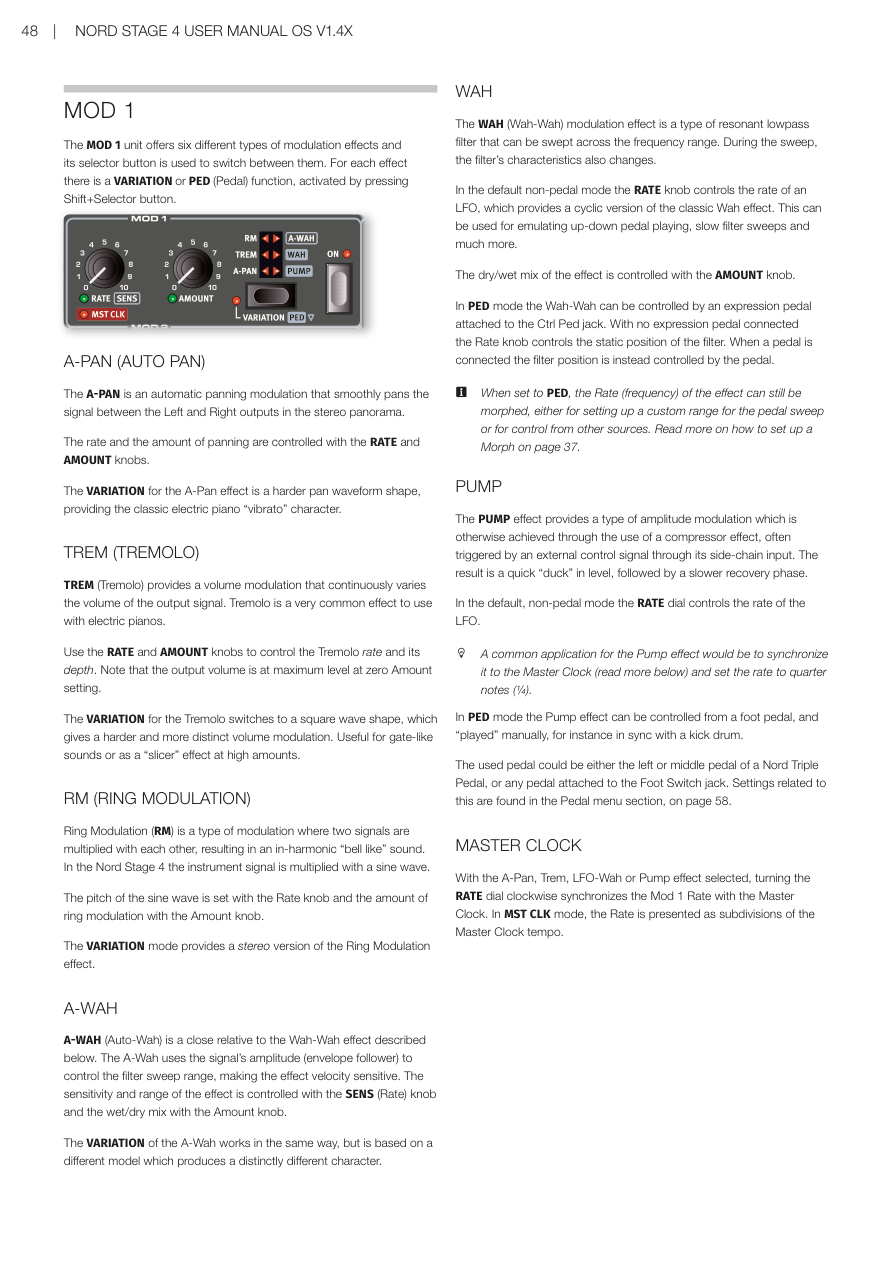
MOD 1(調製效果 1)/ MOD 1
MOD 1 提供六種調製效果(Modulation Effects——用來讓聲音產生週期性變化的效果),用選擇按鈕切換。每種效果都有一個 VARIATION(變奏) 或 PED(踏板) 功能,按住 Shift 再按選擇按鈕就能啟用。
The MOD 1 unit offers six different types of modulation effects and its selector button is used to switch between them. For each effect there is a VARIATION or PED (Pedal) function, activated by pressing Shift+Selector button.
A-PAN(自動聲像)/ A-PAN (AUTO PAN)
A-PAN 是自動聲像效果,讓聲音在左右聲道之間平滑來回移動,製造立體感的律動。用 RATE 旋鈕控制速度,AMOUNT 旋鈕控制左右移動的幅度。
The A-PAN is an automatic panning modulation that smoothly pans the signal between the Left and Right outputs in the stereo panorama. The rate and the amount of panning are controlled with the RATE and AMOUNT knobs.
VARIATION 模式會切換成更硬的波形形狀,做出電鋼琴經典的「顫音(vibrato)」感。
The VARIATION for the A-Pan effect is a harder pan waveform shape, providing the classic electric piano "vibrato" character.
TREM(顫音)/ TREM (TREMOLO)
TREM 是顫音效果(Tremolo——讓音量週期性變化,聽起來像在「抖動」),電鋼琴上很常用。RATE 控制速度,AMOUNT 控制深度。注意:Amount 設為零時,音量反而是最大值。
TREM (Tremolo) provides a volume modulation that continuously varies the volume of the output signal. Tremolo is a very common effect to use with electric pianos. Use the RATE and AMOUNT knobs to control the Tremolo rate and its depth. Note that the output volume is at maximum level at zero Amount setting.
VARIATION 會切換成方波形狀,音量變化更生硬明顯,適合做「gate」斷音效果,或在高 Amount 設定下用作「切片(slicer)」效果。
The VARIATION for the Tremolo switches to a square wave shape, which gives a harder and more distinct volume modulation. Useful for gate-like sounds or as a "slicer" effect at high amounts.
RM(環形調製)/ RM (RING MODULATION)
環形調製(Ring Modulation——把兩個訊號相乘,產生不和諧的金屬鐘聲感)是一種特殊的調製方式。Nord Stage 4 裡,樂器訊號會跟一個正弦波相乘。Rate 旋鈕調整正弦波的音高,Amount 控制效果的強弱。
Ring Modulation (RM) is a type of modulation where two signals are multiplied with each other, resulting in an in-harmonic "bell like" sound. In the Nord Stage 4 the instrument signal is multiplied with a sine wave. The pitch of the sine wave is set with the Rate knob and the amount of ring modulation with the Amount knob.
VARIATION 提供立體聲版本的環形調製效果。
The VARIATION mode provides a stereo version of the Ring Modulation effect.
A-WAH(自動哇哇)/ A-WAH
A-WAH(Auto-Wah——跟著演奏力度自動變化的哇哇效果)跟下面介紹的 Wah-Wah 是親戚,差別在於它用訊號的音量大小(包絡追蹤器)來驅動濾波器掃描,所以彈得越用力,哇哇效果越明顯。SENS(Rate) 旋鈕控制靈敏度和掃描範圍,Amount 控制效果的乾/濕混合比例。
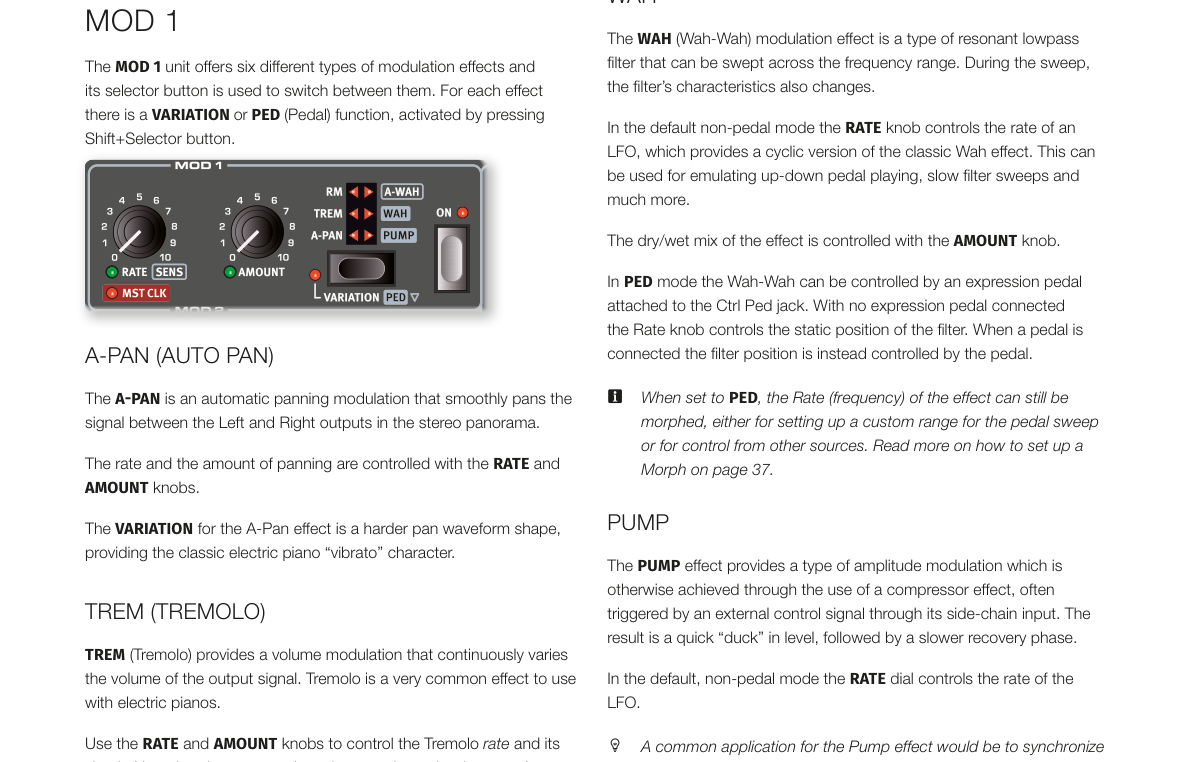
A-WAH (Auto-Wah) is a close relative to the Wah-Wah effect described below. The A-Wah uses the signal's amplitude (envelope follower) to control the filter sweep range, making the effect velocity sensitive. The sensitivity and range of the effect is controlled with the SENS (Rate) knob and the wet/dry mix with the Amount knob.
VARIATION 採用不同的模型,產生截然不同的音色特性。
The VARIATION of the A-Wah works in the same way, but is based on a different model which produces a distinctly different character.
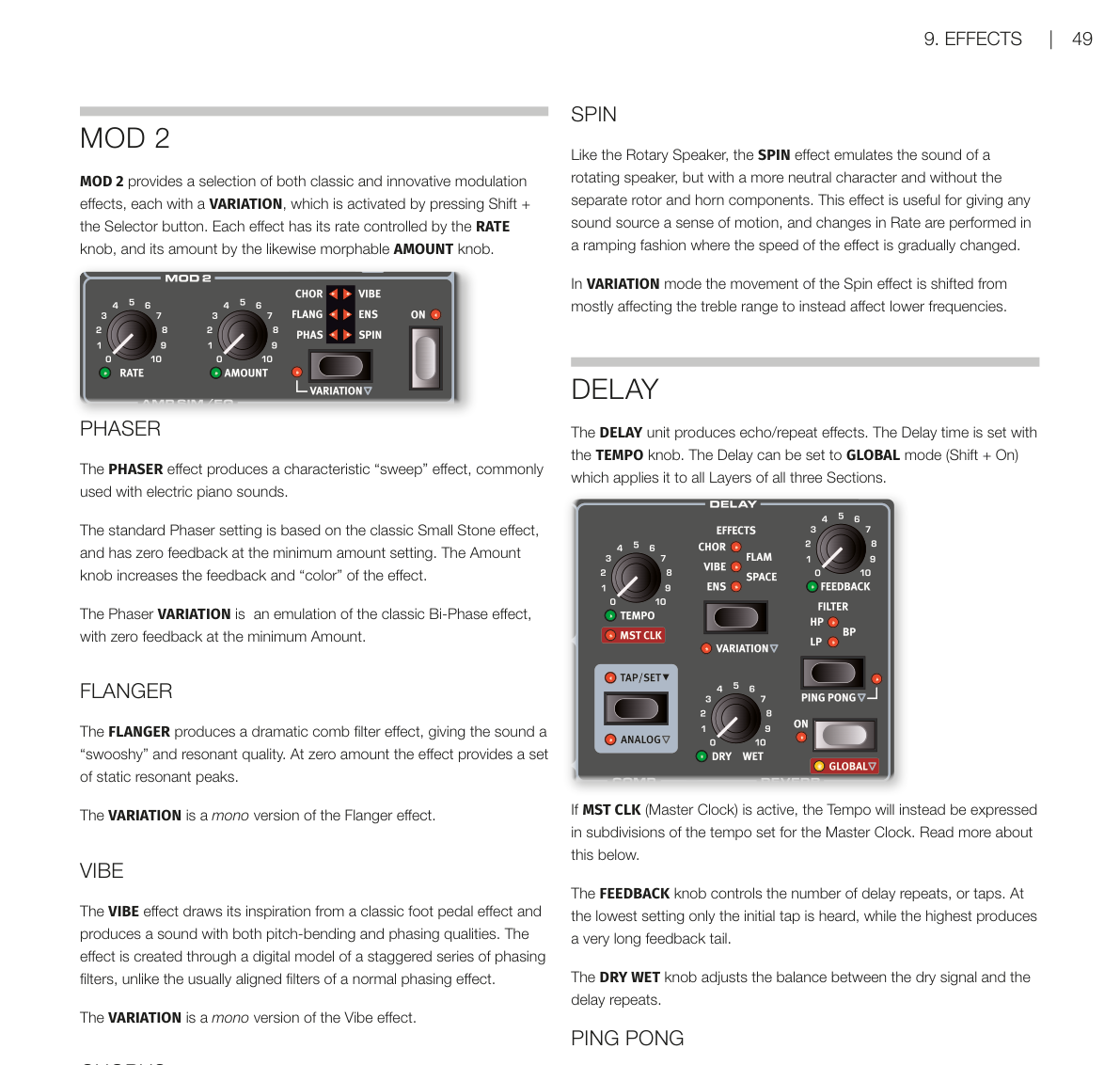
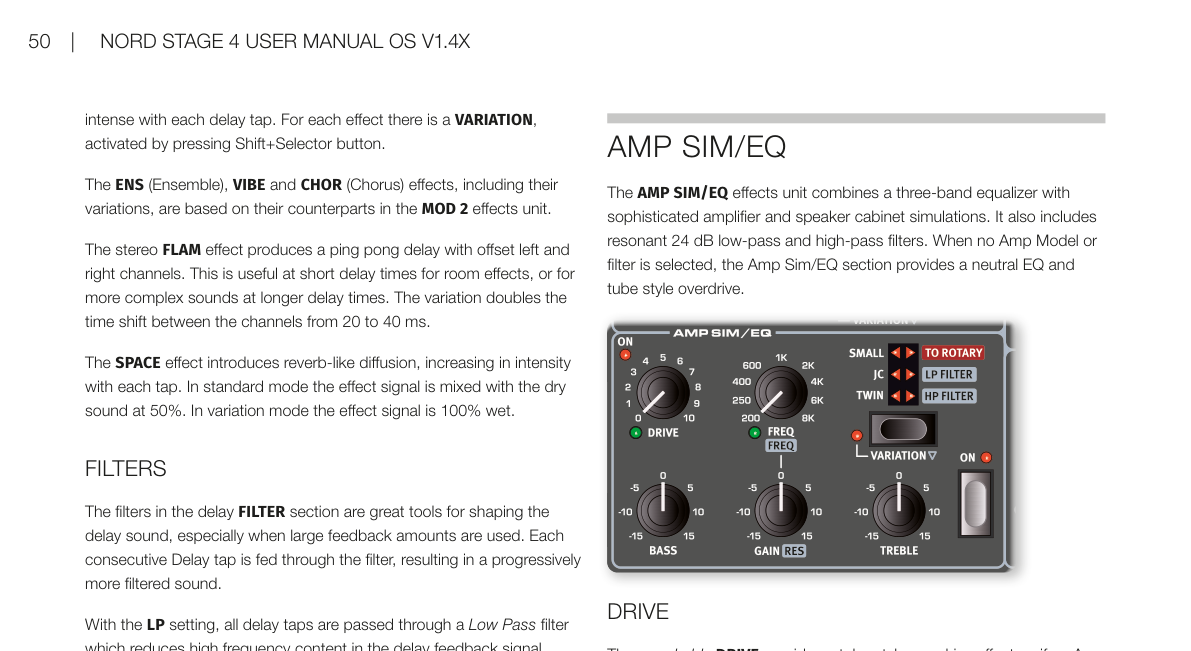
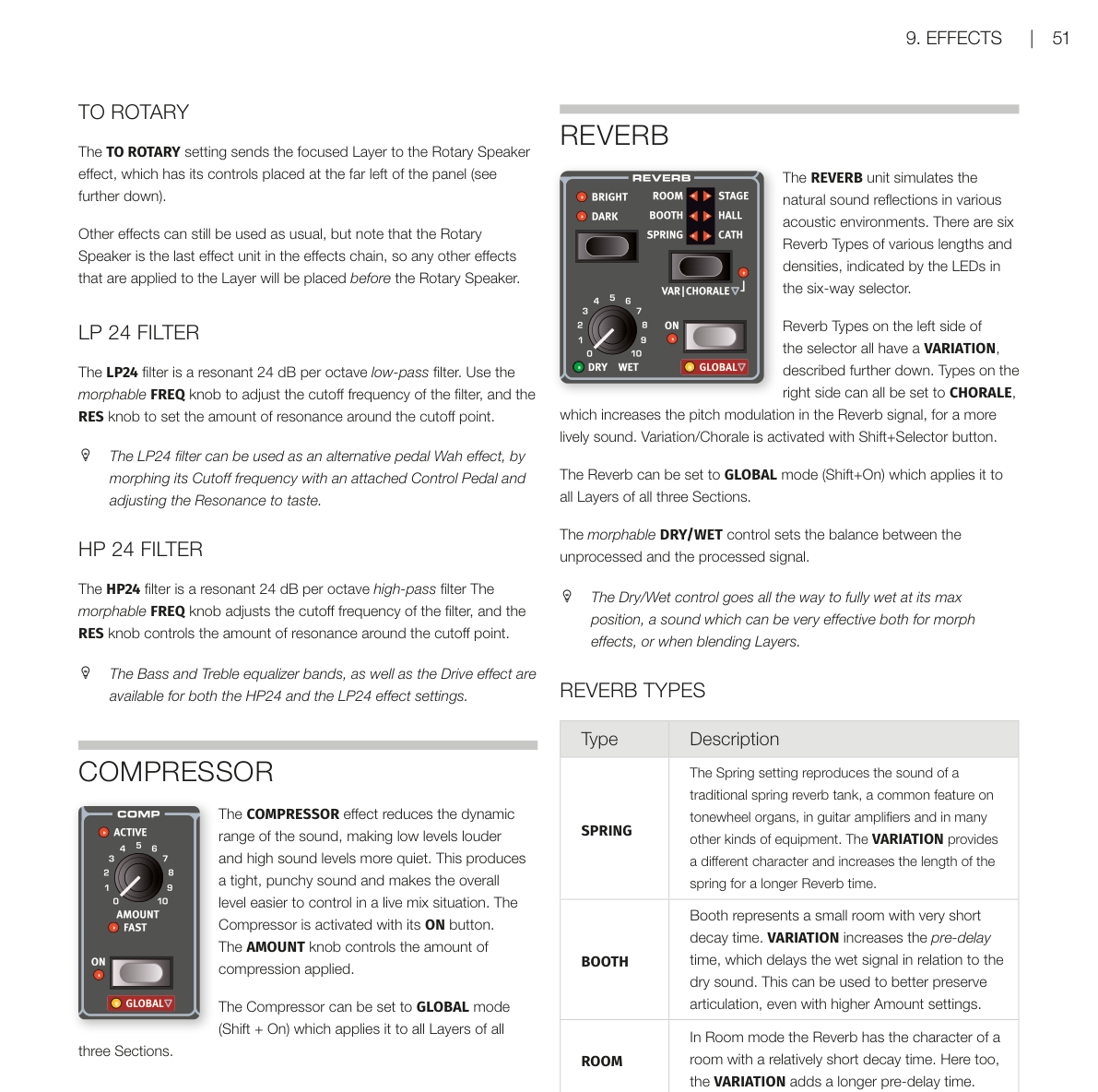
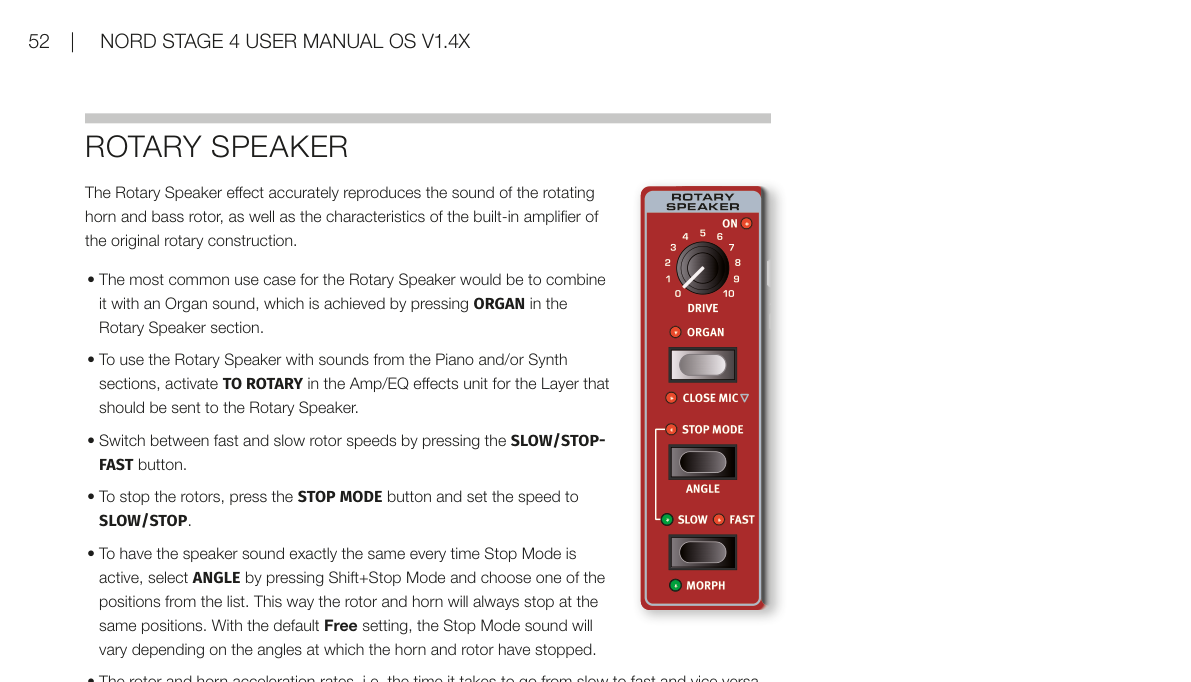
WAH(哇哇)/ WAH
WAH(Wah-Wah——用共振低通濾波器掃描頻率範圍,產生「哇~哇~」聲的效果器)在預設的非踏板模式下,RATE 旋鈕控制 LFO(低頻振盪器——用來產生週期性調製的振盪器)的速度,做出循環的哇哇感,可以模擬踩踏板的上下動作,或做慢速濾波器掃描。AMOUNT 旋鈕控制乾濕比例。
The WAH (Wah-Wah) modulation effect is a type of resonant lowpass filter that can be swept across the frequency range. During the sweep, the filter's characteristics also changes. In the default non-pedal mode the RATE knob controls the rate of an LFO, which provides a cyclic version of the classic Wah effect. The dry/wet mix of the effect is controlled with the AMOUNT knob.
在 PED 踏板模式下,可以接上控制踏板(Ctrl Ped 插孔)來手動控制哇哇位置。沒有踏板時,Rate 旋鈕控制濾波器的靜止位置。
In PED mode the Wah-Wah can be controlled by an expression pedal attached to the Ctrl Ped jack. With no expression pedal connected the Rate knob controls the static position of the filter. When a pedal is connected the filter position is instead controlled by the pedal.
💡 PED 模式下,Rate(頻率)仍然可以用變形(Morph)功能控制,可以設定踏板的掃描範圍,或讓其他來源控制它。
When set to PED, the Rate (frequency) of the effect can still be morphed, either for setting up a custom range for the pedal sweep or for control from other sources.
PUMP
PUMP 效果提供一種振幅調製(Amplitude Modulation),效果類似壓縮器被外部旁鏈訊號觸發的感覺:音量快速「壓下去」,然後慢慢恢復。在預設非踏板模式下,RATE 旋鈕控制 LFO 速度。
The PUMP effect provides a type of amplitude modulation which is otherwise achieved through the use of a compressor effect, often triggered by an external control signal through its side-chain input. The result is a quick "duck" in level, followed by a slower recovery phase.
💡 常見用法:把 PUMP 同步到主時鐘(Master Clock),設定速率為四分音符(1/4),做出舞曲常用的「側鏈壓縮」感。
A common application for the Pump effect would be to synchronize it to the Master Clock and set the rate to quarter notes (1/4).
在 PED 踏板模式下,PUMP 效果可以用腳踏板手動控制,例如配合大鼓節奏踩踏。可以用 Nord Triple Pedal 的左側或中間踏板,或接在 Foot Switch 插孔的踏板。
In PED mode the Pump effect can be controlled from a foot pedal, and "played" manually, for instance in sync with a kick drum.
與主時鐘同步 / MASTER CLOCK
選擇 A-Pan、Trem、LFO-Wah 或 Pump 效果時,把 RATE 旋鈕往右轉到底,就可以把 Mod 1 的速率同步到主時鐘(Master Clock——全局節奏控制器)。在 MST CLK 模式下,速率會以主時鐘節拍的細分值來顯示。
With the A-Pan, Trem, LFO-Wah or Pump effect selected, turning the RATE dial clockwise synchronizes the Mod 1 Rate with the Master Clock. In MST CLK mode, the Rate is presented as subdivisions of the Master Clock tempo.
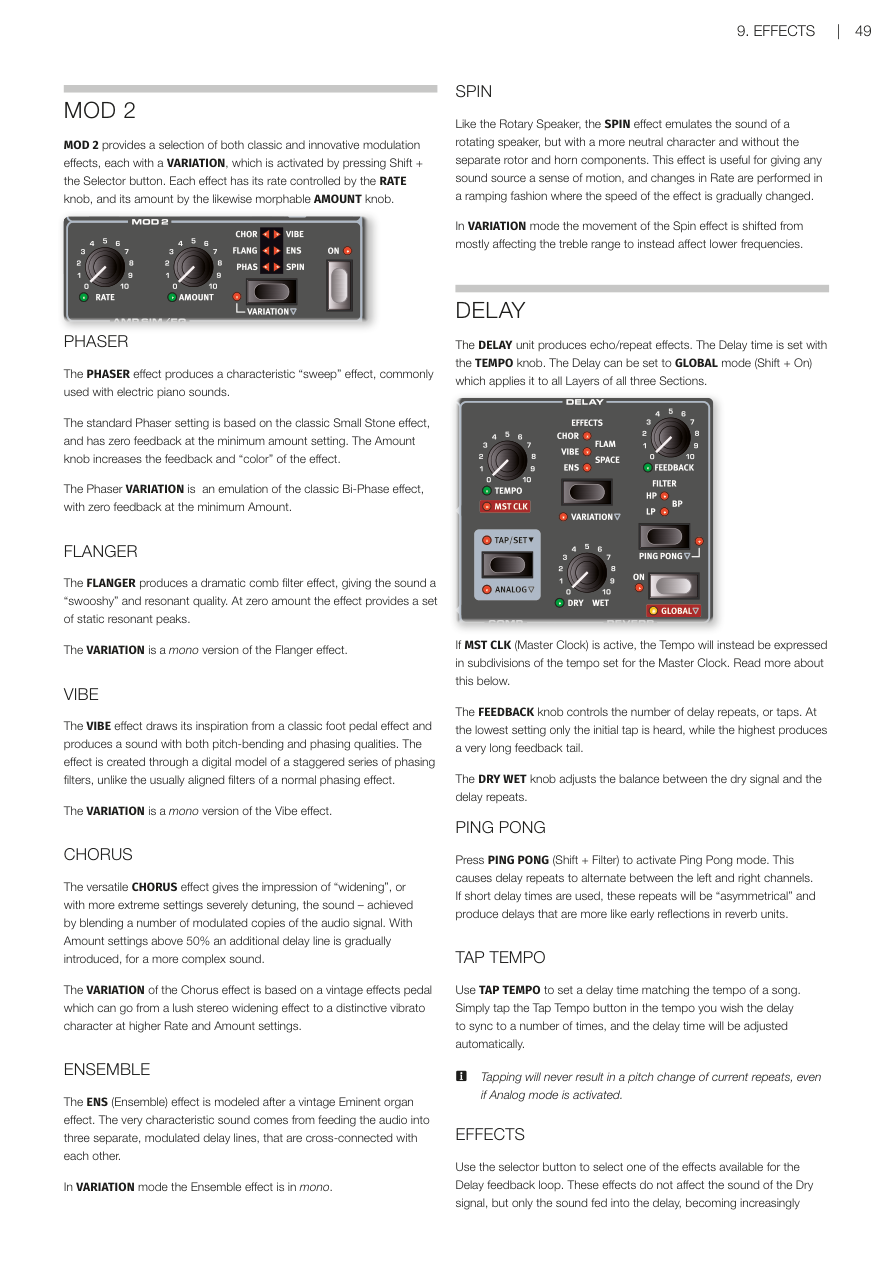
MOD 2(調製效果 2)/ MOD 2
MOD 2 提供多種經典和創新的調製效果,每種都有 VARIATION,按住 Shift 再按選擇按鈕啟用。RATE 旋鈕控制速率,AMOUNT 旋鈕(支援變形 Morph)控制強度。
MOD 2 provides a selection of both classic and innovative modulation effects, each with a VARIATION, which is activated by pressing Shift + the Selector button. Each effect has its rate controlled by the RATE knob, and its amount by the likewise morphable AMOUNT knob.
PHASER(相位器)/ PHASER
相位器(Phaser——通過移動音訊訊號的相位,產生「掃頻」的沙沙感)常用在電鋼琴音色上。標準設定基於經典的 Small Stone 效果器,Amount 最小時 feedback 為零,調大 Amount 可增加 feedback 和音色「顏色」。
The PHASER effect produces a characteristic "sweep" effect, commonly used with electric piano sounds. The standard Phaser setting is based on the classic Small Stone effect, and has zero feedback at the minimum amount setting. The Amount knob increases the feedback and "color" of the effect.
VARIATION 模擬經典的 Bi-Phase 效果。
The Phaser VARIATION is an emulation of the classic Bi-Phase effect, with zero feedback at the minimum Amount.
FLANGER(法蘭效果)/ FLANGER
法蘭效果(Flanger——把訊號和一個微小延遲的副本疊加,產生「梳狀濾波」的金屬掃頻感)能讓聲音聽起來很「飄」,帶有共鳴感。Amount 為零時,只有靜態的共鳴峰。VARIATION 是單聲道版本。
The FLANGER produces a dramatic comb filter effect, giving the sound a "swooshy" and resonant quality. At zero amount the effect provides a set of static resonant peaks. The VARIATION is a mono version of the Flanger effect.
VIBE
VIBE 效果靈感來自經典腳踏板效果器,同時結合音高彎曲和相位的特性,音色獨特。它是透過一系列錯位的相位濾波器模型製作,跟一般相位器有所不同。VARIATION 是單聲道版本。
The VIBE effect draws its inspiration from a classic foot pedal effect and produces a sound with both pitch-bending and phasing qualities. The VARIATION is a mono version of the Vibe effect.
CHORUS(合唱效果)/ CHORUS
合唱效果(Chorus——把聲音複製多份並稍微調音,讓音色聽起來更厚、更寬廣)讓聲音更豐富。Amount 超過 50% 後還會加入延遲線,聲音更複雜。VARIATION 基於一款老式效果踏板,可以從豐潤的立體加寬感,調到高速率、高 Amount 下明顯的顫音(vibrato)效果。
The versatile CHORUS effect gives the impression of "widening", or with more extreme settings severely detuning, the sound. The VARIATION of the Chorus effect is based on a vintage effects pedal which can go from a lush stereo widening effect to a distinctive vibrato character at higher Rate and Amount settings.
ENSEMBLE(合奏效果)/ ENSEMBLE
合奏效果(Ensemble——模擬多人演奏同一個音符時的微小音高差異感)是仿照老式 Eminent 風琴效果器設計的。聲音被送進三條獨立、相互交叉連接的調製延遲線,形成非常有特色的音色。VARIATION 是單聲道版本。
The ENS (Ensemble) effect is modeled after a vintage Eminent organ effect. The very characteristic sound comes from feeding the audio into three separate, modulated delay lines, that are cross-connected with each other. In VARIATION mode the Ensemble effect is in mono.
SPIN(旋轉效果)/ SPIN
SPIN 跟旋轉喇叭(Rotary Speaker)類似,也是模擬旋轉喇叭的感覺,但音色更中性,沒有低音鼓和高音號的分離感。速率變化時會漸進式地改變速度,很自然。VARIATION 模式下,旋轉效果從主要影響高頻,改為主要影響低頻。
Like the Rotary Speaker, the SPIN effect emulates the sound of a rotating speaker, but with a more neutral character and without the separate rotor and horn components. In VARIATION mode the movement of the Spin effect is shifted from mostly affecting the treble range to instead affect lower frequencies.
延遲 / DELAY
延遲(Delay——讓聲音產生回聲/重複效果的效果器)用 TEMPO 旋鈕設定延遲時間。按住 Shift 再按 On 可設為全域(GLOBAL)模式,讓延遲套用到所有區段所有音層。
The DELAY unit produces echo/repeat effects. The Delay time is set with the TEMPO knob. The Delay can be set to GLOBAL mode (Shift + On) which applies it to all Layers of all three Sections.
如果主時鐘(MST CLK)已啟用,Tempo 會改以主時鐘節拍的細分值表示。
If MST CLK (Master Clock) is active, the Tempo will instead be expressed in subdivisions of the tempo set for the Master Clock.
FEEDBACK 旋鈕控制重複次數:最小值只有一次回聲,最大值則是很長的回聲尾巴。DRY WET 旋鈕調整乾訊號和延遲訊號的比例。
The FEEDBACK knob controls the number of delay repeats. The DRY WET knob adjusts the balance between the dry signal and the delay repeats.
PING PONG(乒乓延遲)/ PING PONG
按 PING PONG(Shift + Filter)啟用乒乓模式:延遲的回聲會在左右聲道之間交替出現。短延遲時間下,這些回聲會很「不對稱」,聽起來像混響單元裡的早期反射聲。
Press PING PONG (Shift + Filter) to activate Ping Pong mode. This causes delay repeats to alternate between the left and right channels.
TAP TEMPO(節拍敲擊)/ TAP TEMPO
用 TAP TEMPO 按鈕配合歌曲節奏敲擊數次,延遲時間就會自動對齊。就算開了 Analog 模式,敲擊也不會改變目前正在響的回聲音高。
Use TAP TEMPO to set a delay time matching the tempo of a song. Simply tap the Tap Tempo button in the tempo you wish the delay to sync to a number of times. Tapping will never result in a pitch change of current repeats, even if Analog mode is activated.
延遲內建效果 / DELAY EFFECTS
用選擇按鈕可以選擇延遲回饋迴路裡的效果。這些效果只作用在延遲訊號上,不影響乾訊號;隨著每次回聲,效果會越來越強。
Use the selector button to select one of the effects available for the Delay feedback loop. These effects do not affect the sound of the Dry signal, but only the sound fed into the delay, becoming increasingly intense with each delay tap.
- ENS(合奏)、VIBE、CHOR(合唱):與 MOD 2 效果單元裡的對應效果相同。
- FLAM:立體聲乒乓延遲,左右聲道時間稍微錯開,適合做空間感或複雜音色。VARIATION 把兩聲道的時間差從 20ms 加倍到 40ms。
- SPACE:加入類似混響的擴散感,每次回聲越來越濃。標準模式下,效果訊號和乾訊號各佔 50%;VARIATION 模式下效果訊號為 100% 濕訊號。
The ENS (Ensemble), VIBE and CHOR (Chorus) effects are based on their counterparts in the MOD 2 effects unit. The stereo FLAM effect produces a ping pong delay with offset left and right channels. The SPACE effect introduces reverb-like diffusion, increasing in intensity with each tap.
延遲濾波器 / DELAY FILTERS
延遲濾波器區段的濾波器用來塑造延遲的音色,特別適合在大量 feedback 時使用,讓每次回聲的聲音越來越被濾波。
The filters in the delay FILTER section are great tools for shaping the delay sound, especially when large feedback amounts are used.
- LP(低通):過濾高頻,讓回聲越來越暗。
- HP(高通):過濾低頻,讓長延遲尾巴不那麼混濁。
- BP(帶通):同時過濾高低頻,讓聲音變得細而窄。
With the LP setting, all delay taps are passed through a Low Pass filter. The HP setting provides a High Pass filter. The BP setting adds a Band Pass filter.
類比模式 / ANALOG MODE
延遲有兩種模式:普通模式和 ANALOG(類比)模式(Shift + Tap/Set)。類比模式下,如果改變 Tempo,正在響的回聲音高也會跟著改變——就像老式類比延遲器的感覺。另外,每次回聲也會帶有輕微失真,且各濾波器設定的音色特性跟普通模式稍有不同。
There are two different delay modes, the normal mode, and the ANALOG (Shift+Tap/Set). In Analog Mode the pitch of any sounding repeats is altered if the tempo is changed – much like with a vintage analog delay. A slight distortion is also introduced into the delay line with each tap.
延遲與主時鐘同步 / DELAY MASTER CLOCK
把 MST CLK(Shift + Tempo 旋鈕)往右轉到底,延遲就會同步到程式區段設定的主時鐘節奏。延遲 Tempo 會以主時鐘節拍的細分值表示,從 1/2 到 1/32 拍,另外還有 swing(S)、三連音(T)和附點(D)可以選擇。
The Master Clock feature for the Delay section is activated by turning MST CLK (Shift + Tempo knob) clockwise. The Delay tempo will now be expressed in subdivisions of the Master Clock tempo, ranging from 1/2 to 1/32 notes, with swing (S), triplet (T) and dotted (D) options.
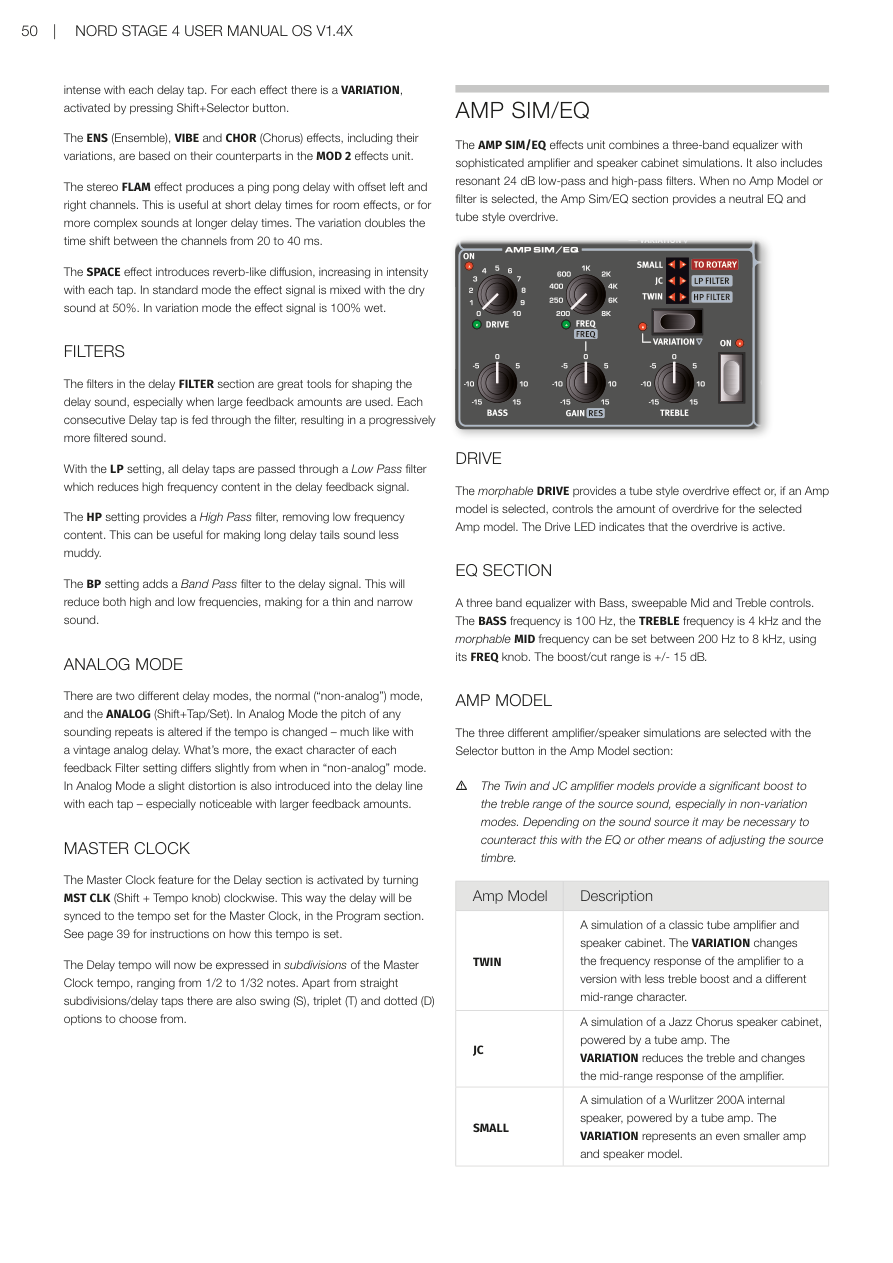
擴大機模擬/等化器 / AMP SIM/EQ
AMP SIM/EQ 效果單元結合了三段等化器(EQ——調整不同頻率的音量)和精密的擴大機與喇叭箱模擬,另外還有共振式 24dB 低通和高通濾波器。如果沒有選擇 Amp 模型或濾波器,這個區段就是一個中性的等化器加上電子管風格的過載(overdrive)。
The AMP SIM/EQ effects unit combines a three-band equalizer with sophisticated amplifier and speaker cabinet simulations. It also includes resonant 24 dB low-pass and high-pass filters. When no Amp Model or filter is selected, the Amp Sim/EQ section provides a neutral EQ and tube style overdrive.
過載 / DRIVE
可支援變形(Morph)的 DRIVE 旋鈕提供電子管風格的過載效果,或在選擇了 Amp 模型時控制過載量。Drive LED 亮起時代表過載已啟用。
The morphable DRIVE provides a tube style overdrive effect or, if an Amp model is selected, controls the amount of overdrive for the selected Amp model. The Drive LED indicates that the overdrive is active.
等化器區段 / EQ SECTION
三段等化器包含低音(Bass)、可掃頻的中音(Mid)和高音(Treble)控制。低音頻率固定在 100 Hz,高音固定在 4 kHz,中音頻率(支援 Morph)可用 FREQ 旋鈕調整,範圍 200 Hz 到 8 kHz。增益/衰減範圍 ±15 dB。
A three band equalizer with Bass, sweepable Mid and Treble controls. The BASS frequency is 100 Hz, the TREBLE frequency is 4 kHz and the morphable MID frequency can be set between 200 Hz to 8 kHz. The boost/cut range is +/- 15 dB.
擴大機模型 / AMP MODEL
用 Amp Model 區段的選擇按鈕可切換三種不同的擴大機/喇叭箱模擬:
The three different amplifier/speaker simulations are selected with the Selector button in the Amp Model section:
| 模型 | 描述 |
|---|---|
| TWIN | 經典電子管擴大機和喇叭箱的模擬。VARIATION 改變頻率響應,高音提升較少,中頻特性也不同。 |
| JC | Jazz Chorus 喇叭箱加電子管擴大機的模擬。VARIATION 降低高音,改變中頻響應。 |
| SMALL | Wurlitzer 200A 內建喇叭加電子管擴大機的模擬。VARIATION 模擬更小的擴大機和喇叭。 |
| Model | Description |
|---|---|
| TWIN | A simulation of a classic tube amplifier and speaker cabinet. VARIATION changes the frequency response to a version with less treble boost. |
| JC | A simulation of a Jazz Chorus speaker cabinet, powered by a tube amp. VARIATION reduces treble and changes the mid-range response. |
| SMALL | A simulation of a Wurlitzer 200A internal speaker, powered by a tube amp. VARIATION represents an even smaller amp and speaker model. |
💡 TWIN 和 JC 模型會大幅提升高頻,視音色而定可能需要用 EQ 來平衡。
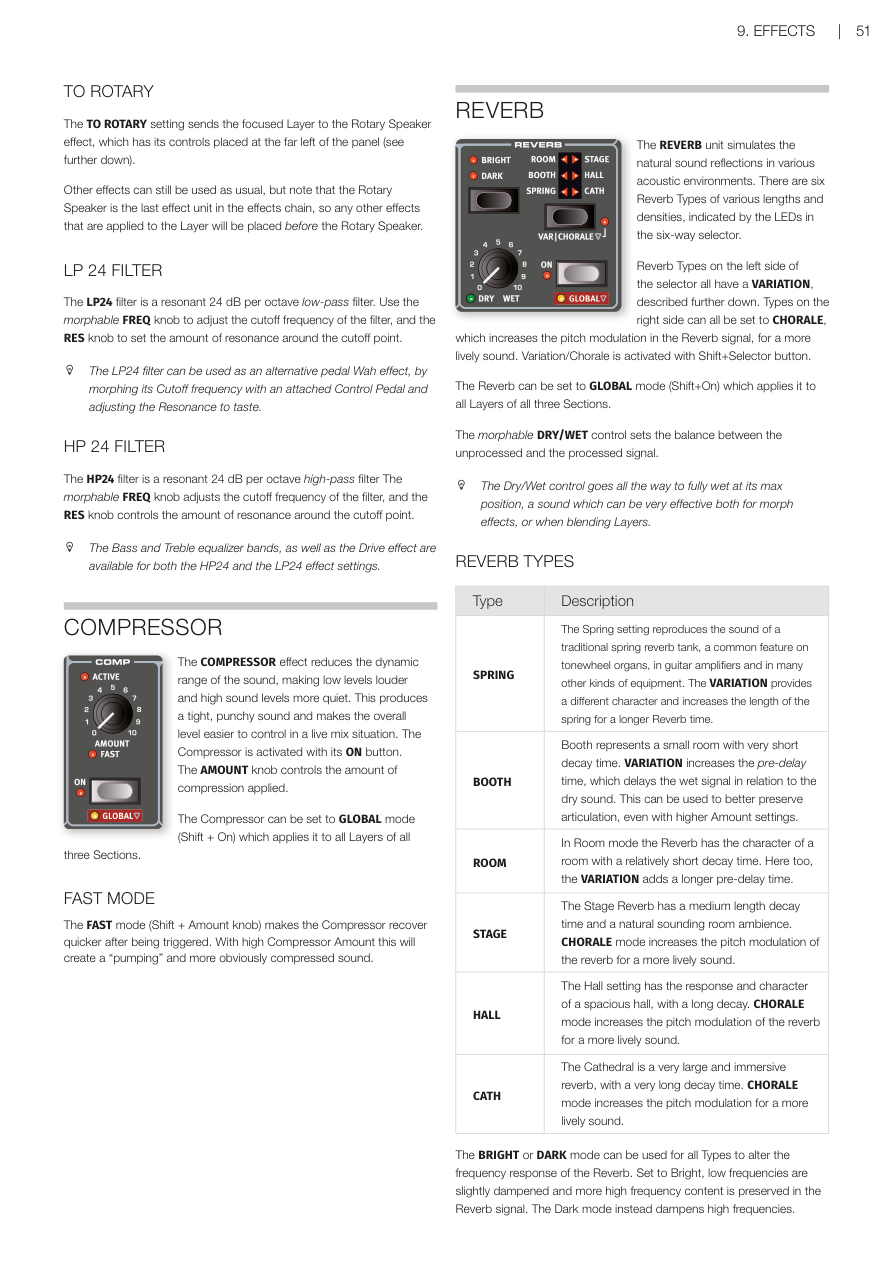
路由至旋轉喇叭 / TO ROTARY
TO ROTARY 設定會把目前焦點音層的訊號路由到旋轉喇叭效果器(位在面板最左側)。其他效果仍然可以照常使用,但請注意旋轉喇叭是效果鏈的最後一個單元,所以其他效果會在旋轉喇叭之前。
The TO ROTARY setting sends the focused Layer to the Rotary Speaker effect. Note that the Rotary Speaker is the last effect unit in the effects chain, so any other effects will be placed before it.
LP 24 濾波器 / LP 24 FILTER
LP24 是一個共振式低通濾波器(Low Pass Filter——只讓低於截止頻率的聲音通過),每倍頻程衰減 24 dB,坡度很陡。FREQ 旋鈕(支援 Morph)調整截止頻率,RES 旋鈕控制截止點附近的共鳴量。
The LP24 filter is a resonant 24 dB per octave low-pass filter. Use the morphable FREQ knob to adjust the cutoff frequency, and the RES knob to set the amount of resonance.
💡 LP24 可以當踏板哇哇效果來用:用控制踏板(Control Pedal)來 Morph 截止頻率,再調整共鳴到喜歡的感覺。
HP 24 濾波器 / HP 24 FILTER
HP24 是共振式高通濾波器(High Pass Filter——只讓高於截止頻率的聲音通過),每倍頻程衰減 24 dB。FREQ 旋鈕(支援 Morph)調整截止頻率,RES 旋鈕控制共鳴量。
The HP24 filter is a resonant 24 dB per octave high-pass filter. The morphable FREQ knob adjusts the cutoff frequency, and the RES knob controls the amount of resonance.
低音和高音等化器,以及過載效果,在 HP24 和 LP24 兩種設定下都可以使用。
The Bass and Treble equalizer bands, as well as the Drive effect are available for both the HP24 and the LP24 effect settings.
壓縮器 / COMPRESSOR
壓縮器(Compressor——縮小聲音的動態範圍,讓小聲的部分更大聲、大聲的部分更安靜)讓聲音聽起來更緊湊有力,現場演出時整體音量也更好控制。按 ON 按鈕啟用,AMOUNT 旋鈕控制壓縮量。
The COMPRESSOR effect reduces the dynamic range of the sound, making low levels louder and high sound levels more quiet. This produces a tight, punchy sound. The Compressor is activated with its ON button. The AMOUNT knob controls the amount of compression applied.
壓縮器可以設為全域(GLOBAL)模式(Shift + On),套用到所有區段所有音層。
The Compressor can be set to GLOBAL mode (Shift + On) which applies it to all Layers of all three Sections.
快速模式 / FAST MODE
FAST 模式(Shift + Amount 旋鈕)讓壓縮器觸發後恢復更快。搭配高 Amount 設定,會製造出明顯的「pumping(脈衝)」壓縮感。
The FAST mode (Shift + Amount knob) makes the Compressor recover quicker after being triggered. With high Compressor Amount this will create a "pumping" and more obviously compressed sound.
混響 / REVERB
混響(Reverb——模擬聲音在各種空間中的自然反射效果)提供六種不同長度和密度的混響類型,用六段選擇器的 LED 指示。
The REVERB unit simulates the natural sound reflections in various acoustic environments. There are six Reverb Types of various lengths and densities.
左側三種類型有 VARIATION;右側三種可設定 CHORALE(合唱)模式,增加混響訊號裡的音高調製,讓聲音更有活力。按住 Shift 再按選擇按鈕啟用 Variation/Chorale。
Reverb Types on the left side of the selector all have a VARIATION. Types on the right side can all be set to CHORALE, which increases the pitch modulation in the Reverb signal. Variation/Chorale is activated with Shift+Selector button.
混響可設為全域(GLOBAL)模式(Shift + On),套用到所有區段所有音層。可 Morph 的 DRY/WET 旋鈕調整乾訊號和混響訊號的比例,可以調到 100% 全濕,對 Morph 效果或音層混合很有幫助。
The Reverb can be set to GLOBAL mode (Shift+On). The morphable DRY/WET control sets the balance between the unprocessed and the processed signal, going all the way to fully wet at its max position.
混響類型 / REVERB TYPES
| 類型 | 說明 |
|---|---|
| SPRING(彈簧混響) | 重現傳統彈簧混響槽的聲音,常見於音輪風琴、吉他擴大機等設備。VARIATION 提供不同特性,混響時間更長。 |
| BOOTH(小室) | 極短衰減時間的小空間感。VARIATION 增加前置延遲時間,即使高 Amount 也能保留清晰的音符發音。 |
| ROOM(房間) | 衰減時間較短的房間感混響。VARIATION 同樣增加前置延遲時間。 |
| STAGE(舞台) | 中等衰減時間,自然的室內空間感。CHORALE 模式增加音高調製,讓混響更有活力。 |
| HALL(大廳) | 寬廣大廳的衰減和音色,衰減時間較長。CHORALE 模式增加音高調製。 |
| CATH(大教堂) | 超大型空間,衰減時間非常長。CHORALE 模式增加音高調製。 |
| Type | Description |
|---|---|
| SPRING | Reproduces the sound of a spring reverb tank. VARIATION provides a different character and longer reverb time. |
| BOOTH | Small room with very short decay time. VARIATION increases the pre-delay time. |
| ROOM | Room with relatively short decay time. VARIATION adds a longer pre-delay time. |
| STAGE | Medium length decay time and natural room ambience. CHORALE increases pitch modulation. |
| HALL | Spacious hall with long decay. CHORALE increases pitch modulation. |
| CATH | Very large immersive reverb with very long decay. CHORALE increases pitch modulation. |
所有類型都可以選擇 BRIGHT(明亮) 或 DARK(暗沉) 模式:BRIGHT 模式保留更多高頻;DARK 模式衰減高頻。
The BRIGHT or DARK mode can be used for all Types to alter the frequency response of the Reverb.
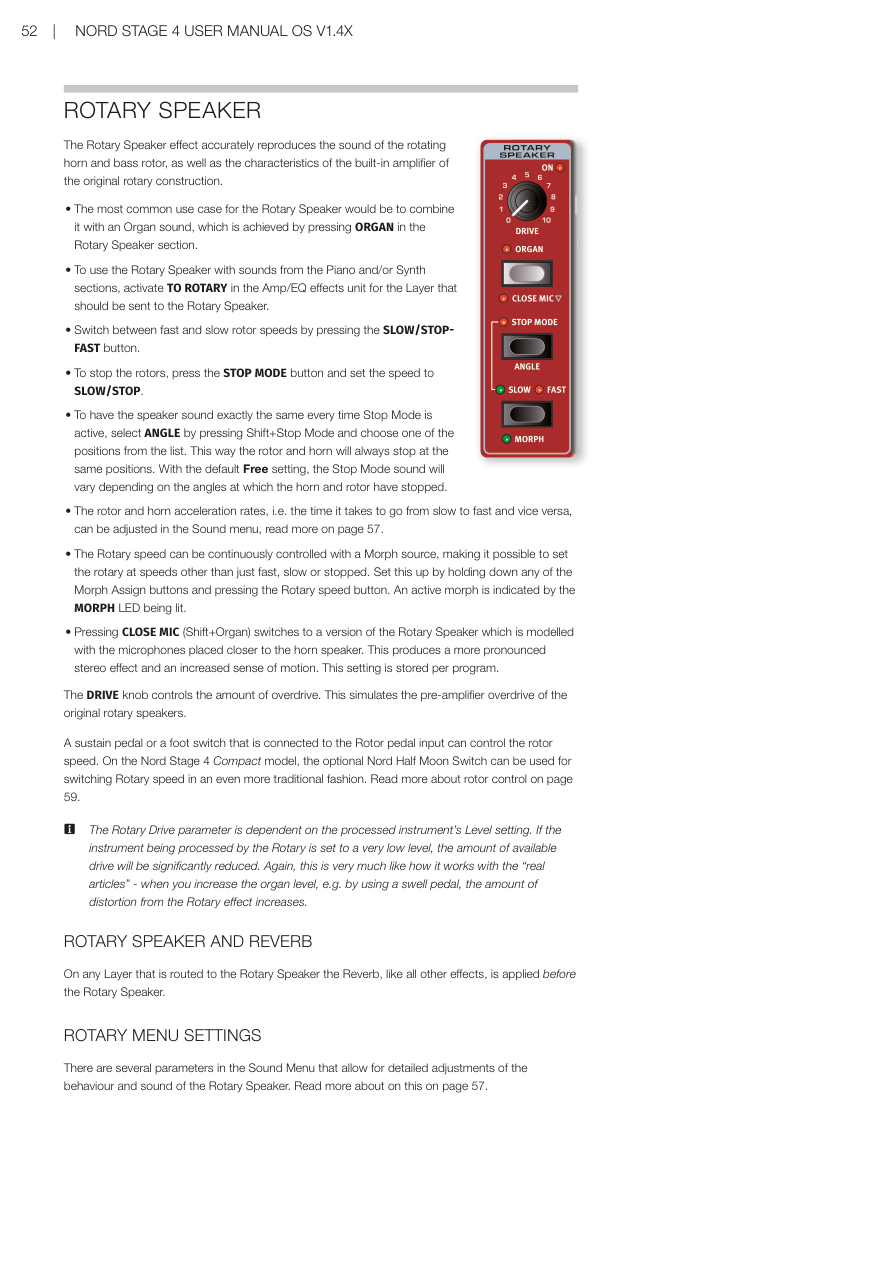
旋轉喇叭 / ROTARY SPEAKER
旋轉喇叭(Rotary Speaker——模擬旋轉喇叭箱的效果器,最著名的是 Leslie 喇叭箱)是傳統音輪風琴的經典搭配,能製造出獨特的都卜勒效應音色。
The ROTARY SPEAKER effect is an emulation of the classic rotating speaker cabinet (the most famous being the Leslie cabinet), widely used with traditional tonewheel organs.
旋轉喇叭有兩個組件:處理低頻的旋轉鼓(rotor),和處理高頻的旋轉號角(horn)。
The Rotary Speaker has two components: the rotating drum (rotor) which handles the low frequencies, and the rotating horn, which handles the high frequencies.
DRIVE 旋鈕控制通過效果器的過載(失真)量。SLOW 和 FAST 控制調整慢速和快速旋轉的速度設定。
The DRIVE knob controls the amount of drive (distortion) through the effect. The SLOW and FAST controls adjust the rotation speed for the Slow and Fast speed settings.
按 ROTARY SPEED 按鈕在慢速和快速之間切換。速度的轉換是漸進式的,就像真正的旋轉喇叭箱那樣慢慢加速或減速。
Press the ROTARY SPEED button to toggle between slow and fast rotation speeds. The transition between speeds is performed gradually, just like a real rotating speaker would slow down and speed up.
💡 在慢速和快速之間切換的瞬間,就是旋轉喇叭最有靈魂的時刻——加速和減速過渡期的音色是風琴演奏的經典表情。
STOP 模式(Shift + Rotary Speed)會讓旋轉喇叭模擬完全停下來。
In STOP mode (Shift+Rotary Speed) the Rotary Speaker simulation freezes to a halt.
旋轉喇叭的控制設定是所有路由到它的音層共用的。
The Rotary Speaker controls are shared for all Layers that are routed to it.
第十章:MIDI / Chapter 10: MIDI
使用 MIDI / USING MIDI
Nord Stage 4 在 MIDI 功能方面設計得盡可能靈活,可用作主控鍵盤來控制其他硬體裝置或軟體音源,或讓風琴、鋼琴和合成器區段中的各音層由外部裝置(如電腦或音序器)個別控制,也可以在每個程式的基礎上,讓另一台鍵盤只控制 Nord Stage 4 的部分功能,甚至可以同時做所有這些事情。
The Nord Stage 4 is designed to be as flexible as possible in regard to its MIDI capabilities. It can be used as a master keyboard to control other hardware units or software sound sources, or have Layers in the Organ, Piano and Synth section be individually controlled by outboard gear such as a computer or sequencer. It is also possible to control only parts of the Nord Stage 4 from a separate keyboard, on a per-program basis. If you like, you can even do all these things at the same time.
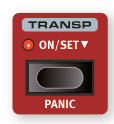
Nord Stage 4 的 MIDI 功能分為四個主要區域:全域(Global)、音層(Layer,風琴/鋼琴/合成器 A/B/C)、輔助鍵盤(Aux KB)和外部 MIDI(Extern)。每個都可以獨立指定到任意 MIDI 頻道。將相關頻道設定為 Off 也可以停用 MIDI 功能。所有 MIDI 頻道都在 MIDI 選單中定義,詳見第 59 頁。
The MIDI functionality can be divided into four main areas: Global, Layer (Organ/Piano/Synth A/B/C), Aux KB and Extern. Each of these are independently assignable to any MIDI channel. All MIDI channels are defined in the MIDI menu, see page 59.
全域頻道用於同時發送和接收 MIDI;Extern 頻道只發送;音層和 Aux KB 頻道只接收 MIDI 資料。大多數 MIDI 相關設定在 MIDI 選單中進行,Extern 設定在 Extern 選單中,Aux KB 設定在 Aux KB 選單中。
The Global channel is used both for sending and receiving MIDI while the Extern channels only send, and the Layer and Aux KB channels only receive MIDI data.
全域頻道 / GLOBAL CHANNEL
**全域 MIDI 頻道(Global MIDI Channel)**同時用於發送和接收 MIDI 資訊,讓外部裝置可以完全控制 Nord Stage 4——就像在自己的鍵盤上演奏一樣——也可以用於發送鍵盤、踏板和面板操作。
The Global MIDI channel is used for transmitting and receiving MIDI information at the same time. It allows for external control over every aspect of the Nord Stage 4 – much like playing its own keyboard – and it can be used to transmit keyboard, pedal and panel actions.
全域頻道同時發送鍵盤和面板產生的 MIDI 資料。例如,轉動合成器區段的旋鈕或使用調製輪、後觸鍵、連接的踏板或音調桿,都會產生在全域頻道上傳輸的 MIDI 資料。
Global transmits both keyboard and panel generated MIDI data. For example, if a knob in the Synth Section is turned or the modulation wheel, aftertouch, connected pedals or pitch stick are used, these will generate MIDI data transmitted on the Global channel.
💡 全域 MIDI 可以在 MIDI 選單中關閉,這會同時停用全域頻道上 MIDI 的發送和接收。
Global MIDI can be turned Off in the MIDI menu. This disables both transmission and reception of MIDI on the Global channel.
音層頻道 / LAYER CHANNELS
每個音層的風琴、鋼琴和合成器 MIDI 頻道只接收 MIDI,讓外部裝置可以演奏個別音層或整個區段。每個風琴、鋼琴和合成器音層的設定都在 Nord Stage 4 MIDI 選單中找到。
The per-Layer Organ, Piano and Synth MIDI channels only receive MIDI, allowing for playing individual Layers or the entire Section from an external device.
外部 MIDI 控制(Extern)/ EXTERN
**外部 MIDI 控制(Extern)**模式可以為合成器區段中的任意音層選擇,主要設計用於將外部 MIDI 裝置整合到現場演出中。詳見第 45 頁開始的外部控制章節。
The Extern Mode, which can be selected for any Layer in the Synth Section, is primarily designed for integration of external MIDI units into a live performance. Refer to the Extern chapter, beginning on page 45, for full documentation.
從 Nord Stage 4 控制外部裝置 / CONTROLLING EXTERNAL GEAR FROM THE NORD STAGE 4
把設定為 Extern 模式的音層想成一個普通的合成器音層,在分配鍵盤分區、啟用音調桿和延音踏板等方面都是一樣的。也可以為 Extern 音層儲存程式切換、音色庫選擇或音量等的「初始值」。
It is useful to think of a Layer set to Extern Mode as a regular Synth Layer, in terms of assigning keyboard zones, enabling pitch stick and sustain pedal etc.
設定步驟:
-
選擇一個需要整合外部音色的 Nord Stage 4 程式。/ Select a Nord Stage 4 program where external sounds should be integrated.
-
為合成器音層啟用 Extern 模式,並將其 MIDI 頻道以及外部裝置(例如機架合成器模組)的 MIDI 頻道設定為相同頻道。在 Nord Stage 4 上,這在 MIDI 選單(Shift + Program 7 按鈕)中設定。/ Activate Extern Mode for a Synth Layer and set its MIDI Channel as well as the one for the external device to the same channel in the MIDI menu (Shift+Program 7 button).
⚠️ 確保 Extern 頻道與 Nord Stage 4 全域頻道不同。
-
將 Extern 音層指定到所需的鍵盤分區。/ Assign the Extern Layer to the desired keyboard zone(s).
-
在 Nord Stage 4 上,在為 Extern 音層定義的分區內演奏,應該可以聽到外部裝置發聲。/ Play within the zone defined for the Extern Layer and you should hear your external device.
-
適當設定 OCTAVE UP/DOWN、SUST PED 和 PSTICK。/ Set OCTAVE UP/DOWN, SUST PED and PSTICK as appropriate.
-
轉動合成器顯示幕下方最右側的 PROGRAM 旋鈕,直到在外部裝置上選到所需的程式。如果存取程式需要音色庫選擇資料,這些資料需要手動輸入 Extern 選單。/ Turn the PROGRAM dial until the desired program is selected on the external device.
-
若要調整外部 MIDI 裝置的音量,操作 Extern 音層的音量推桿,它會根據位置發送 MIDI CC#7(MIDI Volume)訊息。/ To adjust the volume of the external MIDI device, operate the level fader for the Extern Layer which will transmit MIDI CC#7 (MIDI Volume) messages.
-
如需要,在 Nord Stage 4 上儲存程式。/ Store the program on the Nord Stage 4 if desired.
在 Extern 選單中啟用「Send On Load(載入時發送)」後,每次選取這個程式時,所有儲存的資料(程式切換、音色庫選擇、MIDI CC 和音量)都會自動從 Nord Stage 4 發送。如需要,可以在 Extern 選單中定義兩個額外的連續控制器訊息。
By activating Send On Load in the Extern Menu all stored data (program change, bank select, MIDI CC and volume) will automatically be sent from the Nord Stage 4 whenever this program is selected.
和面板上的其他音層一樣,Extern 音層彼此完全獨立,可以程式化為同時在相同或不同分區進行不同的操作。
Just like other Layers on the panel, Extern Layers are completely independent from one another and can be programmed to do different things on the same or different zones at the same time.
💡 如果使用面板上的移調功能,Extern 音層的 MIDI 輸出也會被移調。
使用 MIDI 控制 Nord Stage 4 / CONTROLLING THE NORD STAGE 4 USING MIDI
輔助鍵盤(Aux KB)/ AUX KB (AUXILIARY KEYBOARD)
透過此功能,可以使用外部鍵盤演奏 Nord Stage 4 上的任意音層組合。Aux KB 設定每個程式獨立儲存,使其非常適合現場演出使用。Aux KB 的完整概覽在第 42 頁的程式章節,以下是基本設定示範(僅控制風琴區的音層 B):
With this function it is possible to use an external keyboard for playing any combination of Layers on the Nord Stage 4. Here is a basic example of how to set it up, in this case just controlling Layer B of the Organ section:
- 將外部 MIDI 鍵盤連接到 Nord Stage 4 的 MIDI In 插孔。/ Connect an external MIDI keyboard to the MIDI In jack of the Nord Stage 4.
- 按 Shift + Program 4 開啟 AUX KB 選單。/ Open the AUX KB menu by pressing Shift+Program 4.
- 在 Aux KB 選單的第一頁,將「Aux KB Enable」設定為「On」。/ On the first page of the Aux KB menu, set "Aux KB Enable" to "On".
- 用 PAGE 上移按鈕到第二頁。按 ORG(風琴)軟按鍵並用旋鈕設定為「-B」。/ Go to the second page. Press the ORG (Organ) soft button and set it to -B, using the dial.
- 在 Nord Stage 4 MIDI 選單中,將 Aux KB MIDI 頻道設定為發送 MIDI 裝置的頻道(預設為 MIDI 頻道 16)。/ Set the Aux KB MIDI channel to that of the transmitting MIDI device from the Nord Stage 4 MIDI menu. Default is MIDI channel 16.
- 確認風琴的音層 B 在 Nord Stage 4 上是活躍的。其他所有區段和音層照常從 Nord Stage 4 控制。/ Make sure Layer B of the Organ is active on the Nord Stage 4.
⚠️ 如果 Stage 4 使用面板移調功能,輔助鍵盤(Aux KB)頻道上傳入的 MIDI 也會被移調——無論 MIDI 選單中的「Transpose MIDI at」設定如何。
If the Stage 4 is transposed using the Panel Transpose, the incoming MIDI on the Dual KB channel will also be transposed – regardless of the "Transpose MIDI at" setting.
音層 MIDI 控制 / LAYER MIDI CONTROL
從外部裝置控制 Stage 4 部分功能的第二個選項是使用每個音層的 MIDI 能力,允許在不同 MIDI 頻道上定址任意音層。如需要,所有音層仍可在 Nord Stage 4 鍵盤上「本地」演奏。
A second option is to use per-Layer MIDI capabilities, allowing for addressing any Layer on a different MIDI channel. All Layers can still be played "locally" if desired.
在 MIDI 選單(Shift + Program 7 按鈕)中為每個風琴、鋼琴和合成器音層指定 MIDI 頻道。
To set this up, assign MIDI channels to each of the Organ, Piano and Synth Layers within the MIDI menu (Shift+Program 7 button).
全域 MIDI 控制 / GLOBAL MIDI
透過 MIDI 控制 Nord Stage 4 的第三個選項是使用全域 MIDI 功能。如果外部裝置的發送 MIDI 頻道與 Nord Stage 4 的全域 MIDI 頻道相同,演奏外部裝置就非常類似在 Nord Stage 4 自己的鍵盤上演奏。
If the transmitting MIDI channel of an external device is the same as the Nord Stage 4 Global MIDI channel, playing the external unit will be very similar to playing the Nord Stage 4 from its own keyboard.
外部同步 / EXTERNAL SYNC
Stage 4 的主時鐘可以接收傳入的 MIDI 時鐘訊息控制。這是自動行為:一旦在 MIDI In 或 USB MIDI 輸入上接收到 MIDI 時鐘,主時鐘的速率設定就會同步到傳入的外部時鐘。
The Master Clock of the Stage 4 can be controlled by incoming MIDI clock messages. This is automatic: once MIDI clock is received, the Rate setting for the Master Clock will be synchronized to the incoming external clock.
當主時鐘鎖定到傳入時鐘時,主時鐘頁面(按住 MST CLK 按鈕訪問)會顯示「external」以及以 BPM 表示的傳入速度。
When the Master Clock is locked to an incoming clock, "external" will be displayed on the Master Clock page along with the incoming tempo in BPM.
外部 MIDI 控制區段與 MIDI 回聲 / EXTERN SECTION AND MIDI ECHOING
當一個或多個 Extern 音層處於活躍狀態時,全域 MIDI 頻道上傳入的 MIDI 音符可以被重新導向到 Stage 4 的 MIDI 輸出,發送到一個或多個 Extern MIDI 頻道。這需要將 Extern 選單中的「Echo Global To Extern Ch」設定設為 On。
When one or more Extern Layers are active, incoming MIDI notes on the Global MIDI channel can be re-routed to the MIDI Output on one or more of the Extern MIDI channels. This requires the "Echo Global To Extern Ch" setting in the Extern menu to be set to On.
每個 Extern 音層的鍵盤分區指定也影響哪些傳入 MIDI 被重新導向到每個頻道。
The KB Zone assignment of each Extern Layer also affects the range for which incoming MIDI is re-routed to each channel.
將 Stage 4 演奏錄製到 MIDI 音序器 / RECORDING A STAGE 4 PERFORMANCE TO A MIDI SEQUENCER
以下是如何將 Stage 4 的完整演奏(包含所有踏板動作、變形控制和其他操作)錄製到 DAW 或 MIDI 音序器——最好使用全域 MIDI 頻道:
Here is how to record a Stage 4 performance to a DAW or MIDI sequencer. Best achieved using the Global MIDI channel:
- 將 DAW 或音序器軌道設定為路由全域頻道上傳入的 MIDI。/ Set the DAW or sequencer track to route back incoming MIDI on the Global Channel.
- 在 MIDI 選單第 1 頁將 Local Control 設定為 Off。/ Set Local Control to Off on page 1 of the MIDI menu.
- 在 MIDI 選單第 7 頁將 Control Change Type 設定為「CC & NRPN」,Ctrl 設定為「Send/Receive」。/ Set Control Change Type to CC & NRPN and Ctrl to Send/Receive on page 7 of the MIDI menu.
- 在 Nord Stage 4 上選擇要使用的程式。/ Select the Program on the Nord Stage 4.
- 在音序器上開始錄製。/ Start the recording on the sequencer.
- 從 DAW 播放演奏,聲音應與在 Nord Stage 4 上演奏時完全相同。/ Play back the performance from the DAW and it should sound exactly as when played on the Nord Stage 4.
💡 如果套用了任何移調值(無論是面板移調功能還是系統選單中的全域移調設定),其對 MIDI 的影響取決於 MIDI 選單中的「Transpose MIDI at」設定(詳見第 61 頁)。
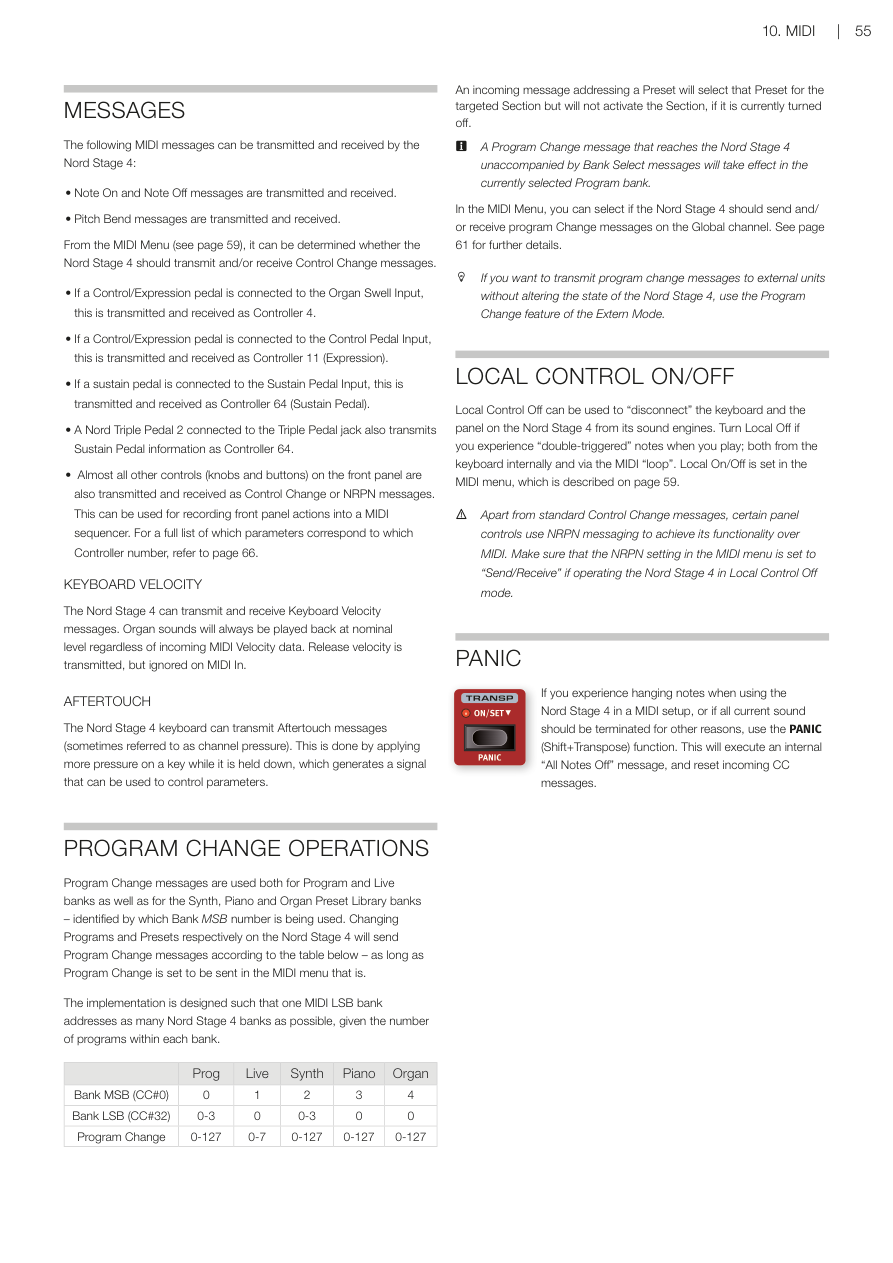
MIDI 訊息 / MESSAGES
Nord Stage 4 可以發送和接收以下 MIDI 訊息:
The following MIDI messages can be transmitted and received by the Nord Stage 4:
- Note On / Note Off:音符開始和結束訊息(發送和接收)/ Note On and Note Off messages are transmitted and received.
- Pitch Bend:音調彎曲(發送和接收)/ Pitch Bend messages are transmitted and received.
- 在 MIDI 選單中可以決定 Nord Stage 4 是否應發送和/或接收控制器變更(CC)訊息。/ From the MIDI Menu, it can be determined whether the Nord Stage 4 should transmit and/or receive Control Change messages.
- 連接到 Organ Swell 輸入的控制/表情踏板,以控制器 4 發送和接收。/ Control/Expression pedal connected to the Organ Swell Input: transmitted/received as Controller 4.
- 連接到 Control Pedal 輸入的控制/表情踏板,以控制器 11(表情)發送和接收。/ Control/Expression pedal connected to the Control Pedal Input: transmitted/received as Controller 11 (Expression).
- 連接到 Sustain Pedal 輸入的延音踏板,以控制器 64(延音踏板)發送和接收。/ Sustain pedal connected to Sustain Pedal Input: transmitted/received as Controller 64 (Sustain Pedal).
- 連接到 Triple Pedal 插孔的 Nord Triple Pedal 2 也以控制器 64 發送延音踏板資訊。/ A Nord Triple Pedal 2 connected to the Triple Pedal jack also transmits Sustain Pedal information as Controller 64.
- 面板上幾乎所有其他控制器(旋鈕和按鈕)也以控制器變更或 NRPN 訊息發送和接收,可用於將面板操作錄製到 MIDI 音序器。請參閱第 66 頁的完整對應列表。/ Almost all other controls are also transmitted and received as Control Change or NRPN messages. Refer to page 66 for a full list.
鍵盤力度 / KEYBOARD VELOCITY
Nord Stage 4 可以發送和接收鍵盤力度訊息。無論傳入的 MIDI 力度資料為何,管風琴音色始終以標準音量播放。發送離鍵力度,但在 MIDI In 上忽略。
The Nord Stage 4 can transmit and receive Keyboard Velocity messages. Organ sounds will always be played back at nominal level regardless of incoming MIDI Velocity data.
後觸鍵 / AFTERTOUCH
Nord Stage 4 鍵盤可以發送後觸鍵訊息(有時稱為「頻道壓力」)。按住琴鍵時施加更多壓力即可觸發後觸鍵,產生可用於控制參數的訊號。
The Nord Stage 4 keyboard can transmit Aftertouch messages (channel pressure). This is done by applying more pressure on a key while it is held down.
程式切換操作 / PROGRAM CHANGE OPERATIONS
程式切換訊息用於程式和即時模式音色庫,以及合成器、鋼琴和風琴預設音色庫——由使用的 Bank MSB 編號來識別。
Program Change messages are used both for Program and Live banks as well as for the Synth, Piano and Organ Preset Library banks – identified by which Bank MSB number is being used.
| Prog | Live | Synth | Piano | Organ | |
|---|---|---|---|---|---|
| Bank MSB (CC#0) | 0 | 1 | 2 | 3 | 4 |
| Bank LSB (CC#32) | 0-3 | 0 | 0-3 | 0 | 0 |
| Program Change | 0-127 | 0-7 | 0-127 | 0-127 | 0-127 |
傳入的預設音色選擇訊息會選擇該預設音色,但如果目標區段目前關閉,不會啟用該區段。
An incoming message addressing a Preset will select that Preset for the targeted Section but will not activate the Section, if it is currently turned off.
💡 未伴隨音色庫選擇訊息的程式切換訊息,會在目前選取的程式音色庫中生效。
A Program Change message without Bank Select messages will take effect in the currently selected Program bank.
💡 如果您想向外部裝置發送程式切換訊息而不改變 Nord Stage 4 的狀態,請使用 Extern 模式的程式切換功能。
本地控制開啟/關閉 / LOCAL CONTROL ON/OFF
**本地控制關閉(Local Control Off)**可以「斷開」Nord Stage 4 的鍵盤和面板與其音色引擎的連接。如果您在演奏時遇到「雙重觸發」音符(同時來自鍵盤內部和通過 MIDI「回路」),請關閉本地控制。本地控制的開啟/關閉在 MIDI 選單中設定(詳見第 59 頁)。
Local Control Off can be used to "disconnect" the keyboard and the panel on the Nord Stage 4 from its sound engines. Turn Local Off if you experience "double-triggered" notes when you play. Local On/Off is set in the MIDI menu, see page 59.
⚠️ 除標準控制器變更訊息外,某些面板控制器使用 NRPN 訊息來實現其 MIDI 功能。如果在本地控制關閉模式下操作 Nord Stage 4,確保 MIDI 選單中的 NRPN 設定為「Send/Receive」。
緊急停音(MIDI 相關)/ PANIC
如果在 MIDI 設定中遇到音符持續發聲,或其他原因需要終止所有當前聲音,請使用 PANIC(Shift + Transpose)功能。這會執行內部的「All Notes Off」訊息,並重置傳入的 CC 訊息。
If you experience hanging notes when using the Nord Stage 4 in a MIDI setup, use the PANIC (Shift+Transpose) function. This will execute an internal "All Notes Off" message, and reset incoming CC messages.
第十一章:選單 / Chapter 11: Menus
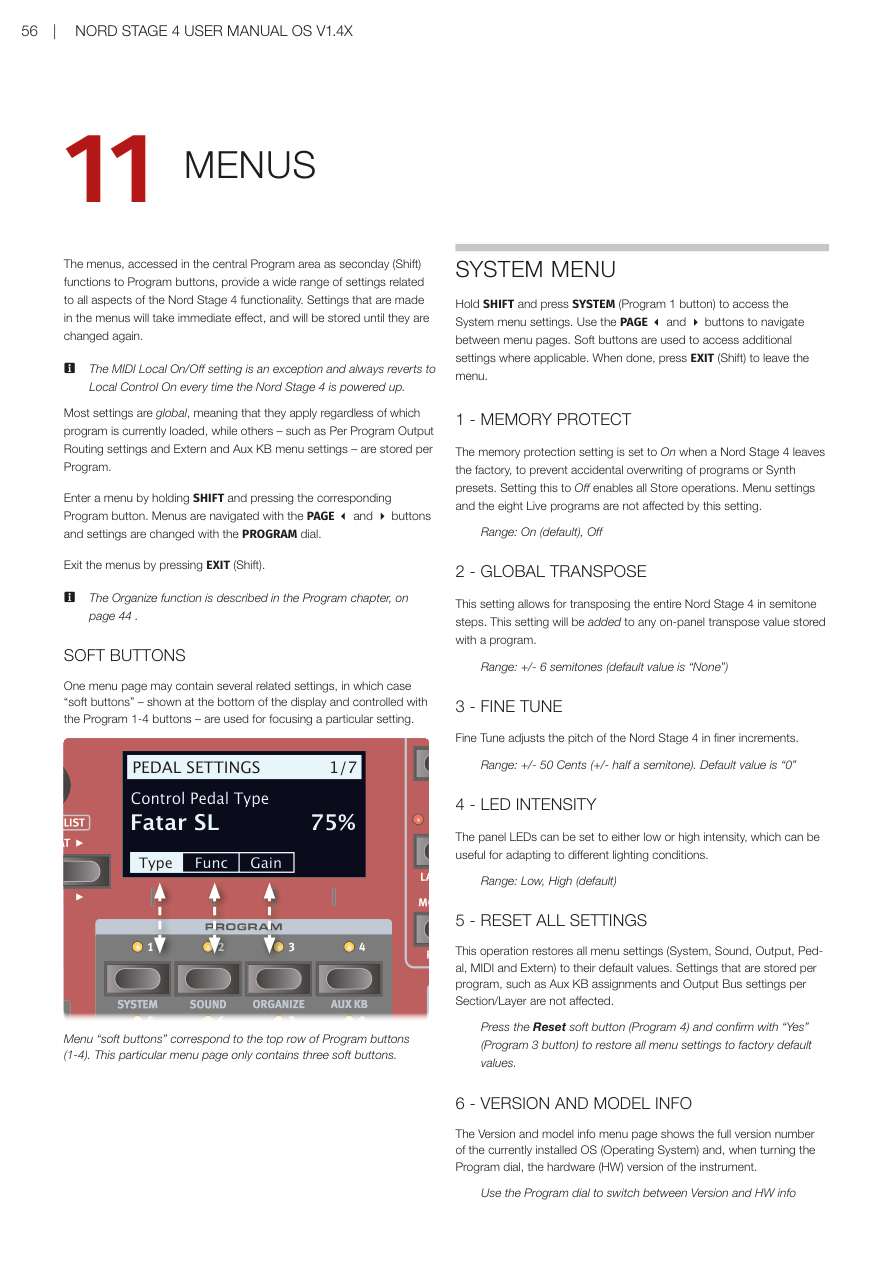
選單概覽 / OVERVIEW
選單透過按住 SHIFT 再按對應的程式按鈕(1-8)來存取,提供與 Nord Stage 4 所有功能相關的廣泛設定。在選單中所做的設定會立即生效,並儲存直到再次更改為止。
The menus provide a wide range of settings related to all aspects of the Nord Stage 4 functionality. Settings made in the menus will take immediate effect, and will be stored until they are changed again.
💡 MIDI 本地控制的開啟/關閉設定是例外,每次 Nord Stage 4 開機時都會恢復為本地控制開啟(Local Control On)。
The MIDI Local On/Off setting always reverts to Local Control On every time the Nord Stage 4 is powered up.
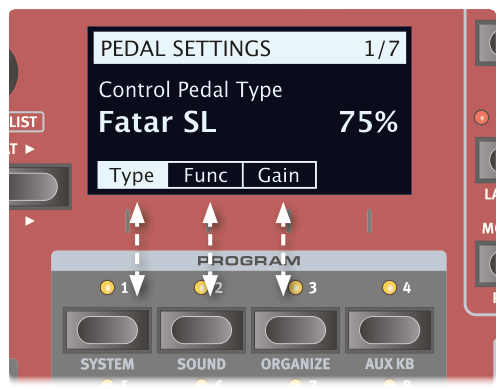
大多數設定是全域性的(無論目前載入哪個程式都適用),而其他設定——例如每程式輸出路由設定、Extern 和 Aux KB 選單設定——則每個程式獨立儲存。
Most settings are global, while others – such as Per Program Output Routing settings and Extern and Aux KB menu settings – are stored per Program.
進入選單:按住 SHIFT 再按對應的程式按鈕。用 PAGE 3 和 4 按鈕瀏覽頁面,用 PROGRAM 旋鈕更改設定。按 EXIT(Shift)離開選單。
Enter a menu by holding SHIFT and pressing the corresponding Program button. Navigate with PAGE 3 and 4 buttons. Exit by pressing EXIT (Shift).
系統選單 / SYSTEM MENU
進入方式:按住 SHIFT + SYSTEM(Program 1 按鈕)
Access: Hold SHIFT and press SYSTEM (Program 1 button)
1 - 記憶體保護 / MEMORY PROTECT
Nord Stage 4 出廠時記憶體保護設定為「開啟(On)」,以防止意外覆蓋程式或合成器預設音色。設定為「關閉(Off)」可啟用所有儲存操作。選單設定和八個即時程式不受此設定影響。
The memory protection setting is set to On when a Nord Stage 4 leaves the factory. Setting this to Off enables all Store operations.
範圍:On(預設)、Off
2 - 全域移調 / GLOBAL TRANSPOSE
此設定允許以半音為單位移調整個 Nord Stage 4。此設定會加到程式中儲存的面板移調值上。
This setting allows for transposing the entire Nord Stage 4 in semitone steps. This setting will be added to any on-panel transpose value stored with a program.
範圍:±6 半音(預設值為「None」)
3 - 精細調音 / FINE TUNE
精細調音以更精細的增量調整 Nord Stage 4 的音高。
Fine Tune adjusts the pitch of the Nord Stage 4 in finer increments.
範圍:±50 音分(預設值為「0」)
4 - LED 亮度 / LED INTENSITY
面板 LED 可以設定為低亮度或高亮度,適應不同的照明條件。
The panel LEDs can be set to either low or high intensity, useful for adapting to different lighting conditions.
範圍:Low、High(預設)
5 - 重置所有設定 / RESET ALL SETTINGS
此操作將所有選單設定(系統、音色、輸出、踏板、MIDI 和 Extern)恢復為預設值。每程式儲存的設定(如 Aux KB 指定和每區段/音層的輸出匯流排設定)不受影響。
This operation restores all menu settings to their default values. Settings stored per program are not affected.
按重置軟按鍵(Program 4),然後按「Yes」(Program 3 按鈕)確認,將所有選單設定恢復為原廠預設值。
Press the Reset soft button (Program 4) and confirm with "Yes" (Program 3 button) to restore all menu settings to factory default values.
6 - 版本和型號資訊 / VERSION AND MODEL INFO
版本和型號資訊選單頁面顯示目前安裝的作業系統(OS)的完整版本號,轉動 Program 旋鈕可查看樂器的硬體(HW)版本。
The Version and model info menu page shows the full version number of the currently installed OS and, when turning the Program dial, the hardware (HW) version of the instrument.
音色選單 / SOUND MENU
進入方式:按住 SHIFT + SOUND(Program 2 按鈕)
Access: Hold SHIFT and press SOUND (Program 2)
1 - 程式音量 / PROGRAM LEVELS
透過調整所有音層音量來調整目前載入程式的總輸出音量。注意:需要儲存程式才能保留調整。
Adjusts the total output level of the currently loaded Program by adjusting all of its Layer levels. Note that the Program needs to be stored for the adjustment to stick.
2 - 鋼琴踏板噪音音量 / PIANO PEDAL NOISE LEVEL
設定踏板噪音的音量,此功能在連接了 Nord Triple Pedal 後,可為特定鋼琴音色開啟。
Sets the level of the Pedal Noise that can be turned on for selected pianos, if a Nord Triple Pedal is connected.
範圍:±6 dB(預設 0 dB)
3 - 鋼琴琴弦共鳴音量 / PIANO STRING RES LEVEL
設定可為特定鋼琴(原聲 Med、Lrg 和 XL 尺寸)開啟的琴弦共鳴功能音量。
Sets the level of the String Resonance feature that can be turned on for selected pianos (acoustic Med, Lrg and XL sizes).
範圍:±6 dB(預設 0 dB)
4 - 風琴鍵盤觸發點 / ORGAN KEYBOARD TRIGGER POINT
此設定更改風琴由鍵盤觸發的方式。選擇「High」時,聲音在琴鍵完全按下之前觸發,更接近真實 B3 和其他風琴型號的工作方式。
This setting changes how the Organ is triggered by the keyboard. With "High" selected the sound is triggered before the key is fully depressed, which is more similar to how a real B3 and other organ models work.
範圍:High(預設)、Low
5 - B3 風琴音輪模式 / B3 ORGAN TONEWHEEL MODE
設定 B3 風琴模型的音輪串擾和電纜洩漏噪音的程度。
Sets the level of tonewheel crosstalk and cable leakage artifacts of the B3 organ model.
範圍:Clean、Vintage 1(預設)、Vintage 2
6 - B3 風琴按鍵噪音 / B3 ORGAN CLICK LEVEL
設定 B3 風琴模型的按鍵噪音音量。
Sets the level of the Key Click for the B3 organ model.
範圍:Normal(預設)、High
7 - 旋轉喇叭低/高頻平衡 / ROTARY BASS/HORN LEVEL
設定低頻轉子和高頻喇叭之間的平衡,以百分比定義。
Sets the balance between the bass rotor and treble horn, defined as a percentage.
範圍:70/30、60/40、50/50(預設)、40/60、30/70
8 - 旋轉喇叭低頻轉子速度 / ROTARY ROTOR SPEED
決定旋轉喇叭低音喇叭轉子的速度。
Determines the speed of the rotary speaker woofer rotor.
範圍:Low、Normal(預設)、High
9 - 旋轉喇叭低頻轉子加速度 / ROTARY ROTOR ACCELERATION
決定旋轉喇叭低音喇叭轉子的加速和減速時間。
Determines the acceleration and retardation time of the rotary speaker woofer rotor.
範圍:Low、Normal(預設)、High
10 - 旋轉喇叭高頻喇叭速度 / ROTARY HORN SPEED
決定旋轉喇叭高頻喇叭的速度。
Determines the speed of the rotary speaker treble horn.
範圍:Low、Normal(預設)、High
11 - 旋轉喇叭高頻喇叭加速度 / ROTARY HORN ACCELERATION
決定旋轉喇叭高頻喇叭的加速和減速時間。
Determines the acceleration and retardation time of the rotary speaker treble horn.
範圍:Low、Normal(預設)、High
輔助鍵盤選單 / AUX KB MENU
進入方式:按住 SHIFT + AUX KB(Program 4 按鈕)
Access: Hold SHIFT and press AUX KB (Program 4)
💡 記得儲存選取的程式,以保留 Aux KB 設定。Aux KB MIDI 頻道在 MIDI 選單中設定。
Remember to Store the selected Program for Aux KB settings to be retained. The Aux KB MIDI Channel is set in the MIDI menu.
1 - 輔助鍵盤啟用 / AUX KEYBOARD ENABLE
決定目前選取的程式是否啟用 Aux KB 功能。第二頁的配置設定需要將此設定為「On」才能生效。
Determines whether the Aux KB functionality is enabled for the currently selected Program.
範圍:Off(預設)、On
2 - 輔助鍵盤音層 / AUX KEYBOARD LAYERS
使用風琴、鋼琴和合成器軟按鍵,轉動程式旋鈕調整每個區段各音層的配置。例如:要從輔助鍵盤控制風琴的音層 B,將風琴設定為「-B」。不屬於 Aux KB 配置的音層以破折號「-」表示。
Use the Organ, Piano and Synth soft buttons and turn the Program dial to adjust the configuration for Layers in each Section. Example: To control Layer B of the Organ from the auxiliary keyboard, set Organ to "-B".
風琴範圍:--(預設)、A-、-B、AB 鋼琴範圍:--(預設)、A-、-B、AB 合成器範圍:---(預設)、A--、-B-、--C、AB-、A-C、-BC、ABC
3 - 鍵盤曲線 / KEYBOARD CURVE
決定 Aux KB 頻道傳入 MIDI 音符的力度縮放。根據輔助鍵盤是否具有非配重或全配重琴鍵,以及製造商的不同,可能需要調整此設定以在演奏 NS4 音色時獲得適當控制。
Determines the velocity scaling of incoming MIDI Notes on the Aux KB channel.
範圍:Soft、Medium(預設)、Hard
輸出選單 / OUTPUT MENU
進入方式:按住 SHIFT + OUTPUT(Program 5 按鈕)
Access: Hold SHIFT and press OUTPUT (Program 5)
1 - 輸出路由模式 / OUTPUT ROUTING MODE
有兩種不同的輸出路由選項:全域(Global)和每程式(Per Program)。在全域模式下,區段和音層直接指定到實體輸出(1-4)。在每程式模式下,區段和音層指定到每程式儲存的匯流排,再由匯流排指定到實體輸出。
There are two distinct Output Routing options: Global and Per Program. In Global mode, Sections and Layers are assigned directly to the physical outputs (1-4). In Per Program mode, Sections and Layers are assigned to buses – stored per program.
範圍:Global(預設)、Per Program
2 - 輸出匯流排頻道(每程式)/ OUTPUT BUS CHANNELS (PER PROGRAM)
在每程式輸出路由模式下,輸出路由透過匯流排系統管理。有一個主匯流排(Main Bus)和三個子匯流排,標記為 I、II 和 III。預設情況下,所有區段和音層指定到主匯流排,主匯流排預設路由到輸出 1+2。
In Per Program Output Routing mode, output routing is managed through a Bus system with one Main Bus and three Sub Busses (I, II, III).
單聲道輸出:若需要單聲道輸出,將使用中的匯流排設定為使用單一輸出頻道(1、2、3 或 4),鋼琴音色會針對單聲道優化,立體聲效果也會調整為單聲道使用。
主匯流排範圍:1-2(預設)、3-4、1、2、3、4、12+34 子匯流排 I 範圍:1-2、3-4(預設)、1、2、3、4、12+34 子匯流排 II 範圍:1-2、3-4、1、2、3(預設)、4、12+34 子匯流排 III 範圍:1-2、3-4、1、2、3、4(預設)、12+34
💡 12+34 設定對於將所有輸出聲音的副本作為監聽訊號非常有用。
3 - 風琴/旋轉喇叭輸出頻道/匯流排 / ORGAN/ROTARY OUTPUT CHANNEL/BUS
此設定決定兩個風琴音層和旋轉喇叭分別使用哪個輸出頻道(全域模式)或匯流排(每程式模式)。
Determines which output channel (Global mode) or bus (Per Program mode) is used by both Organ Layers and the Rotary Speaker.
為旋轉喇叭選擇箭頭(←)時,其輸出頻道或匯流排將跟隨風琴。設定為「Auto」時,旋轉喇叭對應風琴、鋼琴 A/B 或合成器 A/B/C 的輸出設定——按優先順序排列。
With arrow (←) selected for the Rotary Speaker, its output follows the Organ. When set to "Auto" the Rotary Speaker corresponds to the Organ, Piano A/B or Synth A/B/C output settings – in that order of priority.
4 - 鋼琴輸出頻道/匯流排 / PIANO OUTPUT CHANNEL/BUS
決定鋼琴 A 和 B 音層各自的輸出頻道或匯流排。為鋼琴 B 選擇箭頭(←)時,其輸出頻道或匯流排對應鋼琴 A 的設定。
Determines the output channel or bus for the Piano A and B Layer. With arrow (←) selected for Piano B, its output corresponds to that of Piano A.
5 - 合成器輸出頻道/匯流排 / SYNTH OUTPUT CHANNEL/BUS
決定合成器 A、B 和 C 音層各自的輸出頻道或匯流排。為合成器 B 或 C 選擇箭頭(←)時,其輸出頻道或匯流排對應左側音層。
Determines the output channel or bus for the Synth A, B and C Layer. With arrow (←) selected for Synth B or C, its output corresponds to the Layer at the left.
6 - 輸出概覽 / OUTPUT OVERVIEW
輸出概覽頁面顯示所有目前的輸出設定,並允許從單一頁面更改任何這些設定。在每程式輸出路由模式下顯示每個音層指定的匯流排,在全域模式下顯示實體輸出編號(1-4)。
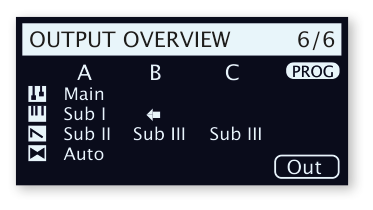
The Output Overview page shows all current Output settings, allowing for changing any of them from a single page.
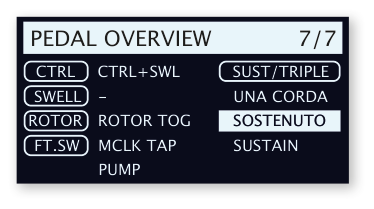
踏板選單 / PEDAL MENU
進入方式:按住 SHIFT + PEDAL(Program 6 按鈕)
Access: Hold SHIFT and press PEDAL (Program 6)
1 - 控制踏板 / CONTROL PEDAL
類型(TYPE):Nord Stage 4 透過 CONTROL PEDAL 輸入接受許多常見的表情踏板。選擇與使用的踏板相匹配的設定。
The Nord Stage 4 accepts many commonly available expression pedals through its CONTROL PEDAL input.
範圍:Roland(預設)、Yamaha、Korg、Fatar(和 Studiologic)、Nord SP-2
💡 當此選單頁面開啟時操作連接的踏板,會顯示百分比,可用於確定所接踏板的範圍——在為未明確支援的踏板尋找合適設定時非常有用。
功能(FUNC):決定連接到 Control Pedal 輸入的踏板功能。兩個設定為「Control」(與 Morph 功能一起使用)和「Ctrl + Swell」(結合 Morph 控制和風琴 Swell)。
範圍:Control(預設)、Ctrl + Swell
增益(GAIN):允許為踏板輸出添加增益,當踏板無法達到最大設定時非常有用。
範圍:1-10
2 - 表情踏板 / SWELL PEDAL
類型(TYPE):配置連接到 ORGAN SWELL 插孔的踏板。
範圍:Roland(預設)、Yamaha、Korg、Fatar(和 Studiologic)
功能(FUNC):設定 Swell 踏板的目標。設為「Swell」讓踏板作為風琴的 Swell 踏板;設為「Volume」讓其控制所有 Nord Stage 4 音色引擎的音量;設為「Wheel Morph」讓 Swell 踏板鏡像調製輪的 Morph 功能。
範圍:Swell(預設)、Volume、Wheel Morph
增益(GAIN):範圍:1-10
3 - 延音踏板 / SUSTAIN PEDAL
類型(TYPE):此設定需要與連接到 SUSTAIN PEDAL 插孔的踏板類型相符,才能使延音功能正常工作。
Depending on the selected Type, one or three vertical bars are shown in the display, filling up as pedals are pressed.
範圍:Nord SP-1(預設)、Nord SP-2、Nord TP-1、Normally Open、Normally Closed
功能(FUNC):延音踏板也可以透過設定其功能為「Sus+Rotor Hold」或「Sus+Rotor Toggle」來改變旋轉喇叭的速度。
範圍:Sustain(預設)、Sus+Rotor Hold、Sus+Rotor Toggle
4 - 三踏板功能 / TRIPLE PEDAL FUNCTION
連接的三踏板(無論是連接到 Sustain Pedal 插孔的 Nord Triple Pedal 1,還是連接到 Triple Pedal 插孔的 Nord Triple Pedal 2)可以設定多種方式來控制多個不同功能。右踏板始終控制延音(或可選擇延音+旋轉保持/旋轉切換),左踏板和中間踏板各自可以控制更大範圍的參數。
A connected Triple Pedal can be set up in a variety of ways for controlling a number of different features. The Right pedal always controls Sustain.
關於「用戶指定(User Assigned)」設定:設定為「User Assigned」時,左踏板或中間踏板用於以下在 Nord Stage 4 面板上活躍的功能:主時鐘踏板節拍輸入、音層場景 II 踏板、合成器顫音踏板、踏板模式下的 Pump 效果。
左踏板範圍:Una Corda(預設)、User Assigned、Layer Scene Hold/Toggle、Pump、Mst Clk Tap、Synth Vibrato、Program Up/Down、Rotor Hold/Toggle 中間踏板範圍:Sostenuto(預設)、User Assigned、Layer Scene Hold/Toggle、Pump、Mst Clk Tap、Synth Vibrato、Program Up/Down、Rotor Hold/Toggle 右踏板範圍:Sustain(預設)、Sus+Rotor Hold、Sus+Rotor Toggle
5 - 旋轉踏板 / ROTOR PEDAL
類型(TYPE):允許更改連接到 ROTOR PEDAL 輸入的開關踏板的類型/極性,以防連接踏板的功能相反。在 Nord Stage 4 Compact 型號上,也可以設定為 Half Moon Switch。
範圍:Nord SP-1(預設)、Normally Open、Normally Closed、Half Moon Switch(僅 Compact 型號)
功能(FUNC):允許更改連接到 ROTOR PEDAL 輸入的開關踏板功能。Rotor Toggle:每次按踏板時切換快速/慢速轉子速度;Rotor Hold:踏板按下時保持快速,放開時恢復慢速。
範圍:Rotor Toggle(預設)、Rotor Hold
6 - 腳踏開關 / FOOT SWITCH
類型(TYPE):腳踏開關插孔接受各種不同踏板,可帶一個或兩個按鈕/開關。根據連接的型號設定 Type 參數。
範圍:Single Open、Single Closed、Dual Open、Dual Closed
💡 Nord SP-2 踏板和其他連續類型踏板與腳踏開關插孔不相容。
SW A(開關 A):決定單踏板或雙踏板第一個開關的功能。 SW B(開關 B):決定雙踏板第二個開關的功能,連接單踏板時無效。
範圍:User Assigned、Layer Scene Hold/Toggle、Pump、Mst Clk Tap、Synth Vibrato、Program Up/Down、Rotor Hold/Toggle
7 - 踏板概覽 / PEDAL OVERVIEW
踏板概覽頁面顯示所有目前的踏板設定,並允許從單一頁面更改任何這些設定。用 Page 按鈕聚焦踏板設定,用旋鈕更改數值。
The Pedal Overview page shows all current pedal settings and allows for changing any of them from a single page.
MIDI 選單 / MIDI MENU
進入方式:按住 SHIFT + MIDI(Program 7 按鈕)
Access: Hold SHIFT and press MIDI (Program 7)
1 - 本地控制 / LOCAL CONTROL
MIDI 本地控制決定 Nord Stage 4 的鍵盤和面板控制器是否應控制內部樂器和程式,或只發送 MIDI。Local On 是正常的「演奏模式」。在 Local Off 模式下,面板和鍵盤動作只通過 MIDI 傳送。
MIDI Local control determines if the Nord Stage 4 keyboard and front panel controls should control internal instruments and programs or only transmit MIDI.
範圍:On(預設)、Off
💡 本地控制在 Nord Stage 4 開機時始終預設為「On」。
2 - 全域頻道 / 輔助鍵盤 / GLOBAL CHANNEL / AUX KB
全域頻道:設定全域頻道的 MIDI 發送和接收頻道。全域頻道以 MIDI 訊號發送所有鍵盤、踏板和面板動作,也可作為接收頻道,完整控制整個 Stage 4。
範圍:1-16、Off(預設 1)
輔助鍵盤頻道(AUX KEYBOARD CHANNEL):設定在使用 Aux KB 模式時接收來自外部鍵盤 MIDI 的頻道(詳見第 43 頁)。
範圍:1-16、Off(預設 16)
3 - 風琴頻道 / ORGAN CHANNEL
用此設定決定透過傳入 MIDI 控制兩個風琴音層的 MIDI 頻道。用軟按鍵切換風琴 A 和 B 的設定。使用 Sect(區段)On 設定可在音層 A 設定的頻道上定址風琴區的兩個音層。
A 範圍:1-16、Off(預設 Off) B 範圍:1-16、Off、←(預設 Off) Sect 範圍:On、Off(預設)
4 - 鋼琴頻道 / PIANO CHANNEL
與風琴頻道設定相似,用於控制兩個鋼琴音層的 MIDI 頻道。
A 範圍:1-16、Off(預設 Off);B 範圍:1-16、Off、←(預設 Off);Sect 範圍:On、Off(預設)
5 - 合成器頻道 / SYNTH CHANNEL
用此設定決定透過傳入 MIDI 控制三個合成器音層的 MIDI 頻道。
A 範圍:1-16、Off(預設 Off);B 範圍:1-16、Off、←(預設 Off);C 範圍:1-16、Off、←(預設 Off);Sect 範圍:On、Off(預設)
6 - Extern 頻道 / EXTERN CHANNEL
設定設定為 Extern 模式的合成器音層 A、B 和 C 的發送 MIDI 頻道。用軟按鍵切換 Extern A、B 和 C 的設定。注意:這是全域設定,無論選取哪個程式都會影響 Extern MIDI 頻道。
A、B、C 範圍:1-16、Off(預設 A=13、B=14、C=15)
7 - 控制器/NRPN/裝置模式 / CONTROL / NRPN / DEVICE MODE
類型(TYPE):某些面板控制器(尤其是使用顯示幕的控制器,如合成器顫音、琶音器和 LFO)使用 NRPN 訊息而非標準控制器變更。在本地控制關閉模式下操作 Nord Stage 4 時,確保此設定為「CC & NRPN」以實現完整功能。
範圍:CC、CC & NRPN(預設)
CTRL(控制器):設定 Nord Stage 4 是否在全域頻道上發送和/或接收 MIDI CC 和 NRPN 訊息。
範圍:Off(預設)、Send、Receive、Send & Receive
DEV(裝置):設定 Nord Stage 4 是否在全域頻道上發送和/或接收裝置 MIDI 訊息。裝置是指產生和發送 MIDI 但不受控制器變更濾波影響的物理控制器,包括:音調彎曲、調製輪、後觸鍵、延音踏板、控制踏板、表情踏板、音量(Swell 設為 Volume)。
範圍:Off、Send、Receive、Send & Receive(預設)
8 - 程式切換模式 / PROGRAM CHANGE MODE
PC(程式切換):決定 Nord Stage 4 是否在全域頻道上發送和/或接收 MIDI 程式切換訊息。
💡 此設定不影響 Extern 頻道上的程式切換訊息。
範圍:Off、Send、Receive、Send & Receive(預設)
PC EXT(擴展程式切換):決定預設音色庫音色庫的程式切換和音色庫選擇訊息是否被發送和/或接收。
範圍:Off、Send、Receive、Send & Receive(預設)
9 - 移調 MIDI 位置 / TRANSPOSE MIDI AT
設定為「In」時,任何活躍的移調值(全域和/或每程式設定的)不會套用到傳出的 MIDI 資料流,只套用到傳入的 MIDI 資料。設定為「Out」時,移調值影響發送的 MIDI 音符但不影響傳入的音符。
範圍:In(預設)、Out
10 - MIDI 概覽 / MIDI OVERVIEW
MIDI 概覽頁面顯示所有目前的 MIDI 設定,並允許從單一頁面更改任何這些設定。
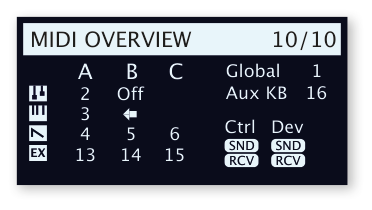
The MIDI Overview page shows the current MIDI settings and allows for changing any of them from a single page.
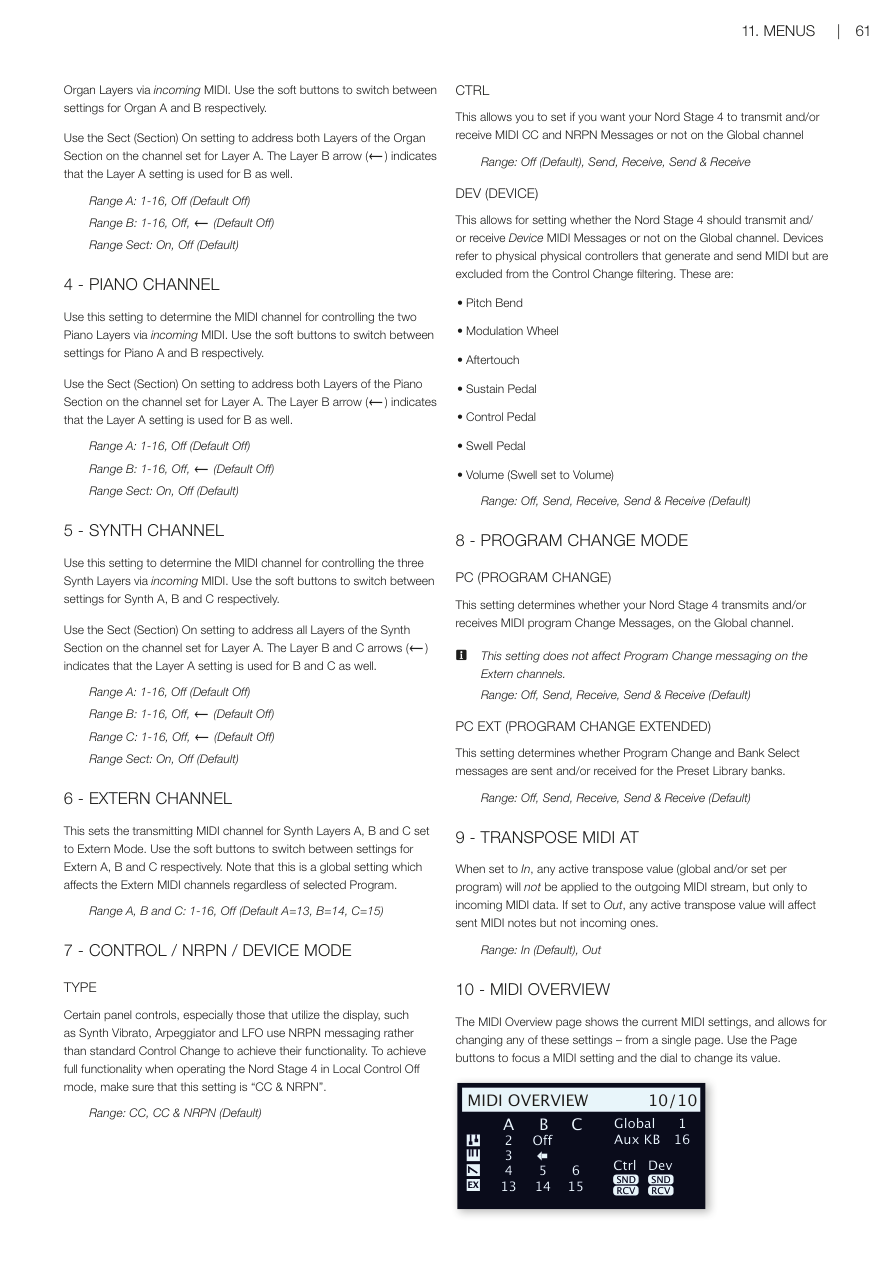
Extern 選單 / EXTERN MENU
進入方式:按住 SHIFT + EXTERN(Program 8 按鈕)
Access: Hold SHIFT and press EXTERN (Program 8)
💡 Extern 選單上的大多數項目在 Extern 音層 A、B 和 C 有各自的條目,使用對應的軟按鍵在它們之間切換。大多數 Extern 選單設定會隨程式儲存,唯一例外是 MIDI 選單中的「Extern MIDI A/B/C Channel」設定。
Most items on the Extern menu have separate entries for Extern Layers A, B and C. Use the corresponding soft buttons to switch between them. Most settings from the Extern menu are saved with a Program.
1 - 回聲全域到 Extern 頻道 / ECHO GLOBAL TO EXTERN CH
傳入的與全域頻道相符的 MIDI,如果 Extern 模式在目前程式中活躍,可以被重新路由,從 Extern 頻道輸出。此設定決定是否應套用此重新路由。
Incoming MIDI that matches the Global channel can be re-routed to go out on the Extern channel if the Extern mode is active.
範圍:Off(預設)、On
2 - 鍵盤力度 A/B/C / KEYBOARD VELOCITY A/B/C
此設定決定在 Extern MIDI 頻道上發送資料時,每個面板的鍵盤力度曲線。Soft 設定使產生高力度值更容易,Hard 設定使其更難。
範圍:Soft、Mid(預設)、Hard
3-5 - 音色庫選擇/程式切換 A/B/C / BANK SELECT / PROG CHANGE A/B/C
完整的程式切換訊息由三部分組成:音色庫選擇 MSB 值、音色庫選擇 LSB 值和程式切換值。程式切換值也可以在合成器顯示幕中用最右側的旋鈕設定。
A "complete" Program Change message consists of Bank Select MSB value, a Bank Select LSB value and a Program Change value.
💡 如果「Send On Load」設定設為「On」,當載入程式時,Nord Stage 4 可以自動發送音色庫選擇/程式切換訊息。
程式切換 MSB 範圍:0-127、--(關閉)(預設 --) 程式切換 LSB 範圍:0-127、--(關閉)(預設 --) PC 範圍:0-127(預設 0)
6-7 - MIDI CC#1, CC#2 A/B/C
可以為每個 Extern 音層定義兩個獨立的控制器變更(CC)編號。其值從合成器顯示幕使用左側和中間旋鈕控制和儲存。
Two separate Control Change (CC) numbers can be defined for each Extern Layer.
範圍:0-119(預設 2)
8-12 - 裝置 MIDI A/B/C / DEVICE MIDI A/B/C
對於每個 Extern 音層,可以決定是否發送由調製輪、後觸鍵、控制踏板、表情踏板和音量踏板產生的資料。如果任何設備不應產生 MIDI 資料,將其設定為 Off。
For each Extern Layer it can be determined whether to send data generated by the Modulation Wheel, Aftertouch, Control Pedal, Swell Pedal and Volume Pedal.
範圍:On(預設)、Off
💡 音調桿和延音踏板的 MIDI 使用合成器/Extern 區段中的 PSTICK(Shift+音層 B)和 SUSTPED(Shift+音層 A)控制器來開啟或關閉。
13 - 載入時發送 A/B/C / SEND ON LOAD A/B/C
此設定切換 Extern 模式中的程式切換(PC)、音量(Vol)或用戶自定義 MIDI CC(UsrCC)訊息設定,是否應在選取程式時自動發送。
Toggles if PC, Vol or user defined MIDI CC messages in Extern mode should be automatically transmitted when a program is selected.
範圍:Off(預設)、On
第十二章:Nord Sound Manager / Chapter 12: Nord Sound Manager
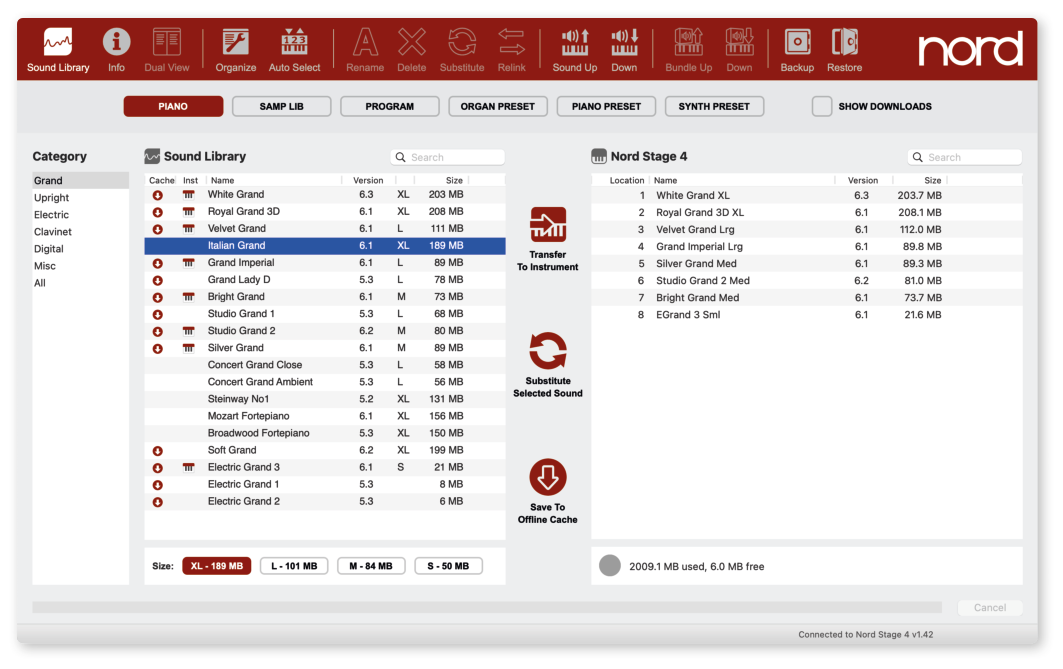
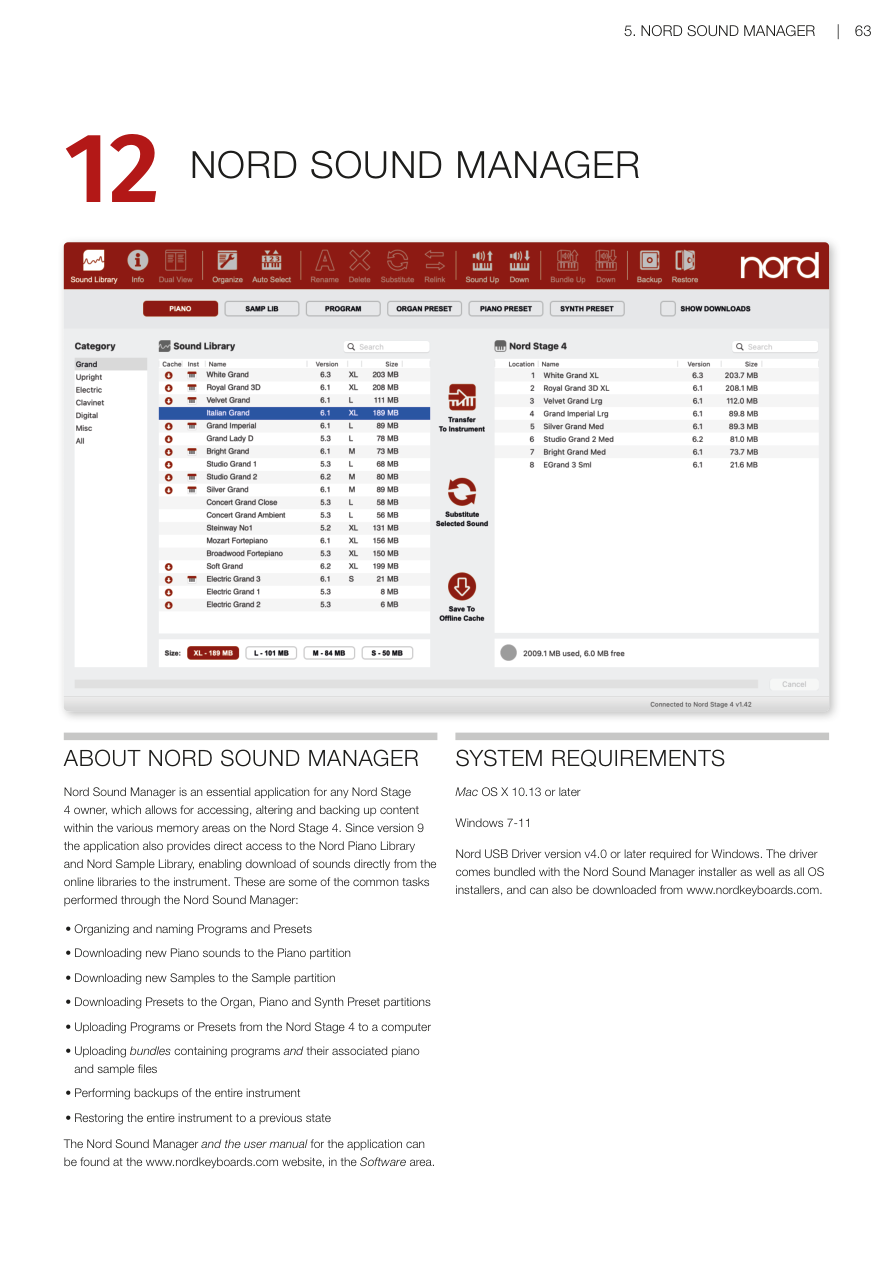
關於 Nord Sound Manager / ABOUT NORD SOUND MANAGER
Nord Sound Manager 是每位 Nord Stage 4 用戶的必備應用程式,讓你可以存取、修改和備份 Nord Stage 4 各個記憶體區域中的內容。從版本 9 起,這個應用程式還直接提供 Nord Piano Library(鋼琴音色庫)和 Nord Sample Library(樣本音色庫)的存取功能,讓你可以直接從線上音色庫下載音色到樂器。
Nord Sound Manager is an essential application for any Nord Stage 4 owner, which allows for accessing, altering and backing up content within the various memory areas on the Nord Stage 4. Since version 9 the application also provides direct access to the Nord Piano Library and Nord Sample Library, enabling download of sounds directly from the online libraries to the instrument.
以下是透過 Nord Sound Manager 執行的一些常見任務:
These are some of the common tasks performed through the Nord Sound Manager:
- 整理和命名程式及預設音色 / Organizing and naming Programs and Presets
- 下載新鋼琴音色到鋼琴分區 / Downloading new Piano sounds to the Piano partition
- 下載新樣本到樣本分區 / Downloading new Samples to the Sample partition
- 下載預設音色到風琴、鋼琴和合成器預設音色分區 / Downloading Presets to the Organ, Piano and Synth Preset partitions
- 將程式或預設音色從 Nord Stage 4 上傳到電腦 / Uploading Programs or Presets from the Nord Stage 4 to a computer
- 上傳包含程式及其關聯鋼琴和樣本檔案的組合包 / Uploading bundles containing programs and their associated piano and sample files
- 備份整台樂器 / Performing backups of the entire instrument
- 將整台樂器恢復到之前的狀態 / Restoring the entire instrument to a previous state
Nord Sound Manager 及其使用手冊可在 www.nordkeyboards.com 網站的軟體區找到。
The Nord Sound Manager and the user manual for the application can be found at the www.nordkeyboards.com website, in the Software area.
系統需求 / SYSTEM REQUIREMENTS
- Mac:OS X 10.13 或更新版本
- Windows:Windows 7–11
💡 Windows 用戶需要 Nord USB Driver 版本 v4.0 或更新版本。驅動程式已隨 Nord Sound Manager 安裝程式及所有 OS 安裝程式一起提供,也可從 www.nordkeyboards.com 單獨下載。
第十三章:Nord Sample Editor 4 / Chapter 13: Nord Sample Editor 4
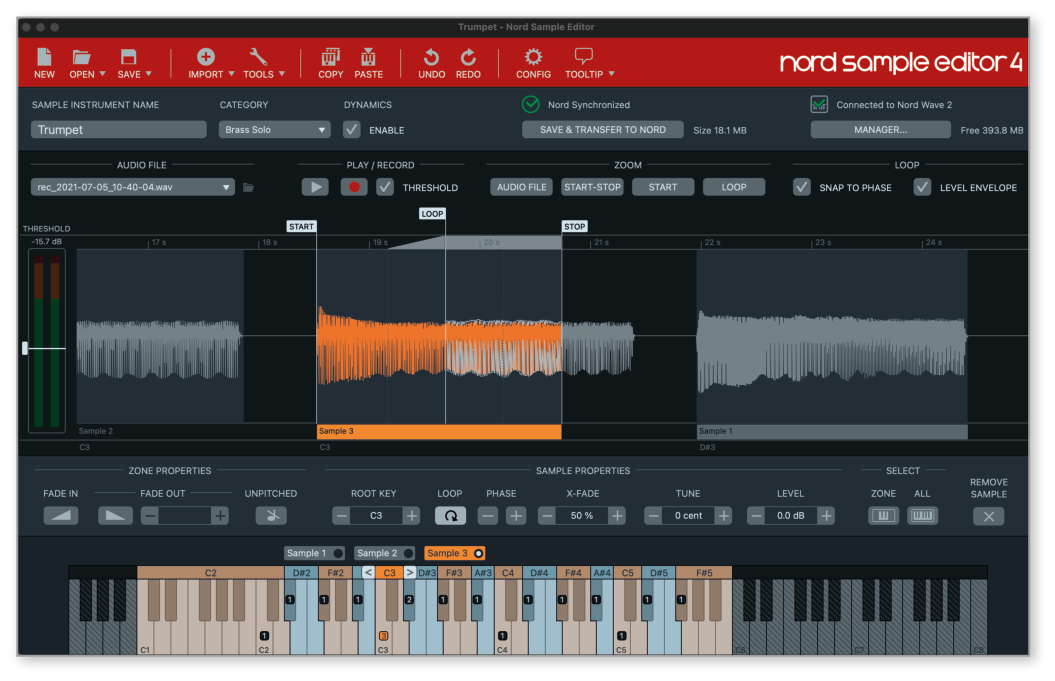
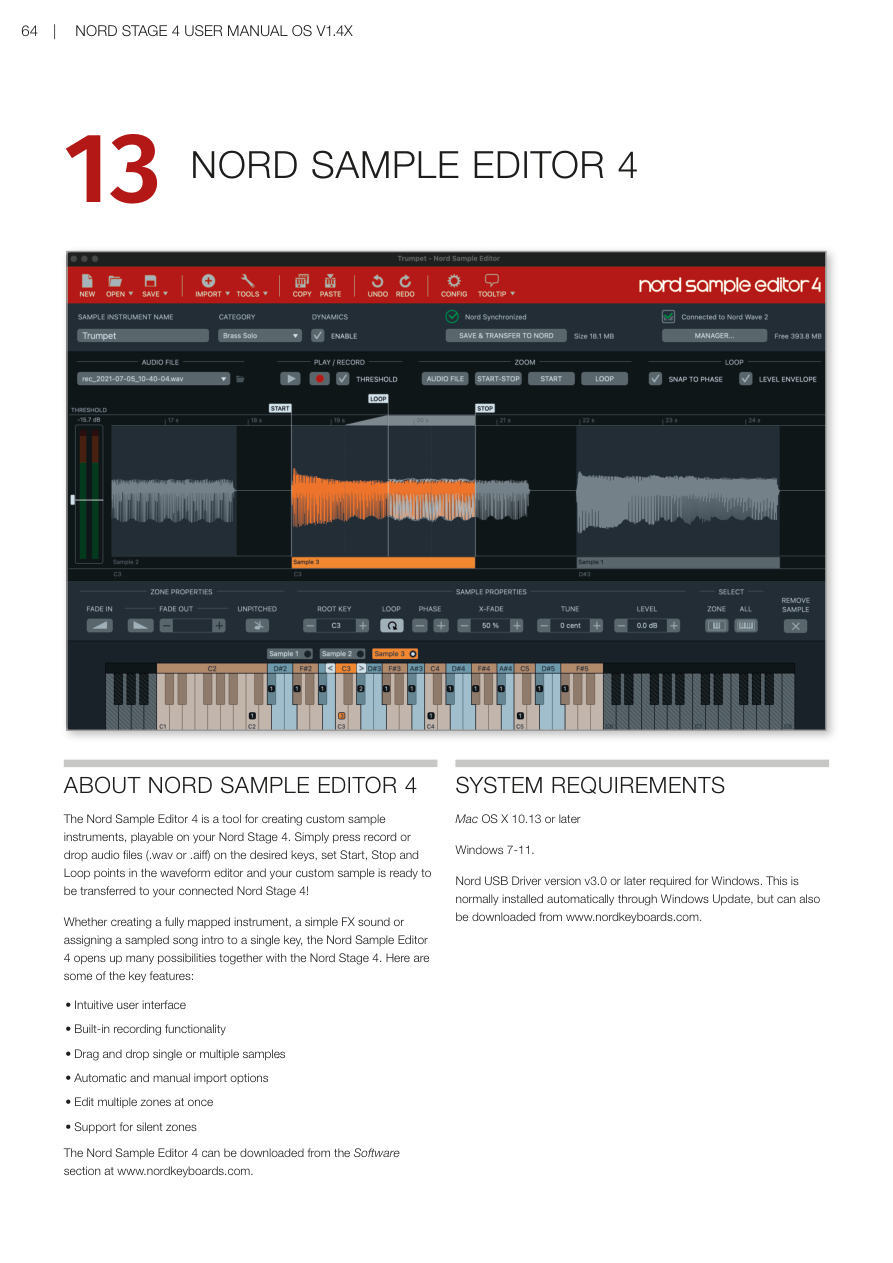
關於 Nord Sample Editor 4 / ABOUT NORD SAMPLE EDITOR 4
Nord Sample Editor 4 是一個用於為 Nord Stage 4 建立自訂樣本樂器的工具。只需按下錄音按鈕,或將音頻檔案(.wav 或 .aiff 格式)拖放到所需琴鍵上,在波形編輯器中設定開始點、結束點和循環點,你的自訂樣本就可以傳輸到連接的 Nord Stage 4 了!
The Nord Sample Editor 4 is a tool for creating custom sample instruments, playable on your Nord Stage 4. Simply press record or drop audio files (.wav or .aiff) on the desired keys, set Start, Stop and Loop points in the waveform editor and your custom sample is ready to be transferred to your connected Nord Stage 4!
無論是建立完整對應的樂器、簡單的音效,還是將取樣的歌曲前奏指定到單一琴鍵,Nord Sample Editor 4 與 Nord Stage 4 結合後開創了無限可能。以下是一些主要功能:
Whether creating a fully mapped instrument, a simple FX sound or assigning a sampled song intro to a single key, the Nord Sample Editor 4 opens up many possibilities together with the Nord Stage 4. Here are some of the key features:
- 直觀的用戶界面 / Intuitive user interface
- 內建錄音功能 / Built-in recording functionality
- 拖放單個或多個樣本 / Drag and drop single or multiple samples
- 自動和手動匯入選項 / Automatic and manual import options
- 一次編輯多個分區 / Edit multiple zones at once
- 支援靜音分區 / Support for silent zones
Nord Sample Editor 4 可從 www.nordkeyboards.com 的軟體區下載。
The Nord Sample Editor 4 can be downloaded from the Software section at www.nordkeyboards.com.
系統需求 / SYSTEM REQUIREMENTS
- Mac:OS X 10.13 或更新版本
- Windows:Windows 7–11
💡 Windows 用戶需要 Nord USB Driver 版本 v3.0 或更新版本。驅動程式通常透過 Windows Update 自動安裝,也可從 www.nordkeyboards.com 單獨下載。
附錄 / Appendix

附錄 I:連接埠 / APPENDIX I: CONNECTIONS
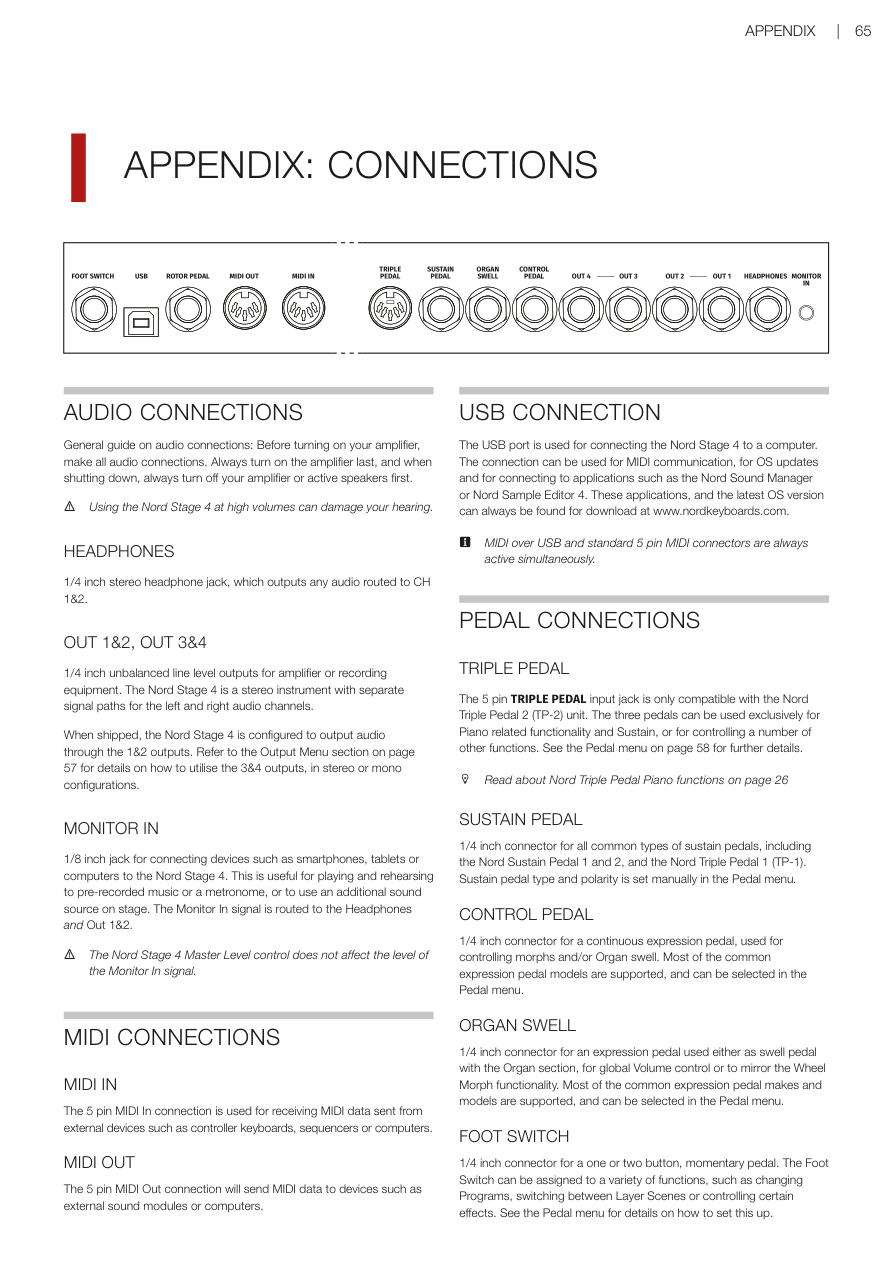
音頻連接 / AUDIO CONNECTIONS
⚠️ 音頻連接的一般指南:開啟擴大機前,先完成所有音頻連接。最後開啟擴大機;關機時,先關閉擴大機或主動喇叭。在高音量下使用 Nord Stage 4 可能損傷您的聽力。
General guide on audio connections: Before turning on your amplifier, make all audio connections. Always turn on the amplifier last, and when shutting down, always turn off your amplifier or active speakers first. Using the Nord Stage 4 at high volumes can damage your hearing.
耳機(HEADPHONES):1/4 吋立體聲耳機插孔,輸出路由到 CH 1&2 的所有音頻。
1/4 inch stereo headphone jack, which outputs any audio routed to CH 1&2.
OUT 1&2、OUT 3&4:1/4 吋非平衡線路輸出,用於擴大機或錄音設備。Nord Stage 4 是立體聲樂器,左右音頻頻道有獨立的訊號路徑。
1/4 inch unbalanced line level outputs for amplifier or recording equipment. The Nord Stage 4 is a stereo instrument with separate signal paths for the left and right audio channels.
出廠時,Nord Stage 4 設定為透過 1&2 輸出音頻。關於如何使用 3&4 輸出(立體聲或單聲道配置),請參閱第 57 頁的輸出選單章節。
When shipped, the Nord Stage 4 is configured to output audio through the 1&2 outputs. Refer to the Output Menu section on page 57 for details on how to utilise the 3&4 outputs.
監聽輸入(MONITOR IN):1/8 吋插孔,用於連接智慧型手機、平板電腦或電腦。適合隨預錄音樂或節拍器練習,或在台上使用額外音源。監聽輸入訊號路由到耳機和 Out 1&2。
1/8 inch jack for connecting devices such as smartphones, tablets or computers. The Monitor In signal is routed to the Headphones and Out 1&2.
⚠️ Nord Stage 4 主音量控制不影響監聽輸入訊號的音量。
MIDI 連接 / MIDI CONNECTIONS
MIDI IN:5 針 MIDI 輸入連接埠,用於接收從外部裝置(如控制器鍵盤、音序器或電腦)發送的 MIDI 資料。
The 5 pin MIDI In connection is used for receiving MIDI data sent from external devices such as controller keyboards, sequencers or computers.
MIDI OUT:5 針 MIDI 輸出連接埠,向外部音源模組或電腦等裝置發送 MIDI 資料。
The 5 pin MIDI Out connection will send MIDI data to devices such as external sound modules or computers.
USB 連接 / USB CONNECTION
USB 連接埠用於將 Nord Stage 4 連接到電腦,可用於 MIDI 通訊、作業系統更新,以及連接 Nord Sound Manager 或 Nord Sample Editor 4 等應用程式。
The USB port is used for connecting the Nord Stage 4 to a computer. The connection can be used for MIDI communication, for OS updates and for connecting to applications such as the Nord Sound Manager or Nord Sample Editor 4.
💡 USB MIDI 和標準 5 針 MIDI 連接器始終同時活躍。
MIDI over USB and standard 5 pin MIDI connectors are always active simultaneously.
踏板連接 / PEDAL CONNECTIONS
三踏板(TRIPLE PEDAL):5 針三踏板輸入插孔,僅相容 Nord Triple Pedal 2(TP-2)裝置。三個踏板可以專用於鋼琴相關功能和延音,或用於控制多種其他功能。詳見第 58 頁的踏板選單。
The 5 pin TRIPLE PEDAL input jack is only compatible with the Nord Triple Pedal 2 (TP-2) unit.
延音踏板(SUSTAIN PEDAL):1/4 吋連接埠,適用於所有常見類型的延音踏板,包括 Nord Sustain Pedal 1 和 2,以及 Nord Triple Pedal 1(TP-1)。延音踏板類型和極性在踏板選單中手動設定。
1/4 inch connector for all common types of sustain pedals, including the Nord Sustain Pedal 1 and 2, and the Nord Triple Pedal 1 (TP-1).
控制踏板(CONTROL PEDAL):1/4 吋連接埠,用於連續表情踏板,用於控制 Morph 和/或風琴 Swell。大多數常見的表情踏板型號都受支援,可在踏板選單中選擇。
1/4 inch connector for a continuous expression pedal, used for controlling morphs and/or Organ swell.
風琴 Swell 插孔(ORGAN SWELL):1/4 吋連接埠,用於表情踏板,可作為風琴區的 Swell 踏板、全域音量控制或鏡像調製輪 Morph 功能。
1/4 inch connector for an expression pedal used either as swell pedal with the Organ section, for global Volume control or to mirror the Wheel Morph functionality.
腳踏開關(FOOT SWITCH):1/4 吋連接埠,用於一個或兩個按鈕的瞬時踏板。腳踏開關可以指定多種功能,如切換程式、在音層場景之間切換或控制特定效果。
1/4 inch connector for a one or two button, momentary pedal, assignable to a variety of functions.
旋轉踏板(ROTOR PEDAL):1/4 吋連接埠,用於開關類型踏板,用於在旋轉喇叭效果的慢速/停止和快速轉子速度之間切換。踏板可以在保持(Hold)或切換(Toggle)模式下工作,在踏板選單中設定。
1/4 inch connector for a switch type pedal, used for switching between slow/stopped and fast rotor speed for the Rotary Speaker effect.
可選配的 Nord Half Moon Switch 也可連接到 Rotor Pedal 插孔,與 Nord Stage 4 Compact 型號相容。
The optional Nord Half Moon Switch, compatible with the Nord Stage 4 Compact model, is also attached to the Rotor Pedal jack.
附錄 II:MIDI 控制器列表 / APPENDIX II: MIDI CONTROLLER LIST
Nord Stage 4 同時實作使用每個參數一個控制器的 MIDI CC 訊息,以及基於 NRPN(Non-Registered Parameter Number——非注冊參數號碼,一種允許更多參數的擴展 MIDI 控制訊息)標準、每個參數使用多個控制器的訊息。
The Nord Stage 4 implements both MIDI CC messages using only one controller per parameter, as well as messages using multiple controllers per parameter based on the NRPN standard.
在下表中,使用一個或多個冒號書寫的參數使用 NRPN 進行 MIDI 資料傳輸。第一個數字對應 CC#99(NRPN MSB),第二個對應 CC#98(NRPN LSB)。參數值由 CC#38(Data Entry LSB)定義。除非另有說明,Data Entry MSB(CC#6)預期為 0。完整的 NRPN 封包由四個訊息組成:CC#99、CC#98、CC#6 和 CC#38。
In the table below, parameters written using one or more colons utilize NRPN for MIDI data transfer. The first number corresponds to CC#99 (NRPN MSB) and the second to CC#98 (NRPN LSB). A complete NRPN package consists of four messages: CC#99, CC#98, CC#6 and CC#38.
全域參數 / Global Parameters
| 參數 / Parameter | CC#/NRPN |
|---|---|
| Bank Select MSB | 0 |
| Bank Select LSB | 32 |
| Volume (Global) | 7 |
| Sustain Pedal | 64 |
| Sostenuto Pedal | 66 |
| Soft Pedal | 67 |
| Ctrl Pedal (Expression) | 11 |
| Layer Scene | 8 |
| Section FX Focus | 31 |
| Section Edit | 118 |
風琴參數 / Organ Parameters
| 參數 / Parameter | CC#/NRPN |
|---|---|
| Organ A Level | 13 |
| Organ B Level | 14 |
| Organ Section Enable Scene I | 9 |
| Organ Section Enable Scene II | 2 |
| Organ Layers Enable Scene I | 80 |
| Organ Layers Enable Scene II | 81 |
| Organ Layers Focus Scene I | 82 |
| Organ Layers Focus Scene II | 83 |
| Organ Octave Shift | 12 |
| Organ Model | 2:16 |
| Organ Preset | 16-24 |
| Organ Drawbar 1-9 | 16-24 |
| Organ Percussion Enable | 2:18 |
| Organ Vibrato Type | 2:19 |
| Organ Vibrato Enable | 2:20 |
| Organ Percussion Harmonic | 2:21 |
| Organ Percussion Speed | 2:22 |
| Organ Percussion Level | 2:23 |
鋼琴參數 / Piano Parameters
| 參數 / Parameter | CC#/NRPN |
|---|---|
| Piano A Level | 34 |
| Piano B Level | 63 |
| Piano Section Enable Scene I | 33 |
| Piano Section Enable Scene II | 3 |
| Piano Layers Enable Scene I | 72 |
| Piano Layers Enable Scene II | 88 |
| Piano Layers Focus Scene I | 109 |
| Piano Layers Focus Scene II | 112 |
| Piano Octave Shift | 35 |
| Piano Type/Model/Variation | 2:32-34 |
| Piano Unison | 2:40 |
| Piano Timbre | 2:41 |
| Piano Dyn Comp | 2:42 |
| Piano KB Touch | 2:43 |
| Piano Acoustics | 2:44 |
合成器參數 / Synth Parameters
| 參數 / Parameter | CC#/NRPN |
|---|---|
| Synth A Level | 43 |
| Synth B Level | 37 |
| Synth C Level | 39 |
| Synth A/B/C Pan | 40/41/36 |
| Synth Section Enable Scene I | 42 |
| Synth Section Enable Scene II | 5 |
| Synth Octave Shift | 44 |
| Synth Glide Rate | 48 |
| Synth Voice Mode | 3:16 |
| Synth Vibrato Mode | 3:19 |
| Synth Vibrato Amount | 45 |
| Synth Vibrato Rate | 46 |
| Synth Osc Ctrl | 56 |
| Synth Osc Pitch Course | 55 |
| Synth Osc Pitch Fine | 47 |
| Synth Filter Freq | 59 |
| Synth Filter Resonance | 60 |
| Synth Filter Type | 3:51 |
| Synth Filter Envelope Attack/Decay/Release | 49/50/51 |
| Synth Filter Envelope Amount | 73 |
| Synth Amp Envelope Attack/Decay/Release | 68/69/71 |
| Synth Arp/Gate Mode | 3:72 |
| Synth Arp/Gate Rate | 74 |
| Synth Arp/Gate Range | 76 |
| Synth Arp/Gate Run | 77 |
| Synth LFO Rate | 79 |
| Synth LFO Amount | 54 |
效果參數 / Effects Parameters
| 參數 / Parameter | CC#/NRPN |
|---|---|
| Mod 1 Enable | 2:64 |
| Mod 1 Type/Variation | 2:65 |
| Mod 1 Amount | 85 |
| Mod 1 Rate | 86 |
| Mod 2 Enable | 2:72 |
| Mod 2 Type/Variation | 2:73 |
| Mod 2 Amount | 89 |
| Mod 2 Rate | 90 |
| Delay Enable | 2:88 |
| Delay Dry Wet | 93 |
| Delay Tempo | 94 |
| Delay Feedback | 95 |
| Delay Global | 29 |
| Amp/EQ Enable | 2:80 |
| Amp/EQ Drive | 101 |
| Amp/EQ Bass/Mid/Treble | 102/103/104 |
| Amp/EQ Mid Frequency | 107 |
| Rotary Speed | 108 |
| Rotary Drive | 110 |
| Reverb Enable | 2:104 |
| Reverb Amount | 113 |
| Reverb Type/Variation | 2:105 |
| Reverb Global | 30 |
| Compressor Enable | 2:96 |
| Compressor Amount | 117 |
| Compressor Fast | 2:97 |
| Compressor Global | 28 |
附錄 III:索引 / APPENDIX III: INDEX
請參考原版手冊第 69-70 頁的完整英文索引。以下列出本翻譯中使用的主要中文術語對照:
For complete index, refer to pages 69-70 of the original manual. Below are the key Chinese term translations used throughout this manual:
| 英文 / English | 中文 / Chinese |
|---|---|
| Program | 程式 |
| Organ | 風琴 |
| Pipe Organ | 管風琴 |
| Piano | 鋼琴 |
| Synth / Synthesizer | 合成器 |
| Layer | 音層 |
| Preset | 預設音色 |
| Split | 分區 |
| Morph | 變形控制 |
| KB Zone / Keyboard Zone | 鍵盤分區 |
| Master Clock | 主時鐘 |
| Arpeggiator | 琶音器 |
| Transpose | 移調 |
| Live Mode | 即時模式 |
| Layer Scene | 音層場景 |
| Solo | 獨奏監聽 |
| Undo | 復原 |
| Section Edit | 區段編輯 |
| Rotary Speaker | 旋轉喇叭 |
| Drawbars | 音桿 |
| Compressor | 壓縮效果 |
| Reverb | 殘響效果 |
| Delay | 延遲效果 |
| Extern | 外部 MIDI 控制 |
| Aux KB | 輔助鍵盤 |
| Aftertouch | 後觸鍵 |
| Velocity | 力度 |
| LFO | 低頻振盪器 |
| Filter | 濾波器 |
| Envelope | 包絡 |
| Oscillator | 振盪器 |
| Waveform | 波形 |
| Glide / Portamento | 滑音 |
| Unison | 同音疊加 |
| Vibrato | 顫音 |
| Tremolo | 音量顫音 |
| Chorus | 合唱效果 |
| Phaser | 移相器 |
| Flanger | 鑲邊效果 |
| Ring Modulation | 環形調製 |